
The table you need is a screenshot in a ticket, a grid in a supplier’s PDF or a dashboard you can only look at. Excel doesn’t read your screen, so the question is how to get those rows into it as cells rather than as one long column of text. This page covers Excel’s own picture import, pasting a captured table, and the conversions Excel applies on the way in.
Excel for Microsoft 365 can read a picture of a table with Data → From Picture, online and for a limited set of languages. For a table anywhere on screen or in any PDF, capture it with an OCR tool that copies tab-separated cells, click a cell and press ⌘V. Then check codes with leading zeros, numbers longer than 15 digits and anything that looks like a date.
Excel’s own route: Data From Picture
Excel for Microsoft 365 on the Mac can turn a picture into cells:
- For a file, choose Data → From Picture → Picture From File.
- For something on screen, copy a screenshot with ⌃⇧⌘4, then choose Data → From Picture → Picture From Clipboard.
- Review the result, correct anything it misread, and click Insert Data.
As of October 2026, Microsoft lists it for Excel for Microsoft 365 only. It supports 21 languages, including English, French, German and Spanish but not Chinese, Japanese, Greek or Russian. And it runs as a connected experience, so the picture is analysed online. It’s a good fit for a quick public table when you already pay for Microsoft 365. It’s a poor fit for confidential figures, for Excel 2021 or 2024, and for tables in the languages it doesn’t read. Image to Excel on Mac goes through it in more detail, along with online converters.
Paste a captured table as cells
Excel splits pasted text into columns wherever it finds a tab, and it reads an HTML table on the clipboard as cells. So any capture that puts a real table on the clipboard pastes cleanly:
- Capture the table, header row included, and nothing else.
- In Excel, click the cell where the top-left value should go. Pasting overwrites whatever is below and to the right of it, so start in an empty area.
- Press ⌘V.
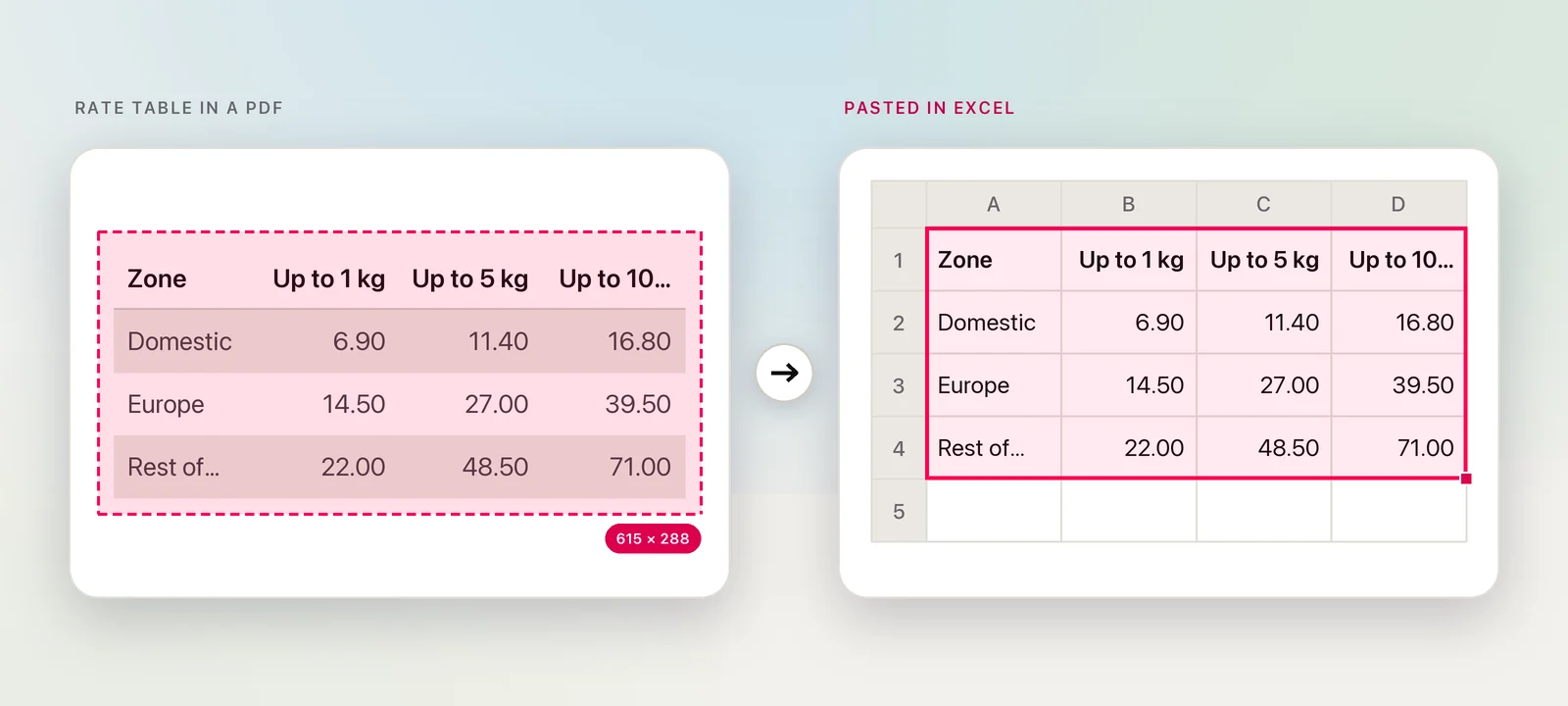
What lands is values only: no fonts, shading or borders from the source. The header row is an ordinary first row, too. To make it look and behave like a table, select the range, choose Home → Format as Table, pick a style and confirm that the table has headers. That adds filter buttons and banded rows in one step.
A title above the table or a source line below it can come along as a single cell in its own row. Delete it, or keep it as a note of where the data came from.
Codes, IDs and long numbers
Excel converts pasted values into numbers and dates wherever it can. That’s helpful for prices and quantities, and destructive for anything that only looks like a number:
- Leading zeros vanish. A part number 00742 becomes 742.
- Long numbers lose digits. Excel keeps 15 digits of precision, so a 16-digit card or account number has its last digit turned into a zero.
- Dates appear from nowhere. Entries such as 3-4 or 1/2 can become dates.
Microsoft’s advice for typed entries is to format the cells as Text first (⌘1, then Text on the Number tab) or to start an entry with an apostrophe. With pasted tables, check those columns against the source straight away, before any formulas depend on them. If a column has changed, re-enter the affected values into cells formatted as Text; formatting a converted cell afterwards won’t bring the lost characters back.
Fix a paste that lands in one column
If every row ends up in column A, the clipboard held lines of text rather than a table. That happens with a plain copy from a PDF, with Live Text, and with a capture that was read as text. You can split it in place:
- Select column A and choose Data → Text to Columns.
- Choose Delimited, tick the separator (often Space, with Treat consecutive delimiters as one) and click Next.
- In the last step, click any column of codes and set it to Text so its zeros survive. Click Finish.
Values with spaces in them, like “Rest of world”, split into several cells, so expect some hand repair. Splitting pasted text into columns covers fixed-width text and formulas such as TEXTSPLIT.
In Unpixel
Unpixel recognizes tables on your Mac with Apple’s Vision framework and puts them on the clipboard as an HTML table and as tab-separated text, which Excel pastes as cells in any version. Press ⇧⌘2, drag over the table and let go; the confirmation says “Table copied” with its shape, such as “4 rows × 4 columns”.
- Long PDFs. Open Image… reads up to 50 pages of a PDF in one go, so you don’t have to capture a long statement page by page. Tables from different pages come through one after another, separated by an empty row; a page that’s mostly prose comes through as text.
- Got text instead of cells? Select only the table, without the paragraphs around it, and check that Detect tables is on in Settings → Recognition.
- Translated tables. Hold ⌥ as you let go to translate a table cell by cell. It still pastes as cells, and numbers and prices stay exactly as they were.
- Nothing leaves your Mac, which matters for the payroll export or the client’s figures that Data From Picture would analyse online.
Frequently asked questions
Does pasting a captured table work in Excel 2021 or 2024?
Yes. Tab-separated cells on the clipboard paste into any version of Excel for Mac. Only Data From Picture is tied to Excel for Microsoft 365.
Why do my pasted numbers sit on the left of their cells?
Excel is storing them as text, often because of a stray space, a currency symbol or a separator it didn’t expect. Select them, click the warning icon and choose Convert to Number.
Can I get a lost leading zero back by changing the format?
Only by retyping it or applying a custom number format with a fixed number of digits. Once Excel has stored 00742 as the number 742, formatting the cell as Text shows 742.
Sources
- Insert data from picture — Microsoft Support support.microsoft.com
- Connected experiences in Microsoft 365 — Microsoft Learn learn.microsoft.com
- Stop automatically changing numbers to dates — Microsoft Support support.microsoft.com
- Excel specifications and limits — Microsoft Support support.microsoft.com
- Split text into different columns with the Convert Text to Columns Wizard — Microsoft Support support.microsoft.com