Design work runs on other people’s words: a competitor’s onboarding screen pasted onto the canvas, a client’s marked-up PDF, a prototype someone shared as a link. Retyping that copy is slow, and it’s where typos get into a mockup. This page shows how to move text from each of those into Figma text layers on a Mac, and where Figma’s own tools already do the job.
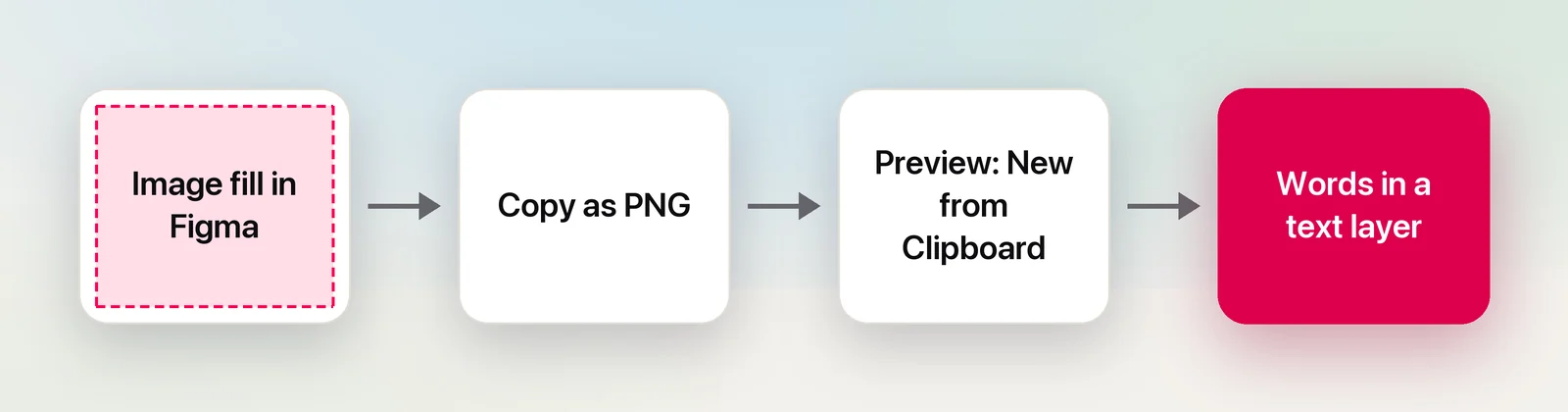
Figma keeps a pasted screenshot as an image fill, so its words can’t be selected. Right-click the image, choose Copy as PNG, then in Preview choose File → New from Clipboard and copy the words with Live Text. Back in Figma, press T, click the canvas and paste. For text that isn’t in your file, such as a prototype link, capture it from the screen.
Text that’s already a layer
Check first whether you need recognition at all. If the words you want are a text layer in a file you can open, double-click the layer, press ⌘A and ⌘C. That’s exact, and it keeps every character, including non-breaking spaces and curly quotes.
With view-only access, whether you can copy depends on the file. Figma’s share settings have an Allow viewers to copy, share, and export option under Advanced, on paid plans. If the owner has turned it off, a capture tool can still read your screen, but the setting tells you what the owner wants. Ask for the strings or for edit access instead.
Reference screenshots on the canvas
Figma doesn’t have a separate layer type for images. A pasted screenshot becomes a rectangle with the picture as its fill, so the words in it are pixels. The free way to get them out:
- Right-click the image on the canvas and choose Copy as PNG (⇧⌘C). Figma copies it at 2× by default, which helps with small print.
- Open Preview and choose File → New from Clipboard.
- Drag across the words with Live Text and press ⌘C.
- In Figma, press T. Click the canvas for an Auto width layer that grows as you type, which suits labels and buttons. Or drag a box for a Fixed size layer that wraps, which suits paragraphs.
- Paste.
The pasted text takes the style of the layer, not the source, so set your type styles first and paste into them. Then check the punctuation: recognition can turn curly quotes straight, read an ellipsis as three periods or drop a non-breaking space.
Prototypes and shared links
When you play a prototype, you click through it like an app, so there’s nothing to select. A prototype-only link is designed to show the flow “without giving access to the full design file”, in Figma’s words. The same goes for a design review on someone else’s screen in a video call.
You have two options:
- Ask for the file. For more than a handful of strings, edit or view access to the design file is quicker and exact.
- Read the screen. Copy a screenshot with ⌃⇧⌘4 and open it in Preview with File → New from Clipboard, or capture the text directly with an OCR tool.
Client feedback in PDFs
Open the PDF in Preview and try Tools → Text Selection first: a PDF exported from a design or office app often still contains real text, and a plain copy is exact. If nothing selects, the comments were flattened or scanned, and Live Text in Preview reads them page by page. For marked-up screenshots and turning comments into a checklist, see OCR for designers.
Outlined text
Figma converts text to vector paths in two ways: Flatten (⌥⇧F), which merges the selection into one vector, and Outline stroke (⌥⌘O), which makes one vector per glyph. Figma calls both destructive: you can no longer edit the text contents. If it happened in your file, undo or open the version history and restore the version before.
If you received a file that’s already outlined, read the shapes with OCR to get the words, then identify the typeface separately. Copying outlined or flattened text walks through rebuilding the layer. In your own files, duplicate the text layer and hide the copy before you outline anything for export.
Measure while you capture
Figma measures layers for you: select one and hold ⌥ while you point at another to see the distance. That doesn’t help with things that aren’t layers, like a competitor’s site in your browser or an app running on your Mac.
For those, macOS’s own screenshot crosshair helps: press ⇧⌘4, drag over the element and read the width and height next to the pointer, then press Esc to cancel without saving anything. Two details make the numbers line up with Figma:
- Zoom Figma to 100% (⇧0) before you compare. At 100%, one Figma pixel is one point on screen.
- Check pasted Retina screenshots. A Retina screenshot has two pixels per point, and Figma often places a pasted image at its pixel size. If it comes in at twice the size, scale it to 50% and it matches your frames.
In Unpixel
Unpixel reads any of these from the screen, without the trip through Preview. Press ⇧⌘2, drag over the words on the canvas, in a prototype or in a shared screen, and let go. Then click into a text layer and paste.
- The size label. While you drag, a label follows the selection with its size in points, such as “188 × 40”. Hold Space to move the selection without resizing it; Esc cancels without copying.
- Line breaks. Keep Keep line breaks on for labels and lists. Turn it off for paragraphs, so the text reflows inside a fixed-size layer instead of keeping the source’s line ends.
- Length tests. Hold ⌥ as you let go to copy a translation into the language set in Settings → Translation. It’s a quick way to see whether a button label still fits in German. Use it for layout checks, not as final copy.
- Spec tables. A table in a spec image pastes as cells into Numbers or Google Sheets, which suits content inventories better than a text layer.
Frequently asked questions
Can Figma turn the text in an image into a text layer?
Figma treats images as fills on a shape, so the words in a screenshot aren’t text it can edit. Recognize them outside Figma, with Live Text or an OCR tool, and paste them into a text layer. OCR plugins exist too; check where they process images before using one on client work.
Why is my pasted Retina screenshot twice as big in Figma?
A Retina screenshot has two pixels per point, and Figma often places a pasted image at its pixel size, so it can arrive at twice its on-screen size. Results vary with the capture tool. Scale it to 50% to match your frames.
Can I get the text back after flattening it?
Not as editable text from the vector itself. Undo, or restore an earlier version from the file’s version history. If neither is possible, read the shapes with OCR and set the text again.
Sources
- Copy and paste objects — Figma Learn help.figma.com
- Guide to text in Figma Design — Figma Learn help.figma.com
- Convert text to vector paths — Figma Learn help.figma.com
- Share files and prototypes — Figma Learn help.figma.com
- Interact with text in a photo using Live Text in Preview on Mac — Apple Support support.apple.com