
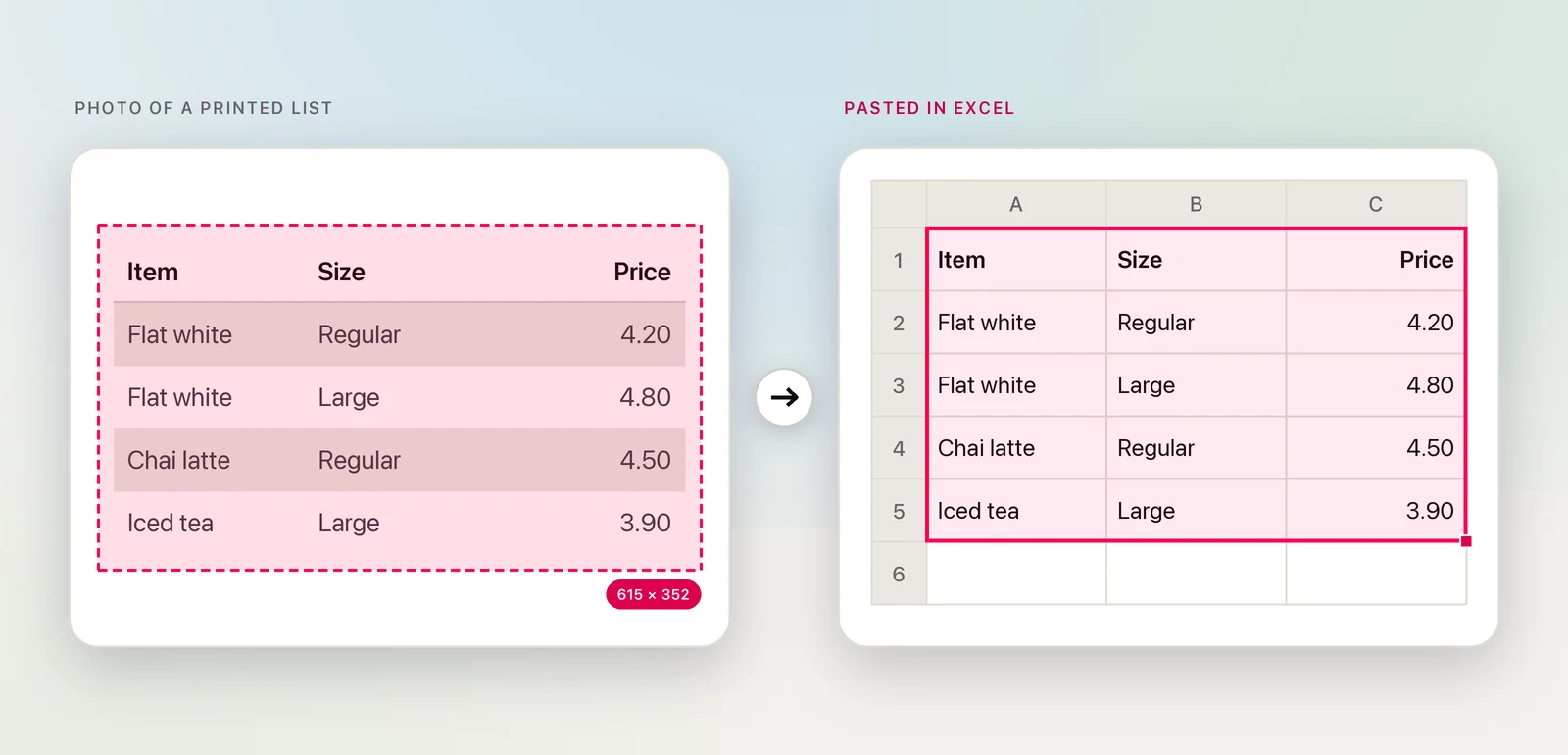
Someone sends you a table as a screenshot, or you photograph a printed price list, and now it needs to be in Excel. Retyping is fine for five rows. For anything longer, let text recognition do the typing and spend your time on checking instead.
In Excel for Microsoft 365, choose Data → Data From Picture, pick Picture From File or Picture From Clipboard, review the result and click Insert Data. Microsoft reads the picture online and supports a limited set of languages. To keep the image on your Mac, use a tool that recognizes tables on-device and pastes them into Excel as real cells.
Excel’s Data From Picture
Excel for Microsoft 365 on the Mac has its own picture import. Microsoft documents three ways in:
- A file: choose Data → Data From Picture → Picture From File and pick the image.
- A screenshot: take a screenshot of the table, then choose Data → Data From Picture → Picture From Clipboard.
- Your iPhone: right-click a cell and choose Scan Documents to photograph a page with an iPhone set up for Continuity Camera.
Excel then analyses the image and shows its result. Review it, correct anything it got wrong, and click Insert Data.
Know the limits before you rely on it (as of October 2026, per Microsoft’s documentation):
- It’s a Microsoft 365 feature. Microsoft lists it for Excel for Microsoft 365, not for one-time-purchase versions such as Excel 2021 or 2024.
- Languages are limited. Microsoft lists 21 languages, from English, French and German to Polish, Croatian and Turkish. Chinese, Japanese, Korean, Greek and Russian aren’t on the list.
- It works online. Microsoft lists “Insert data from picture” among its connected experiences that analyze your content. You need an internet connection, and an organization that turns those experiences off also turns this off.
For a public price list, none of that matters much. For a payslip or a client’s figures, think about where the picture goes.
Online converters: what you upload
Search for “image to Excel” and you’ll find plenty of free converter websites. They’re quick for a one-off, but every one of them works by uploading your image to someone else’s server. Before you use one, check three things: what the privacy policy says about keeping uploaded files, whether there’s a size or page limit, and whether the result downloads as .xlsx or only as a preview. If the table contains anything personal, an on-device method is the safer habit.
On-device: capture the table
macOS can already read text in pictures. Open the image in Preview, drag across the words, Control-click and choose Copy Text. That’s Live Text, and it reads well. But it copies lines of text, not cells, so the paste lands in a single column of Excel. That’s fine for a list. For a table, you then have to split the text into columns yourself.
In Unpixel
Unpixel recognizes the table itself, on your Mac, with Apple’s Vision framework, and puts real cells on the clipboard:
- Show the picture on screen: in Preview, Mail, Messages, a browser or a chat app.
- Press ⇧⌘2 and drag over the table, header row included.
- Click the first cell in Excel and press ⌘V.

If the picture is already on your clipboard, choose From Clipboard in Unpixel’s menu bar panel instead of dragging. For a saved file, use Open Image… or drop the file on the menu bar icon. The image isn’t uploaded anywhere, and recognition covers about 30 languages.
Screenshots vs photos of paper
A screenshot is the easy case: sharp, straight and high-contrast. Zoom in on screen before you capture if the text is small, and crop out menus and toolbars so the table is the only thing in view.
A photo of paper needs more care:
- Shoot straight on. An angle turns the columns into a fan, which confuses any recognizer. Fill the frame with the table.
- Use even light. Your phone’s shadow across one corner can wipe out a column of digits.
- Straighten it afterwards. In Photos, click Edit, then Crop, and drag the Straighten, Vertical and Horizontal sliders until the rows are level.
- Flatten the page. Text curving into a book’s spine is the hardest case of all.
For multi-page printed documents, it’s often easier to scan them to text first.
When the structure goes wrong
Recognition errors come in two kinds: wrong characters and wrong structure. Characters are easy to spot. Structure problems look like this:
| What you see | Likely cause | What to do |
|---|---|---|
| Two columns merged into one | Little space between the columns | Capture again at a larger size, or split that column afterwards |
| One row split across two | A cell wraps onto two lines | Join the halves, then delete the extra row |
| A header cell with an empty one beside it | A heading spans several columns | Fill the empty header or rename the columns |
| Everything in one column | The text was copied as lines, not as a table | Select only the table and capture again |
In Unpixel, a selection that holds mostly prose with a small table in it is copied as text, on purpose. Select just the table to get cells.
Clean up in Excel
Once the cells are in, a quick pass catches most problems:
- Numbers on the left of their cells are stored as text. Select them, click the warning icon and choose Convert to Number.
- Look-alike characters sneak into numbers: the letter O for zero, a lowercase l for 1, S for 5. A letter in a number column always means a misread.
- Totals: if the picture shows a total, add up the column and compare.
- Dates and currencies may need converting to match your Mac’s region settings.
Cleaning up pasted table data covers each of these in detail, including dates that won’t sort and invisible spaces.
Frequently asked questions
Can I turn a picture into an Excel table without Microsoft 365?
Yes. Data From Picture is part of Excel for Microsoft 365, but any tool that puts tab-separated text on the clipboard works with every version of Excel, and with Numbers and Google Sheets too.
Which kind of image converts best?
A sharp, straight-on image in which the table fills most of the frame. Crop away everything that isn’t the table, and enlarge small print on screen before you capture it.
Does it work with tables in other languages?
Microsoft lists 21 languages for Data From Picture, mostly European ones such as French, German and Polish; Chinese, Japanese, Korean and Russian aren’t among them. Unpixel uses Apple’s Vision framework, which reads about 30 languages, including Chinese, Japanese, Korean and Russian.
Sources
- Insert data from picture — Microsoft Support support.microsoft.com
- Connected experiences in Microsoft 365 — Microsoft Learn learn.microsoft.com
- Interact with text in a photo using Live Text in Preview on Mac — Apple Support support.apple.com
- Crop, extend, reframe, and straighten photos and videos on Mac — Apple Support support.apple.com