A teammate shares their screen and the line you need is right there: a staging URL, an error message, a command to run. You click it and nothing happens, because what you’re looking at is a video of their screen, not the screen itself. Here are the ways around that, from the most polite to the fastest.
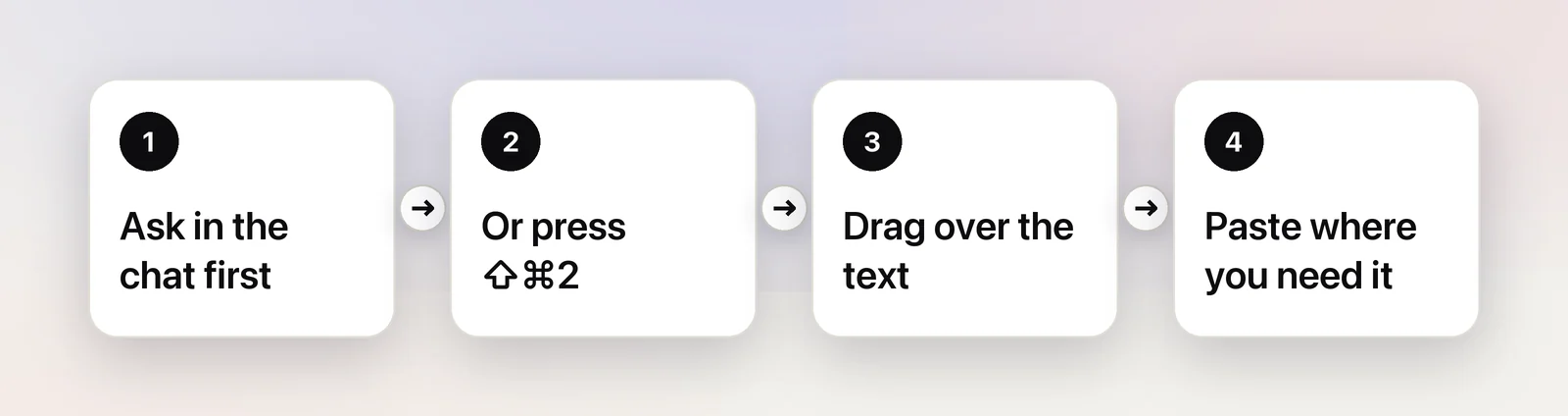
A shared screen reaches you as video, so the text can’t be selected. The simplest fix is to ask the presenter to paste it into the meeting chat. Otherwise, press ⌃⇧⌘4 to copy a screenshot of that area and read it with Live Text in Preview, or press ⇧⌘2 with Unpixel and drag over it without leaving the call.
The easy fix: ask for it in the chat
“Could you paste that link in the chat?” takes five seconds, and you get the exact text with no chance of a typo. Everyone else in the call gets it too, which often saves three other people the same trouble.
It isn’t always the right move. The presenter may be mid-sentence, the meeting may be large, or you may need a dozen small things over an hour. That’s when it helps to copy the text yourself.
The built-in way: screenshot, then Live Text
macOS can read text in a screenshot with Live Text. The meeting app doesn’t need to support anything, so this works in Zoom, Microsoft Teams, Google Meet in a browser, FaceTime, Webex and the rest.
- Press ⌃⇧⌘4 and drag over the shared text. Holding Control copies the screenshot to the clipboard instead of saving a file.
- Switch to Preview and choose File → New from Clipboard.
- Drag across the words you want. If the pointer doesn’t become a text cursor, choose Tools → Text Selection.
- Press ⌘C, then close the Preview window without saving.
The screenshot freezes the moment, which helps when the presenter scrolls away. The downside is the detour: while you’re in Preview, the meeting carries on without you. Live Text also recognizes links, phone numbers and email addresses, and offers actions for them from a small arrow that appears next to each one.
Copy without leaving the call
In Unpixel
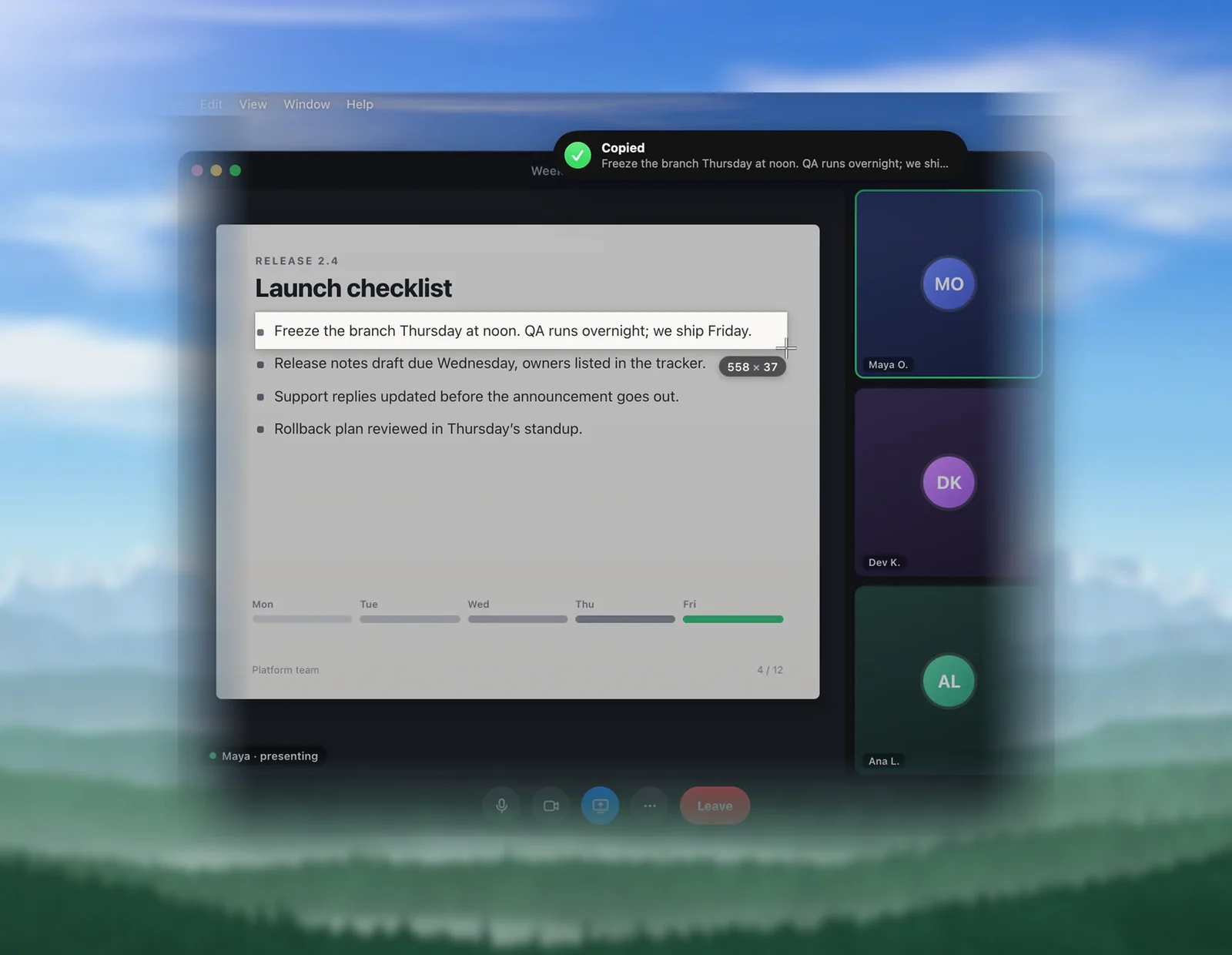
Unpixel reads text straight off the shared screen while the meeting window stays in front.
- Press ⇧⌘2. The screen dims slightly and the pointer turns into a crosshair.
- Drag over the text in the shared screen and let go.
- A small “Copied” confirmation shows what was read. Paste it into your notes, a terminal or a browser.
It works the same in any meeting app, in the desktop version or in a browser tab. Recognition happens on your Mac with Apple’s Vision framework, so nothing from the meeting leaves the Mac, which matters when the slide is confidential.
A few extras are useful in meetings. When the presenter moves to the next slide, press ⇧⌘1 (Capture Again) and Unpixel reads the same area again, with no new drag. If the shared slide is in another language, hold ⌥ as you let go and the clipboard gets a translation into your language. If someone shares a spreadsheet, a captured table pastes into Numbers or Excel as real cells instead of a run of words.
Make the shared screen sharper before you capture
Every method above reads what’s on your display, so a bigger, cleaner share means fewer mistakes.
- Give the share more room. Make the meeting window full screen and hide the strip of participant videos. In Zoom, side-by-side mode puts the share next to the speakers, and you can drag the divider to make the shared screen larger (per Zoom’s help center, as of October 2026).
- Wait a beat. Screen-share video often looks soft for a moment after a slide change or a scroll, then sharpens once the picture is still.
- Ask the presenter to zoom in. ⌘+ in a browser or code editor makes text larger for everyone. Sharing one window instead of a whole large display helps too.
- Watch for the cursor. The presenter’s pointer often sits right on the word you need. Wait for it to move.
One case no method can help with: a Microsoft Teams organizer with Teams Premium can turn on Prevent screen capture for a meeting. As of October 2026, Microsoft lists the Teams app for macOS as unsupported for that option, so on a Mac you join such a meeting audio-only and never see the shared screen. If that happens, ask for the material by chat or email.
Links and QR codes on shared slides
A URL on a slide is plain text once you’ve copied it, so you can paste it into your browser. Read it before you press Return: one misread character can send you to a different site.
QR codes are easier. Unpixel reads a QR code or barcode in your selection and copies its contents, usually a link, instead of trying to read the pattern as text. A captured address also lands under Links in the history, where Open Link opens it later. Opening QR links automatically is a setting you can turn on, but it’s safer to look at the link first.
Be a good meeting citizen
Copying text from a share is normal, but a little care goes a long way.
- Ask before copying anything sensitive, such as customer data, contracts or financial figures, especially in a meeting with people outside your company.
- Don’t copy secrets. If a password, API key or access token appears on screen, tell the presenter so they can rotate it, rather than saving it.
- Clean up afterwards. Captures you no longer need can be deleted from Unpixel’s history, one row at a time or with Clear History.
For app-specific details, such as where Zoom, Teams and Meet put their sharing controls, see our pages on using Unpixel with Zoom and with Microsoft Teams. If you’re the one presenting, what others can copy from your screen share is worth a read.
Frequently asked questions
Can the presenter tell that I copied text from their screen?
A screenshot, Live Text and Unpixel all work on your own Mac and send nothing to the meeting. Your organization’s rules about meeting content still apply, though.
Why is the shared text so blurry?
Meeting apps compress screen shares, and they can lower the quality further on a slow connection or when a large display is shared. Give the share more room on your side, wait a second after each change, or ask the presenter to zoom in.
Does this work with FaceTime screen sharing?
Yes. A FaceTime share is pixels on your screen like any other, so a screenshot with Live Text or a screen-capture app can read it.
Sources
- Side-by-side mode for screen sharing — Zoom Support support.zoom.com
- Interact with text in a photo using Live Text in Preview on Mac — Apple Support support.apple.com
- Take screenshots or screen recordings on Mac — Apple Support support.apple.com
- Prevent screen captures in Microsoft Teams meetings — Microsoft Support support.microsoft.com