
In a Zoom meeting, the slide, terminal or spreadsheet someone shares arrives on your Mac as a video stream. You can read it, but you can’t select a word of it. Zoom has a few controls that make that stream larger and sharper, and once the text is legible, getting it onto your clipboard takes one shortcut. This page covers the parts that are specific to Zoom; the method for any call app is in our guide to copying text from a screen share.
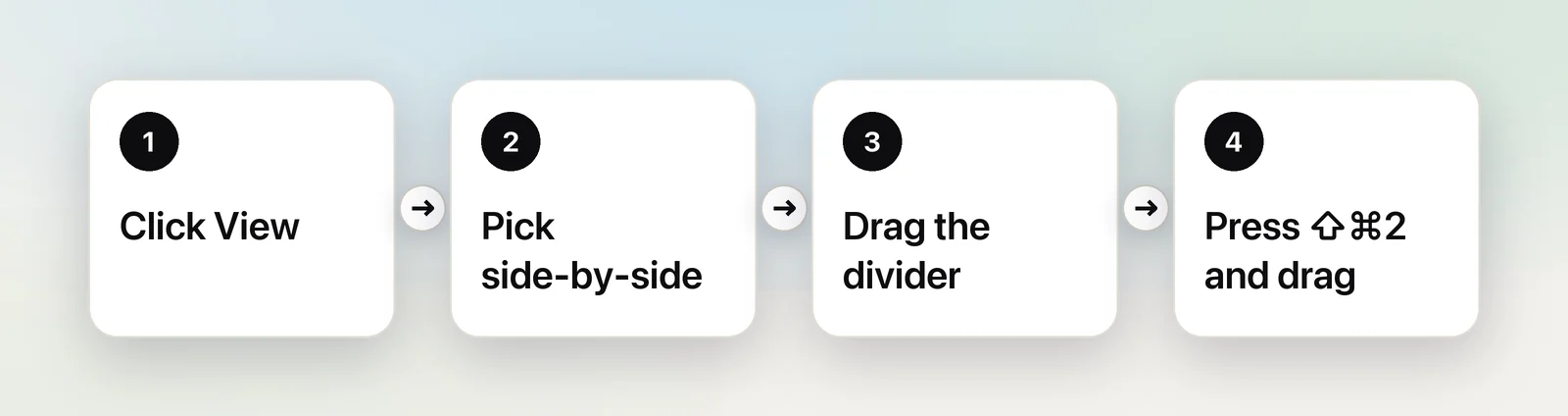
A Zoom screen share reaches your Mac as video, so its text can’t be selected. Give the share more room first: pick a side-by-side layout and drag the divider, or go full screen. Then press ⇧⌘2 in Unpixel and drag over the words, or copy a screenshot with ⌃⇧⌘4 and select the text with Live Text in Preview.
Make the shared screen bigger first
Text recognition reads the pixels on your display. A share squeezed into a corner beside a grid of faces gives it small, soft letters, and that’s where misread characters come from. Zoom Workplace on a Mac gives you a few ways to hand the share more space. The menu names below follow Zoom’s help center as of October 2026.
- While someone is sharing, click View in the top-right corner of the meeting window.
- Choose one of the Side-by-side layouts, such as Side-by-side: speaker. The share sits on one side and the videos on the other.
- Hover over the boundary between them until the pointer turns into a double arrow, then drag it towards the videos. The share grows as the video strip shrinks.
- For even more room, make the meeting window full screen with the green button in its top-left corner.
To start every share this way, click your profile picture, open Settings, choose Share screen and turn on See shared content in side-by-side mode. Zoom notes that side-by-side mode doesn’t work while its dual-monitors setting is on. Older versions of the app also put a View Options menu above the share. If yours still has one, a zoom ratio of 100% or more shows the content at full size, and you drag to see the rest.
If you have an external display, drag the meeting window onto it. A larger screen gives every letter more pixels, and the whole share fits without scrolling.
Copy text from the share
The free route is a screenshot read by Live Text. Press ⌃⇧⌘4 and drag over the text to copy a picture of it. In Preview, choose File → New from Clipboard, drag across the words and press ⌘C. It works, but you spend those seconds in Preview while the meeting carries on.
In Unpixel
Unpixel reads the share without taking you out of the meeting.
- Press ⇧⌘2. The screen dims slightly and the pointer becomes a crosshair.
- Drag over the text in the shared screen. If the presenter scrolls while you drag, hold Space to move the selection to where the text went.
- Let go. A “Copied” confirmation shows what was read, and the text is on your clipboard.
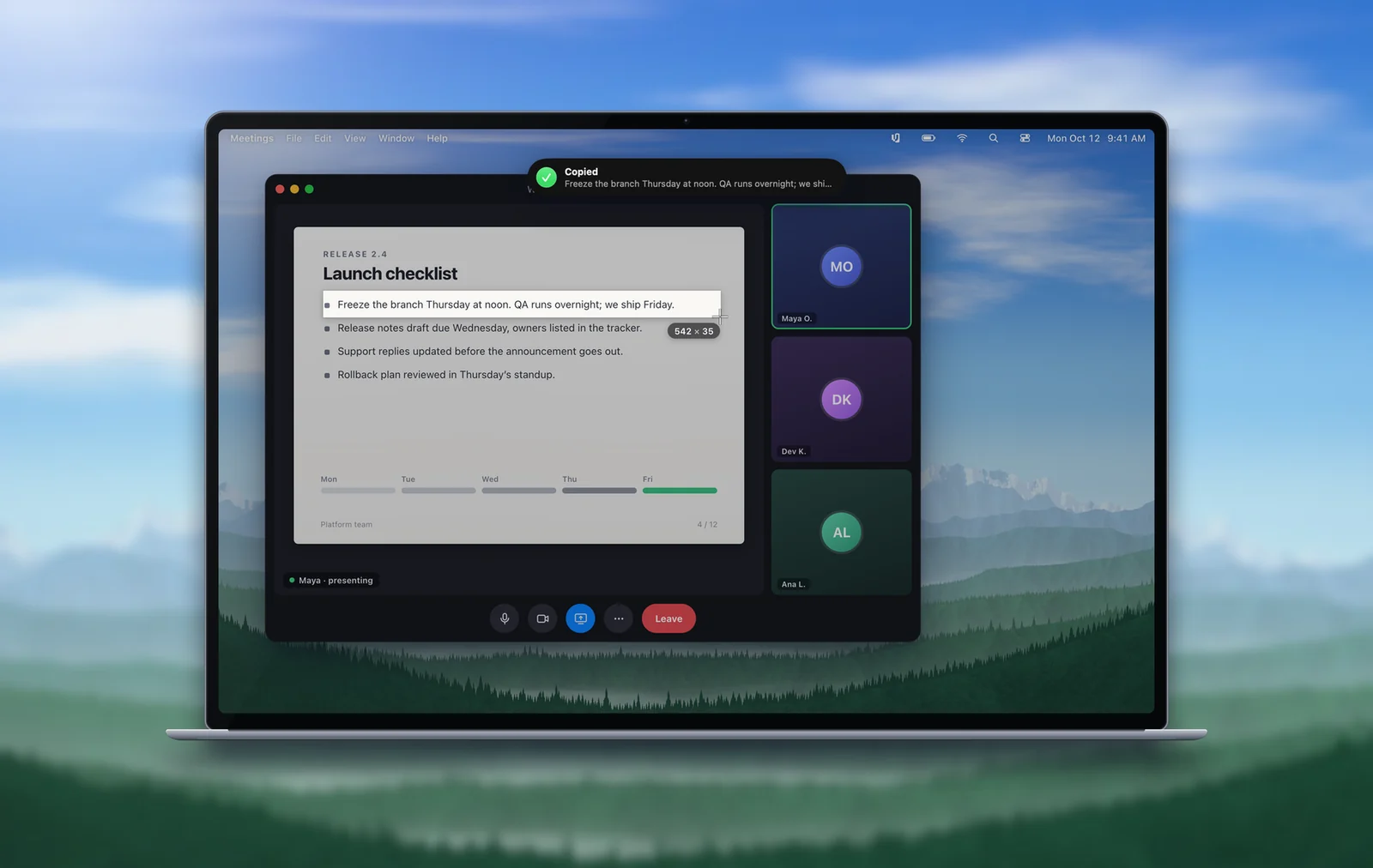
Recognition runs on your Mac with Apple’s Vision framework, so the slide never leaves your computer. It works the same on a built-in display or an external one, in the Zoom app or in Zoom’s web client.
Annotations and the presenter’s pointer
Zoom lets participants draw on a shared screen. Viewers start from the pencil icon in the bottom-left corner of the share, and the person sharing can switch annotation for others on or off from More in their sharing controls. Strokes, stamps and arrows are part of the picture you see, so a red circle drawn through a word gets read as part of that word.
- Capture around the marks. A tighter selection that leaves out the scribbles often reads cleanly.
- Ask for a clean slate. The annotation toolbar has a Clear option that deletes annotations.
- Wait for the pointer. Presenters tend to rest the mouse on the line they’re talking about. Give it a second to move.
- Wait for the slide to settle. Right after a slide change or a scroll, a screen share is often blurry for a moment before it sharpens.
Chat, links and QR codes
Text typed into the meeting chat is real text, so select it and copy it as usual. When a message won’t select, or someone posts a screenshot instead of the words, our guide to copying text from Zoom chat covers saving the chat and the workarounds.
Links on a slide are a different matter. Drag tightly around just the address; Unpixel recognizes a single address as a link and files it under Links in its history, where Open Link opens it later. Check it before you open it, since one misread character can point somewhere else. A QR code on a slide, such as a feedback form, is easier still: Unpixel copies what the code contains instead of trying to read its pattern as text.
Text in Zoom recordings
Computer recordings, Zoom’s name for recordings saved on your Mac, end up as MP4 video files, so you can come back to a slide after the meeting. Open the recording in QuickTime Player and pause on the slide, then hover over the words: if the pointer becomes a text cursor, Live Text has read the frame, and you can drag and copy. The Left and Right Arrow keys step one frame at a time when a transition has blurred the text. Our page on QuickTime Player has the details, including what to do when Live Text doesn’t respond.
Cloud recordings play in your browser. Pause on the slide, make the player as large as it goes, and capture the text with ⇧⌘2 as you would in a live meeting. If the slides were in another language, hold ⌥ as you let go to copy a translation instead; translating slides in a meeting explains how that works.
A note on etiquette
Zoom tells everyone when a meeting is being recorded. Nothing like that happens when you copy a line from a share, so the courtesy is up to you. Copy what you need to do your job, ask before keeping anything confidential, and tell the presenter if a password or token appears on screen rather than saving it.
Frequently asked questions
Can other people in the meeting see that I copied text from the share?
These methods read pixels that are already on your own display and send nothing to the meeting. Your company’s rules about meeting content still apply, so ask before keeping anything confidential.
Why can’t I find side-by-side mode?
It only appears while someone is sharing, under View in the top-right corner of the meeting window. Zoom also notes that side-by-side mode doesn’t work while its dual-monitors setting is turned on.
Where does Zoom save recordings on a Mac?
Zoom’s default for computer recordings is a Zoom folder inside your Documents folder. If yours aren’t there, click your profile picture in the Zoom app, choose Settings and open the Recording tab, which shows where local recordings are stored and lets you change it.
Sources
- Side-by-side mode for screen sharing — Zoom Support support.zoom.com
- Using annotation tools for collaboration — Zoom Support support.zoom.com
- Finding your computer and cloud recordings — Zoom Support support.zoom.com
- Interact with text in a photo using Live Text in Preview on Mac — Apple Support support.apple.com