Google Meet runs in a browser tab, and a presentation in Meet is a live video inside that tab. You can read the slide, but dragging across it selects nothing. Meet has its own controls for making a presentation larger, and a bigger, steadier picture is what turns a guess into an accurate copy. Here’s how to set Meet up for that, then get the text off the slide.
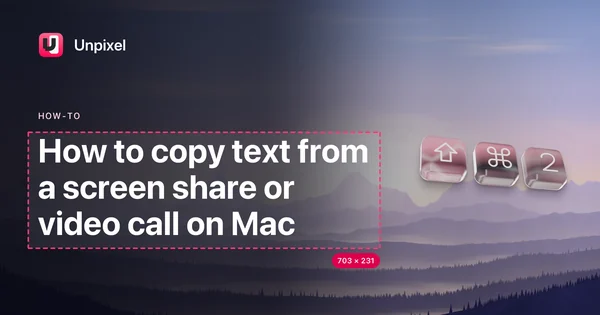
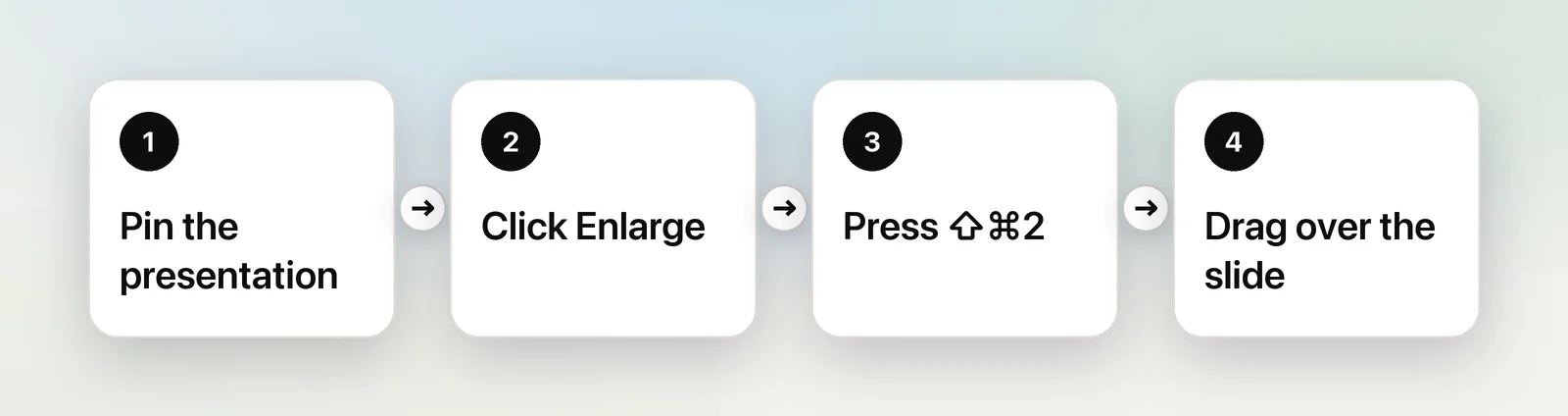
Pin the presentation for yourself, then click Enlarge in its bottom-right corner so the slide fills the window. A presentation in Meet is video, so you can’t select its text. Press ⇧⌘2 in Unpixel and drag over the words, or copy a screenshot with ⌃⇧⌘4 and select the text with Live Text in Preview.
Pin the presentation
On a busy call, Meet’s automatic layout keeps rearranging tiles as people speak, and the presentation can shrink to make room. Pinning it holds it in place. The labels below follow Google’s Meet Help as of October 2026.
- Hover over the presentation tile.
- Click Pin in the icons that appear.
- Choose For myself only. Only your layout changes.
If the presentation isn’t on screen at all, click People at the bottom right, click More actions next to it in the list, choose Pin to the screen, then For myself only. To undo it, hover over the tile and click Unpin.
Give the slide the whole window
Pinning keeps the presentation in view; these steps make it big.
- Enlarge it. Click Enlarge in the bottom-right corner of the presentation. Meet can also zoom into the presentation, and while you’re zoomed in you can drag it to see other parts of the slide. Click Minimize to go back.
- Change the layout. Click More at the bottom of the window, then Change layout. Spotlight lets the presentation fill the window; Sidebar keeps a column of thumbnails beside it.
- Make the browser full screen. In Safari or Chrome, choose View → Enter Full Screen, so the tab has the whole display to itself.
Shared screens also sharpen when the picture stops moving. After a slide change or a scroll, wait a second before you capture.
Copy the text from the slide
The free way is a screenshot read by Live Text. Press ⌃⇧⌘4 and drag over the text to copy a picture of it. Open Preview, choose File → New from Clipboard, drag across the words and press ⌘C.
In Unpixel
Unpixel reads the slide without leaving the Meet tab. Press ⇧⌘2, drag over the text and let go; the words are on your clipboard, ready to paste into your notes. It doesn’t matter which browser Meet is running in.
A few habits make it work better in Meet:
- Zoomed in? You’re seeing part of the slide. Capture it, drag the slide to show the rest, and capture again.
- Slide in another language? Hold ⌥ as you let go, and the clipboard gets a translation into your language instead. Our guide to translating slides in a meeting goes further.
- A table on the slide? Select the whole table. It pastes into Google Sheets, Numbers or Excel as cells rather than one long line.
Links and QR codes
Presenters often put a link or a QR code on a slide: a sign-up form, a survey, the slides themselves. Meet’s chat is ordinary text, so the simplest move is still to ask for the link there.
When you’d rather not interrupt, capture it. A QR code in your selection comes back as its contents, usually a web address, instead of being read as text. A captured address on its own is filed under Links in Unpixel’s history, where Open Link opens it. Unpixel can open QR links automatically if you turn that setting on, but looking at the address first is the safer habit.
Captions
Meet’s captions cover what people say, not what’s on the slide. Turn them on with the captions button in the toolbar, or click More options, then Settings → Captions. The same pane sets the language of the meeting and, where available, translated captions. Customize your captions changes their font, size and colours.
Captions scroll away as people keep talking. If a line matters, such as a deadline or a name, capture it while it’s on screen: drag over the caption and let go. For a record of the whole conversation, a transcript is the better tool (see the FAQ below), and whoever records the meeting can choose to embed the captions in the recording.
Ask for the deck
Many Meet presentations come straight from Google Slides. If the presenter shares a view link in the chat, you get the real text, every slide of it, without any recognition. When the link opens in view-only mode and selection is blocked, our guide to copying from a view-only Google Doc covers what still works.
For other call apps, see Zoom and Microsoft Teams. If Meet runs in Chrome for you, our page on Chrome explains how Google Lens fits in.
Frequently asked questions
Will the presenter see that I pinned or enlarged their presentation?
Not if you pin it For myself only: that changes only your own layout. Enlarging and zooming are also just your view. For everyone is a separate option that only hosts and co-hosts can use.
Do I need to use Chrome for Google Meet?
No. Meet runs in other browsers on a Mac too, including Safari. Capturing text from the presentation works the same in any of them, because it reads what’s on your screen.
Can I keep a written record of what was said in a Google Meet call?
Use a transcript rather than captions. On Google Workspace editions that include it, click Meeting tools → Transcribe → Start transcription during the call; Google saves the transcript in the organizer’s Drive, in the Google Meet folder.
Sources
- Pin or mute Google Meet participants — Google Meet Help support.google.com
- Change your layout in Google Meet — Google Meet Help support.google.com
- Use captions in Google Meet — Google Meet Help support.google.com
- Use transcripts with Google Meet — Google Meet Help support.google.com
- Interact with text in a photo using Live Text in Preview on Mac — Apple Support support.apple.com