YouTube is full of text you can see and can’t select: lecture slides, code in a tutorial, an address shown for two seconds, a recipe’s ingredient card. Unpixel captures it the same way it captures anything else on your Mac. So this page is about the YouTube side: where to look first, how to set up the player for a sharp frame, and how Shorts, live streams and captions change things. For the full walk-through, including the free screenshot-and-Live Text route, see how to copy text from a YouTube video.
Check the transcript first: for spoken words it beats any OCR. For text in the picture, switch to theater mode or full screen, pick a higher quality, pause and step to a sharp frame with the comma and period keys, then press ⇧⌘2 in Unpixel and drag over the text. It works in any browser, with nothing to install in it.
Transcript and chapters first
Before capturing anything, check whether YouTube already has the words as text.
- The transcript. Expand the description and click Show transcript. If what you want was spoken, drag across the lines in the transcript panel and copy them, with no recognition at all. A single click on a line jumps the video there instead.
- The description. Links, code repositories and ingredient lists are often written out under the video. Copy them from there.
- Chapters. If the video has chapters, they’re listed in the description and marked on the progress bar. Press ⌥→ or ⌥← to jump to the next or previous one, which is the quickest way to find “the slide with the commands on it”.
Only the text drawn into the picture itself, such as slides, code, charts and on-screen titles, needs to be captured.
Quality and size
Recognition reads your screen, so the size and sharpness of the letters decide how accurate the result is. Three player settings do most of the work:
- Make it bigger. Theater mode (T, or the wide rectangle button in the player) widens the video in the page. Full screen (F) is bigger still. Avoid the miniplayer (I) for this; it’s far too small.
- Pick a higher quality. Click the gear icon, choose Quality and select the highest your connection handles. Automatic quality can drop without telling you, and small text suffers first. To check what you’re actually getting, Control-click the video and choose Stats for nerds.
- Stop on a sharp frame. Press K to pause, then , or . to step one frame back or forward until the text has settled after a transition.
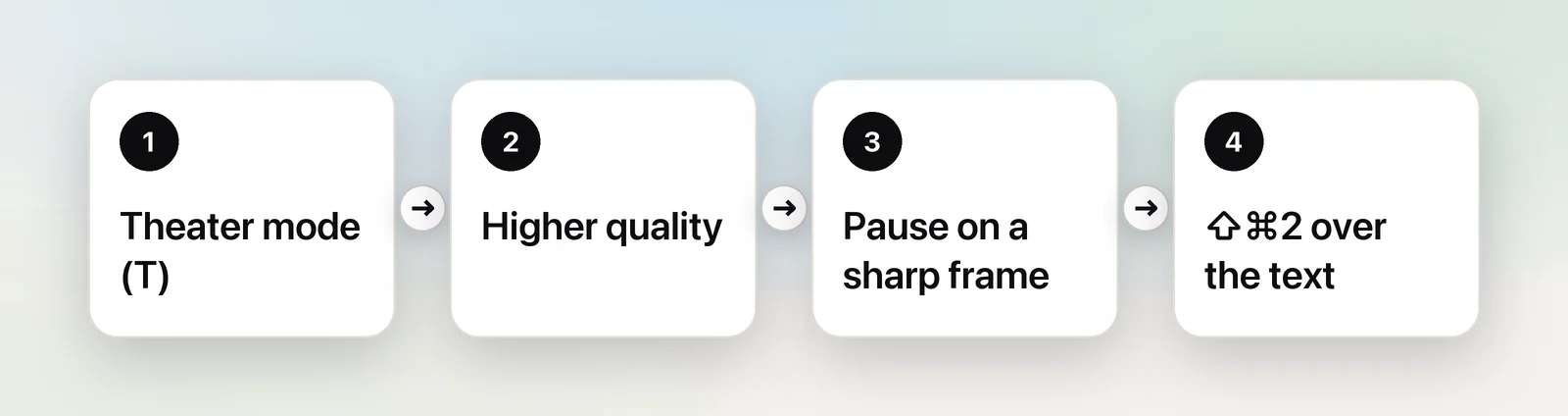
Then press ⇧⌘2, drag over the text and let go. Start the drag away from the bottom of the player, or move the pointer off the video first: the progress bar and buttons appear when the pointer moves over it, and they’d end up in your capture.
Captions over the text
Captions often sit right on top of a slide’s bottom lines. Press C to hide them, capture, and press C again to bring them back. If you leave them on, change how they look under the gear icon, Subtitles/CC → Options, where you can make the caption background more transparent.
Captions themselves are worth capturing sometimes, such as a name the speaker spelled out. Drag over just the caption line. For whole passages, though, the transcript is quicker and complete.
Shorts
Shorts play in a narrow vertical player with fewer controls, and they loop, so pause first by clicking the video. Text in Shorts is often animated word by word; step to the moment the whole line is visible before you capture. Because the player is narrow, the text is small on a large display, so capture tightly around the words rather than the whole frame.
Live streams
On a live stream, slides and on-screen text can change while you’re reaching for the keyboard. Capture as soon as the text appears. Each capture goes into Unpixel’s history, so you can grab several lines during the stream and sort them out afterwards. The live chat beside the video is ordinary text you can select and copy.
Keep the source with the text
When you copy text for notes or a quote, keep a link to the exact moment. Control-click the video and choose Copy video URL at current time, then paste it next to the captured text. You, or anyone you share the notes with, can jump straight back to the slide.
Translate as you copy
YouTube can translate captions on many videos: look under the gear icon, Subtitles/CC, for Auto-translate. That covers speech, not the slide. To translate text in the picture, hold ⌥ as you let go of a capture: Unpixel copies a translation into your language instead of the original. Translation uses Apple’s Translation framework on your Mac, and macOS asks before it downloads a new language. If the slide holds a table, it’s translated cell by cell and stays a table, with cells that hold only numbers or prices left as they are. Translating text in a video covers subtitles and the other options.
Frequently asked questions
Does this work in Safari, Chrome and other browsers?
Yes. Unpixel reads what’s on your screen, so the browser doesn’t matter. In Safari on a Mac with Apple silicon, Live Text may also work on a paused YouTube frame.
Why do I get the captions instead of the slide text?
Captions drawn over the video are part of the picture you capture. Press C to hide them, capture the slide, then press C again to bring them back.
Why is the text I copied full of mistakes?
Usually the frame was soft: the quality dropped, or the text was mid-transition. Choose a higher quality, step a frame or two with the comma and period keys, and capture again.
Sources
- Keyboard shortcuts for YouTube — YouTube Help support.google.com
- Manage caption settings — YouTube Help support.google.com
- View video transcripts — YouTube Help support.google.com