
Microsoft Teams shows other people’s content in several ways, and each one behaves differently when you try to copy from it. A shared screen or window is a video stream. A PowerPoint Live deck is drawn from the presenter’s file. A screenshot dropped into the chat is a picture. Here’s how to get text out of each on a Mac, using what Teams and macOS offer first.
Shared screens in Teams arrive as video, so you can’t select their text. Zoom in first with the + button in the corner of the meeting window, or choose Open in new window to give the share its own window. Then press ⇧⌘2 in Unpixel and drag over the words, or copy a screenshot with ⌃⇧⌘4 and select the text with Live Text in Preview.
Shared screens and windows
When a colleague shares their screen, you see a compressed video of it. Before you copy anything, make the part you need as large as Teams allows. According to Microsoft’s guide, as of October 2026:
- Zoom in with the corner buttons. The meeting window has + and − buttons in its corner. Zoom in until the text is comfortably large.
- Pan around. While zoomed in, press and drag the shared content to bring another part into view.
- Use a mouse if you have one. Hold ⌃ and scroll to zoom. Microsoft says Mac trackpads don’t support zooming in meetings, so pinching won’t do anything.
- Give the share its own window. When someone else is presenting, choose Open in new window from the meeting toolbar. Make that window large, or move it to a second display, while the meeting controls stay in the main window.
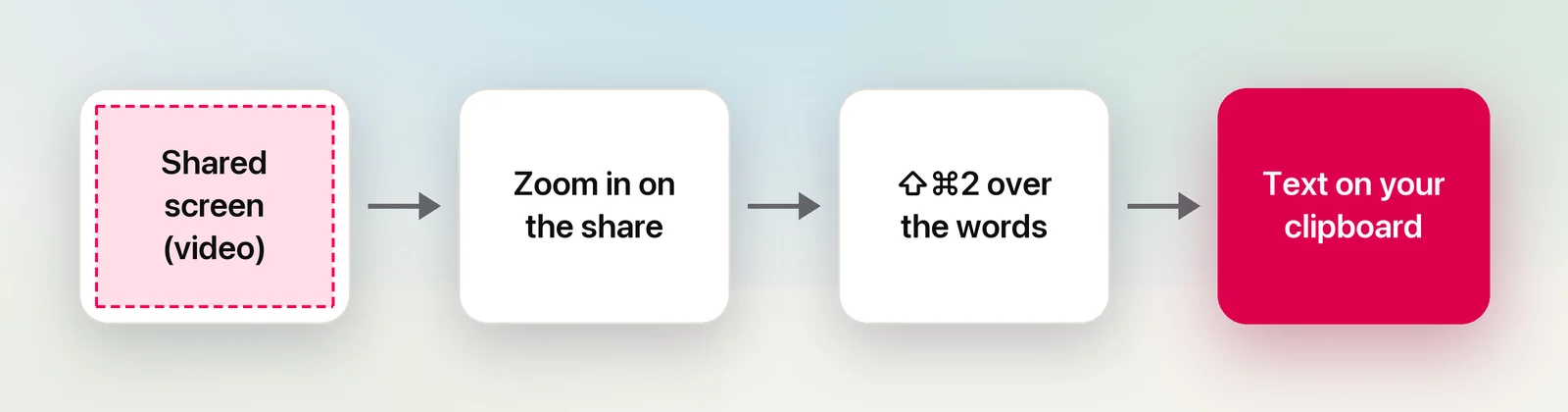
Once the text is big and sharp, there are two ways to copy it. The free one: press ⌃⇧⌘4, drag over the text, then open Preview and choose File → New from Clipboard. Live Text lets you select the words in that image and copy them.
In Unpixel
Unpixel cuts out the trip through Preview. Press ⇧⌘2, drag over the words in the share and let go; the text is on your clipboard, and a small “Copied” confirmation shows what was read. When you’ve zoomed in, you see only part of the content at a time, so capture what’s visible, pan, and capture the next part. Each capture is kept in Unpixel’s history, labelled with the app it came from, so you can collect several pieces and paste them together afterwards.
If the presenter shares a spreadsheet, select the cells you need as one rectangle. Unpixel recognizes a table and puts it on the clipboard as real cells, so it pastes into Excel or Numbers with its rows and columns intact.
PowerPoint Live sessions
Presenters often share a deck with PowerPoint Live instead of sharing their screen. Teams then shows the slides from the file rather than a video of someone’s display, and attendees get controls of their own. According to Microsoft’s PowerPoint Live guide, as of October 2026:
- Move through the deck yourself. Unless the presenter has turned on Private view, use the navigation arrows to go back to a slide you missed. Sync to Presenter returns you to the live slide.
- Zoom in privately. Press + or −, or hold ⌃ and scroll with a mouse. Drag or use the arrow keys to pan, and press Esc to reset. Nobody else’s view changes.
- Click links on the slide. Hyperlinks in a PowerPoint Live deck work for attendees, so there’s no need to copy an address that’s already a link.
- Turn on high contrast. View slides in high contrast, under Change view, can make pale text on a busy background easier to read and to capture.
Two practical points follow from that:
- Ask for the deck. Because the presentation is a file, asking for it in the meeting chat gets you every word exactly, including slides you missed.
- Capture what you see. If you only need one line or one number, zoom in on it and capture it like any other content. Wait for any animation to finish so the text isn’t mid-transition.
Images in Teams chats
A screenshot or photo posted in a chat has no selectable text at all. Click it to see it larger. If you can save it, open the file in Preview and use Live Text to select the words.
You can also capture the enlarged image directly. Unpixel reads it the same way it reads a shared screen. If you’ve copied the image itself, its From Clipboard command reads the text from the copy without a capture.
Captions and transcripts
Live captions show what people say, not what’s on the slides, and Teams doesn’t keep them after the meeting. If you want a record of the conversation, a transcript is the feature you need, and it has to be started during the meeting. Our guide to copying Teams captions and transcripts covers turning them on, downloading the transcript and what to do when nobody started one.
For a single caption line, such as a date or a name you didn’t catch, a capture works too: drag over that line while it’s on screen.
Policies to respect
Teams is usually a work tool, and many organizations set rules for it. Some meetings carry a confidentiality label or a watermark, some limit who can download recordings, and some organizers ask people not to keep copies at all. Treat those settings as the rule, even when your Mac lets you copy what’s on screen.
- Keep it to what you need, like an action item or a link, not a record of the whole meeting.
- Don’t keep secrets. If a password or access token appears in a share, tell the presenter so they can change it.
- Clean up afterwards. Delete captures you don’t need from Unpixel’s history, or turn off Save capture history in Settings → History before a sensitive meeting.
Recognition happens on your Mac, so nothing from the meeting is uploaded by the capture itself. For tips on making shared content legible in other call apps, see our pages on Zoom and Google Meet.
Frequently asked questions
Why doesn’t pinching on my trackpad zoom into the shared screen?
Microsoft notes that Mac trackpads don’t support zooming in on shared content in Teams meetings. Use the + and − buttons in the corner of the meeting window, or hold Control and scroll with a mouse.
Can I copy text from a PowerPoint Live presentation?
The slides on your screen can be captured like any other content. Since the presenter is working from a file, asking them to share the deck gets you every word without any recognition at all.
Does capturing text from a Teams meeting show up in the meeting?
No. Capturing reads pixels that are already on your display; nothing is sent to Teams or recorded. Your organization’s rules about meeting content still apply.
Sources
- Present content in Microsoft Teams meetings — Microsoft Support support.microsoft.com
- Share slides in Microsoft Teams meetings with PowerPoint Live — Microsoft Support support.microsoft.com
- Use live captions in Microsoft Teams meetings — Microsoft Support support.microsoft.com
- Interact with text in a photo using Live Text in Preview on Mac — Apple Support support.apple.com