On Windows, Win + Shift + T and a drag put any text on screen onto your clipboard. Moving to a Mac, that habit has nowhere to go: PowerToys is Windows-only, and so is Text Grab, the app Text Extractor is based on. The good news is that macOS can do the same job for free with a little setup, and a few Mac apps copy the exact gesture.
PowerToys runs only on Windows, so Text Extractor has no Mac version. The free built-in equivalent is a Shortcuts shortcut that takes an interactive screenshot, extracts its text and copies it, bound to a key. For the same press, drag, done feel, use a capture app such as TRex, TextSniper or Unpixel, whose ⇧⌘2 works much like Win + Shift + T.
What Text Extractor does on Windows
Text Extractor is one of the free, open-source PowerToys utilities. Microsoft’s documentation describes it like this:
- Win + Shift + T shows an overlay. You drag over an area, and the recognized text is saved to the clipboard.
- Shift held during the drag moves the box instead of resizing it. Esc closes the overlay.
- Languages come from Windows OCR language packs, which you may need to install. Without one, it shows “No Possible OCR languages are installed”.
Snipping Tool covers similar ground. Its Text actions button reads the text in a snip you’ve taken, with Copy all text and Quick redact, and Microsoft says the recognition happens locally. In 2025 Microsoft began rolling out a Text Extractor button in Snipping Tool’s capture bar, which copies text without taking a snip and can remove line breaks.
Built-in Mac equivalents
| On Windows | What it does | Closest built-in on a Mac |
|---|---|---|
| PowerToys Text Extractor | Drag over the screen, text to the clipboard | A Shortcuts shortcut on a key (below) |
| Snipping Tool’s Text actions | Read text in a snip you took | Live Text on a screenshot in Quick Look or Preview |
| Snipping Tool’s Text Extractor button | Copy text without saving an image | ⌃⇧⌘4, then File → New from Clipboard in Preview |
| Text Grab | Open-source text grabber | No Mac version |
The closest match to Text Extractor is a shortcut you build once in the Shortcuts app:
- Open Shortcuts and click the add button (+) to start a new shortcut. Name it “Text Extractor”.
- Search the actions for Take Screenshot and add it. Set Type to Interactive and the selection to Custom, so you drag over an area.
- Add Extract Text from Image, then Copy to Clipboard.
- Click the Info button in the shortcut’s details, choose Add Keyboard Shortcut, and press the keys you want. Apple notes that some combinations are reserved by macOS and can’t be used.
- Run it once. If macOS asks for permission to capture the screen, allow it.
From then on: your keys, a drag, and ⌘V. It’s slower to start than Text Extractor and has no settings. Our Shortcuts OCR guide covers the details and other ways to feed it.
Shortcut-and-drag apps on Mac
If you want the instant overlay back, these Mac apps behave much like Text Extractor. Details as of October 2026:
- TRex is the nearest in spirit: free and open source, installed with
brew install --cask trex. It also reads QR codes and barcodes, and runs on macOS 11 or later. - TextSniper is the app Text Grab’s README suggests for Mac users. Its website lists one-time licenses from $7.99 as of October 2026.
- Unpixel is our app. Press ⇧⌘2, drag, let go, and the text is on your clipboard, recognized on your Mac by Apple’s Vision framework.
If you’re coming from Text Extractor, Unpixel’s controls will feel familiar with one change. Esc cancels, as on Windows, but you hold Space rather than Shift to move the box while dragging. The Keep line breaks setting does the job of Snipping Tool’s line-break option: off joins the lines of a paragraph. Beyond Text Extractor, it copies QR code contents, pastes tables as spreadsheet cells, and copies a translation if you hold ⌥ as you let go. It needs macOS 26 on an Apple silicon Mac.
What’s different on a Mac
- Permission first. macOS asks you to allow screen capture for any app that reads the screen. Turn the app on in System Settings → Privacy & Security → Screen & System Audio Recording, then reopen it.
- No language packs. Recognition languages come with macOS. Apps built on Apple’s Vision framework can usually detect the language on their own.
- The menu bar, not the system tray. Capture apps live as icons at the top right of the screen.
- Command, not Ctrl. Most shortcuts that used Ctrl on Windows use ⌘ on a Mac.
Map your old shortcut
Win + Shift + T translates literally to ⇧⌘T. That combination is a poor choice on a Mac, because browsers use it to reopen the last closed tab. Pick something nearby that apps leave alone, such as adding ⌃ or ⌥, or get used to a new key.
To change it in Unpixel:
- Right-click the Unpixel icon in the menu bar and choose Settings….
- In General, click the Capture shortcut field.
- Press your new combination. It needs ⌘, ⌥ or ⌃, unless it’s a function key such as F13.
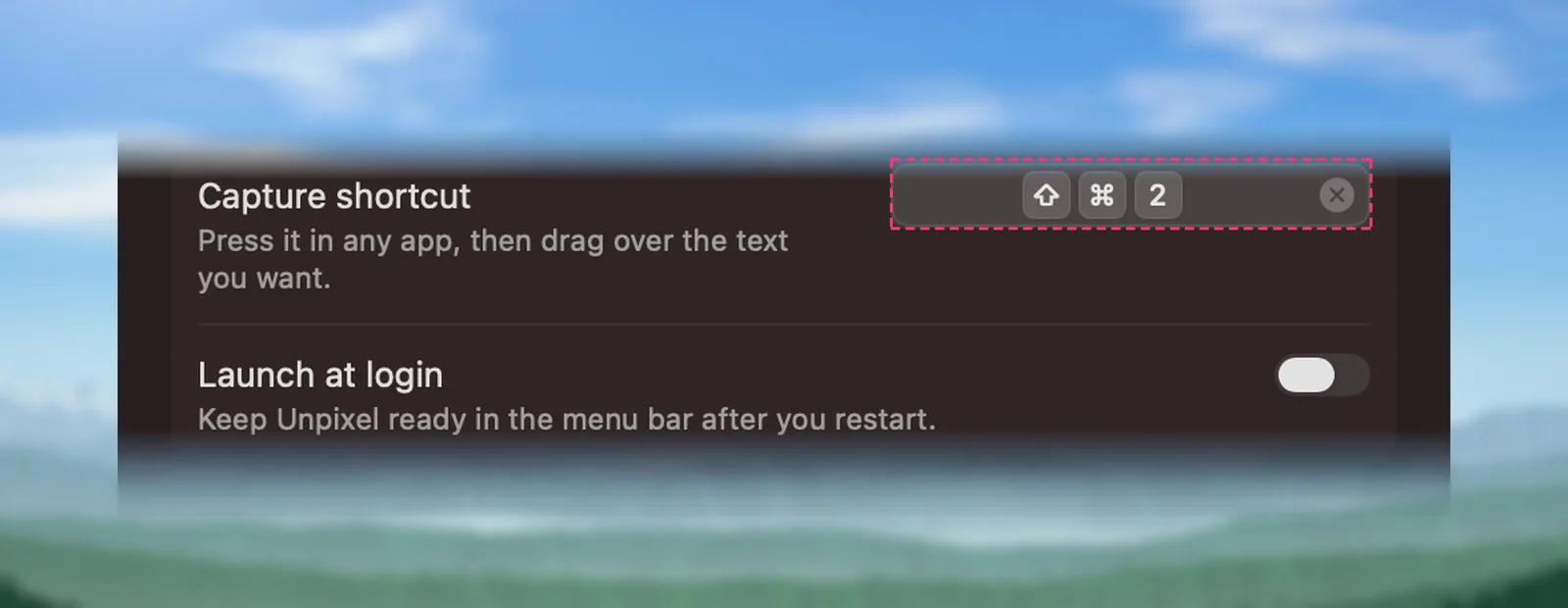
If the combination is already taken, an orange warning explains why. For ⇧⌘T, it says the keys are “Reopen Tab” in most apps. More options are in Change or clear the capture shortcut.
Using a Windows keyboard with your Mac? Apple’s guide says to press Alt for Option, and Ctrl or the Windows logo key for Command. So ⇧⌘2 becomes Shift + Windows logo key + 2, close to the old Win + Shift + T stretch. Our guide to Mac keyboard symbols decodes the rest of the glyphs you’ll see in menus.
Frequently asked questions
Is there a PowerToys for Mac?
No. Microsoft describes PowerToys as utilities for Windows, and its download and documentation cover Windows 10 and 11 only. On a Mac, each PowerToy has its own equivalent, built in or from another developer.
Is Text Grab available for Mac?
No. Text Grab, the open-source app Text Extractor is based on, is Windows-only. As of October 2026, its README points Mac users to TextSniper.
Do I need to install OCR language packs on a Mac?
No. Apple’s text recognition comes with macOS and covers its supported languages out of the box. Capture apps built on Apple’s Vision framework use the same languages.
Sources
- PowerToys Text Extractor utility for Windows — Microsoft Learn learn.microsoft.com
- Microsoft PowerToys — Microsoft Learn (read October 2026) learn.microsoft.com
- Use Snipping Tool to capture screenshots — Microsoft Support support.microsoft.com
- Text Extractor in Snipping Tool begins rolling out to Windows Insiders — Windows Insider Blog (April 2025) blogs.windows.com
- Text Grab — GitHub (read October 2026) github.com
- Mac keyboard shortcuts (Windows keyboards) — Apple Support support.apple.com
- Create a custom shortcut on Mac — Shortcuts User Guide (Apple Support) support.apple.com
- Run a shortcut while working on your Mac (Add Keyboard Shortcut) — Shortcuts User Guide (Apple Support) support.apple.com
- TRex — GitHub (read October 2026) github.com
- TextSniper — official website (read October 2026) textsniper.app