Mac menus and help pages write shortcuts in symbols: ⇧⌘2, ⌥⌘Esc, ⌃⌘Q. If you didn’t grow up on a Mac, that looks like a code. It’s a small one, though: four modifier symbols cover most shortcuts, and a handful more stand for keys like Delete and Escape. Here’s the full legend, the Windows equivalents and how to read any shortcut you meet.
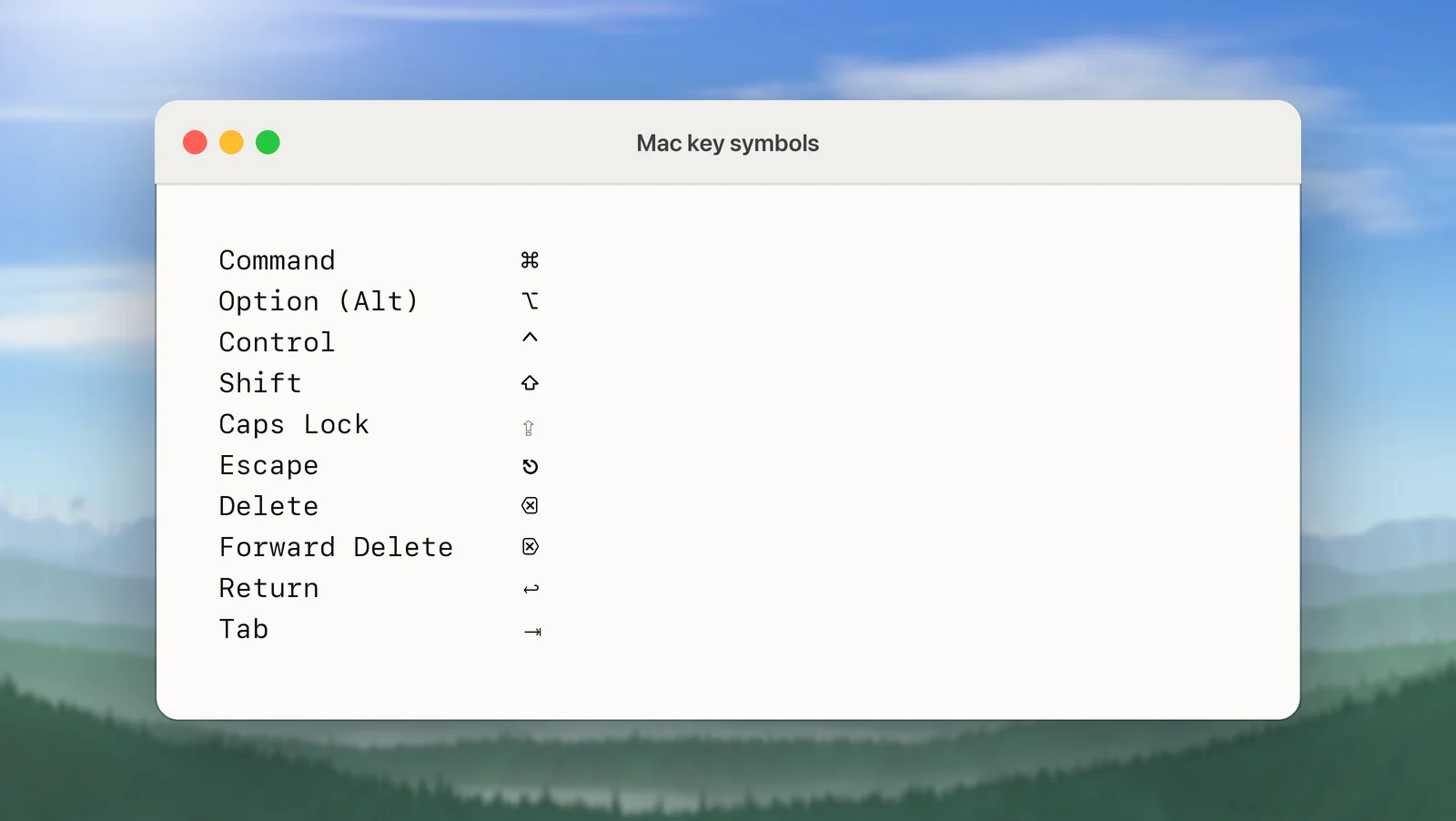
⌘ is Command, ⌥ is Option (Alt on a PC keyboard), ⌃ is Control and ⇧ is Shift. Menus also use ⇪ for Caps Lock, ⌫ for Delete, ⌦ for Forward Delete, ⎋ for Escape, ↩ for Return and ⇥ for Tab, and a globe or fn for the Fn/Globe key. Read ⇧⌘2 as “hold Shift and Command, then press 2”.
The four modifier keys
Modifier keys do nothing on their own; you hold them while pressing another key. Mac menus list them in a fixed order, Control, Option, Shift, Command, followed by the key itself.
| Symbol | Key | Where it is | On a Windows keyboard |
|---|---|---|---|
| ⌘ | Command (Cmd) | Either side of the space bar | Windows logo key |
| ⌥ | Option (Alt) | Next to Command | Alt |
| ⌃ | Control (Ctrl) | Bottom-left, next to fn on laptops | Ctrl |
| ⇧ | Shift | Left and right edges | Shift |
Command does most of the work: copy (⌘C), paste (⌘V), save (⌘S), quit (⌘Q). Option is the “alternate” key: hold it while a menu is open, and some commands change, such as Save As… appearing in place of Duplicate in the File menu of many apps. Control matters mainly in Terminal and in a few system shortcuts.
The fn key, marked with a globe 🌐 on recent Mac keyboards, turns the top row into F1–F12 and works as the Globe key. Its job when you press it alone is set in System Settings → Keyboard, such as switching input sources or showing emoji.
Other symbols in menus
These appear in menus and in Apple’s guides. Some keys don’t exist on a laptop keyboard and are typed with fn:
| Symbol | Key | On a MacBook keyboard |
|---|---|---|
| ⇪ | Caps Lock | Caps Lock |
| ↩ | Return | Return |
| ⌫ | Delete (deletes to the left) | Delete |
| ⌦ | Forward Delete (deletes to the right) | fn-Delete |
| ⎋ | Escape | esc |
| ⇥ / ⇤ | Tab / Shift-Tab | Tab |
| ↑ ↓ ← → | Arrow keys | Arrow keys |
| ⇞ / ⇟ | Page Up / Page Down | fn-↑ / fn-↓ |
| ↖ / ↘ | Home / End | fn-← / fn-→ |
Windows keyboard equivalents
If you plug a PC keyboard into a Mac, the keys map like this: Windows logo key = ⌘ Command, Alt = ⌥ Option, Ctrl = ⌃ Control, Backspace = Delete, and Delete = Forward Delete.
On a PC keyboard, Alt sits right next to the space bar, where Command is on a Mac keyboard, so your thumb may hit the wrong one. To swap them:
- Open System Settings → Keyboard.
- Click Keyboard Shortcuts… and choose Modifier Keys in the sidebar.
- Pick the PC keyboard from the menu at the top, then set the Option key to ⌘ Command and the Command key to ⌥ Option.
The common Windows shortcuts translate with ⌘ in place of Ctrl: Ctrl+C becomes ⌘C, Alt+Tab becomes ⌘Tab, and Ctrl+Alt+Delete becomes ⌥⌘Esc, which opens the Force Quit window.
How to read a shortcut like ⇧⌘2
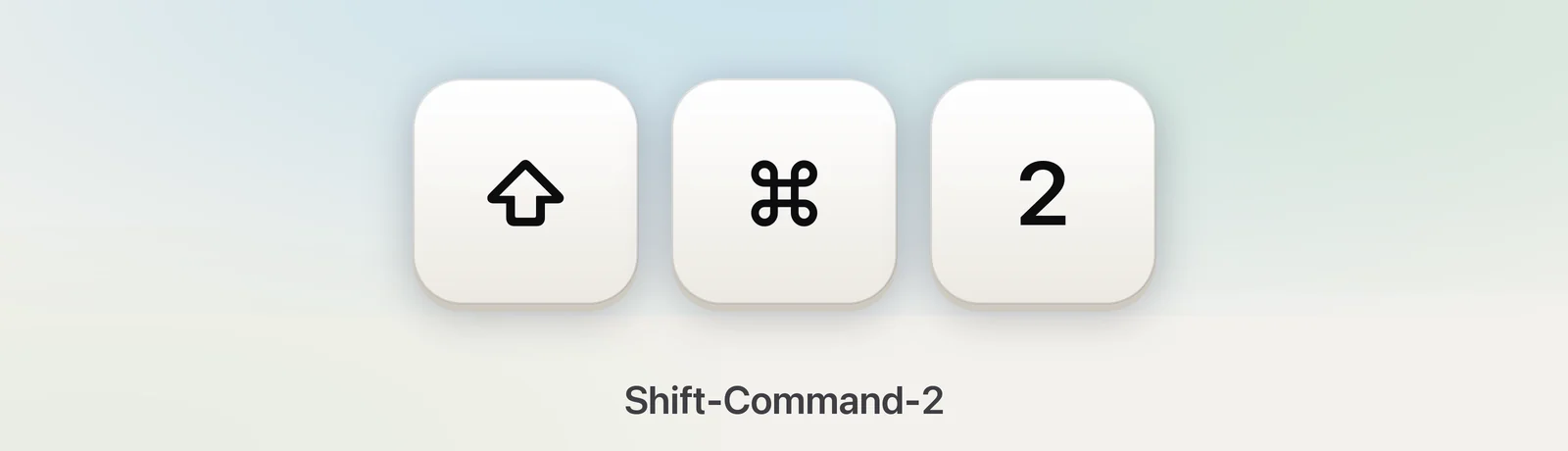
- Name the symbols left to right: ⇧ is Shift, ⌘ is Command, so ⇧⌘2 is Shift-Command-2.
- Hold all the modifiers. The order you press them in doesn’t matter.
- Tap the last key while they’re held, then let go of everything.
Two things trip people up. Menus always show letters as capitals, but ⌘N means Command and N, with no Shift. And on keyboards outside the US, a shortcut with a number or punctuation may sit on a different physical key; the character in the shortcut is what counts.
If shortcuts feel like finger gymnastics, turn on Sticky Keys in System Settings → Accessibility → Keyboard. You can then press the modifiers one at a time, and macOS shows their symbols on screen as you do.
In Unpixel
Unpixel’s capture shortcut is a good example to practise on: ⇧⌘2, Shift-Command-2. Hold Shift and Command, press 2, then drag over any text on screen and it’s copied. You can change it in Settings → General. If the combination you pick is one macOS or common apps already use, Unpixel flags it there and explains why.
Type the symbols yourself
Writing instructions for someone else? You can type the symbols:
- Character Viewer: choose Edit → Emoji & Symbols or press fnE (Globe-E), then search for the symbol’s name. ⌘ is called “place of interest sign”, ⌥ “option key”, ⌃ “up arrowhead”, ⇧ “upwards white arrow” and ⎋ “broken circle with northwest arrow”.
- Text replacement: add shortcuts in System Settings → Keyboard → Text Replacements…, such as “;cmd” → ⌘, and macOS swaps them as you type.
- Copy and paste: select a symbol on this page and press ⌘C.
Quick reference
- ⌘ Command · ⌥ Option · ⌃ Control · ⇧ Shift
- ⇪ Caps Lock · ⎋ Escape · ↩ Return · ⇥ Tab
- ⌫ Delete · ⌦ Forward Delete (fn-Delete)
- Order in menus: ⌃ ⌥ ⇧ ⌘, then the key
- Windows keyboard: Windows key = ⌘, Alt = ⌥
Frequently asked questions
What is the Option key on a Mac?
It’s the key marked ⌥, between Control and Command. On a Windows keyboard it’s Alt. It types special characters and reveals extra menu commands when you hold it while a menu is open.
Which key is Command on a Windows keyboard?
When a Windows keyboard is connected to a Mac, the Windows logo key works as ⌘ and Alt works as ⌥. You can swap them in System Settings → Keyboard → Keyboard Shortcuts… → Modifier Keys.
Why do menus show capital letters in shortcuts?
Menus always show the letter in upper case. You only press Shift when the shortcut includes ⇧, so ⌘N is just Command and N.
What does the ⌃ symbol mean on a Mac?
⌃ is the Control key. It’s used less than Command, mostly in system shortcuts such as ⌃⌘Q to lock the screen and in Terminal.
Sources
- What are those symbols shown in menus on Mac? — Apple Support (macOS Tahoe 26) support.apple.com
- Mac keyboard shortcuts — Apple Support support.apple.com
- Use emoji and symbols on Mac (Character Viewer) — Apple Support (macOS Tahoe 26) support.apple.com