If you’ve built a shortcut around Extract Text from Image, you already have free OCR on your Mac, and it can do things no fixed app can, because you decide every step. So when is a dedicated capture app worth paying for? This page compares a typical shortcut setup with Unpixel, the app we make, and for plenty of people the honest answer is that the shortcut is enough.
If you copy text from the screen a few times a week, a free shortcut built on Extract Text from Image is enough, and you can bend it to any workflow. Unpixel is worth it when you capture many times a day or need tables as cells, decoded QR codes, multi-page PDFs, translation or a searchable history. The two also work together.
What the shortcut does
Extract Text from Image is a Shortcuts action that takes an image and returns the text in it. On its own it does nothing visible, so a useful shortcut wraps it:
- Take Screenshot, set to interactive, so you drag over an area. Alternatively, Get Clipboard reads a screenshot you’ve already copied, or a Quick Action receives an image from Finder.
- Extract Text from Image reads the words.
- Copy to Clipboard puts them where ⌘V finds them.
Give it a key with Add Keyboard Shortcut in the shortcut’s details, and you have a homemade text grabber. Our step-by-step Shortcuts OCR guide builds one with all three inputs.
The shortcut’s real strength is that it’s a pipeline. Add Translate Text and it translates. Add Append to Note and it keeps a log. Run it from Terminal with the shortcuts run command, and a script can use it. No app with fixed features can match that flexibility.
Speed and convenience
Day to day, both come down to a key, a drag and a paste. The differences are in the details around that:
- Starting. Shortcuts has to start the workflow each time, which can add a pause before the crosshair appears. Unpixel’s ⇧⌘2 brings it up at once, from any app.
- Selecting. Unpixel shows a live size label as you drag, lets you hold Space to move the selection, and cancels with Esc or a right-click.
- Feedback. Unpixel shows a small confirmation with a preview of what it copied, so you know straight away if it read nothing. With a shortcut, add Show Notification to get the same.
- Settings. The action has no options for language or accuracy. Unpixel lets you choose Accurate or Fast, detect the language or pick one, turn language correction off for codes, and decide whether line breaks are kept or joined into paragraphs.
None of these matter if you grab text once a day. Many times a day, they add up.
Tables, QR codes and history
| Extract Text from Image shortcut | Unpixel | |
|---|---|---|
| Price | Free, part of macOS | One-time, from $5.99 for one Mac |
| Tables | Rows arrive as lines of text | Paste into spreadsheets as cells |
| QR codes and barcodes | Not decoded by this action | Contents copied |
| PDFs | Extra actions needed for scans | Open Image…, up to 50 pages per capture |
| Translation | Add Translate Text | Hold ⌥ as you let go |
| A record of captures | Add Append to Note yourself | Searchable history, built in |
| Customizing the steps | Anything Shortcuts can do | Fixed features, plus links that return the text to a shortcut |
| Requirements | The Shortcuts app on your Mac | macOS 26, Apple silicon |
The table is where the effort shows. A shortcut can get close to most rows, but each one is a few more actions to add and maintain. Tables are the exception: turning loose lines back into rows and columns is hard to do reliably with text actions, while Unpixel recognizes the grid and puts real cells on the clipboard. QR codes need a workaround too; our QR code shortcut guide shows one.
Use them together
You don’t have to choose. Unpixel answers unpixel:// links: Shortcuts can open them with an Open URLs action, or with Open X-Callback URL when the shortcut needs the text back. A few combinations that work well:
- A capture inside a bigger shortcut. Add Open URLs with
unpixel://captureas the first step of a shortcut that, for example, opens your notes app first. The crosshair appears, and the text is on the clipboard when you let go. - Translate by name. A shortcut with just
unpixel://capture?translate=1gives you a translating capture you can run from Spotlight. - Post-process the result. Add Open X-Callback URL with
unpixel://x-callback-url/capture, then Get Dictionary Value for the keytextin X-Callback Result. The shortcut waits while you drag, then hands what you captured to the next action: append it to a note, fill in a template, or send it to another app. Get captured text in Shortcuts lists everything the result contains.
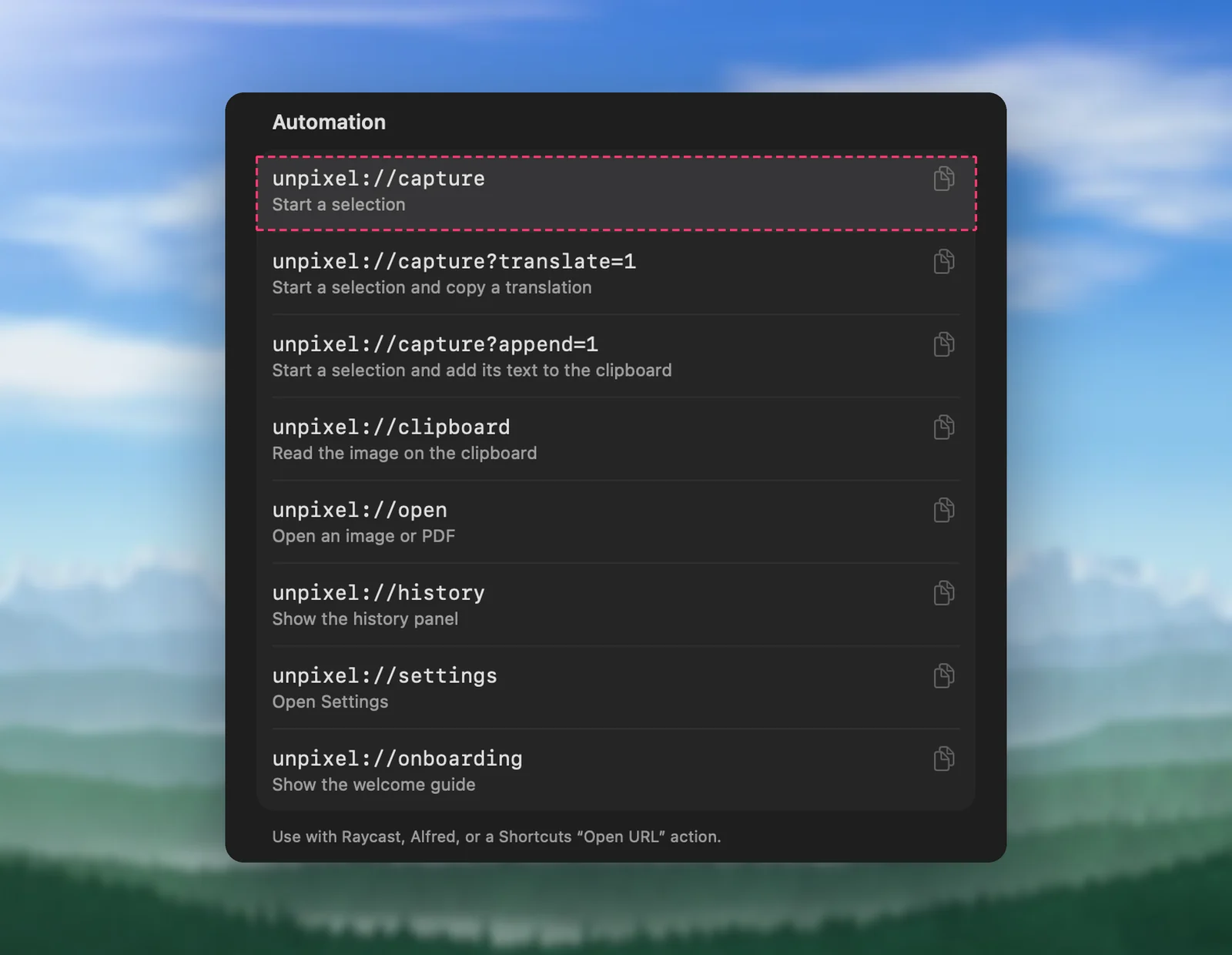
The full list of commands is in the URL scheme reference, and also in Settings → About.
Verdict
- A few captures a week: keep the shortcut. It’s free and does the job.
- A custom pipeline: keep the shortcut, or start it with an Unpixel capture.
- Many captures a day, tables, QR codes, PDFs or a history you can search: Unpixel saves real time.
- A Mac that can’t run macOS 26: the shortcut, since Unpixel won’t install there.
Frequently asked questions
Is the Extract Text from Image action free?
Yes. It’s part of the Shortcuts app that comes with macOS. You build the shortcut around it once and can give it a keyboard shortcut.
Can a shortcut translate the text too?
Yes. Add Apple’s Translate Text action after Extract Text from Image, then Copy to Clipboard. Our guide to translating images with Shortcuts walks through it.
Can Shortcuts start an Unpixel capture?
Yes. Add an Open URLs action with unpixel://capture, or unpixel://capture?translate=1 to copy a translation. The crosshair appears as if you’d pressed ⇧⌘2.
Does Unpixel have its own Shortcuts actions?
No. Shortcuts works with it through links: Open URLs starts a capture, and Open X-Callback URL with an unpixel://x-callback-url link also hands the recognized text back to the shortcut.