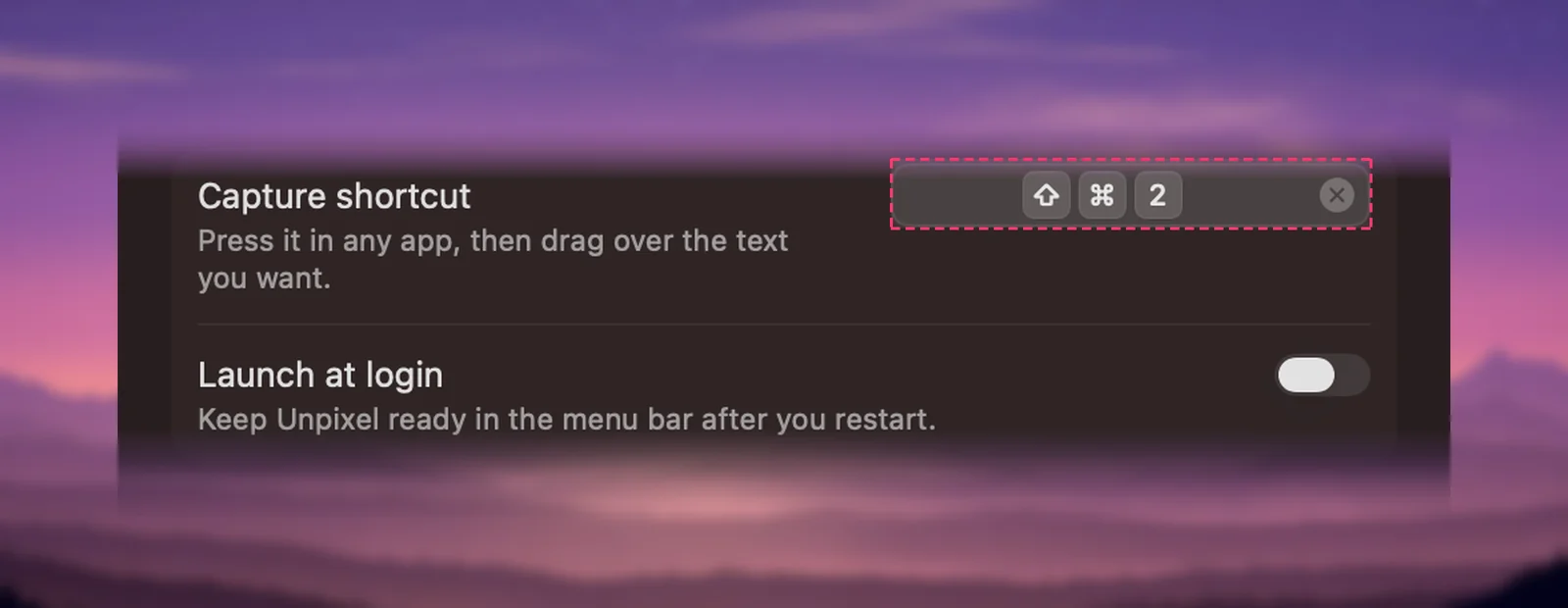
Unpixel’s capture shortcut is ⇧⌘2 out of the box. If that combination already means something in an app you use, record a different one, or clear it and start captures another way. The shortcut works from any app and needs no extra permission.
Open Unpixel’s Settings → General, click the Capture shortcut field and press the new combination, which must include ⌘, ⌥ or ⌃ (or be a function key). The curved arrow in the field resets it to ⇧⌘2 and the ✕ clears it. An orange warning means macOS or most apps already use that combination.
Change the shortcut
- Right-click the Unpixel icon in the menu bar and choose Settings….
- In General, click the field next to Capture shortcut. It changes to Type Shortcut.
- Press the combination you want. It must include ⌘, ⌥ or ⌃; ⇧ alone isn’t enough. A function key such as F6 also works on its own.
- The new shortcut works straight away. No restart needed.
While the field is recording, Esc cancels and keeps the old shortcut. A combination that can’t be a shortcut, such as a plain letter, makes the field shake with an alert sound.
The welcome guide’s shortcut page has the same field, so you can also change it there during setup.
Reset to ⇧⌘2
When the shortcut is anything other than the default, the field shows a curved-arrow button. Click it to go back to ⇧⌘2.
Reset All Settings… at the bottom of General also restores the shortcut, along with every other preference. Your capture history isn’t touched. See Reset Unpixel’s settings.
Clear it
Click the ✕ at the end of the field, or press Delete while the field is recording. With no shortcut, Unpixel doesn’t claim any key combination, and the field says Record Shortcut. The choice is remembered after a restart.
The Capture Again shortcut
Right under Capture shortcut is a second field, Capture Again shortcut, set to ⇧⌘1. It reads the area of your last selection again without dragging. It records, resets and clears the same way, and shows the same warnings below. The capture shortcut wins a tie: if you give Capture Again the same keys, its field asks you to choose others. Read the same area again covers it in full.
Conflict warnings
If the combination is already in use, an orange ⚠︎ appears in the field and one line under it explains why. The shortcut is saved anyway; the warning is there so you can decide.
| The warning says, for example | What it means | What to do |
|---|---|---|
| ⌘C is “Copy” in most apps — Unpixel would take it over everywhere. | A standard app command | Pick another combination, or you’ll lose that command in every app |
| macOS uses ⇧⌘4 for “Save picture of selected area”, so it may not reach Unpixel. | A built-in macOS shortcut | Pick another, or turn the macOS one off |
| macOS already uses ⌃1 (System Settings → Keyboard → Keyboard Shortcuts). | A shortcut turned on in System Settings, such as Switch to Desktop 1 | Turn it off there, or pick another |
| ⌃⌥⌘T couldn’t be turned on. Another app may be using it — try a different shortcut. | macOS refused to register it | Pick another, or find the app that owns it |
To free a macOS shortcut, choose Apple menu → System Settings, click Keyboard, then Keyboard Shortcuts…. Pick a category such as Screenshots and uncheck the shortcut you want back. Apple’s guide notes that a shortcut already assigned to another command won’t work for the new one, which is why the warning matters.
When another app owns the combination, the usual suspects are launchers, clipboard managers, screenshot tools and window managers. Check their settings, or pick a combination none of them use.
Capture without a shortcut
- Menu bar panel: click the Unpixel icon, then Copy Text at the top.
- Menu bar menu: right-click the icon and choose Copy Text, Copy & Translate Text or Copy & Add Text.
- Services menu: in any app, choose the app’s menu → Services → Capture Text with Unpixel. That service can get its own keys in System Settings; see Services.
- URL scheme: open
unpixel://capturefrom Raycast, Alfred, the Shortcuts app’s Open URL action, or Terminal withopen unpixel://capture. A launcher can give that link its own hotkey. URL scheme reference lists every command.
Frequently asked questions
Does the shortcut need Accessibility permission?
No. Unpixel registers its shortcut the standard way, which works without Accessibility or Input Monitoring access.
Can I use two shortcuts, for example one that always translates?
There’s one capture shortcut. To translate, hold ⌥ as you let go, or assign unpixel://capture?translate=1 to a key in a launcher such as Raycast or Alfred.
Sources
- Use macOS keyboard shortcuts — Apple Support (macOS Tahoe 26) support.apple.com