A whiteboard after a meeting, a page from a library book, a sign on holiday, a slide you snapped from the back row: camera photos are full of text, and they’re harder to read than screenshots. The good news is that most failures come from a few problems you can fix in a minute, before you try to copy anything.
Open the photo in the Photos app, hold the pointer over the text, drag to select it and press ⌘C. If Live Text struggles, fix the photo first: click Edit, then Crop, and click Auto or drag the Straighten slider; then brighten it under Adjust. Neat print reads well; glare, blur, curved pages and messy handwriting cause most failures.
Why photos are harder than screenshots
A screenshot captures letters exactly as the screen drew them: straight, sharp and evenly lit. A camera photo of the same words picks up everything the real world adds:
- Perspective. Shot from an angle, lines of text converge and letters at the far end shrink.
- Curves. Book pages bend into the spine, so lines bow and the letters near the gutter squash together.
- Glare. A reflection on glossy paper or a whiteboard wipes out whole words.
- Blur. A slight shake or a missed focus point softens edges, which matters most for small print.
- Low light. Dim photos are noisy, and grainy letters are easy to misread.
- Distance. A sign that fills a tenth of the frame may only be a few pixels tall.
Text recognition copes with a little of each. Pile several together and it starts to guess. Why OCR works better on screenshots than photos explains the difference in more detail.
Built in: Live Text in Photos
Photos on your Mac reads text in pictures with Live Text, without any setup.
- Open the Photos app and double-click the photo.
- Hold the pointer over the text until it becomes a text cursor.
- Drag from the first word you want to the last.
- Control-click the selection and choose Copy Text, or press ⌘C. The same menu can translate the text or look it up.
For a photo outside your library, such as one you received by AirDrop, open it in Preview and do the same. If the pointer won’t change there, choose Tools → Text Selection.
Fix the photo first: crop, straighten, brighten
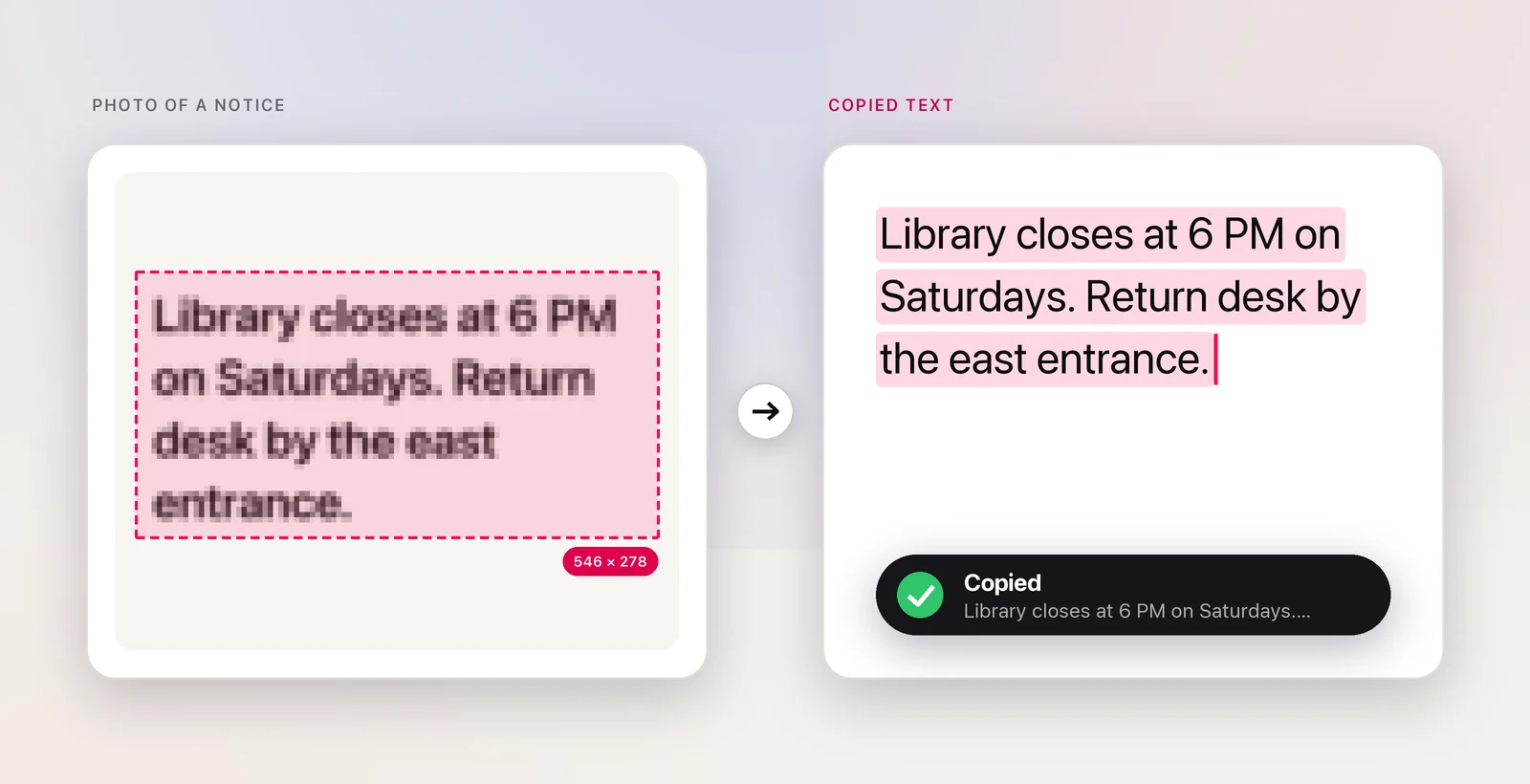
When Live Text selects nothing, or the copy is full of errors, a quick edit usually helps more than another attempt.

- In Photos, open the photo and click Edit.
- Click Crop in the toolbar. Click Auto to let Photos straighten it, or drag the Straighten, Vertical and Horizontal sliders yourself; Apple describes all three as adjusting the angle of the photo. For a page shot slightly from the side or from above, nudge Vertical and Horizontal while you watch whether the lines of text get closer to parallel.
- Drag the crop rectangle tight around the text you need. Less background means less for recognition to get confused by.
- Click Adjust and raise the Light slider, or click its Auto button, until the paper looks white and the letters dark.
- Click Done, then select and copy the text as before.
Photos keeps the original, so Revert to Original undoes all of this later. In Preview, Tools → Adjust Color… and Tools → Crop do a similar job, but Preview saves changes into the file, so choose File → Duplicate first.
Some problems can’t be edited away. For a curved book page, crop one column or half-page at a time, because a straighter piece reads better than the whole spread. For glare, crop around the washed-out patch, copy the rest, and type the missing words.
Read several photos at once
Live Text works on one photo at a time. That’s fine for a sign, but slow for twenty pages of a borrowed book or every slide from a conference.
In Unpixel
Unpixel can read a batch in one step. Export the photos from Photos (File → Export), or find them in Finder. Then choose Open Image… from Unpixel’s menu bar panel and select them all. They’re read in order as one capture, up to 50 images (or PDF pages) in total, and copied as a single block of text with a blank line between pictures. HEIC files from an iPhone work as they are.
For one photo already open on screen, press ⇧⌘2 and drag over just the paragraph or sign you want. Two settings help with camera photos. Turning off Keep line breaks joins a book page’s lines into paragraphs and mends words hyphenated at line ends. Holding ⌥ as you let go copies a translation, which is handy for a menu or a sign abroad.
For slides from an event, see turning conference slide photos into notes.
Whiteboards and handwriting: what to expect
Whiteboards mix handwriting, diagrams and glare, so set your expectations accordingly:
- Printed capitals in dark marker usually come through.
- Quick cursive, faint pencil and tightly packed notes often don’t.
- Light colors, such as yellow or pale green marker, nearly vanish against white.
- Arrows and boxes aren’t text, so expect the words to come out with the diagram lost.
Photograph a busy board in sections, straight on, and expect to fix a few words. Our guide to handwriting to text on Mac goes deeper.
Take better text photos next time
- Hold the camera parallel to the page or board, not tilted.
- Move closer instead of zooming; digital zoom only enlarges the blur.
- Tap to focus on the text, and brace your elbows to avoid shake.
- Turn off the flash on glossy paper and use light from the side.
- For documents, scan instead of taking a photo. On your Mac, Control-click inside a note or a Finder window, choose Insert from iPhone or iPad (the wording varies a little between apps), then the option to scan documents. Your iPhone finds the page edges and corrects the skew, and the scan lands where you clicked.
Frequently asked questions
Does cropping a photo in Photos change the original?
Photos keeps the original, so you can undo your edits at any time with Revert to Original. Edits do show everywhere the photo appears in your library, so duplicate it first if you want to keep both versions side by side.
Can I copy handwriting from a photo?
Neat handwriting often works; quick cursive, faint pencil and crowded whiteboards often don’t. Printed letters in dark marker, photographed straight on, give the best chance.
How should I photograph a book page so the text reads well?
Hold the camera parallel to the page, fill the frame with the text, and use soft light from the side to avoid glare. Press the page flat near the spine, where lines curve the most.
Sources
- Use Live Text to interact with text in a photo on Mac (Photos) — Apple Support support.apple.com
- Crop, extend, reframe, and straighten photos and videos on Mac — Apple Support support.apple.com
- Insert sketches, photos and scans from iPhone or iPad on Mac — Apple Support support.apple.com
- Interact with text in a photo using Live Text in Preview on Mac — Apple Support support.apple.com