You can turn handwriting into typed text on a Mac with tools that are already built in, but how well it works depends far more on the writing than on the software. Neat print in dark ink usually comes through with a few fixes. Quick cursive and faint pencil often don’t, with any tool. Here’s what to use, and what to expect before you start.
Scan or photograph the page flat and in good light, open it in Preview or Photos, and drag across the writing to select it with Live Text, then copy. Neat printed handwriting usually works; joined cursive, faint pencil and crowded notes often don’t. If you write on an iPad with Apple Pencil, Scribble in Notes turns handwriting into typed text as you go.
What handwriting OCR can and can’t do
Text recognition was built for print, where every letter in a font has the same shape. Handwriting removes that certainty: your “a” is different from mine, letters lean and touch, and lines drift up the page. Modern recognizers are trained on handwriting too, and Apple’s own examples for Live Text include finding a photo of a handwritten recipe by its words. They still have limits.
Set expectations by the kind of writing:
| Writing | What to expect |
|---|---|
| Block capitals in dark ink | Usually good; check names and numbers |
| Neat print in lowercase | Mostly good, with occasional wrong letters |
| Numbers written in boxes on a form | Often good; check every digit |
| Joined cursive, written quickly | Often loses letters or whole words |
| Faint pencil or very light ink | Often missed or broken up |
| Margin notes, arrows, crossings-out | Partial; the drawing parts aren’t text |
| Old letters or historical scripts | Usually beyond everyday tools |
The open-source engine Tesseract is blunt about it: its FAQ says handwriting won’t work very well because the engine was designed for printed text. Apple’s Live Text is built to handle some handwriting, but the same rule of thumb applies to every tool: the closer the writing looks to print, the better the result.
Neat print vs cursive
Two things decide most results. The first is separation: when letters stand apart, the recognizer can tell where one ends and the next begins. Cursive joins them, so a word becomes one long shape to decode. The second is consistency: if every “e” you write looks alike, the recognizer gets the same clue each time.
If you’re writing something you plan to digitize, such as meeting notes, a recipe card or a form, print it. It’s the single biggest improvement you can make, bigger than any app choice.
Built in: Live Text on photos and scans
Live Text works on any image of handwriting you can open on your Mac.
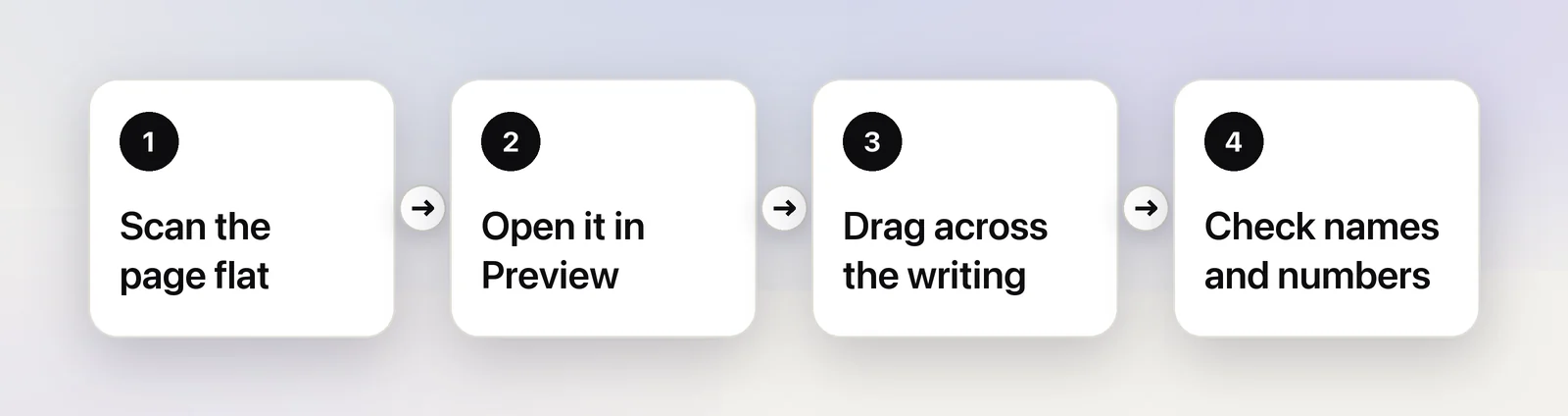
- Get a flat image. A scan beats a photo. If you have an iPhone, Control-click in a Finder window or a document on your Mac and choose Scan Documents from the Import from iPhone or iPad (or Insert from iPhone or iPad) menu. Your iPhone opens its camera and finds the edges of the page for you.
- Open it in Preview, or in Photos if you took a photo.
- Drag across the writing. In Preview, if dragging draws a box, choose Tools → Text Selection first.
- Control-click and choose Copy Text, then paste it where you need it.
- Check it against the page. Names, numbers and short words are the usual casualties.
If nothing selects, the writing may be too faint, too small in the image or too joined up to be recognized as text. Crop closer, or rescan with more light. For photos of whiteboards and signs, our guide to copying text from a photo covers cropping and straightening.
iPad and Apple Pencil
If you take notes on an iPad, convert them there, while they’re still strokes rather than pixels.
- Scribble turns handwriting into typed text in any text field: write with Apple Pencil and it’s typed as you go. Apple says the conversion happens on the iPad, so your writing stays private.
- In Notes and Freeform, open the tool palette, choose the Handwriting tool (to the left of the pen) and write. Scribble converts what you write into typed text.
- Convert later: with Smart Selection, select handwriting with the same gestures you use for typed text. Apple notes you can paste it as typed text in another note or app.
To get that text onto your Mac, copy it on the iPad and paste on the Mac with Universal Clipboard. Both devices need the same Apple Account, Wi-Fi, Bluetooth and Handoff turned on, and must be near each other. Scribble works only in the languages Apple lists for it on its iPad feature availability page, so check there if you write in something other than English.
Copy neat handwriting with Unpixel
Sometimes the handwriting isn’t in a file: a whiteboard in a video call, a scanned form in a web viewer, a photo in a chat thread. Unpixel, which we make, reads whatever is on screen: press ⇧⌘2, drag over the writing, and the recognized text is on your clipboard, read on your Mac by Apple’s Vision.
The limits are the same as for Live Text. Neat handwriting works reasonably; messy handwriting, faint pencil and tight cursive often don’t. Two settings in Settings → Recognition matter. Leave Recognition mode on Accurate, the default. Keep line breaks is on by default too, so each line of your notes stays a line; turn it off when you’d rather have the lines of a paragraph joined into one. What Unpixel can’t do is upfront about the rest.
Cloud handwriting recognition
Some cloud services specialise in handwriting. Google’s Cloud Vision API, for example, documents a mode for detecting handwriting in images. These services can do better on difficult writing, but they mean uploading the page to someone else’s server, and they usually need a developer account. Keep diaries, medical notes and anything with personal details on your Mac.
Pens, paper and light
A few habits make handwritten pages far easier to read, for software and for people:
- Use a dark gel or felt-tip pen. Ballpoint is thin and uneven; pencil is low-contrast and smudges.
- Prefer plain or lightly ruled paper. Heavy lines and grids can merge with letters.
- Leave space between letters, words and lines. Crowded writing reads as one shape.
- Write level. Lines that drift up or down are harder to separate.
- Use daylight or an even lamp, and keep your shadow and glare off the page.
- Photograph straight on and fill the frame with the page, or scan it.
- On whiteboards, use dark markers and wipe old ghosting first. Yellow and pale green barely show up.
Even with all of this, plan on proofreading. Handwriting recognition saves typing; it doesn’t replace reading the result.
Frequently asked questions
Can Live Text read cursive?
Sometimes, but don’t count on it. Neat, well-spaced cursive can come through, while fast joined writing usually loses letters or whole words. Printing gives far better results.
Can I convert handwriting in Apple Notes on the Mac?
Handwriting is converted on the iPad, where you write it. Use Scribble as you write, or select handwriting later and paste it as typed text. With Universal Clipboard, you can then paste it on your Mac.
Is there a way to convert a whole notebook at once?
Scan the pages into one PDF, then use Preview’s File → Export with Embed Text to add a text layer. Expect to correct the handwritten parts by hand, and check every page.
Do I need an internet connection to read handwriting?
Not for Apple’s tools. Live Text runs on your Mac, and Apple says Scribble converts handwriting on the iPad itself. Cloud services that read handwriting upload your image.
Sources
- iOS 15 brings powerful new features (Live Text and handwriting in photos) — Apple Newsroom, June 2021 apple.com
- Interact with text in a photo using Live Text in Preview on Mac — Apple Support support.apple.com
- Enter text with Scribble on iPad — iPad User Guide (Apple Support) support.apple.com
- Add drawings and handwriting in Notes on iPad — iPad User Guide (Apple Support) support.apple.com
- iOS and iPadOS Feature Availability (Scribble languages) — Apple apple.com
- Insert photos and scans with Continuity Camera on Mac — Apple Support support.apple.com
- Copy and paste between your Mac and other Apple devices — Apple Support support.apple.com
- Tesseract FAQ (handwriting) — Tesseract documentation tesseract-ocr.github.io
- Detect handwriting in images — Cloud Vision API, Google Cloud Documentation docs.cloud.google.com