People send pictures instead of typing all the time: a photo of a receipt, a screenshot of directions, the Wi-Fi card from the fridge, a page of a form. The text of a message selects and copies like any other text, but the words inside those pictures don’t. Here are the ways to get them out on a Mac, from the built-in route to reading a whole batch of images at once.
Select the image in the conversation and press Space to open it in Quick Look, then try dragging across the words and pressing ⌘C. If they won’t select, Control-click the image, choose Copy, and click From Clipboard in Unpixel, or press ⇧⌘2 and drag over the picture right in the conversation. Either way the words land on your clipboard as text.
Live Text through Quick Look and Preview
macOS has text recognition built in, called Live Text, and it works in the apps that show images, such as Quick Look and Preview. Start where the image already is:
- Click the image in the conversation to select it, then press Space. Quick Look shows it in a larger window.
- Hold the pointer over the words. If it turns into a text cursor, drag across them and press ⌘C.
If the words won’t select there, drag the image out of the conversation onto your desktop and open it in Preview. Drag across the text; if Preview draws a box instead, choose Tools → Text Selection. Control-click the selection for Copy Text, Look Up or Translate. Apple notes that Live Text isn’t available in every language or region, so check its feature availability page if nothing selects anywhere.
Copy the image, then From Clipboard
When Live Text won’t cooperate, or you’d rather not save files, read the copied image instead.
In Unpixel
- Control-click the image in the conversation and choose Copy.
- Click the Unpixel icon in the menu bar and click From Clipboard, or right-click the icon and choose it from the menu.
- Paste the text wherever you need it.
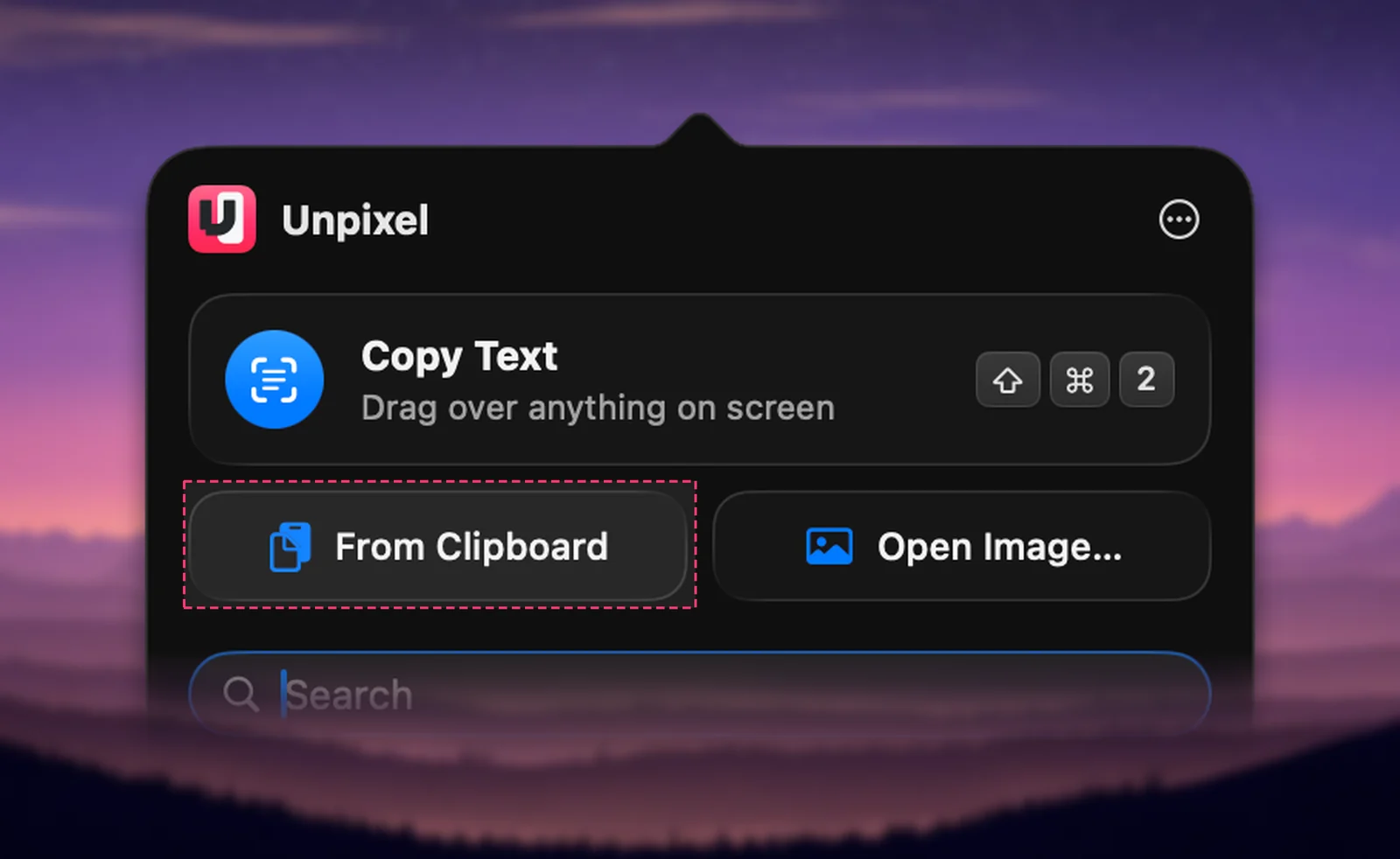
This reads the whole copied image, not just the thumbnail you see in the conversation, so small print in a big photo has a better chance. If Unpixel says “No image on the clipboard”, the copy didn’t take; copy the image again. It also handles what Live Text doesn’t turn into usable text:
- A QR code in the picture, such as an event ticket or a Wi-Fi code, is decoded, and you get what it contains. If that’s a web address, check the link before you open it.
- A photo of a table, like a price list or a timetable, pastes into Numbers or Excel as cells.
For a single line, you can skip the copy step. Press ⇧⌘2 and drag over the picture where it sits in the conversation; this works best when the text is large enough to read comfortably on screen.
Several images at once
When someone sends eight photos of a document’s pages, reading them one by one gets old fast.
- Click the contact or group icon at the top of the conversation, then click Photos to see every image shared in that chat.
- Drag the images you need into a folder in Finder.
- In Unpixel’s panel, choose Open Image…, select all the images in that folder and click Open, or drop them on the menu bar icon.
The images are read as one capture, one after another, up to 50 pages in total, with a blank line between them. HEIC photos from an iPhone work as they are. The text of all of them lands on your clipboard in one go. Delete the folder afterwards if the pictures are private.
Verification codes
Codes that arrive by text message rarely need copying. When a sign-in page in Safari or another app asks for one, click the code field and macOS offers the code it found in Messages as an AutoFill suggestion. Apple’s Passwords guide explains the setting and how to delete codes after use. For codes that only appear in a notification banner from another app, our guide to copying a verification code from a notification has the options.
A picture in another language
On Macs that support it, Messages can translate typed messages for you; Live Translation on Mac covers the requirements. That translates message text, not the words in a photo. For a picture of a menu, a sign or a letter in another language:
- In Preview, select the words with Live Text, Control-click and choose Translate.
- In Unpixel, hold ⌥ as you let go of a capture over the picture, and the clipboard gets the text in your language. For an image read with From Clipboard, right-click it in the history and choose Translate & Copy.
Both translate on your Mac once the language is downloaded.
Privacy
The pictures people send you are part of their conversations with you, so treat what’s in them with care:
- Ask before passing it on. Copying an address out of a photo for your own use is one thing; forwarding a friend’s ID or bank details is another.
- Clean up after sensitive captures. Unpixel reads images on your Mac, and the picture itself isn’t saved. The text is kept in its history, labeled with the app you were using, such as Messages, until you right-click the row and choose Delete. You can turn history off in Settings → History.
- Mind the clipboard. Whatever you copy can be read by other apps and kept by clipboard managers. Our guide to clipboard privacy explains what to watch for.
Frequently asked questions
Can I copy the text of a message itself?
Yes, that’s already text. Control-click the message bubble and choose Copy to copy the whole message.
How do I copy a verification code someone texted me?
Usually you don’t need to. When a sign-in page asks for the code, click the code field and macOS offers the code from Messages as an AutoFill suggestion.
Does reading an image with Unpixel send it anywhere?
No. Recognition runs on your Mac with Apple’s Vision framework and the image isn’t saved. The recognized text stays in Unpixel’s local history until you delete it, unless you’ve turned history off.
Sources
- Use Quick Look to view files on Mac — Apple Support support.apple.com
- View all shared images and links in Messages on Mac — Apple Support support.apple.com
- Interact with text in a photo using Live Text in Preview on Mac — Apple Support support.apple.com
- Automatically fill verification codes on Mac — Passwords User Guide, Apple Support support.apple.com
- macOS Feature Availability (Live Text languages) — Apple apple.com