Screenshots are how a lot of text gets passed around: an error message for IT, a booking reference, a paragraph from a page that won’t let you select it. Until you read it back out, though, that text is only pixels. How you get it depends on where the screenshot is right now: a file, a thumbnail in the corner, or the clipboard.
Select the screenshot in Finder, press Space to open Quick Look, drag across the words and press ⌘C. Preview works the same way. If you sent the screenshot to the clipboard with ⌃⇧⌘4, paste it into Preview with File → New from Clipboard first. To skip the file entirely, Unpixel’s ⇧⌘2 copies the text instead of a picture.
A screenshot file: Quick Look or Preview
Your Mac already reads text in images with Live Text, and both of these use it.
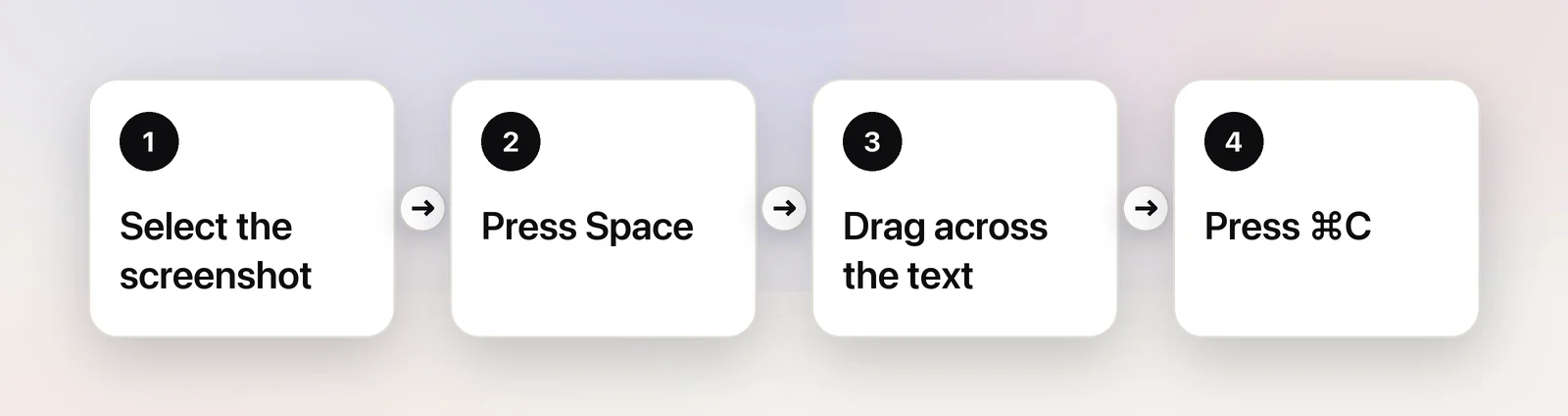
Quick Look is the fastest, because nothing opens:
- Click the screenshot on your desktop or in Finder once, to select it.
- Press Space. A preview window appears.
- Hold the pointer over the words until it becomes a text cursor, then drag across the part you want.
- Press ⌘C, then Space again to close the preview.
Preview is better when you need more than one bit of text, or want to compare the copy with the image. Double-click the screenshot, drag across the text and press ⌘C. If dragging draws a box instead of selecting words, choose Tools → Text Selection.
Either way, web addresses, email addresses and phone numbers in the screenshot get a small arrow next to them. Click it to open the link or start an email without copying anything.
Just took it? Use the floating thumbnail
After a screenshot, a thumbnail sits in the bottom-right corner for a few seconds. Three choices are useful while it’s there:
- Click it to open a window for marking up or sharing the screenshot.
- Control-click it and choose Save to Clipboard, then follow the clipboard steps below.
- Leave it, and the file is saved; then use Quick Look as above.
The thumbnail’s window is built for drawing and sharing rather than for text. When all you want is the words, letting it save and pressing Space on the file is usually quickest.
A screenshot on the clipboard
Adding Control to any screenshot shortcut, as in ⌃⇧⌘4, copies the picture instead of saving a file. To read text from it:
- Open Preview and choose File → New from Clipboard.
- Drag across the text and press ⌘C.
- Close the window and choose not to save.
In Unpixel
With Unpixel, click From Clipboard in its menu bar panel after copying a screenshot. It reads the picture on your Mac and puts the text on the clipboard in its place, ready to paste.
Skip the screenshot: capture the text directly
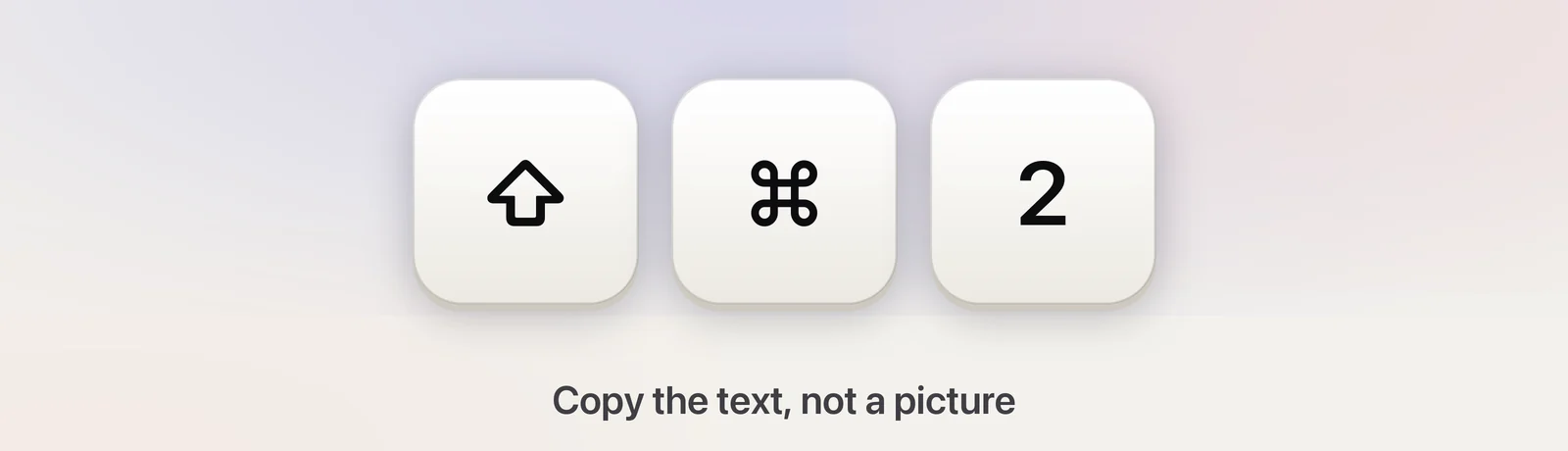
If you take screenshots mainly to get at the words in them, you can leave out the picture. Unpixel’s ⇧⌘2 works like ⇧⌘4: the pointer becomes a crosshair, you drag over an area, holding Space while you drag moves the selection, and Esc cancels. When you let go, you get the text instead of an image, and no file lands on your desktop.
Each capture is also kept in a searchable history with the app it came from, such as “Safari · Just now”. That makes it easy to find yesterday’s error message without digging through a folder of images. For the screenshot basics themselves, see how to screenshot part of your screen.
Stop screenshots piling up on the desktop
If you only screenshot to copy text, the files are clutter by the end of the week. A few ways to keep things tidy:
- Change where they go. Press ⇧⌘5, click Options and pick another folder, or Clipboard, under Save to. See changing the screenshot location for details.
- Use the clipboard for one-offs. Add ⌃ to the shortcut when the picture is only on its way somewhere else.
- Group what’s there. Click the desktop and choose View → Use Stacks to gather screenshots into one pile.
- Delete after copying. Once the text is out, the screenshot has done its job; move it to the Trash.
No selectable text in your screenshot?
When Live Text won’t select anything, work through these (the full checklist is in Live Text not working on Mac):
- Is Live Text on? Look in System Settings → General → Language & Region for the Live Text switch.
- Is the text big enough? Text from a zoomed-out page can be only a few pixels tall. Zoom in on the original (⌘+ in most apps) and take the screenshot again.
- Is it really text? Logos, outlined lettering and words drawn over a busy photo often aren’t recognized.
- Is the language supported? Live Text covers a limited set of languages and isn’t available in every region.
- Is part of it black? Protected video stays black in screenshots, so there’s nothing to read there.
If the screenshot holds a QR code rather than text, Unpixel copies the code’s contents, such as the link it points to. Our guide to reading a QR code from a screenshot has the free options too.
Frequently asked questions
Where do my screenshots go?
Screenshots taken with the keyboard shortcuts are saved to the desktop unless you’ve changed it. Press ⇧⌘5, click Options and look under Save to.
Why can’t I select text in my screenshot?
Check that Live Text is on in System Settings → General → Language & Region. Also look at the size: text captured from a zoomed-out page or a small window can be too tiny to recognize, so take the screenshot again at a larger size.
Can From Clipboard read a screenshot file I copied in Finder?
Yes. Unpixel’s From Clipboard reads image data on the clipboard as well as an image or PDF file copied in Finder.
Sources
- Take screenshots or screen recordings on Mac — Apple Support (Mac User Guide) support.apple.com
- Take a screenshot on Mac — Apple Support support.apple.com
- View and edit files with Quick Look on Mac — Apple Support support.apple.com
- macOS Ventura — New Features: Live Text works in Photos, Quick Look and Safari (archived November 2022) — Apple web.archive.org
- Change Language & Region settings on Mac (Live Text) — Apple Support support.apple.com