Text on a Mac screen comes in two kinds. Some of it is real text that you can select, copy and paste. The rest is a picture of text: words inside a photo, a video frame, a scanned page, a shared screen or an app that draws its own labels. This guide covers both, starting with the free tools already on your Mac, and ends with a table that points you to a detailed guide for each source.
If you can select the text, drag across it and press ⌘C. If you can’t, it’s a picture of text: in Photos, Preview, Quick Look and Safari, Live Text lets you select words inside images. For anything else, press ⌃⇧⌘4 to copy a screenshot, open Preview, choose File → New from Clipboard and select the words there. A screen-OCR app does it in one step.
Selectable text: the basics people miss
Before reaching for anything clever, make sure the text really can’t be selected. A few habits help:
- Double-click selects a word, and triple-click selects a whole line or paragraph.
- Click, then Shift-click further along to select a long passage without dragging.
- Start the drag just outside the text. On web pages, starting on a word can grab a link or drag an image instead.
- Try Reader in Safari. On a cluttered article, View → Show Reader lays the text out cleanly and makes it easy to select.
- Look for a Copy button. Code blocks, share sheets and many web apps have one.
Watch the pointer as you hover. If it becomes an I-beam over the words, the text can be selected. If it stays an arrow, you’re looking at a picture of text, and that’s where Live Text and OCR come in.
Live Text: where it works on macOS
Live Text is Apple’s built-in text recognition. Hover over words in a photo, and the pointer turns into an I-beam you can drag to select them, just as in a document. It works in:
- Photos, Preview and Quick Look (select a file in Finder and press Space)
- Safari, for images on web pages
- Paused video in apps that support it, such as QuickTime Player
Select the words, then Control-click and choose Copy Text, or press ⌘C. Websites, email addresses and phone numbers also get a small arrow that opens, writes to or calls them.
If nothing happens when you hover, open System Settings → General → Language & Region and check that Live Text is on. In Preview, also make sure Tools → Text Selection is chosen. Apple notes that Live Text isn’t available in every language or region.
What Live Text can’t do is read the live screen. It needs an image or a paused video inside one of those apps. A label in another app, a shared screen in a video call or a game stays out of reach until you turn it into an image.
Screenshot + Live Text: the free method for everything else
Turn whatever is on screen into an image, then let Live Text read it. Sending the screenshot to the clipboard keeps your desktop free of files:
- Press ⌃⇧⌘4 and drag over the text. The screenshot goes to the clipboard instead of the desktop.
- Open Preview and choose File → New from Clipboard (⌘N).
- Drag across the words in the new image and press ⌘C.
- Close the image without saving it.
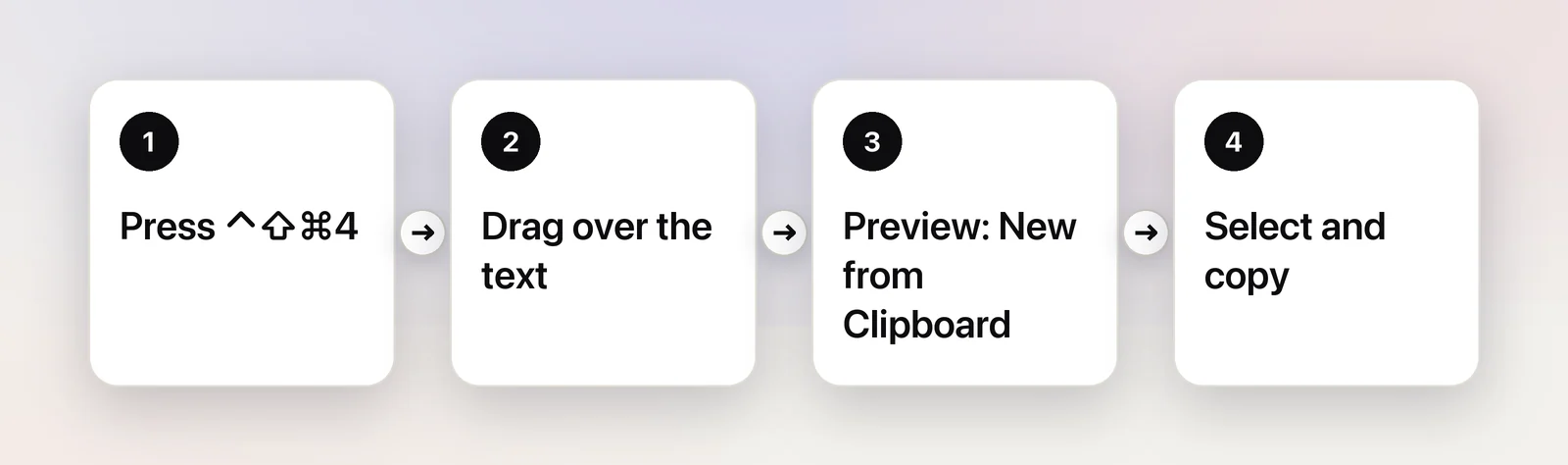
It’s four steps, but it works on nearly anything you can see. The Shortcuts app can automate the reading part: a shortcut made of Get Clipboard, Extract Text from Image and Copy to Clipboard turns a clipboard screenshot into text. Extract text from images with Shortcuts walks through building one.
One shortcut for everything
The screenshot route works, but if you copy text off the screen several times a day, the steps add up. That’s the gap Unpixel fills. Press ⇧⌘2, drag over any text on screen, and let go: a paused video, a slide in a call, a scanned PDF, an error dialog or a game. The recognized text is on your clipboard, and a small confirmation shows what was copied.
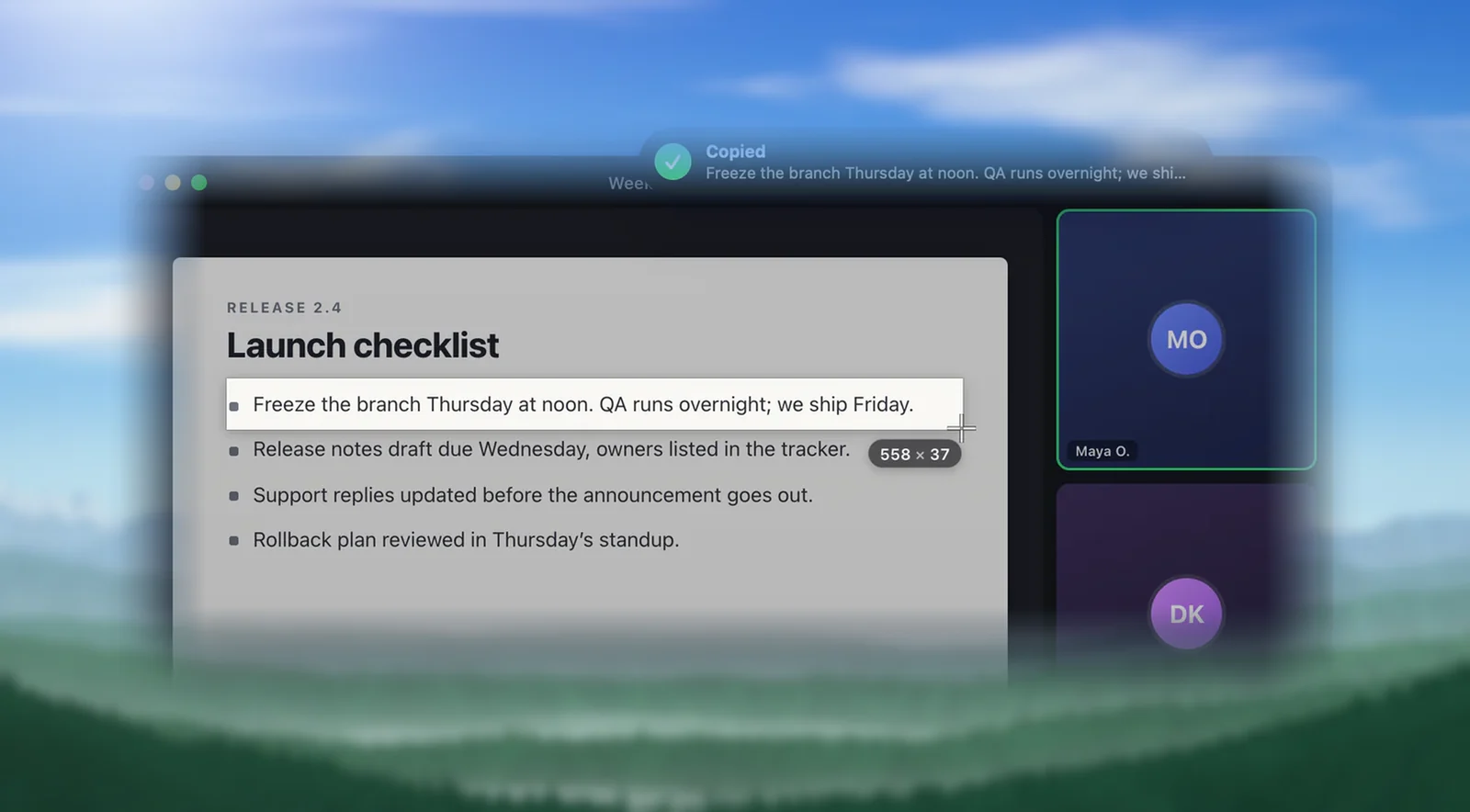
Recognition runs on your Mac with Apple’s Vision framework, so your captures stay on your Mac. Beyond plain text, a QR code or barcode comes back as its contents, a table pastes into Numbers or Excel as real cells, and holding ⌥ as you let go copies a translation instead. Every capture is also kept in a searchable history in the menu bar, so you can copy it again later.
Pick the right method for the source
Each source has its own quirks. This table lists the quickest free route and the guide that covers it in detail.
| What you’re copying from | Quickest free method | Detailed guide |
|---|---|---|
| A paused video | Live Text in QuickTime Player, or screenshot + Live Text | Copy text from a video |
| A photo or image file | Live Text in Photos, Preview or Quick Look | Copy text from an image |
| A PDF that won’t select | Preview’s Text Selection tool; File → Export → Embed Text for scans | Can’t copy text from a PDF |
| A screen share in a call | Ask for the link in chat, or screenshot + Live Text | Copy text from a screen share |
| App labels, dialogs, installers | Look for a Copy button, then screenshot + Live Text | Copy text you can’t select |
| A website that blocks copying | Safari Reader, or print the page to PDF | Copy from a site that won’t let you |
| An iPhone app on your Mac | Copy on the iPhone, paste on the Mac | Copy text from iPhone Mirroring |
| Terminal output | Pipe it to pbcopy |
Copy text from Terminal |
| A link shown in an image | Live Text’s link arrow in Preview | Copy a URL from an image |
What no tool can copy
Some text is out of reach for screenshots, Live Text and screen-OCR apps alike:
- Protected video. Streaming services and some apps block screen capture, so their video shows up black. That’s deliberate, and no capture tool gets around it. Use the service’s subtitles or a transcript instead.
- Text that isn’t on screen. Recognition reads what’s visible. For a long page, capture it in parts as you scroll.
- Hidden values. A password field shows dots, and dots are all a capture sees.
- Tiny, blurry or decorative text. Zoom in first (⌘+ works in most apps), pause on a sharper video frame, and check codes and numbers character by character.
- Messy handwriting. Neat handwriting is often readable; tight cursive and faint pencil usually aren’t.
When text is protected on purpose, such as a document whose owner turned off copying, the right move is to ask for a copy rather than work around it.
Frequently asked questions
Is there a built-in way to copy text from anywhere on a Mac?
Not in one step. Live Text only works inside apps that support it, such as Photos, Preview, Quick Look and Safari, so for anything else you take a screenshot first and use Live Text on that.
Why can’t I select text in some apps?
The words are drawn as part of an image, a video frame or the app’s own interface rather than as text. Selection can’t reach them, but text recognition (OCR) can read them from the pixels.
Why is the copied text slightly wrong?
Recognition guesses each character from pixels, so small, blurry or stylised text leads to mistakes like l for 1 or rn for m. Make the text bigger on screen before you capture, and check numbers and codes by eye.
Can I copy text from a video that shows up black?
No. Streaming services and some apps protect their video from screen capture, so screenshots and screen-reading tools only see a black rectangle. Look for subtitles, a transcript or the creator’s own notes instead.
Sources
- Interact with text in a photo in Preview on Mac — Apple Support support.apple.com
- Change Language & Region settings on Mac — Apple Support support.apple.com
- Take screenshots or screen recordings on Mac — Apple Support (Mac User Guide) support.apple.com