
On a plane, in a hotel with captive Wi-Fi, or just because you’d rather your text stayed on your Mac: translation doesn’t have to go online. macOS can translate entirely on the computer, but only with languages you’ve downloaded in advance. The time to do that is before you lose the connection, not after.
Open System Settings → General → Language & Region, click Translation Languages and download each language you need, including your own. Turn on On-Device Mode to keep translations on your Mac even when you’re online. After that, the Translate option in the Control-click menu works offline, including on text Live Text finds in images. Safari’s page translation doesn’t: Apple says it always goes online.
Download the languages
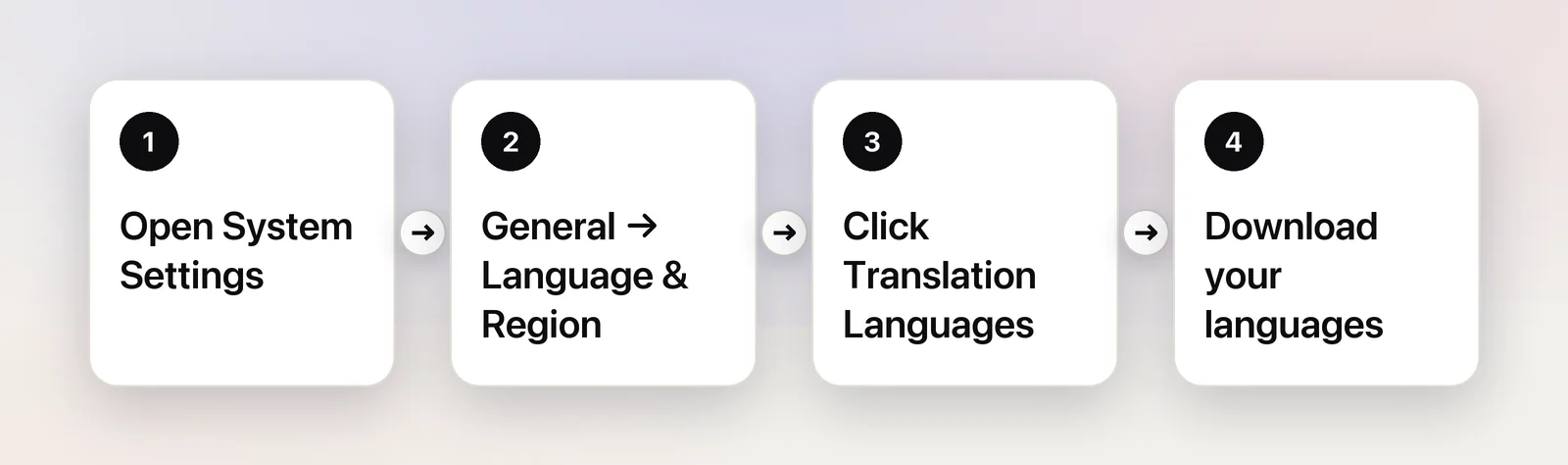
- Choose Apple menu → System Settings, then click General in the sidebar.
- Click Language & Region. You may need to scroll down.
- Click Translation Languages.
- Click Download next to each language you want. A translation needs both ends, so make sure your own language is downloaded as well as the one you’ll be reading.
- Click Done.
To remove a language you no longer need, open the same list and click Remove next to it.
On-Device Mode: offline even when you’re online
In the same Translation Languages window, On-Device Mode tells macOS to process translations on your Mac even while it’s connected. It’s the switch to turn on if your reason for offline translation is privacy rather than travel: your text stays on the computer every time, not just when there’s no Wi-Fi.
There’s one trade-off to know about. Apple’s own guide says offline translations may be less accurate than translations processed using Apple servers. In practice, short everyday text is fine; long, technical or idiomatic passages are where you might notice.
Which features use them
Downloaded languages aren’t used by everything that translates. Here’s what works offline, going by Apple’s guide:
| Feature | Offline with downloaded languages? |
|---|---|
| Control-click → Translate on selected text | Yes |
| Translate on text Live Text finds in Preview or Photos | Yes, it’s the same translator |
| Apps built on Apple’s Translation framework | Yes: Apple says they share the same on-device language models |
| Safari’s page translation | No: Apple says Safari always processes translations online |
| Siri | No: also always online |
| Translation websites such as Google Translate or DeepL | No, they run on the provider’s servers |
Text recognition is a separate step, and it’s on-device too. Live Text reads the words in a photo without a connection, so a photo of a menu or a sign can be recognized and translated anywhere.
How much space they take
Apple doesn’t publish the size of each language in its guide, and it varies with the language. Download the languages you actually use rather than everything in the list. If you’re short on space, check System Settings → General → Storage before a trip, and remove languages you no longer need afterwards.
Travel checklist
Do this at home, on a good connection:
- Download both directions. Your language and the local one, plus any language you’re likely to meet, such as English on signs in a third country.
- Turn on On-Device Mode if you want to be sure nothing is sent anywhere.
- Test it with Wi-Fi off. Turn off Wi-Fi, select a sentence in Notes, Control-click and choose Translate. If it works now, it’ll work on the plane.
- Save what you’ll need to read. Booking confirmations, tickets and addresses as PDFs or screenshots, so you can translate them without loading a web page.
- Check your region. Apple notes that translation availability and languages vary by country or region.
- Copy text out of web pages while you’re online. Safari’s page translation won’t work offline, but pasted text in Notes can be translated with Control-click.
When a language isn’t downloaded yet
If you ask macOS to translate from a language that isn’t on your Mac and you’re offline, there’s nothing to fall back on: the language has to be downloaded first, and that needs a connection. Plan ahead for any language you might need.
In Unpixel
Unpixel translates through Apple’s Translation framework, so it uses the same downloaded languages, and it works offline once they’re there. Recognition is on your Mac too. What happens with a missing language depends on how you asked:
- When you ask for a translation, by holding ⌥ as you let go of a selection or choosing Copy & Translate Text, a small window says “Preparing Japanese → English…” and macOS asks whether to download the language. Click Cancel to copy the original text instead.
- When translation is automatic (Always translate text that isn’t in your language in Settings → Translation), no window appears. The original is copied, and the confirmation says which language isn’t downloaded yet and how to translate the capture later.
Settings → Translation also shows which languages translate into yours right away, and Manage Languages… opens Translation Languages in System Settings. Captures and translations never leave your Mac; Unpixel only goes online to check its license and, if you allow it, for updates.
Frequently asked questions
Is offline translation as good as online translation on a Mac?
Not always. Apple’s guide says offline translations may be less accurate than translations processed using Apple servers. For everyday reading the difference is usually small; for anything important, check with a person.
Do I need Apple Intelligence to translate offline?
Not for translating selected text or text in images: that uses the Translation Languages you download. Apple lists Live Translation in Messages, Phone and FaceTime as Apple Intelligence features, which have their own requirements.
Why does Safari still need the internet to translate a page?
Apple’s guide says Siri and Safari always process translations online, whatever you’ve downloaded. To read a page offline, copy the text into Notes or TextEdit and translate it there.
Sources
- Translate text on Mac — Apple Support (Mac User Guide) support.apple.com
- Change Language & Region settings on Mac — Apple Support support.apple.com
- macOS Feature Availability — Apple apple.com
- Meet the Translation API (WWDC24) — Apple Developer developer.apple.com