
Translating Japanese from a picture is two jobs. First the characters have to be recognized correctly, which is harder than it sounds with thousands of kanji, kana that look alike and text that can run in columns. Then the sentence has to become natural English, from a language that happily leaves out who did what. macOS handles both on your Mac, and a few habits make the result far more reliable.
Open the image in Preview or Photos, drag across the Japanese with Live Text, Control-click the selection and choose Translate. Live Text usually reads vertical columns as well as horizontal lines. Download Japanese under Translation Languages in System Settings to translate offline. Work one sentence or speech bubble at a time, and expect left-out subjects and politeness levels to come out a little off.
Get the Japanese recognized first
A translator can only work with the characters it’s given. If one kanji is misread, the sentence can change meaning entirely, so it’s worth a glance at the recognized text before you trust the translation.
Live Text has read Japanese since macOS Ventura, in Preview, Photos, Quick Look and images in Safari. To check what it sees, select the text, Control-click it and choose Copy Text, then paste it into Notes next to the image.
Recognition improves a lot with a few simple steps:
- Make the text big. Zoom in until the characters are large on screen. Dense kanji such as 曜 or 議 need plenty of pixels.
- Select one block at a time. A sign, a caption or a speech bubble, not the whole photo.
- Avoid busy backgrounds. Text over a pattern or a photo is misread more often; crop or zoom to the cleanest part.
Some characters are famously easy to confuse, for people and for OCR alike. When a translation looks odd, check these first:
| Looks like | Can be read as | What to check |
|---|---|---|
| ロ (katakana ro) | 口 (kanji “mouth”) | Is it inside a katakana word? |
| カ (katakana ka) | 力 (kanji “power”) | Same question |
| ー (long vowel mark) | 一 (kanji “one”) | It lengthens a vowel in words like コーヒー |
| ニ, ハ (katakana) | 二, 八 (kanji “two”, “eight”) | Is there a number nearby? |
Vertical text and furigana
Novels, manga and many signs set Japanese vertically, in columns that read top to bottom and right to left. Live Text can select a block of columns and return them in that order, so the copied text comes out as sentences rather than scrambled pieces. Results vary with the lettering, though, so compare the copied text with the image before you translate. The guide to OCR for vertical and rotated text compares how Mac tools cope.
Furigana are the small kana printed beside kanji to show how they’re read. Recognition either drops them or returns them as extra short lines, and in the second case a translator sees words twice: 東京 followed by とうきょう. Delete the furigana fragments before translating, or keep them in your notes as a pronunciation guide.
Hand-drawn lettering, like the sound effects in manga, is mostly beyond any OCR. The guide to extracting text from manga covers that in more detail.
Translate on your Mac
With the text selected in Preview, Photos or Safari:
- Control-click the selection and choose Translate “…”.
- Check that the first pop-up menu says Japanese. A short sign written only in kanji can be taken for Chinese.
- Read the translation, and click Copy Translation if you need it elsewhere.
To translate without a connection, download Japanese (and your own language) in System Settings → General → Language & Region → Translation Languages.
In Unpixel
Plenty of Japanese on a Mac isn’t in an image at all: a game menu, an app that only ships in Japanese, a slide in a video call, a shop’s product page. Unpixel reads it straight off the screen. Press ⇧⌘2, drag over the text and hold ⌥ as you let go; the confirmation says “Translated · Japanese → English” and the translation is on your clipboard, made on your Mac by Apple’s Translation framework.
For short labels, open Settings → Recognition, turn off Detect language automatically and choose Japanese, which gives the recognizer a head start. Fast mode can’t read Japanese, so those captures use Accurate. One honest limit: Unpixel reads text with Vision’s standard text request, which misses vertical Japanese columns, so use Live Text for those. The guide to Chinese, Japanese and Korean OCR explains the difference.
When the translation sounds off
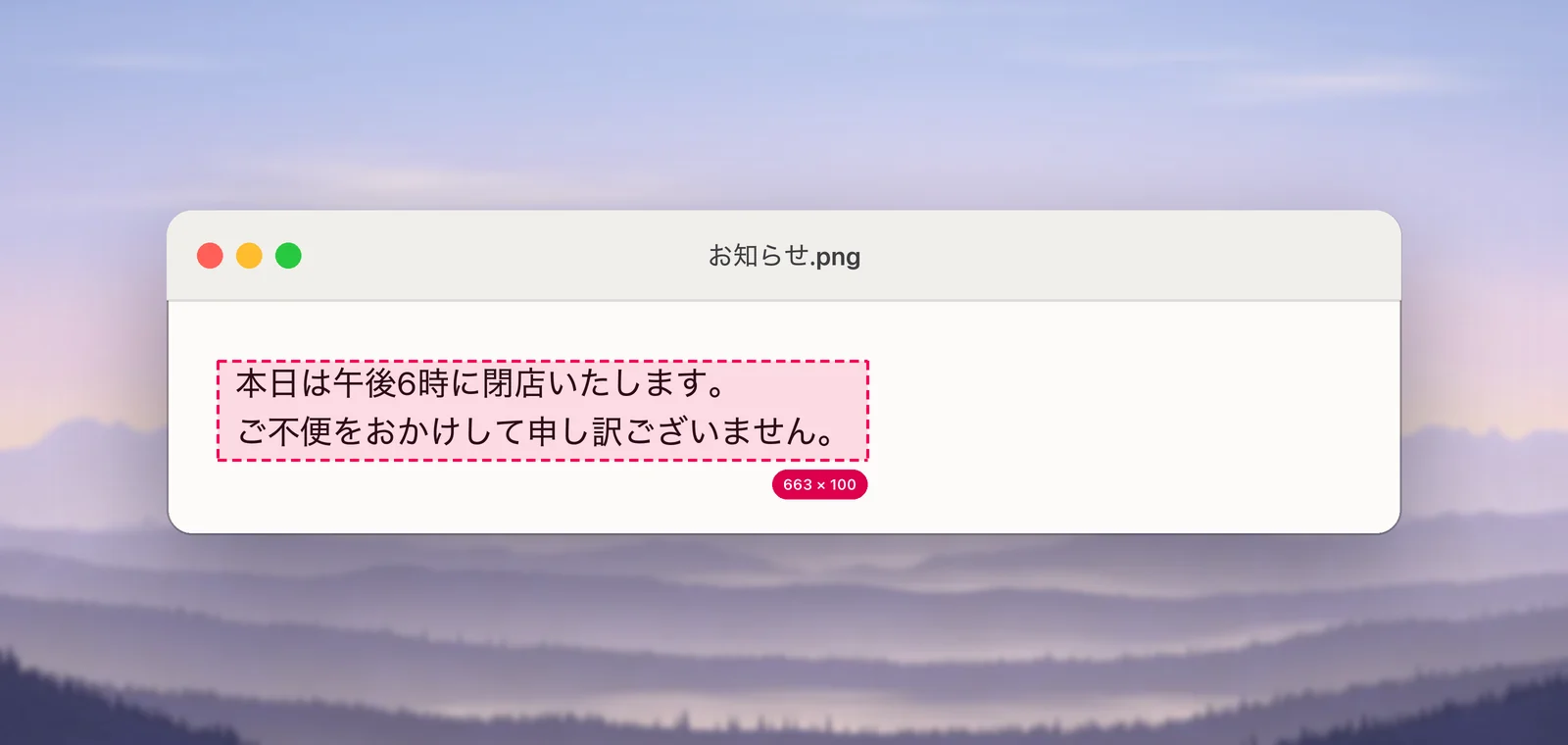
The notice above says, literally, “Today, (we) will close the shop at 6 p.m. We are very sorry for the inconvenience caused.” A translator will usually produce something close. Where it goes wrong, it tends to be for reasons built into the language:
- Missing subjects. 「昨日見た?」 is a complete question in Japanese with no “you” and no “it”. English needs both, so the translator guesses, and in a longer passage it can guess the wrong person.
- Politeness levels. Japanese marks respect in its verbs. 申し訳ございません is a very formal apology, and English has no direct equivalent; translations often flatten it to “sorry”.
- Names and honorifics. -san, -sama and -sensei may be kept, dropped or translated as “Mr.” or “teacher”. Decide how you want them and fix them by hand.
- Katakana loanwords that changed meaning. マンション is an apartment building, not a mansion.
- Set phrases. すみません can mean “sorry”, “excuse me” or “thank you” depending on the moment.
If a sentence matters, translate the sentences around it too, so the translator has the context a human reader would have.
Learning Japanese with it
Translation is a good crutch for reading real Japanese, as long as you keep looking at the Japanese:
- Keep the original and the translation together. In Unpixel, Copy original and translation in Settings → Translation pastes both, one after the other.
- Look up single words with Control-click → Look Up, which shows the word’s dictionary entry.
- Save whole sentences, with where you found them, into your notes or flashcards.
The guide to OCR for language learners builds this into a full study routine.
Frequently asked questions
Can a Mac translate vertical Japanese text?
Usually, with Live Text. Open the image in Preview, drag across the columns of one block of text, Control-click and choose Translate. Select one bubble or paragraph at a time, and check that the columns came through in order.
Does Japanese translation work offline on a Mac?
Yes, once Japanese and your own language are downloaded in System Settings → General → Language & Region → Translation Languages. Apple notes offline translations may be less accurate than ones processed online.
Why does the translation add “I” or “you” when the Japanese doesn’t say it?
Japanese often leaves the subject out when it’s clear from context, and English needs one. The translator guesses, and it can guess wrong, so read the surrounding sentences.