Unpixel recognizes text on your Mac with Apple’s Vision framework, so reading text never needs the internet. The only things that go online are the license check and the optional update check, and even the license check can wait up to 30 days.
Captures, QR codes, tables, files and history all work with no connection, and so does translation into languages macOS has already downloaded. Unpixel checks its license now and then; if it can’t reach the license server, it keeps working for 30 days after the last successful check. After that, connect and click Verify Now. Your key stays on the Mac.
What works offline
| Works with no connection | Needs a connection |
|---|---|
| Screen captures with your shortcut | Activating your license the first time |
| From Clipboard and Open Image…, including PDFs | Deactivating a Mac |
| QR codes, barcodes, links and tables | The license check, at least once every 30 days |
| History: search, filters, copying again | The optional update check |
| Translation into languages macOS has downloaded | Downloading a translation language |
Offline translation on Mac explains how to download languages before a trip.
When Unpixel checks the license
- When it starts, if the last successful check was more than an hour ago.
- Once a day while it’s running.
- A few seconds after your Mac wakes from sleep, if the last check was more than an hour ago.
- If the daily check can’t get through, about every hour until one does.
- Whenever you click Verify Now or choose Verify License.
Each check sends your license key and an ID for this Mac’s activation to Dodo Payments, which handles licensing; the Mac’s name and model were sent once, when you activated. Nothing you capture is ever part of it. Checks run in the background, and captures never wait for one while your license is in good standing.
The 30 days offline
The 30 days are counted from the last successful check. A check that fails because you’re offline, or because the license server is busy or down, changes nothing you’d notice: captures keep working. Only Settings → License shows it, with Status: Activated · Offline and a line such as “Couldn’t reach the license server. Unpixel keeps working for 12 more days; connect to the internet to re-verify.”
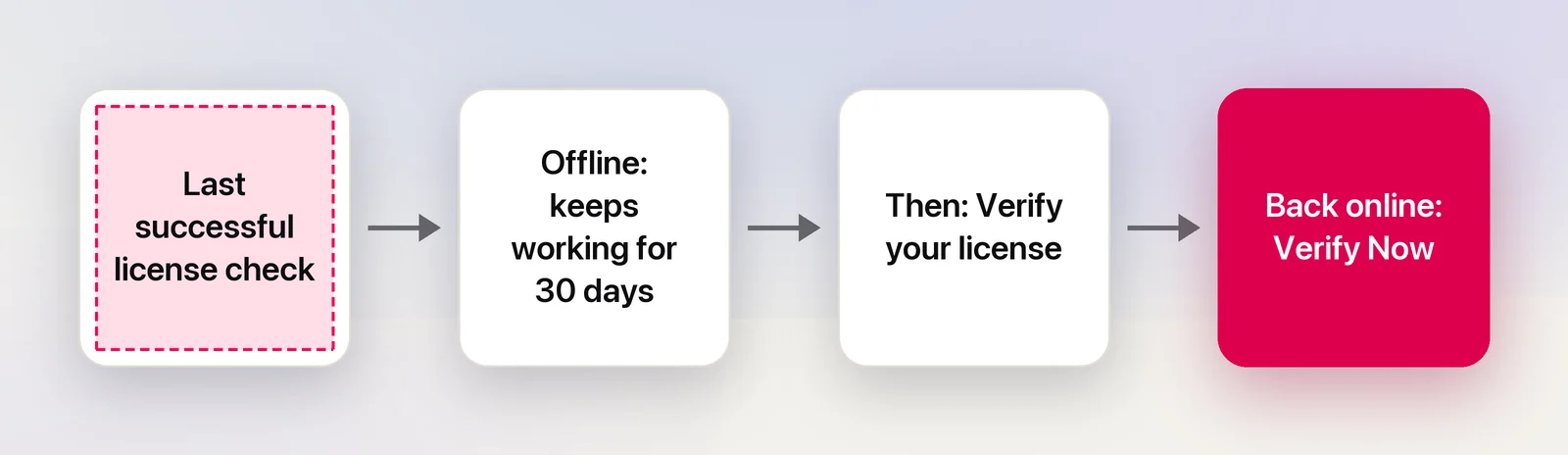
After 30 days without a check
Captures pause, but nothing is lost: your key, settings and history stay on the Mac, and you can still search and copy saved captures. Unpixel shows what’s needed in several places:
- An orange Verify your license banner in the menu bar panel, with Details… and Verify Now.
- Verify License in the right-click menu and the panel’s … menu.
- Status: Needs verification in Settings → License, with “Unpixel couldn’t verify your license for over 30 days. Connect to the internet to re-verify it.”
Starting a capture tries a check straight away. You see “Verifying your license…”, and if it succeeds, the capture carries on as if nothing happened. If you’re still offline, a message says “Connect to the internet to re-verify”. Opening the panel while you’re back online also triggers a check.
Verify Now
- Connect to the internet.
- Open Settings → License and click Verify Now, which appears whenever a check hasn’t got through. The button reads Verifying… for a moment.
- On success, Status returns to Activated and Last verified says “Just now”.
If it fails, the reason appears under the button with when it last tried. On a work network, a VPN, a firewall or a filtering proxy may block the check: Unpixel needs to reach live.dodopayments.com. Hotel and café Wi-Fi that wants you to sign in on a web page blocks it until you do.
Changing the clock doesn’t help
Unpixel remembers the latest date and time it has seen. Setting the Mac’s clock back doesn’t buy extra days; the time it jumps back is taken out of the 30 days instead. If your clock is wrong by accident, turn on Set time and date automatically in System Settings → General → Date & Time, then click Verify Now.
A license that was refunded or disabled is a different case: it says License no longer valid, and connecting doesn’t bring it back. License activation errors covers that message.
Frequently asked questions
Will Unpixel stop working in the middle of a flight?
Not unless the last successful check was more than 30 days ago. Last verified in Settings → License shows when that was.
Do I have to enter my key again after the 30 days?
No. The key stays on your Mac. One successful check, as soon as you’re back online, unlocks captures again.
Does being offline ever remove my license?
No. Only a definite answer from the license server, for example after a refund, switches a license off. Being offline or a server outage never does.
Sources
- Change Date & Time settings on Mac — Apple Support (macOS Tahoe 26) support.apple.com