
Chinese in a photo or screenshot is very readable for a Mac, as long as it knows what it’s looking at. The same sentence can be written in two scripts, words run together with no spaces, and a single misread character can flip the meaning. Sort out which Chinese you have, get the characters recognized cleanly, and the translation takes care of itself.
Open the image in Preview or Photos, select the Chinese with Live Text, Control-click it and choose Translate. Live Text reads Simplified and Traditional characters, and Cantonese. Download Chinese under Translation Languages in System Settings to translate offline. For a single word, Control-click it and choose Look Up to see its dictionary entry and pinyin.
Simplified, Traditional or Cantonese?
Chinese is written in two standard scripts:
- Simplified characters are used in mainland China, Singapore and Malaysia.
- Traditional characters are used in Taiwan, Hong Kong and Macau, and in many older books and overseas communities.
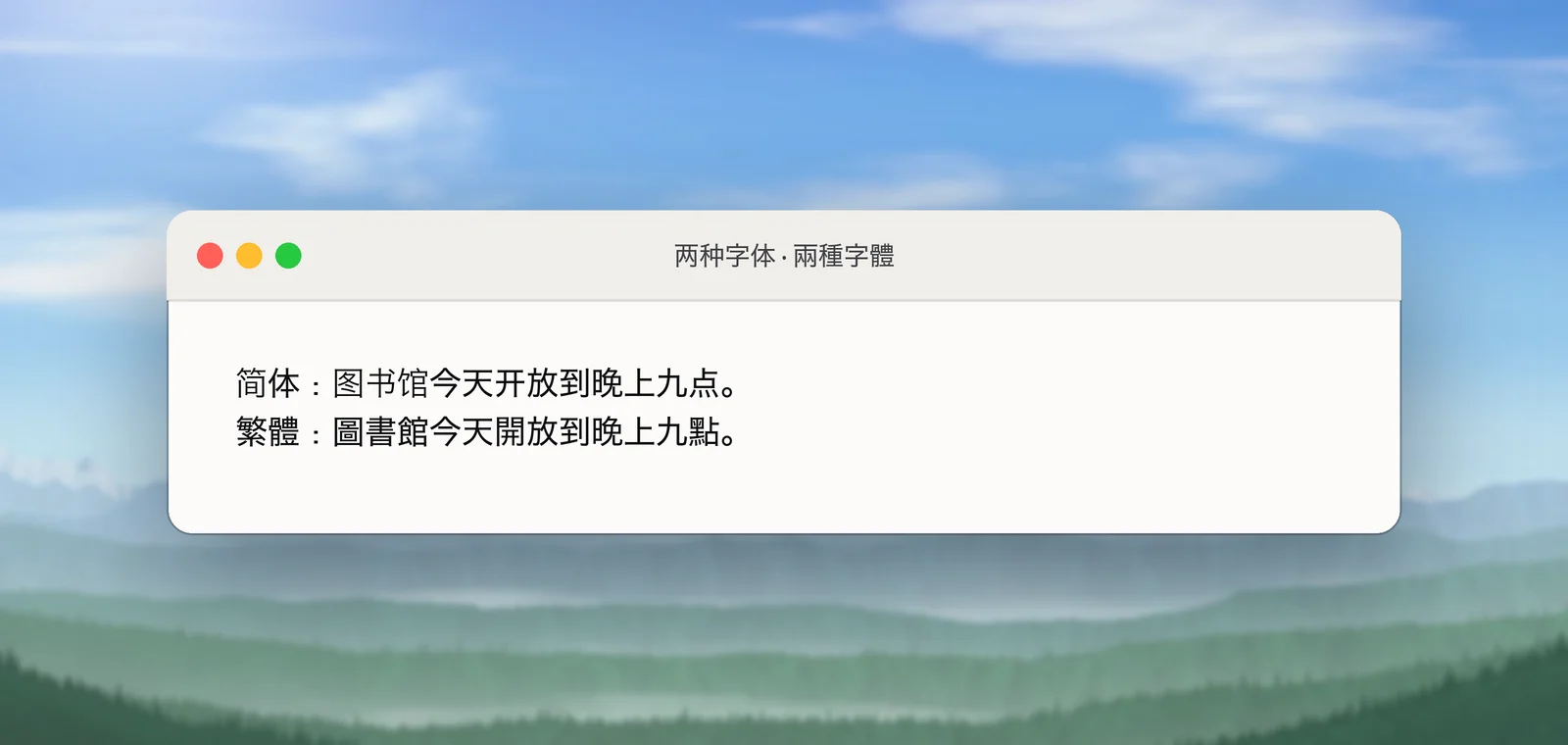
A quick way to tell them apart is to look for a few common characters: 们, 说, 国, 门 and 东 are Simplified; 們, 說, 國, 門 and 東 are their Traditional forms. Traditional characters are generally denser, with more strokes.
There’s a third case: written Cantonese. Hong Kong signs, chats and comics often use characters that standard written Chinese doesn’t, such as 嘅, 咗, 唔, 冇 and 佢. Apple lists Cantonese as its own language for Live Text, next to Simplified and Traditional Chinese. Machine translation tends to be strongest on standard written Chinese, so colloquial Cantonese may come out rougher.
Knowing the script matters because OCR tools that let you pick a recognition language do better with the right one, and because a translation from the wrong variety can misread names and vocabulary.
Get the characters recognized
Live Text reads Chinese in Preview, Photos, Quick Look and images in Safari:
- Open the image and zoom in so the characters are large. Complex characters such as 疆 or 鬱 need plenty of pixels.
- Drag across one block of text, such as a sign, a paragraph or a caption.
- Control-click and choose Copy Text if you want to check what was recognized before translating.
Two quirks of Chinese text are worth knowing about:
- No spaces between words. OCR returns a continuous run of characters, which is correct. Don’t add spaces; translators expect none.
- Line breaks split sentences. The copied text keeps the line breaks of the image, so a sentence that wraps arrives in two pieces. Delete the breaks before translating, without adding spaces.
Vertical Chinese, common in older books, calligraphy and some shop signs, is harder. Live Text can read vertical columns, but select one block at a time and check the order of what comes back. The guide to OCR for vertical and rotated text goes into more detail.
Translate on your Mac
With the text selected:
- Control-click the selection and choose Translate “…”.
- Check the source language in the first pop-up menu. Short text that’s all characters can be taken for Japanese, which uses many of the same ones.
- Click Copy Translation to paste the result elsewhere.
For offline use, download Chinese in System Settings → General → Language & Region → Translation Languages. The list shows which varieties of Chinese your Mac offers; Apple notes that availability varies by country or region.
In Unpixel
When the Chinese is on screen rather than in an image file, such as a message in a web chat, a product listing, a game or a slide in a call, Unpixel skips the screenshot step. Press ⇧⌘2, drag over the text and hold ⌥ as you let go. The translation is copied, made on your Mac by Apple’s Translation framework, and macOS asks before downloading a language.
For a source you read often, open Settings → Recognition, turn off Detect language automatically and pick the Chinese you’re reading: Simplified, Traditional or Cantonese. Fast mode can’t read Chinese, so those captures use Accurate. With Keep line breaks off, lines of Chinese are joined without spaces, which is what you want before translating anyway.
One limit: Unpixel is built for horizontal lines. In our test, Vision’s standard text request, which it uses, read a short four-character column of vertical Chinese but returned nothing for a 12-character column and for two-column passages of Chinese and Japanese. Live Text’s engine read them all, so it’s the safer tool for vertical text. (We drew those samples in PingFang and Hiragino Sans at 28 pixels and read them on an Apple M2 Mac running macOS 26.6.2.) The guide to Chinese, Japanese and Korean OCR has the details.
Look up characters and pinyin
A translation tells you what a sentence means; a dictionary tells you how to say it and why.
- Look Up. Select a word, Control-click it and choose Look Up. Turn on a Chinese dictionary in the Dictionary app’s Settings first, so the entry shows the pinyin and meanings.
- Type it back. To search for a word you can’t copy, add a Chinese input source in System Settings → Keyboard → Text Input → Edit… and type it in pinyin.
- Check single characters. Many characters only make sense in a compound word: 电 is “electricity”, but 电脑 is a computer. Look up the whole word, not just its first character.
Common mistakes
OCR sometimes swaps characters that differ by a single stroke, and the meaning changes with them. If one word in a translation makes no sense, check it against this list:
| Character | Meaning | Easily confused with |
|---|---|---|
| 未 | not yet | 末 (end) |
| 己 | self | 已 (already) |
| 土 | earth, soil | 士 (scholar) |
| 日 | sun, day | 曰 (to say) |
| 人 | person | 入 (to enter) |
The other usual mistakes have nothing to do with recognition:
- Translating a whole photo at once. A shopfront with a name, opening hours and a promotion becomes one garbled sentence. Translate each part separately.
- Misreading large numbers. Chinese counts in ten-thousands: 3万 is 30,000 and 1亿 is 100 million. Check that prices and figures survived the translation.
- Taking names literally. Shop names, dish names and people’s names are often translated word by word. Keep the original next to the translation when the name matters.
Frequently asked questions
Can my Mac translate Traditional Chinese?
Yes. Live Text recognizes Traditional characters, and on macOS 26 Apple’s translation framework also lists Chinese for Taiwan and Hong Kong, which use Traditional characters. Apple’s feature availability page lists only mainland Mandarin for system-wide translation, and languages vary by region, so check Translation Languages in Language & Region settings to see what your Mac can download.
Why does my copied Chinese have line breaks in the middle of sentences?
OCR keeps the line breaks of the image, and Chinese has no spaces to show where a sentence continues. Delete the breaks before translating so the translator sees whole sentences.
How do I find the pinyin for a character in an image?
Select it with Live Text, Control-click and choose Look Up. With a Chinese dictionary turned on in Dictionary → Settings, the entry shows the pronunciation and meaning.