
Your Mac can translate most of what you see on screen, but there isn’t one button for all of it. The right tool depends on what the words are made of: real text you can highlight, letters inside a picture, a whole web page, or pixels in an app that won’t let you select anything. Work out which one you’re looking at, and the translation is usually a few clicks away.
If you can select the text, Control-click it and choose Translate. For words inside a photo or screenshot, select them with Live Text in Preview or Photos first. Safari translates a whole page from the Translate button in the Smart Search field. Text you can’t select at all, such as a dialog, a game or a shared screen, has to be captured with OCR before it can be translated.
First, what kind of text is it?
Try to highlight a word by dragging across it. What happens tells you which tool to reach for:
| What you’re looking at | The test | Built-in way to translate |
|---|---|---|
| Text in a document, email, note or most apps | The words highlight when you drag | Control-click → Translate |
| Text in a photo or screenshot | In Preview or Photos the pointer turns into a text cursor | Live Text, then Translate |
| A whole web page in another language | Safari shows a Translate button in the address field | Safari’s page translation |
| A dialog, game, video, screen share or remote desktop | Nothing highlights at all | Screenshot it first, or capture it with OCR |
Text you can select: Control-click → Translate
This is macOS’s own translator, and it works in many Apple and third-party apps.
- Select the words you want translated. A full sentence translates better than a fragment.
- Control-click the selection and choose Translate “…”.
- In the window that opens, check the two language pop-up menus. The first is the language macOS detected; change it if it guessed wrong.
- Click Copy Translation to put the result on the clipboard.
If the text is in something you can edit, such as a draft email, the same window offers Replace with Translation, which swaps the original for the translated text in place. There’s more on shortcuts and editable text in the guide to translating selected text.
Text in images: Live Text’s Translate
Words in a photo, a scanned page or a screenshot are just pixels until Live Text recognizes them. Once it has, they behave like selectable text.
- Open the image in Preview or Photos.
- Hold the pointer over the words until it turns into a text cursor, then drag across them.
- Control-click the selection and choose Translate “…”, then pick a language.
If dragging in Preview draws a box instead of selecting words, choose Tools → Text Selection. If nothing selects in any app, check the Live Text switch in System Settings → General → Language & Region. Live Text also works on images in Safari and on paused video in QuickTime Player, but only in apps that support it.
Whole web pages: Safari’s Translate button
When Safari can translate a page, a Translate button appears in the Smart Search field. Click it and choose a language. The menu lists your preferred languages, so add yours in Language & Region if it’s missing.
Two things worth knowing: Apple says the languages on offer vary by country or region, and that Safari always processes translations online. Chrome, images inside pages and the privacy side are covered in translating a website on Mac.
Text you can’t select: capture it, then translate
A surprising amount of on-screen text can’t be highlighted. Think of error dialogs, an app’s buttons in a language you don’t read, subtitles burned into a video, a slide in someone else’s screen share, a game or a remote desktop window. The Control-click Translate option never appears there, because there’s no text to select.
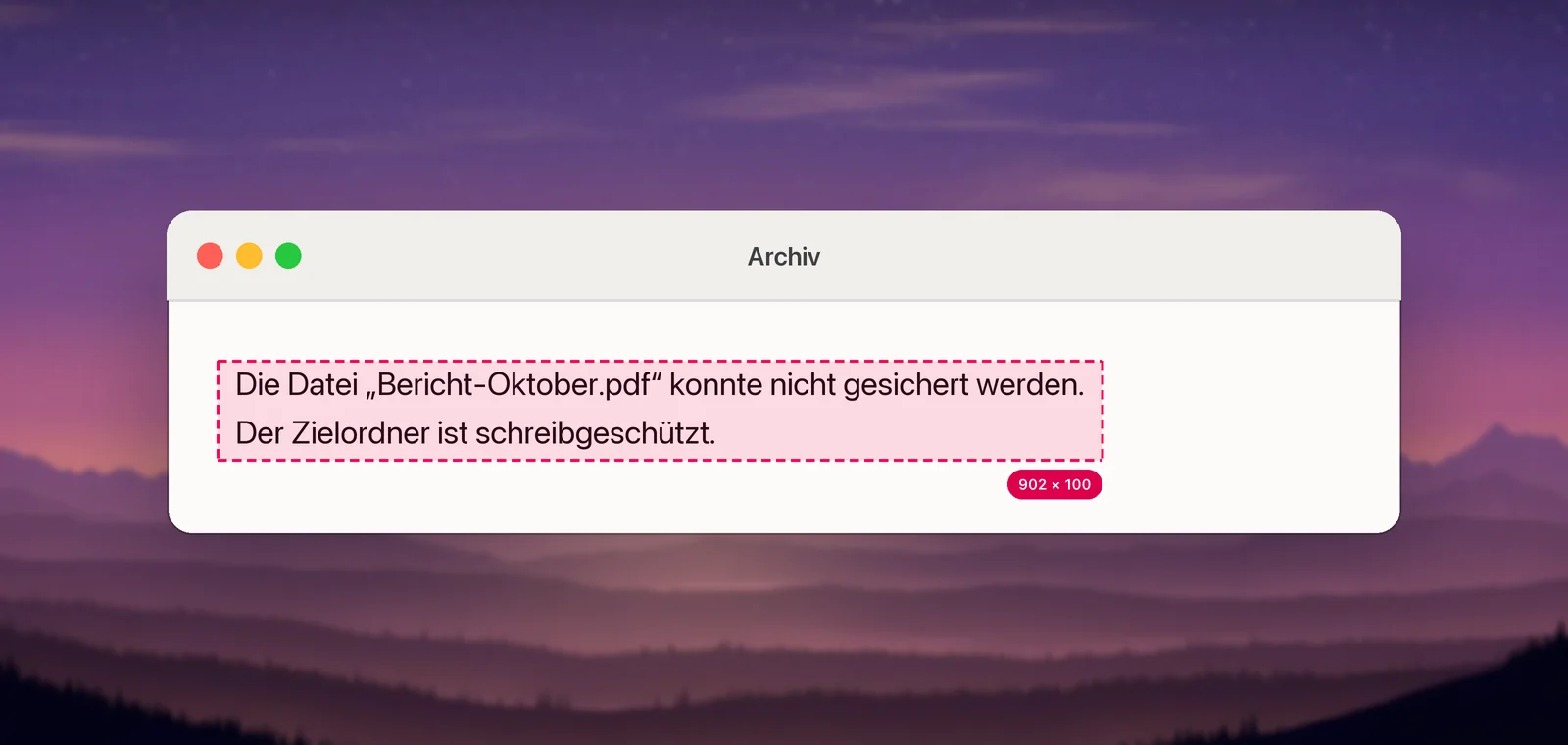
The free workaround is to turn the pixels into an image Live Text can read:
- Press ⌃⇧⌘4 and drag over the text. The screenshot goes to the clipboard, not the desktop.
- In Preview, choose File → New from Clipboard.
- Select the words with Live Text, Control-click and choose Translate.
- Close the window without saving.
It works whenever Live Text can read the text, but it’s four steps and a stray window for each sentence.
In Unpixel
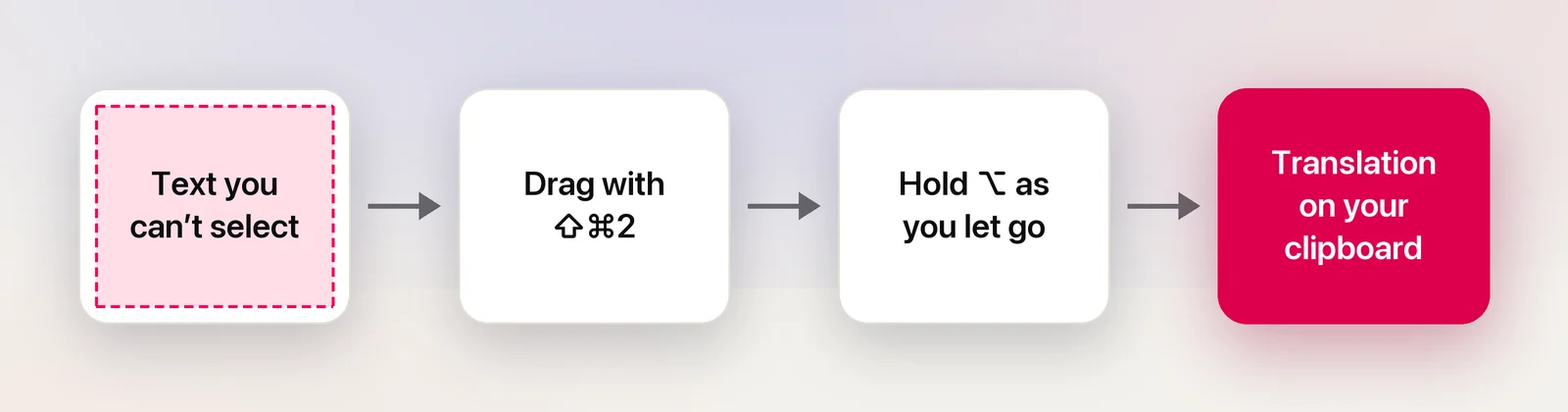
Unpixel folds those steps into the capture itself. Press ⇧⌘2, drag over the text, and hold ⌥ before you let go; the size label next to the selection shows “Translate”. The clipboard gets the translation into your language, and a confirmation such as “Translated · German → English” tells you what happened. If you’d rather not hold a key, right-click the menu bar icon and choose Copy & Translate Text.
Recognition uses Apple’s Vision framework and translation uses Apple’s Translation framework, both on your Mac; macOS asks before it downloads a language. To keep the source wording as well, turn on Copy original and translation in Settings → Translation. Like any screen-capture tool, it can’t read video that macOS protects from capture. The help article covers every setting.
Make it work offline
Every route above except Safari’s page translation can run without a connection, as long as both languages are on your Mac. Download them under System Settings → General → Language & Region → Translation Languages, and turn on On-Device Mode there if you want translations kept on your Mac even when you’re online. Apple notes that offline translations may be less accurate than ones processed on its servers. The offline translation guide walks through it, with a checklist for travel.
Tips for better translations
- Translate sentences, not single words. Short text is hard to identify: “Gift” is English for a present and German for poison. Give the translator context.
- Check the detected language in the pop-up menu before you trust the result.
- Zoom in before you capture small text. A misread letter becomes a mistranslated word.
- Compare names, numbers and dates with the original. Translators sometimes rewrite them.
- Keep the original when you’re quoting or replying, so you can check the meaning later.
- Get a human translation for anything medical, legal or contractual. Machine translation is for understanding, not for signing.
Frequently asked questions
Why is Translate missing from the Control-click menu?
Either nothing is really selected, the app doesn’t offer macOS translation, or translation isn’t available for that language in your region. Text in dialogs, games and video is often not selectable at all, so capture it instead.
Does translating on a Mac work without internet?
Yes, for languages you’ve downloaded in System Settings → General → Language & Region → Translation Languages. Apple notes that Safari always processes translations online, and that offline translations may be less accurate.
Can I translate text in a paused video?
In QuickTime Player, pause on a sharp frame, drag across the words with Live Text, then Control-click to translate. In other players and in browsers, capture the frame’s text instead.
Sources
- Translate text on Mac — Apple Support (Mac User Guide) support.apple.com
- Interact with text in a photo in Preview on Mac — Apple Support support.apple.com
- Translate a webpage in Safari on Mac (Safari 26) — Apple Support support.apple.com
- Change Language & Region settings on Mac — Apple Support support.apple.com
- macOS Ventura is now available (Live Text in paused video frames) — Apple Newsroom apple.com