Unpixel can copy a translation instead of the text you captured. It uses Apple’s Translation framework, so the translation is made on your Mac — the same way the text is recognized.
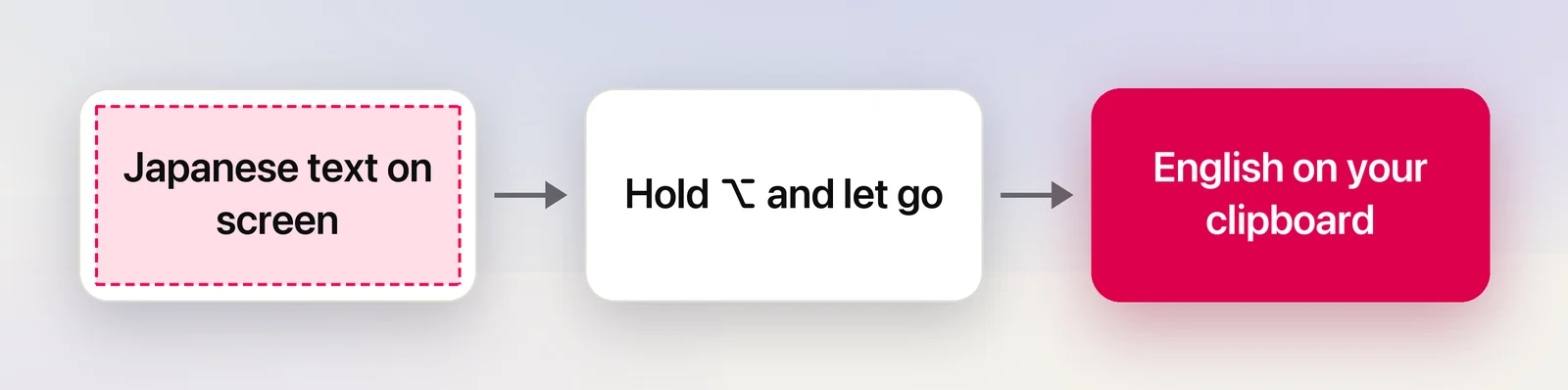
Hold ⌥ (Option) as you let go of the selection — the size label says “Translate” — and Unpixel copies the text translated into your language. You can also right-click the menu bar icon and choose Copy & Translate Text. Translation runs on your Mac with Apple’s Translation framework, and macOS asks before it downloads a language.
Translate one capture

- Press ⇧⌘2 and drag over the text.
- Before you let go, hold ⌥. The size label next to the selection changes to show “Translate”.
- Let go. The confirmation says what happened — for example “Translated · Japanese → English” — and the translation is on your clipboard.
If you’d rather not hold a key, right-click the Unpixel icon in the menu bar and choose Copy & Translate Text, then drag over the text.
Choose the language to translate into
Open Settings → Translation and pick a language under Translate into. Captures are translated into that language; text that’s already in it is copied as it is.
Translate automatically
Turn on Always translate text that isn’t in your language to translate without holding ⌥. Captures in a downloaded language are copied in your language, while short snippets and code stay as they are. With the setting off, only the captures you ask for are translated.
Keep the original too
Turn on Copy original and translation to get both: the original text, a blank line, then the translation. Useful when you’re quoting a source or checking the translation against it.
Download languages
The first time you translate from a language, macOS asks before it downloads that language. Under On-Device Languages in Settings → Translation, Downloaded languages lists what’s already on your Mac, and Manage Languages… opens the Translation Languages settings in System Settings to add or remove more.
If a capture is in a language that isn’t downloaded yet, Unpixel copies the original text, and the confirmation says which language is missing. Add it with Manage Languages…, or hold ⌥ on your next capture so macOS can offer the download.
Translate a capture from history
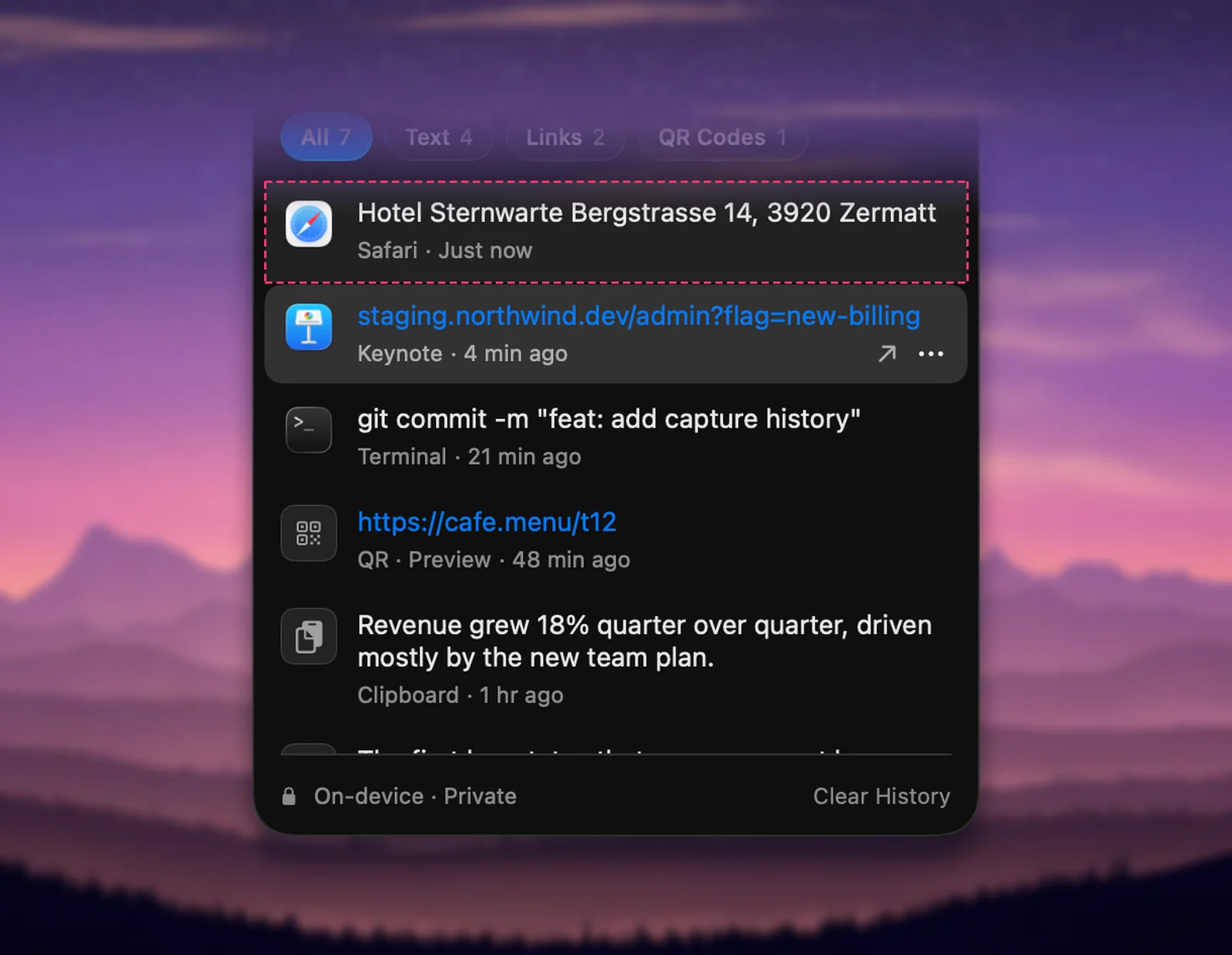
History keeps the original text of every capture. Right-click a capture and choose Translate & Copy to translate it now, or Copy Original to copy what was on screen.
Tables, numbers and automation
- Tables are translated cell by cell and still paste as a table in Numbers, Excel or Google Sheets.
- Numbers and prices are left as they are.
- Capture Again: press ⌥⇧⌘1 to read the area of your last selection again and copy a translation. See Read the same area again.
- Adding to the clipboard: hold ⌥⇧ as you let go to add the translation after what’s already on the clipboard.
- Automation: opening
unpixel://capture?translate=1(from Raycast, Alfred or the Shortcuts app’s Open URL action) starts a capture that copies a translation. In Shortcuts,unpixel://x-callback-url/capture?translate=1also returns the translation to your shortcut.
Frequently asked questions
Is my text sent to a translation service?
No. Unpixel uses Apple’s on-device Translation framework. The text never leaves your Mac; the only download is the language itself, and macOS asks before that.
Can I translate something I captured yesterday?
Yes. Open the menu bar panel, right-click the capture in your history and choose Translate & Copy. Copy Original gives you the text as it was captured.