How you translate a PDF depends on one question: does it contain text, or pictures of text? A PDF exported from Word or a website has real text, and macOS can translate it directly. A scanned contract or a phone photo saved as PDF is a stack of images, and no translator can do anything with it until the words have been recognized. Check first, then pick the method that fits the length of the document.
For a PDF with real text, select a passage in Preview, Control-click it and choose Translate. To translate the whole file and keep its layout, upload it to a document translator; as of October 2026 Google Translate accepts PDFs up to 10 MB and 300 pages. Scanned pages need their text recognized first, with Preview’s Embed Text or an OCR app.
Does your PDF have text?
Open the PDF in Preview and drag across a sentence.
- The words highlight one by one: it has a text layer. Every method below works.
- A rectangle appears, or nothing selects: the page is an image. Skip to the section on scanned PDFs.
- The text highlights but pastes as gibberish: the PDF uses a font without a proper character map. The translator only gets the gibberish, so read the pages as pictures instead: screenshot a page and use Live Text, or use an OCR app. Preview’s Embed Text may not be offered here, because the file already has a text layer.
The guide to PDFs that won’t let you copy text goes through the less common cases, such as password-protected files.
Text PDFs: select and translate in Preview
macOS’s built-in translator works on any text you can select, including text in PDFs.
- Open the PDF in Preview.
- Select a paragraph or two.
- Control-click the selection and choose Translate “…”.
- Check the language pop-up menus, then click Copy Translation if you want to paste it somewhere.
This is free, private when the language is downloaded, and good for reading a document a section at a time. It gets tiring for anything longer than a few pages, and two habits help:
- Select one column at a time. In two-column papers, a drag can jump across columns and mix sentences from both.
- Watch for broken lines. PDFs store a line break at the end of every printed line, and a hyphenated word may arrive in two halves. If a translation reads choppy, paste the text into TextEdit, remove the line breaks, and translate it from there.
Whole documents: online document translators
When you need the entire file translated and laid out like the original, a document translator does it in one upload. Two well-known options, with details from their own pages as of October 2026:
| Service | What it takes | Free limits | Scanned pages |
|---|---|---|---|
| Google Translate (Documents tab) | .docx, .pdf, .pptx, .xlsx | Up to 10 MB; PDFs up to 300 pages | Shown but not translated |
| DeepL (free version) | PDF, Word, PowerPoint, Excel and more | 1 file translation a month, up to 5 MB | DeepL says it handles scanned PDFs |
To use Google’s: go to translate.google.com, click Documents, choose the languages, click Browse your computer, pick the file, then Translate and Download translation.
Both services keep the layout far better than copying text around. The catch is that the document leaves your Mac. For a product manual or a public report that doesn’t matter. For a contract, a payslip, medical results or anything under an NDA, read the service’s privacy terms first, or keep the work on your Mac with Preview’s Translate.
Scanned PDFs: recognize the text, then translate
A scan needs optical character recognition (OCR) before any translator can read it. Preview can do this for free:
- Open the scanned PDF in Preview and choose File → Export.
- Select Embed Text and save the copy.
- Open the new copy. The words can now be selected, so Control-click a passage and choose Translate.
Apple notes that Embed Text only appears when no text has been recognized in the document yet. The recognized copy is also worth keeping, because you can search it. The guide to copying text from a scanned PDF has tips for crooked or faint scans.
In Unpixel
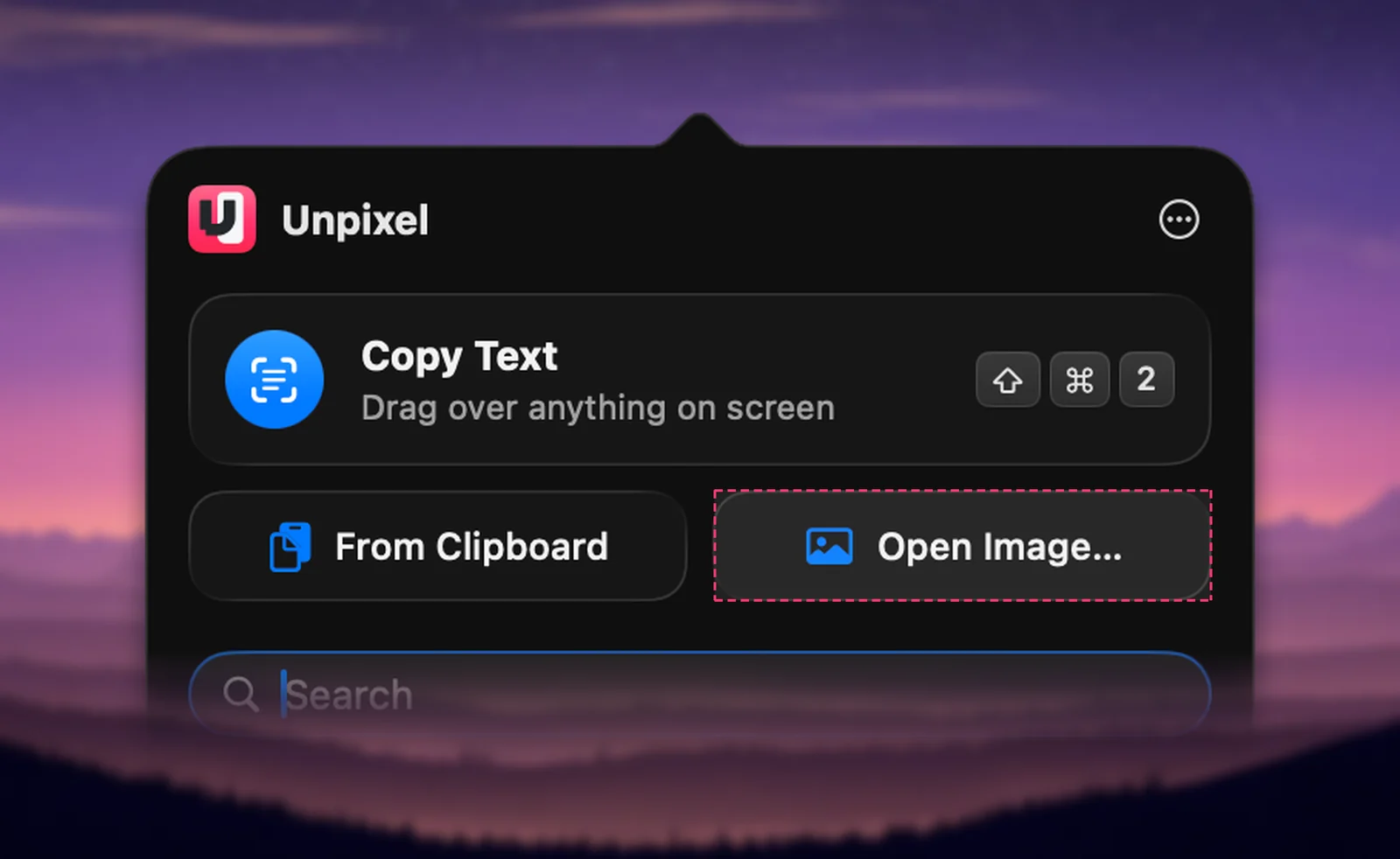
If you want the translated text rather than a searchable copy, Unpixel reads the PDF and translates it in one pass. Click Open Image… in its menu bar panel, or drag the PDF onto the menu bar icon. It recognizes up to 50 pages per capture; for a longer file, the confirmation says it read the first 50 pages.
Translation comes in one of two ways:
- Automatically, if Always translate text that isn’t in your language is on in Settings → Translation. The text is copied in your language, as long as the source language is already downloaded.
- On request, by right-clicking the capture in history and choosing Translate & Copy. If the language isn’t on your Mac yet, macOS asks before downloading it.
For a single paragraph you’re looking at, press ⇧⌘2, drag over it and hold ⌥ as you let go. Recognition and translation both happen on your Mac. What you get is text on the clipboard: Unpixel doesn’t produce a translated PDF, so use a document translator when the layout matters.
Long documents and layout
Any method that turns a PDF into text loses some of the layout. Plan for it:
- Headers, footers and page numbers end up mixed into the text. Delete them before translating, or they’ll interrupt sentences.
- Footnotes land where they sat on the page, often in the middle of a paragraph.
- Tables usually come out as lines of words. Unpixel translates a table cell by cell and keeps it a table; the guide to translating a table and keeping the cells explains how.
- Work in chapters. Translating 10 pages at a time makes it easier to spot where something went wrong.
- Official use needs a person. Immigration papers, court documents and certificates usually require a certified human translation. Machine translation is for understanding what you have.
Frequently asked questions
Can Preview translate a whole PDF at once?
Not in one step. Preview’s Translate works on the text you select, so it suits a paragraph or a page. For a whole document, use a document translator or copy all the text out first.
Why does Google Translate leave some pages untranslated?
Those pages are probably scans. Google’s help page says text in images and scanned PDF pages appears in the output but isn’t translated.
Is it safe to upload a PDF to an online translator?
It depends on the document and the service’s terms. A brochure is fine; a contract, payslip or medical report is better translated on your Mac, with Preview’s Translate and downloaded languages.
Sources
- Translate text on Mac — Apple Support (Mac User Guide) support.apple.com
- Embed text in a PDF in Preview on Mac — Apple Support support.apple.com
- Translate documents & websites — Google Translate Help support.google.com
- DeepL Pro plans and pricing — DeepL deepl.com
- New document translation updates (file types and scanned PDFs) — DeepL deepl.com