Google Lens and Unpixel both look at an area of your screen and find the words in it, so they’re easy to confuse. They’re built for different jobs. Lens is a visual search engine that lives in Chrome and answers questions about what you see. Unpixel, the app we make, is a Mac menu bar app that copies the text and stops there. This comparison uses Google’s own help pages, as of October 2026, for everything about Lens.
Use Google Lens in Chrome when you want answers about what you see: a product, a plant, a homework problem or a language Apple doesn’t translate. It sends a screenshot of the page to Google. Use Unpixel when you want the text itself on your clipboard, from any app on your Mac, read on-device and never uploaded.
Where each works
Google Lens on a Mac lives in Chrome. Google’s help page lists several ways in:
- Click the More menu (⋮) and choose Search this tab with Google Lens, then drag over part of the page.
- Right-click the page and choose the same command.
- Right-click an image and choose Search with Google Lens.
Results open in a side panel. Google’s help page says Google needs to be your default search engine for this. Lens sees only what’s in the Chrome tab, so text in Slack, a PDF in Preview or a slide in a video call is out of reach unless you take a screenshot and give that to Google.
Unpixel works on the whole screen. Press ⇧⌘2 from any app, drag over the text, and let go. It doesn’t matter whether the words are in Chrome, Safari, Zoom, a game or a dialog box. It also reads files: Open Image… handles images and PDFs, and From Clipboard reads a screenshot you’ve copied.
Neither can read video that macOS keeps out of screen captures, such as protected streaming services, which usually show up black.
Copying text
Google lists copying text among Lens features, but Lens is built around searching. You drag over an area, results appear in a panel, and you look for the option to select the text it found and copy it. It’s a couple of steps when the image is already on a web page in front of you.
With Unpixel, copying is the whole point. The text is on your clipboard the moment you let go, with a small confirmation showing what was copied. Settings decide how it arrives: line breaks kept as on screen or joined into paragraphs, recognition in Accurate or Fast mode, and a language you choose or one it detects. A table can paste into a spreadsheet as cells, and a QR code or barcode comes back as its contents. Each capture is also saved to a searchable history on your Mac, which you can turn off.
Privacy
This is the deepest difference.
Google’s Chrome help page says that when you use Lens on a page, a screenshot of the page and page data are sent to Google. Google says it keeps that data only temporarily to answer the query and doesn’t use the page or image for training, and the selection itself goes to Google Search, where you can manage it in My Google Activity. That’s a reasonable trade for a photo of a lamp you want to buy.
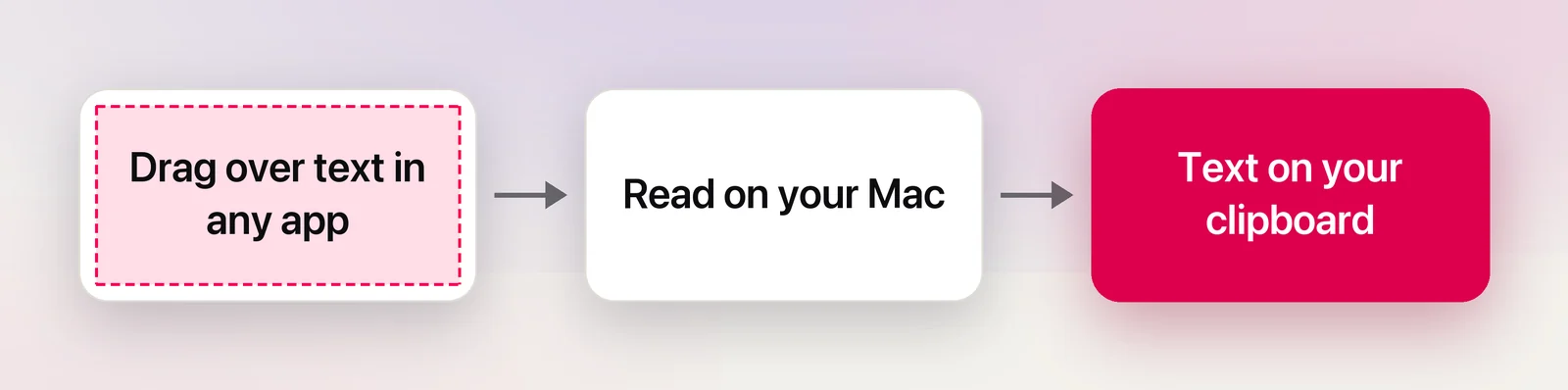
Unpixel reads the selected area on your Mac with Apple’s Vision framework and never uploads it. It has no account and no analytics. Its only network use is license activation and checks with its payment provider, plus an optional update check. For a bank statement, a patient record or an internal dashboard, that difference matters more than any feature. Our article on whether Google Translate is private covers the same question for typed text.
Translation
Google Lens translates text in images in over 100 languages, according to Google. On a Mac, Google Translate’s Images tab is the simplest route for a saved picture: upload it, choose the languages, then click Copy text to copy the translation. The image goes to Google.
Unpixel translates on your Mac while you capture. Hold ⌥ as you let go of a selection, and the clipboard gets the text in your language instead of the original, made by Apple’s on-device Translation framework. macOS asks before downloading a language, and after that it works offline. A table stays a table, translated cell by cell.
Google covers far more languages. If your language pair isn’t available in Apple’s Translation framework, Lens or Google Translate is the practical choice. For private text in a common language, on-device translation keeps it on your Mac. Our comparison of Apple and Google translation goes deeper.
When Lens is better
- Visual search. Identifying a product, a plant, a landmark or where an image came from is what Lens is for. Unpixel only reads text.
- Homework help and questions. Lens finds explainers and web results for subjects like math and chemistry, and Google describes asking questions about what you see.
- Rare languages. Google translates many more languages than Apple’s on-device framework.
- Any computer. Lens runs wherever Chrome does. Unpixel needs a Mac with Apple silicon and macOS 26.
And when Unpixel is better: when you want the words themselves, from any app, kept on your Mac. Keeping both, each for its own job, is a perfectly sensible setup.
Frequently asked questions
Is there a Google Lens app for Mac?
As of October 2026, Google’s Lens page lists Lens in Chrome on desktop and in its mobile apps, not a separate Mac app. On a Mac you use it inside Chrome.
Can Google Lens read text in Zoom or another Mac app?
Not directly. Lens in Chrome works on what’s in a Chrome tab. For text in another app, you’d need a screenshot first, and that screenshot would then go to Google.
Does Unpixel need an internet connection to read text?
No. Recognition runs on your Mac with Apple’s Vision framework and works offline. Unpixel only goes online to activate and check your license, and for an optional update check.
Can I use both?
Yes, and many tasks suit one or the other. Copy the words with Unpixel, and use Lens when you want to search for what a picture shows.
Sources
- Search with Google Lens in Chrome — Google Chrome Help (read October 2026) support.google.com
- Google Lens — Google Search (features and availability, read October 2026) search.google
- Translate images — Google Translate Help (computer) support.google.com