
Every table you capture stays in your history with its rows and columns. From there you can copy it again in a different text format: Markdown for notes and READMEs, CSV for import tools and scripts, or plain text when the capture shouldn’t have been a table at all. Nothing is recognized again; Unpixel reuses the cells it already has.
Click the Unpixel icon in the menu bar, find the table in your history (type “table” in the search field), right-click it and choose Copy as Markdown, Copy as CSV or Copy as Text. The clipboard then holds just that text version of the table, ready to paste into a README, a script or an import tool.
Find the table in history
- Click the Unpixel icon in the menu bar.
- Type
tablein the search field to list only table captures, or scroll to it. - Table rows show a grid icon, their first two rows and a caption such as “Table · 5 × 3 · Numbers”.
- Right-click the row, or hover over it and click the … button.
The menu shows Copy, then Copy as Text, Copy as Markdown and Copy as CSV. Each puts one text version of the table on the clipboard, in place of the cells.
Copy as Markdown
You get a GitHub-flavoured Markdown table:
- The first row becomes the header. If your table had no header row, the first data row takes that place; add a header line by hand if you need one.
- Columns are padded with spaces so the table lines up as plain text.
- Number columns are right-aligned with
--:in the separator line. - A
|inside a cell is written as\|, so it doesn’t start a new column. - Text that was captured with the table, such as a title above it, stays as a paragraph.
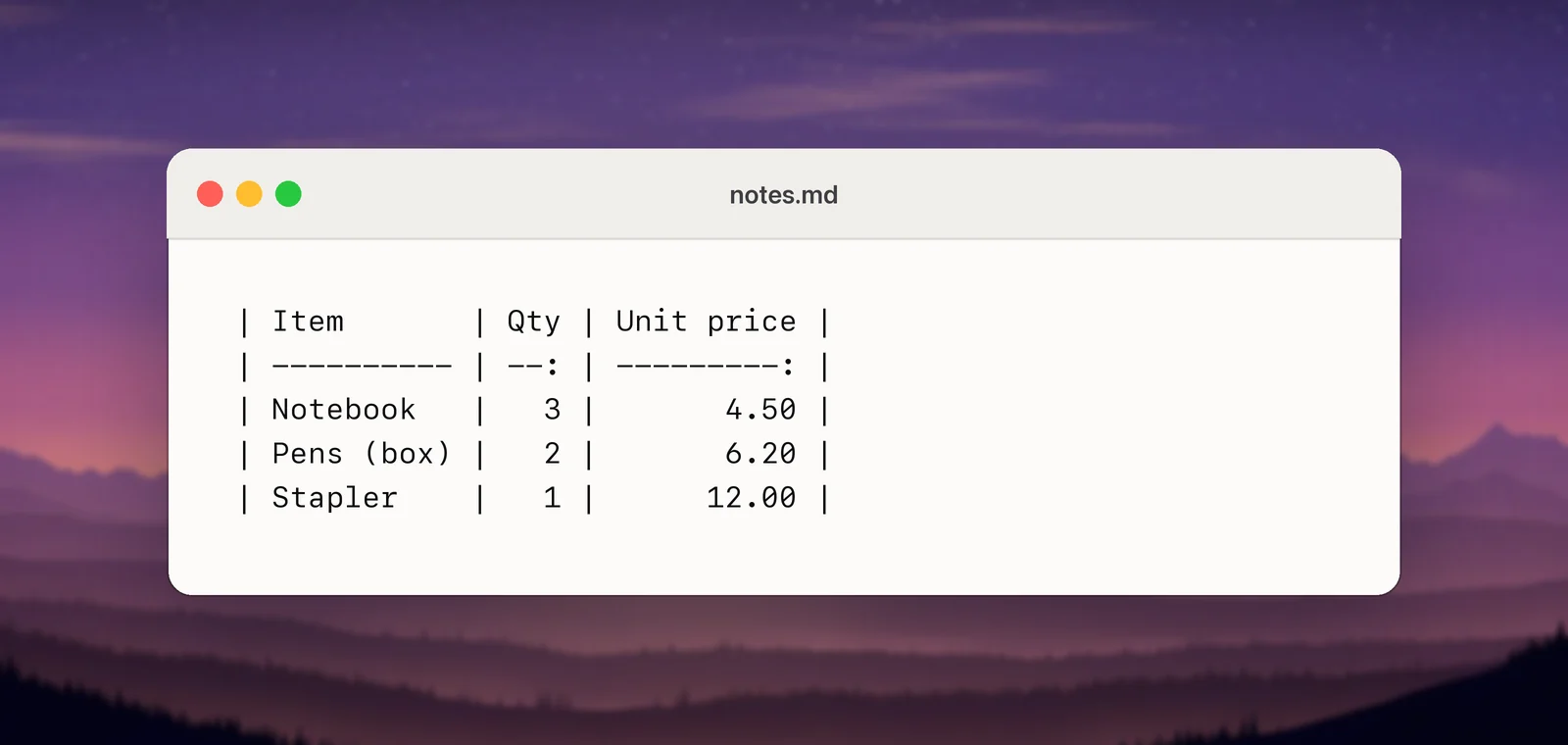
The confirmation says Copied as Markdown with the table’s size. To get Markdown every time you capture a table, set Tables as plain text to Markdown in Settings → Recognition instead; spreadsheets still get cells. See Tables: detection and paste formats.
Copy as CSV
CSV follows RFC 4180, the common format that spreadsheets, databases and most import tools read:
Item,Qty,Unit price
Notebook,3,4.50
"Pens, blue",2,6.20
"Label ""Fragile""",1,0.90- Fields are separated by commas, and lines end with a carriage return and line feed.
- A value that contains a comma, a quote or a line break is wrapped in quotes, and quotes inside it are doubled.
- Text captured around the table becomes a line with a single field.
The clipboard gets the CSV both as plain text and as CSV data. To save it as a file, open Terminal and run pbpaste > ~/Desktop/table.csv. Or open TextEdit, choose Format → Make Plain Text, paste, and save the document with a .csv name. TextEdit gives plain-text files a .txt extension by default, so if it asks which extension to keep, choose .csv.
Copy as Text
Copy as Text gives you the capture read as ordinary text, the way it would have been copied without table detection. Use it when a selection was split into cells but you wanted sentences, such as a two-column form or a menu with prices.
Copy, or a click on the row
A plain Copy, or clicking the row, copies the table in all its forms again: cells for spreadsheets and Notes, and the plain-text version in your current Tables as plain text format. Change that setting and older table captures follow it too.
Translated tables
If you translated a table, its row shows the translated cells. Copy as Text, Copy as Markdown and Copy as CSV use the translation, because that’s what was copied. Copy Original copies the table in its original language, as cells again while Detect tables is on. More in History row actions.
Frequently asked questions
Why don’t I see Copy as Markdown on a capture?
Those commands only appear on captures that were copied as tables. A capture made while Detect tables was off, or one that wasn’t recognized as a table, is plain text.
Is the CSV comma-separated even in countries that use a comma as the decimal mark?
Yes. Unpixel always writes commas between fields and quotes any value that contains a comma, as RFC 4180 describes. If your spreadsheet expects semicolons, choose the comma as the separator when you import the file.
Sources
- RFC 4180: Common Format and MIME Type for Comma-Separated Values (CSV) Files rfc-editor.org
- GitHub Flavored Markdown Spec: Tables (extension) github.github.com
- Create, open, and convert documents in TextEdit on Mac — Apple Support support.apple.com