
Ordinary text recognition reads a table as a stack of lines, so pasting it into a spreadsheet leaves you splitting columns by hand. Unpixel recognizes the grid itself. When you copy a table from screen to spreadsheet, each value lands in its own cell, in the right row and column.
Ordinary OCR turns a table into a stack of lines. Unpixel recognizes the grid on your Mac, so a table from a web page, PDF, scan, screenshot or shared screen pastes into Numbers, Excel, Google Sheets or Notes with every value in its own cell. Text editors get a Markdown, tab-separated or aligned version, and history can copy it again as CSV.
Why tables are the hard part
A table is easy for a person to read and awkward for software that reads lines. Line-by-line OCR gives you the header, then each row as one run of words, and the column boundaries are gone. Paste that into a spreadsheet and everything lands in column A. Splitting it with Text to Columns on spaces then breaks apart every value that contains a space, such as a full name, a date like “3 Oct” or a product title.
Unpixel takes a different route. macOS 26’s document recognition in Apple’s Vision framework finds the structure first: rows, columns and merged cells. Unpixel then fills each cell from its own word-by-word reading and reads cells that look empty but hold a lone digit or mark a second time. Empty cells stay empty, so later columns don’t shift left, and text that wraps inside a cell is joined into one line.
One drag, real cells
Press ⇧⌘2, drag over the table with its header row, and paste into a cell. The confirmation says Table copied with the shape, such as “5 rows × 4 columns”, so you know before you paste that the grid was found.
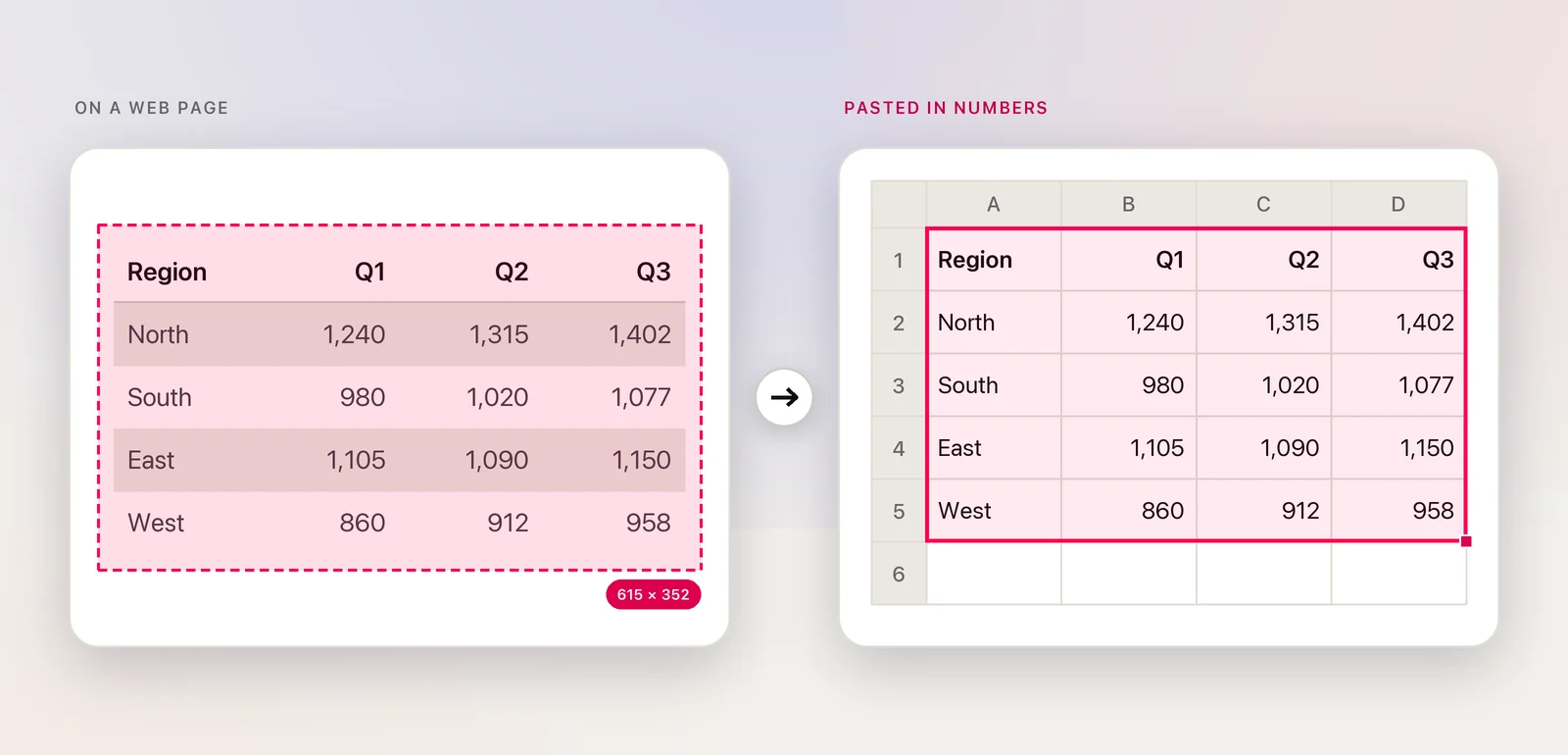
The table can be anywhere you can see it: a web page that won’t copy cleanly, a supplier’s PDF, a scanned report, a screenshot in a chat, or a slide in a video call. Images and PDFs you open with Open Image… work the same way. Tables: detection and paste formats has the step-by-step version and the exact rule for when a capture counts as a table.
Where it saves the most time
- Reports and statements that arrive as PDFs or scans, where the numbers need to go into your own sheet. Copy a table from a PDF to Excel compares the routes.
- Dashboards with no export button, where you only need this week’s figures.
- Research papers, where a results table is set as an image or split across columns.
- A shared screen in a meeting, where the table is gone when the presenter moves on.
- Invoices and price lists, where line items need to become rows.
Spreadsheets get cells, text editors get a choice
A table capture puts an HTML table, tab-separated values and a plain-text version on the clipboard at once, so Numbers, Excel, Google Sheets and Notes paste cells without any choice on your part. Code editors and plain-text fields get the plain version, which you can set to tab-separated, Markdown or aligned columns in Settings → Recognition.
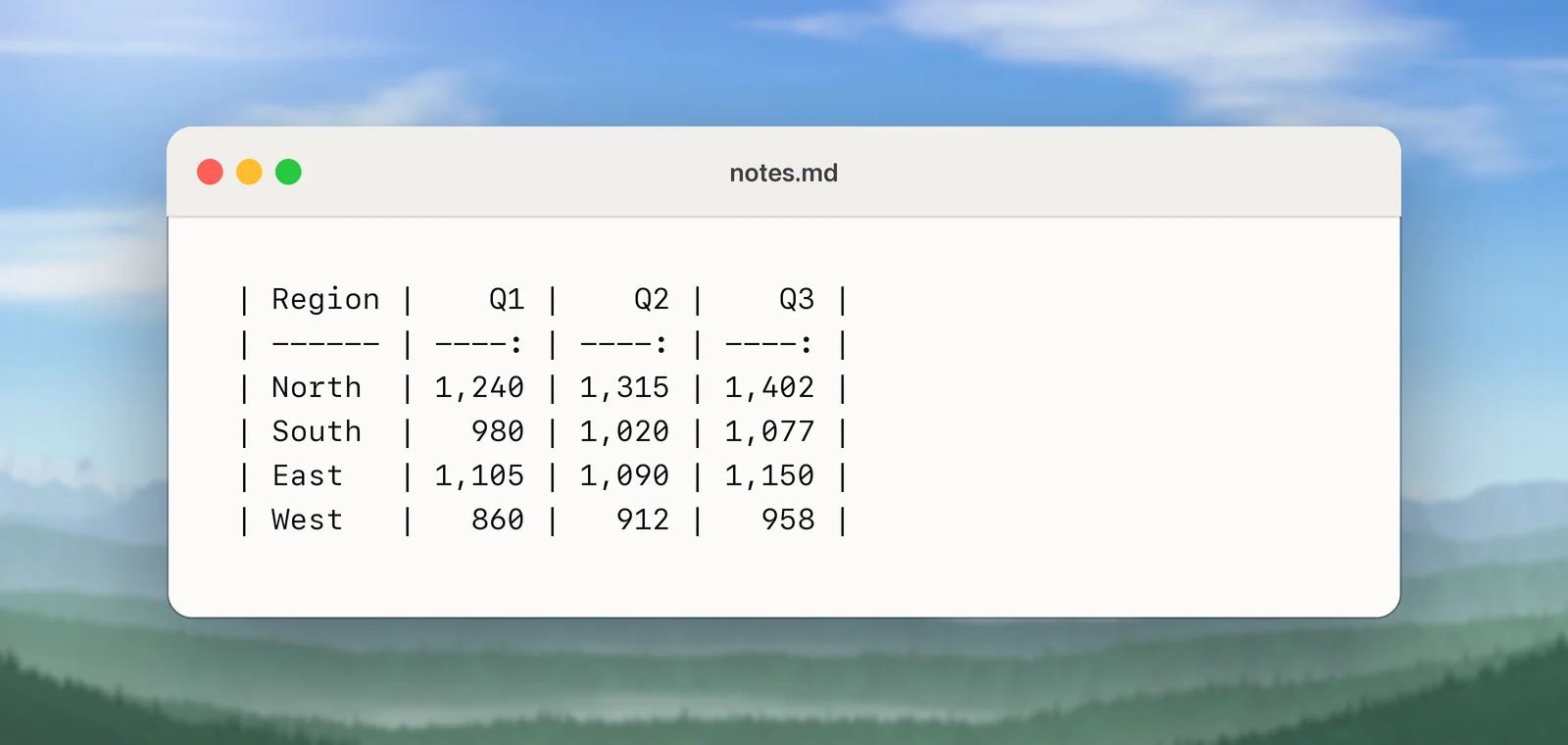
Every table also stays in the menu bar panel’s history. Right-click one there for Copy as Markdown, Copy as CSV or Copy as Text, without changing your settings. Copy a table again as Markdown, CSV or text has the details.
Not everything with columns is a table: code, Terminal listings, forms and prose set in columns stay text on purpose, and a QR code in the selection wins over a table.
Translate a table
Hold ⌥ as you let go of the selection, and a foreign-language table is translated cell by cell. It still pastes as a table. Cells without letters, such as numbers, prices and dates, are never sent to the translator and stay exactly as they were. Translate on capture covers the rest.
Check the numbers
Table recognition is good, not infallible. Faint or missing grid lines, cells that span several columns and very small print can move a value one cell over. Before you total a column or send a report, compare a few rows with the source. Zooming in before you capture helps more than anything else.
Other ways to get a table into a spreadsheet
- A real table on a web page often pastes as cells already: select it and press ⌘C. Try that first.
- A text-based PDF in Preview: Apple’s guide notes that holding ⌥ while you drag with the Text Selection tool selects text vertically, which is handy for copying one column of a table.
- Excel’s Data From Picture: as of October 2026, Microsoft’s support page lists it for Excel for Microsoft 365, with Mac steps under Data → Data From Picture → Picture From File or Picture From Clipboard. You review and correct the result, then click Insert Data.
- Live Text in Preview or Photos copies the words in a picture of a table. Apple’s guide covers copying text, not table structure, so check how the columns come out when you paste.
Frequently asked questions
Does it work on scanned PDFs and screenshots?
Yes. Unpixel reads pixels, so a table in a scan, a photo, a slide in a call or a web page all work, as do PDFs and images you open with Open Image….
Why did my table paste as a single column of text?
It wasn’t recognized as a table, usually because the selection held paragraphs around it. Select just the table with its header row, and check that Detect tables is on in Settings → Recognition.
Can I get CSV instead of cells?
Yes. Right-click the table in your history and choose Copy as CSV. Copy as Markdown and Copy as Text are in the same menu.
Sources
- RecognizeDocumentsRequest — Apple Developer Documentation developer.apple.com
- Select and copy text in a PDF in Preview on Mac — Apple Support support.apple.com
- Insert data from picture — Microsoft Support support.microsoft.com
- Interact with text in a photo using Live Text in Preview on Mac — Apple Support support.apple.com