Each capture in Unpixel’s history has a short menu of commands. The menu changes with the capture: a table gets extra copy formats, a link gets Open Link, a translated capture gets Copy Original. This page lists every command and when it appears.
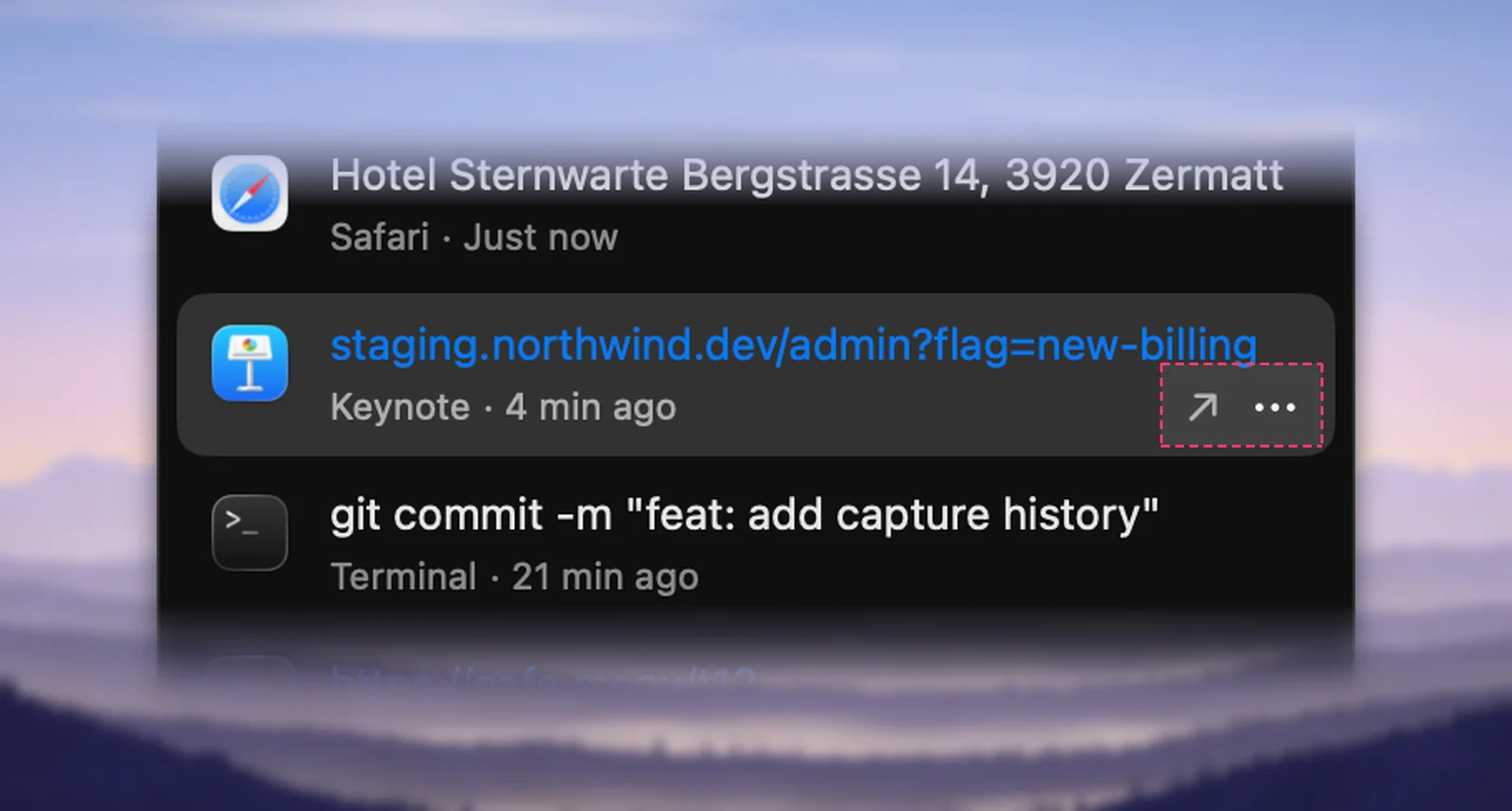
Open the menu bar panel and right-click a capture, or hover over it and click …. The menu offers only what fits that capture: Copy for everything, Copy as Text, Markdown or CSV for tables, Copy Original and Translate & Copy for text, Open Link for addresses, then Share… and Delete. Select a row and press ⌘⌫ to delete it.
Open the actions
- Right-click a row (or Control-click it).
- Or hover over a row and click the … button at its right end. A row that holds a link also shows an arrow next to it that opens the link straight away.
| Command | Shown for | What it does |
|---|---|---|
| Copy | Every capture | Copies it again, like clicking the row |
| Copy as Text, Copy as Markdown, Copy as CSV | Tables | Copies the table in one text format |
| Copy Original | Translated captures | Copies the text as it was captured, before translation |
| Translate & Copy | Text in another language | Translates it into your language and copies the result |
| Open Link | Links, and codes that hold a link | Opens the address |
| Share… | Every capture | Opens the macOS share menu |
| Delete | Every capture | Removes it from your history |
Copy and the Copy as commands
Copy does exactly what a click on the row does. A table comes back with its cells, so it pastes as a table again.
The three Copy as commands appear only on tables. Each copies one text version: Text for the capture read as ordinary sentences, Markdown for a pipe table, CSV for import tools. Examples and details are in Copy a table again as Markdown, CSV or text.
Copy Original
A translated capture shows the translation in its row, with a translate symbol and the original language in the caption. Copy Original copies the text in the language it was captured in. For a translated table, you get the original table again. The confirmation says Copied original.
Translate & Copy
Translate & Copy translates a capture you didn’t translate at the time, into the language set under Translate into in Settings → Translation.
- Right-click the capture and choose Translate & Copy.
- The row turns into the translated capture and briefly shows ✓ Copied. The panel stays open, so you can translate the next one.
If the language isn’t on your Mac yet, macOS asks whether to download it, and the panel closes while it asks. If the text can’t be translated, your clipboard is left as it was and a message says why.
The command is hidden when it can’t help: for text already in your language, for links and codes, for snippets too short to tell the language (“OK”, a product code), and for languages Apple’s Translation doesn’t handle. Translation happens on your Mac. See Translate text while you capture.
Open Link and Share…
Open Link appears on link captures and on QR codes or barcodes that hold a web address. The panel closes and the address opens in your default browser, even when it was captured without https://.
Share… opens the standard macOS share menu, with choices such as Mail, Messages, AirDrop and Notes. A capture that is a single link is shared as a link; anything else is shared as text. A table is shared as text in your Tables as plain text format.
Delete
Delete removes the capture from your history right away. There’s no confirmation and no undo. Deleting doesn’t touch your clipboard, so text you’ve already copied stays there.
To remove everything at once, click Clear History at the bottom of the panel; Unpixel asks before it clears.
Keyboard
| Key | Action |
|---|---|
| ⌘F | Focus the search field |
| ↑↓ | Move through the list |
| Return | Copy the selected capture |
| ⌘⌫ | Delete the selected capture |
| Esc | Clear the search, then close the panel |
While you’re typing in the search field, ⌘⌫ edits your search text instead of deleting a capture.
Frequently asked questions
Can I undo Delete?
No. Delete removes the capture from your history at once, with no undo. Whatever is on your clipboard stays there.
Why is Translate & Copy missing on some captures?
It only appears on text in a language other than your translation language that Apple’s Translation can handle, and it needs enough words to tell the language. Links, codes, very short snippets and captures already translated don’t get it.