
Unpixel recognizes tables as well as text. When the area you capture is mostly a table, it copies the rows and columns, so the table pastes as separate cells in a spreadsheet instead of one block of text. Table recognition uses Apple’s Vision framework and runs on your Mac, like the rest of the capture.
Press ⇧⌘2 and drag over the whole table, header row included. When the selection is mostly a table, the confirmation says Table copied with its size, and ⌘V pastes real cells in Numbers, Excel, Google Sheets or Notes. Code editors and other text-only apps get tab-separated text, or Markdown or aligned columns if you change Tables as plain text in Settings → Recognition.
Capture a table
- Press ⇧⌘2 and drag over the table. Include the header row, and leave out the paragraphs above and below.
- Let go. The confirmation says Table copied with the table’s size, for example “5 rows × 3 columns”.
- Click a cell in Numbers, Excel, Google Sheets or a note, and press ⌘V.
It works the same with From Clipboard, Open Image… and the pages of a PDF. If a selection holds two tables, both are copied, separated by an empty row, and the confirmation says Tables copied with the number of tables and rows.
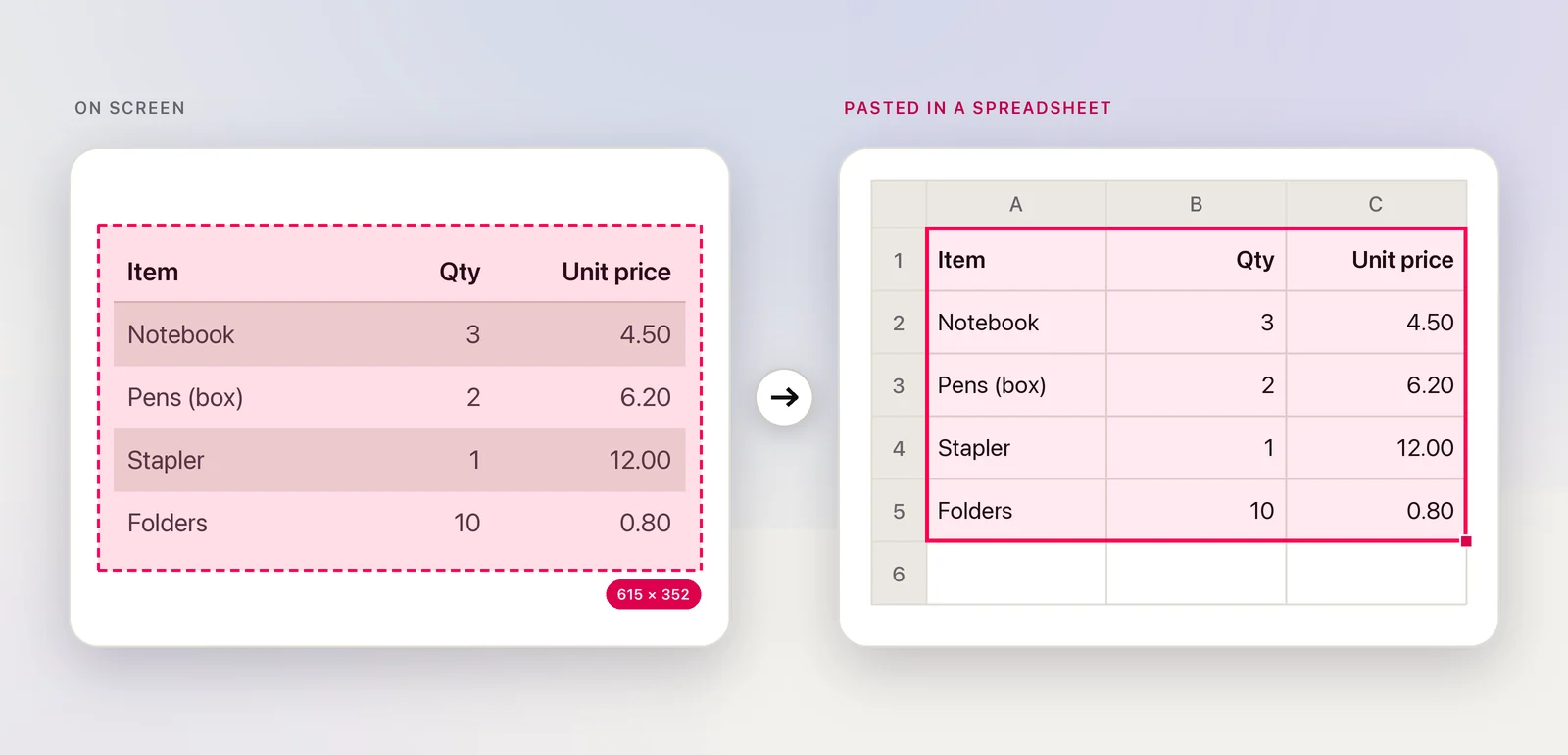
When a capture is a table
A capture counts as a table when it holds at least one grid of two or more rows and two or more columns, and that grid holds at least half of the text you selected. Otherwise it’s copied as ordinary text. Some things look like columns but stay text on purpose:
- A small table in a page of prose. Select just the table to get cells.
- Prose set in columns, such as a newspaper page.
- Label and value lists, like “Name: … / Email: …” on a form.
- Code, where columns come from indentation and alignment.
- Terminal listings, such as the output of
ls -l.
A QR code or barcode in the selection takes priority over a table: you get the code’s contents. Text right next to a table, like a title above it or a source line below it, is kept in place above or below the cells.
What ends up in the cells
- Extra spaces around each cell are trimmed.
- Text that wraps inside a cell is joined into one line.
- Empty cells stay empty, so later columns don’t shift left.
- Short rows are padded to the width of the table.
Check the result against the original before you rely on the numbers. Faint gridlines, cells that span several columns and tiny text can all move a value into the wrong cell.
Where it pastes as cells
Unpixel puts the table on the clipboard in three forms at once: an HTML table, tab-separated values, and a plain-text version. Numbers, Excel, Google Sheets and Notes pick a table form and paste cells. You don’t need to choose anything.
Text-only apps: choose the format
Code editors, Terminal and plain-text fields only take the plain-text version. Choose what it looks like in Settings → Recognition → Formatting → Tables as plain text:
| Format | Looks like | Good for |
|---|---|---|
| Tab-separated (default) | Cells separated by tabs | Pasting into anything that splits on tabs |
| Markdown | A GitHub-style pipe table; number columns right-aligned | READMEs, notes apps that use Markdown, issue trackers |
| Aligned columns | Columns lined up with spaces | Plain-text emails, code comments, Terminal |
This setting also applies when you click a table in your history to copy it again. To get one table in another format without changing the setting, see Copy a table again as Markdown, CSV or text.
Turn table detection off
If you’d rather always get text, turn off Detect tables in Settings → Recognition → Formatting. Captures are then copied as text in reading order, and Tables as plain text is greyed out. Clicking a table that’s already in your history also copies it as text while detection is off.
Translated tables
When you translate a table, each cell is translated on its own and the result still pastes as a table. Cells without letters, such as numbers and prices, stay exactly as they were. See Translate text while you capture.
Frequently asked questions
Why did my table paste as one long column of text?
The capture probably wasn’t recognized as a table, so it was copied as text. Select only the table, with its header row and without the paragraphs around it, and check that Detect tables is on.
Do I need to change Tables as plain text to paste into Excel?
No. Spreadsheets and Notes always get cells. That setting only changes what apps that accept plain text alone receive.