Every capture you make is kept in a history in Unpixel’s menu bar panel, so the text you copied an hour ago, or last week, is a click away. History is stored only on your Mac, and you can search it, filter it and copy anything in it again.
Click the Unpixel icon in the menu bar. Your captures are listed under the search field, newest first. Type a word from the text, an app name or a file name to search, or click Text, Links or QR Codes to narrow the list. Click a row, or select it with the arrow keys and press Return, to copy it again.
Open your history
- Click the Unpixel icon in the menu bar. The panel opens with your captures listed under Copy Text, From Clipboard and Open Image…, newest first.
- From a launcher or the Shortcuts app, open the address
unpixel://history.
Press Esc to close the panel, or click anywhere outside it.
Search
Click the search field, or press ⌘F while the panel is open, and start typing. The list updates as you type. Search looks at:
- the text you captured
- where it came from: an app name such as “Keynote”, a file name such as “scan.pdf”, or “Clipboard”
- the code type of QR codes and barcodes, such as “QR” or “EAN-13”
- the word “table”, which finds every table capture
- the original text of a capture you translated
Capital letters and accents don’t matter, so “cafe” finds “Café”. If you type several words, each one has to appear somewhere in the capture, so “invoice preview” finds invoices you captured in Preview. Press Esc once to clear the search.
Filters
Above the list are four filters: All, Text, Links and QR Codes. The number on each counts all your captures of that kind, whatever you’ve typed in the search field.
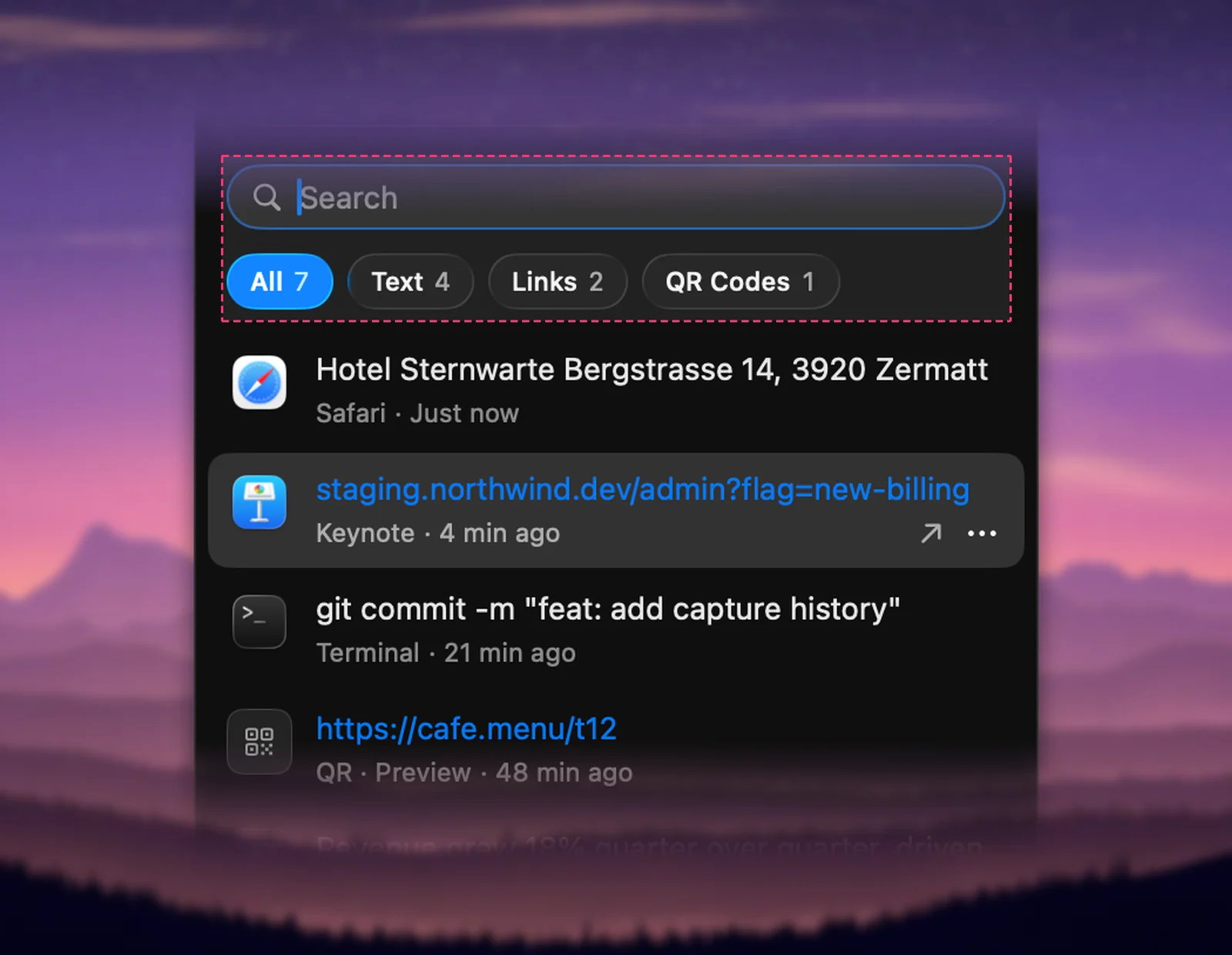
- Text includes tables and translated captures.
- Links holds captures that were a single web address. See how Unpixel recognizes links.
- QR Codes holds every code you captured, barcodes included. See QR codes, barcodes and opening QR links.
A filter and a search combine: pick Links and type part of a domain to find one address.
What each row shows
Each row starts with the icon of the app the text came from, or a symbol for a clipboard image, a file, a table or a code. Next to it are up to two lines of the capture, and under them a caption with the source and the time, such as “Safari · Just now”, “3 hr ago”, “Yesterday” or a date.
Some rows add more:
| Row | What you see |
|---|---|
| Link | The address in blue |
| QR code or barcode | The code type in the caption, for example “QR · Preview” |
| Table | Its first two rows, and “Table · 5 × 3” before the source |
| Translated text | A translate symbol and the original language, for example “Japanese · Safari” |
| Several files | The first file name, for example “scan.pdf + 2 more” |
The source is the app whose content was under your selection. A capture of the bare desktop is credited to Finder.
Click to copy again
Click a row and its text is back on your clipboard; the row briefly shows ✓ Copied. With the keyboard, use ↑ and ↓ to move through the list and press Return to copy.
A table is copied with its cells again, so it still pastes as a table, and its plain-text version follows your current Tables as plain text setting. Right-click a row for more, such as Open Link, Translate & Copy or Delete; every command is described in History row actions.
Where history is kept
Captures are saved in a file in ~/Library/Application Support/Unpixel on your Mac, and only there. Unpixel keeps the last 500 by default. To change that, turn history off or clear it, see History settings, limits and clearing.
Frequently asked questions
Is my history synced to my other Macs?
No. History is a file on this Mac only, and nothing in it is sent anywhere. Each Mac keeps its own.
Why can’t I find a capture I made a while ago?
History keeps the most recent captures, 500 by default, and drops the oldest after that. Check the limit in Settings → History, and that saving wasn’t turned off at the time.