macOS Services are small commands that one app offers inside others. Unpixel adds two: one that reads image and PDF files you select in Finder, and one that starts a screen capture from whatever app you’re in.
Select one or more images or PDFs in Finder, Control-click them and choose Services → Copy Text with Unpixel: their text is read on your Mac and copied, one capture for all of them. From any other app, choose the app’s menu → Services → Capture Text with Unpixel to start a selection. Both can get a keyboard shortcut in System Settings.
Copy text from files in Finder
- In Finder, select one or more images or PDFs.
- Control-click (or right-click) the selection.
- Choose Services → Copy Text with Unpixel.
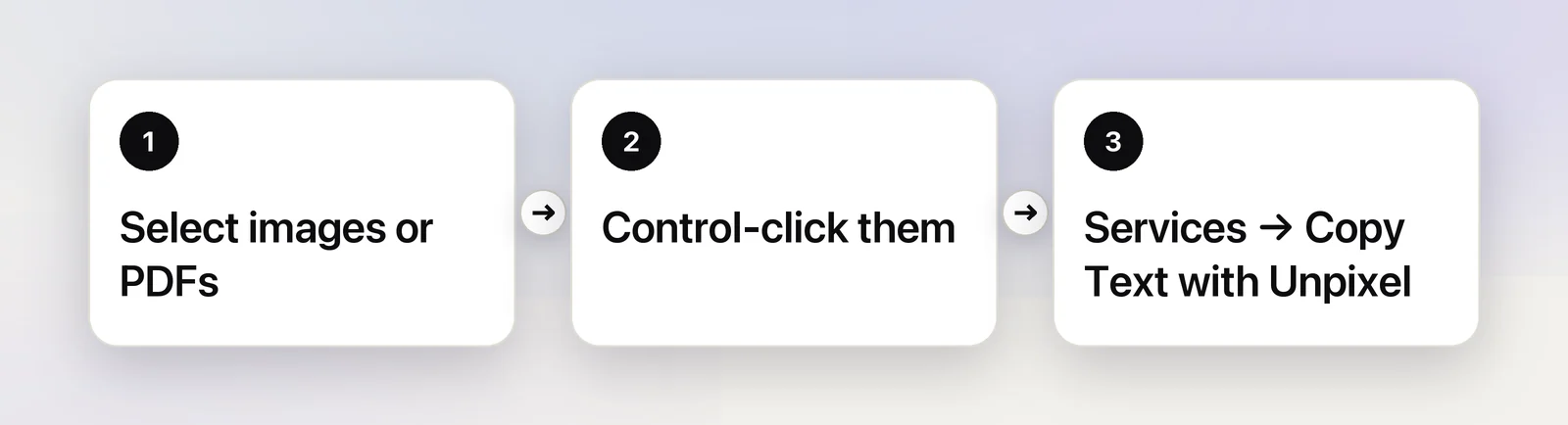
Unpixel reads the files on your Mac and copies the text, with the usual confirmation. Several files become one capture, with a blank line between files and up to 50 pages in total. It works like Open Image…, without the file dialog. You can also select the files and choose Finder → Services from the menu bar.
Other apps that hand files to services can use it too. Files Unpixel can’t read show Unsupported file.
Start a capture from any app
In the app you’re using, open its app menu (the one with the app’s name, next to the Apple menu) and choose Services → Capture Text with Unpixel. The menu closes, the crosshair appears, and you drag over the text as if you’d pressed ⇧⌘2.
It’s mostly useful as a second way in, for example on a Mac where you’ve cleared Unpixel’s own shortcut, or when you’d rather manage every shortcut in one place in System Settings.
Give a service a keyboard shortcut
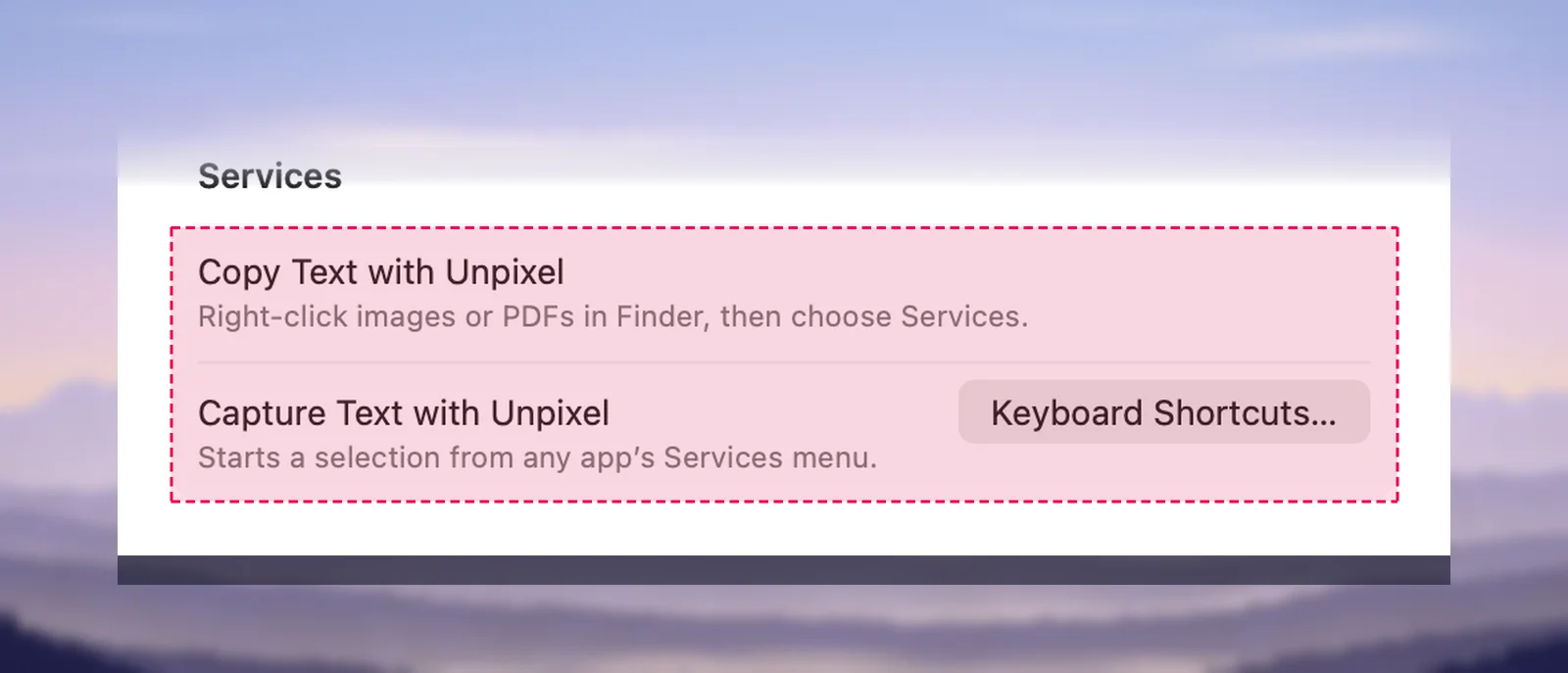
- Open Settings → About in Unpixel and click Keyboard Shortcuts…, or choose Apple menu → System Settings → Keyboard → Keyboard Shortcuts….
- Click Services and find the Unpixel service in the list.
- Double-click none next to it and press the keys you want.
Pick a combination nothing else uses, and not one of Unpixel’s own shortcuts. Untick a service in the same list to hide it from menus.
Good to know
- Both services need an activated license, like every capture. Without one, Unpixel opens the activation screen.
- They appear after Unpixel has been opened once on your Mac.
- Neither one sends text back to the app you called it from. For text you want to process in a shortcut, use x-callback-url in Shortcuts.
- Other ways to read files: Open With → Unpixel in Finder, or dropping files on the menu bar icon. See Drag and drop and Open With.
Frequently asked questions
I don’t see the Unpixel services. What now?
Open Unpixel once so macOS registers them, then check System Settings → Keyboard → Keyboard Shortcuts… → Services, where both should be ticked.
Does Capture Text with Unpixel send the text back to the app I’m in?
No. Like every capture, the text goes to your clipboard and history. Paste it where you need it.
Which files does Copy Text with Unpixel read?
PNG, JPEG, HEIC, TIFF, GIF, BMP, WebP and PDF, up to 50 pages per capture. Other files get an “Unsupported file” message.
Sources
- Use services in apps on Mac — macOS User Guide (Apple Support) support.apple.com