When the file is right in front of you in Finder, dragging it is quicker than a file dialog. Unpixel accepts image and PDF files in three places: its menu bar icon, the menu bar panel, and Finder’s Open With menu. Each one reads the file the same way Open Image… does.
Drag an image or PDF from Finder or the desktop onto the Unpixel icon in the menu bar, and let go when the icon highlights. Or open the menu bar panel and drop the file on it. In Finder you can also Control-click a file and choose Open With → Unpixel. Either way, the file’s text is copied to your clipboard.
Drop on the menu bar icon
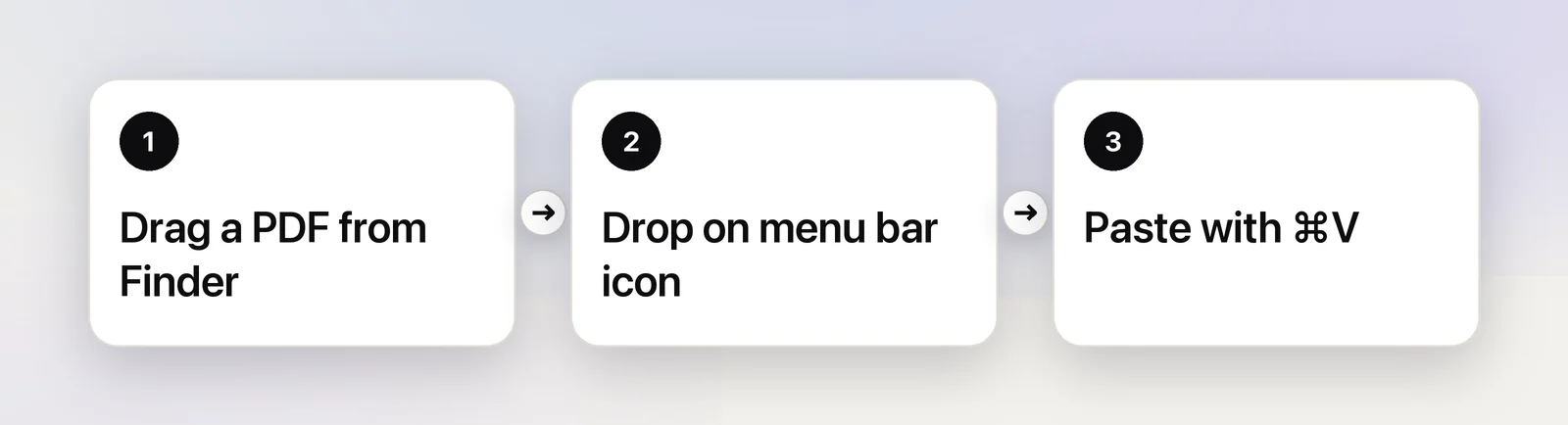
- Find the image or PDF in Finder or on the desktop.
- Drag it up to the Unpixel icon in the menu bar. The icon highlights when it can read the file.
- Let go. The confirmation appears when the text is on your clipboard.
- Paste it with ⌘V.
If the icon doesn’t highlight, the file isn’t an image or a PDF. If you can’t see the icon at all, a crowded menu bar may be hiding it behind the camera notch; see menu bar icons hidden by the notch, or use the next method.
Drop on the panel
- Click the Unpixel icon to open the menu bar panel.
- Drag files onto it. The panel shows Drop to Copy Text with a dashed outline.
- Let go. The panel closes, the app you were in comes back to the front, and the text is copied.
Open With in Finder
- In Finder, Control-click an image or PDF file. With the file selected, you can also choose File → Open With from the menu bar.
- Choose Open With → Unpixel.
If Unpixel isn’t running, it starts and reads the file as soon as it’s ready. You can also drop files on the Unpixel app in your Applications folder. Unpixel has no Dock icon, because it lives in the menu bar.
Finder’s Services menu offers the same without opening anything: select the files, Control-click and choose Services → Copy Text with Unpixel. See Copy text from Finder with the Services menu.
Unpixel registers as an extra viewer for images and PDFs, never as the default, so double-clicking a file still opens it in Preview. Apple’s Get Info window has a Change All… button that makes one app open every file of a type. Don’t pick Unpixel there: every double-click would copy text instead of showing you the file.
Supported file types
Unpixel reads PNG, JPEG, HEIC, TIFF, GIF, BMP, WebP and PDF files. Folders and other kinds of files aren’t accepted; dropped on the panel, they show Unsupported file.
To read an image from a web page, Control-click it in Safari, choose Copy Image, then use From Clipboard.
What happens next
A dropped file is read exactly like one picked with Open Image…:
- Several files dropped together become one capture and one history item, named after the first file, such as “receipt.jpg + 4 more”.
- PDFs and multi-page TIFFs are read page by page, up to 50 pages per capture, with “Reading N pages…” shown while a long one runs.
- Tables, QR codes and barcodes in the files are copied as cells or as the code’s contents.
Limits and notes such as “Copied text from 2 of 3 files” are explained in Open images and PDFs to copy their text.
Frequently asked questions
Will Unpixel become the app that opens my images when I double-click them?
No. Unpixel only appears as an extra choice under Open With. Preview, or whichever app you chose, stays the default.
Can I drop several files at once?
Yes. Drop them together and they’re read as one capture, one after another, up to 50 pages in total.
Sources
- Choose an app to open a file on Mac — Apple Support support.apple.com