Sometimes the text you need is in an image you’ve already copied: a screenshot on the clipboard, a picture copied from a web page, a figure copied out of a document. From Clipboard reads the text in that image directly, so you don’t have to paste the image somewhere first or save it as a file.
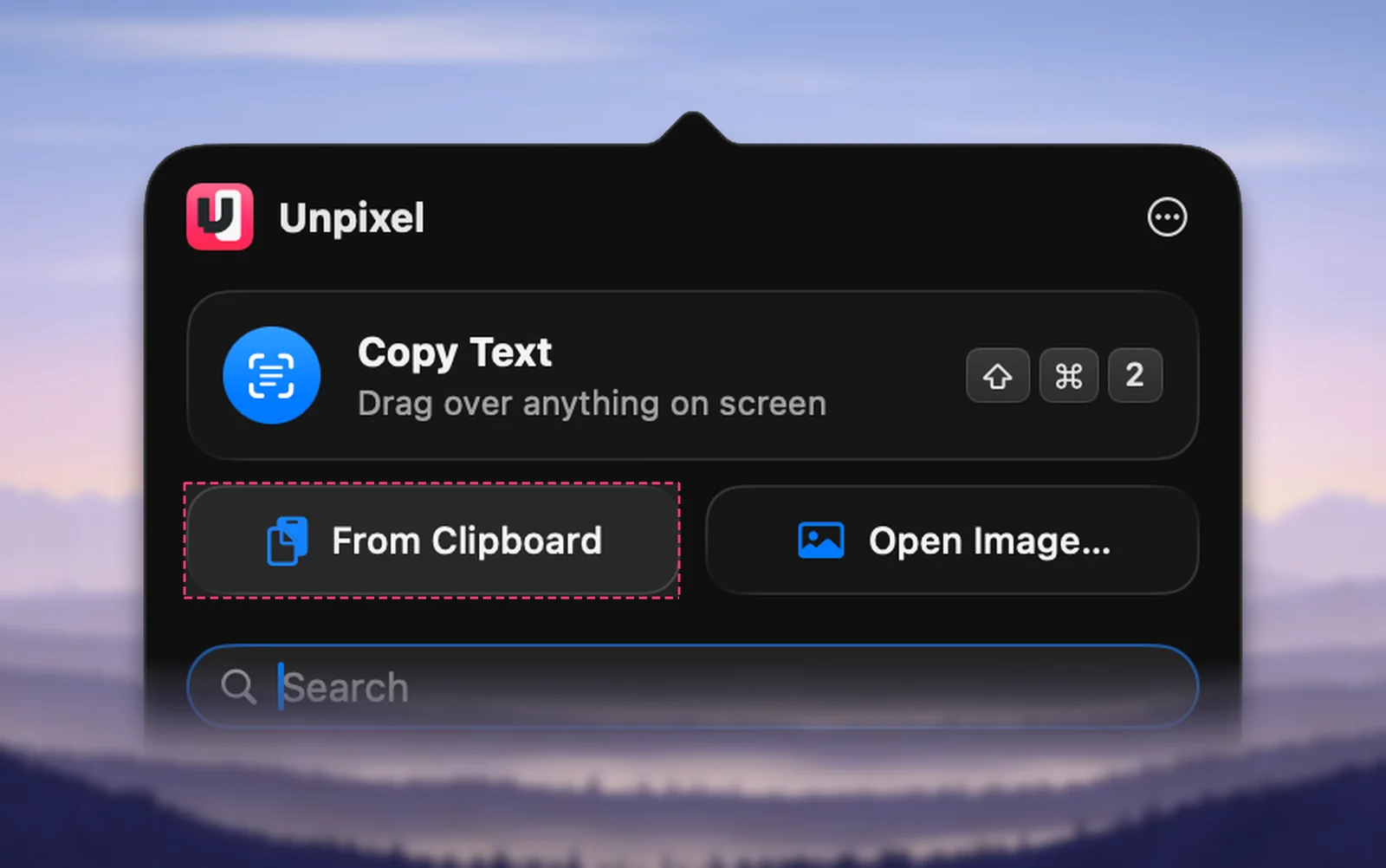
Copy the image first, for example with ⌃⇧⌘4 for a screenshot or Copy Image in Safari. Then click the Unpixel icon in the menu bar and choose From Clipboard. The text in the image replaces the image on your clipboard, ready to paste. If the clipboard holds text or nothing readable, Unpixel says No image on the clipboard.
Copy an image, then choose From Clipboard
- Put an image on the clipboard. A few common ways:
- Press ⌃⇧⌘4 and drag over part of the screen. Holding ⌃ copies the screenshot instead of saving a file.
- In Safari, Control-click an image and choose Copy Image.
- In Finder, select an image or PDF file and press ⌘C.
- Click the Unpixel icon in the menu bar and click From Clipboard. You can also right-click the icon and choose From Clipboard from the menu.
- The confirmation shows the start of the text. Paste it with ⌘V.
The text replaces the image on your clipboard. If you still need the image, paste it where it belongs before you choose From Clipboard. In your history, the capture’s source reads “Clipboard”.
What can be on the clipboard
- Image data in the usual formats, such as PNG, TIFF, JPEG, HEIC, WebP, GIF and BMP. For an animated GIF, the first frame is read.
- PDF content and multi-page TIFF scans, page by page.
- Image and PDF files copied in Finder. Unpixel reads the files themselves, not the icons Finder copies along with them.
- Several items at once, such as three files copied together. They’re read as one capture, in order, with a blank line between them.
Everything a normal capture does also applies here. QR codes and barcodes are decoded, and tables are copied as cells. If you’ve turned on Always translate text that isn’t in your language in Settings → Translation, the result is translated too.
From launchers and Shortcuts: unpixel://clipboard
Opening the address unpixel://clipboard does the same as clicking From Clipboard. Use it to give the command its own keyboard shortcut:
- Shortcuts: add a URL action with
unpixel://clipboard, then Open URLs, and give the shortcut a keyboard shortcut in its settings. - Raycast: create a Quicklink with
unpixel://clipboardas its link, then give it a hotkey. - Alfred: use a workflow with a Hotkey trigger and an Open URL action. Workflows need Alfred’s Powerpack.
- Terminal: run
open "unpixel://clipboard".
When a shortcut needs the text afterwards, use Open X-Callback URL with unpixel://x-callback-url/clipboard instead: the shortcut waits and gets the text back. See Get captured text in Shortcuts.
Step-by-step setup for each launcher is in automation with Raycast, Alfred and Shortcuts, and every address is listed in the URL scheme reference.
Limits
- 50 pages, 512 MiB. One From Clipboard reads at most 50 pages or images, and at most 512 MiB of decoded image data, however many items you copied. If something was left out, the confirmation says so, for example “Read the first 50 pages.”
- Very large images. A big screenshot or photo is read in overlapping tiles, so small print in it isn’t lost. Above about 67 megapixels (8,192 × 8,192 pixels), though, an image is scaled down first and tiny print can disappear, and images over about 150 megapixels aren’t read at all. Copy a smaller part of the image instead.
- Text files and other documents, such as a copied Word file, aren’t images, so there’s nothing to read.
If nothing happens
- “No image on the clipboard” means the clipboard holds text, nothing at all, or files Unpixel can’t read. Copy the image again and retry.
- “No text found” means the image was read but held no recognizable text. Copy a sharper or larger version.
- An activation window appears when Unpixel isn’t activated yet. Every capture, including From Clipboard, needs an activated license.
Frequently asked questions
Is the image I copied kept anywhere?
No. Unpixel reads it on your Mac and puts the text on the clipboard in its place. Only the text is saved to your history, and only while history is on.
Can I use From Clipboard on a PDF I copied in Finder?
Yes. Select the PDF in Finder and press ⌘C, then choose From Clipboard. Unpixel reads the file’s pages, up to 50, not its icon.
Sources
- Take a screenshot on Mac — Apple Support support.apple.com
- Quicklinks — Raycast Manual manual.raycast.com
- Workflows — Alfred Help alfredapp.com