Open Image… reads the text in image files and PDFs that are already on your Mac: a scanned contract, a folder of receipt photos, a screenshot you saved last week. You pick the files, and Unpixel copies their text, without opening each one and dragging a selection over it.
Click the Unpixel icon in the menu bar, click Open Image…, select one or more files and click Copy Text. Unpixel reads PNG, JPEG, HEIC, TIFF, GIF, BMP, WebP and PDF files, up to 50 pages per capture, and puts all the text on your clipboard in one go, in order, with a blank line between pages.
Open a file
- Click the Unpixel icon in the menu bar and click Open Image…. You can also right-click the icon and choose Open Image….
- In the dialog, select a file. To read several, hold ⌘ and click each one.
- Click Copy Text.
- When the confirmation appears, switch to where the text should go and press ⌘V.
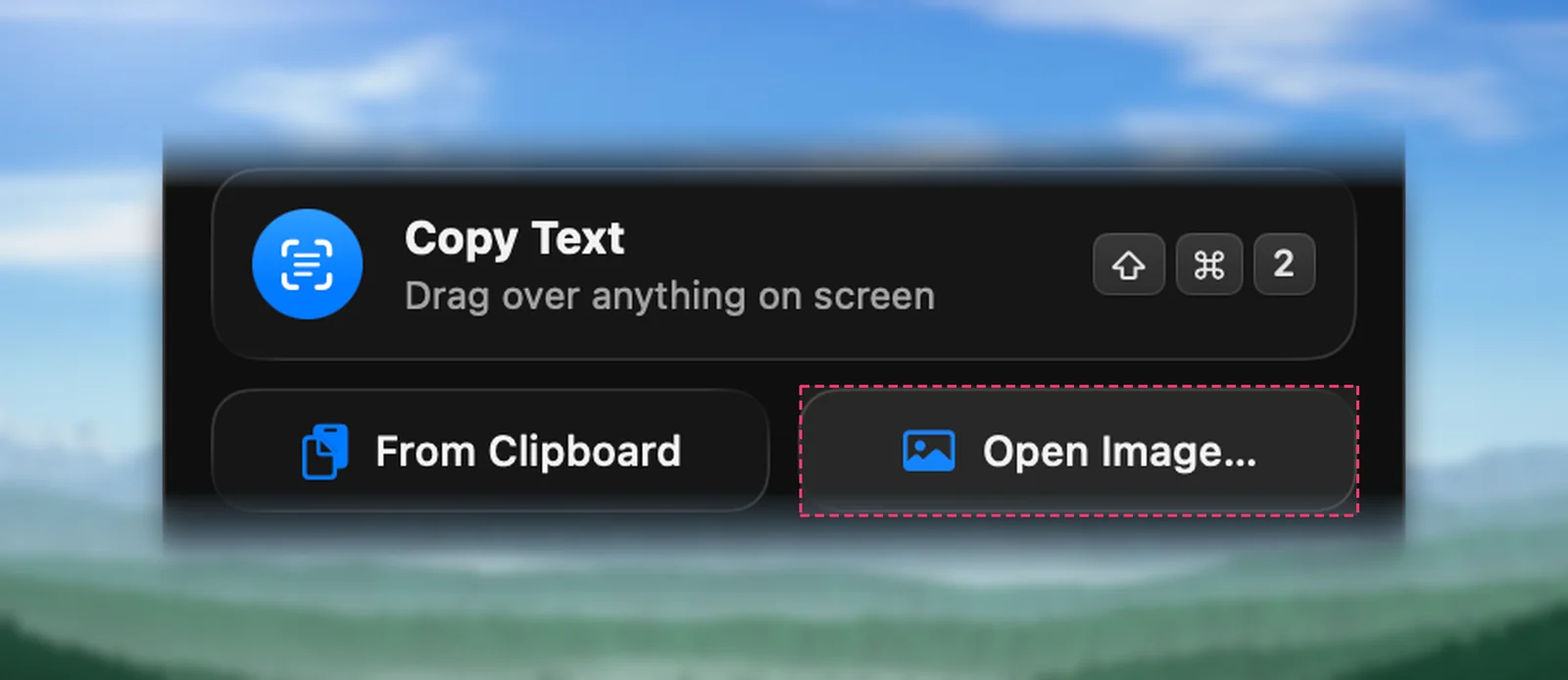
When the dialog closes, the app you were using comes back to the front. From a launcher or the Shortcuts app, the address unpixel://open opens the same dialog.
Prefer to drag files instead? You can drop them on the panel or the menu bar icon, or use Open With in Finder. See Drag and drop, or use Open With.
Supported formats
| Format | Notes |
|---|---|
| PNG, JPEG, HEIC, WebP, BMP | One image each |
| GIF | The first frame |
| TIFF | Every page of a multi-page TIFF, such as a fax or scanner output |
| Every page, as an image |
Other files are greyed out in the dialog. QR codes, barcodes and tables in your files are handled the same way as on screen.
Multi-page PDFs and TIFFs
Unpixel renders each page at a high resolution and reads it like a scan, then joins the pages with a blank line. One capture reads up to 50 pages. A longer file is read up to page 50, and the confirmation says Read the first 50 pages. For the rest, make a PDF of just the later pages: open the file in Preview, choose View → Thumbnails, click page 51, Shift-click the last page, and drag the selected thumbnails to the desktop. Preview creates a new PDF from them, which you can then open with Open Image…. More ways are in split a PDF on Mac.
Several files at once
Select several files and they’re read as one capture, one file after another, with a blank line between files. You get one clipboard result and one history item, named after the first file, for example “scan.pdf + 2 more”.
The 50-page limit covers all the files together. If it runs out partway, the files after that aren’t read, and the confirmation names them.
Progress and notes
- “Reading 12 pages…” appears when a multi-page job takes more than a moment, and the Unpixel icon in the menu bar pulses until it’s done.
- You can keep working. Pressing ⇧⌘2 starts a new capture straight away. If the file finishes after that capture was copied, its text goes to your history only, and the confirmation says Saved to History, so it doesn’t overwrite your newer copy.
- “Copied text from 2 of 3 files” means one file couldn’t be read; the confirmation names it.
- “Couldn’t copy text” means none of the files could be read, for example a damaged file or a PDF that needs a password.
- “No text found” means the files opened but held no recognizable text.
Frequently asked questions
Can Unpixel open a password-protected PDF?
No. A PDF that needs a password to open is reported as unreadable. Open it in Preview with the password, then capture the pages on screen with ⇧⌘2.
Does Open Image… change or save my files?
No. The files are only read. The text goes to your clipboard and, if history is on, into your history.
Sources
- Select and copy text in a PDF in Preview on Mac — Apple Support support.apple.com
- Add, delete, or move PDF pages in Preview on Mac — Apple Support support.apple.com