
Unpixel only answers ⇧⌘2 while it’s running in the menu bar. Launch at login is off until you turn it on, so after a restart the shortcut does nothing until you open Unpixel yourself. One switch fixes that.
Right-click Unpixel’s menu bar icon, choose Settings…, and in General turn on Launch at login. Unpixel then appears in System Settings → General → Login Items & Extensions and starts in the menu bar each time you log in. To quit, right-click the icon and choose Quit Unpixel; the capture shortcut stops working until you open it again.
Turn on Launch at login
- Right-click the Unpixel icon in the menu bar and choose Settings….
- In General, find Launch at login, described as “Keep Unpixel ready in the menu bar after you restart.”
- Turn it on.
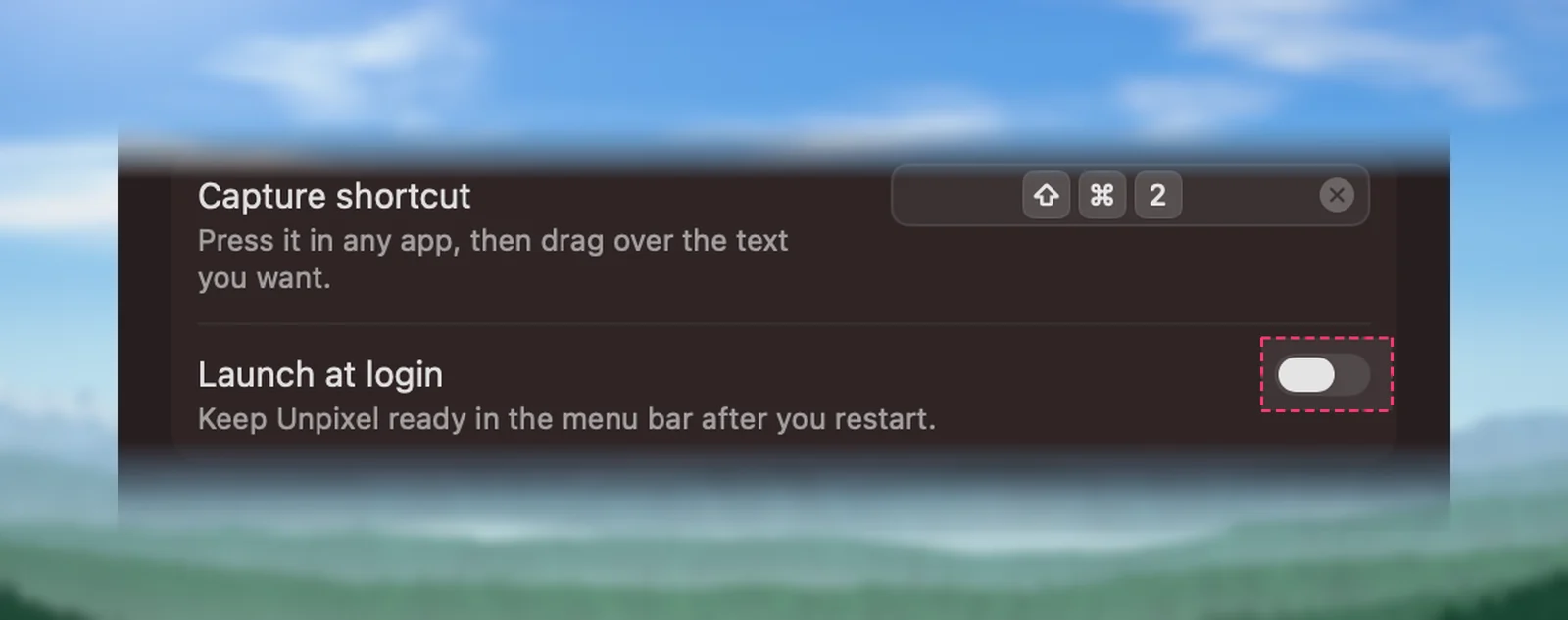
Nothing restarts now; the switch applies from your next login. The welcome guide’s shortcut page has the same switch, so you may have turned it on during setup.
Sometimes macOS wants you to approve a new login item. The row then shows “Needs your approval in System Settings.” with an Open Login Items button that takes you to the right place.
Where it shows in System Settings
- Choose Apple menu → System Settings, then click General in the sidebar.
- Click Login Items & Extensions.
- Unpixel is listed among the items that open when you log in.
Removing Unpixel from that list has the same effect as turning the switch off. Unpixel’s switch catches up the next time you bring its Settings window to the front.
To skip all login items just once, hold ⇧ as you click Log In and let go when the Dock appears, as Apple’s guide describes.
Quit Unpixel
- Right-click the menu bar icon and choose Quit Unpixel.
- Or open the panel, click the … button at the top right and choose Quit Unpixel.
The icon disappears and the capture shortcut stops working. Your history, settings and license stay as they are.
If Unpixel ever stops responding, it may not be listed in the Force Quit window, because it has no Dock icon. Activity Monitor always lists it:
- Open Activity Monitor (in Applications → Utilities) and select Unpixel in the list.
- Click the Stop button at the top left of the window.
- Choose Quit, or Force Quit if that doesn’t work.
Open it again
Double-click Unpixel in Applications, or press ⌘Space, type “Unpixel” and press Return. Any unpixel:// link starts it too. If Unpixel is already running, opening it this way shows the menu bar panel instead.
Only one copy runs
Only one Unpixel can own the shortcut and the menu bar icon. If you open a second copy, say an old download still sitting in Downloads, it hands any file or link it was opened with to the copy that’s already running, then quits. Keep a single copy in Applications and delete the rest, so the login item and the Screen Recording permission both point at it.
If it doesn’t start at login
- Check both places. Is the switch on in Unpixel’s Settings → General, and is Unpixel listed in Login Items & Extensions?
- Read the message under the switch. “Login item was turned off in System Settings → General → Login Items.” means it was removed there; turn the switch on again. “This copy of Unpixel isn’t signed, so macOS won’t open it at login.” means a copy that didn’t come from the Download page; install a fresh one. “macOS couldn’t update login items right now.” usually clears up if you try again a moment later.
- Check where the app lives. If you moved Unpixel after turning the switch on, or ran it from the disk image, move it to Applications, then turn the switch off and on again.
- Check the icon, not just the shortcut. Unpixel may be running with its icon hidden behind the notch or a crowded menu bar. Press ⇧⌘2: if the crosshair appears, it started fine. Icons hidden behind the notch explains how to get it back.
For login items in general, including apps you didn’t add yourself, read Open apps at login on Mac.
Frequently asked questions
Does Launch at login slow down my Mac’s startup?
Unpixel adds a single item to your login: the app itself, with no separate background helper. It prepares text recognition in the background so your first capture is quick, then waits in the menu bar for your shortcut.
Is anything of Unpixel still running after I quit it?
No. Unpixel registers only the app itself as a login item, so quitting it stops everything until the next time you open it.
Sources
- Open items automatically when you log in on Mac — Apple Support (macOS Tahoe 26) support.apple.com
- Quit a process in Activity Monitor on Mac — Apple Support support.apple.com