macOS lets an app see what’s on your screen only after you allow it in System Settings. Unpixel needs that permission, Screen & System Audio Recording, and nothing more: no microphone, no Accessibility access, no Full Disk Access.
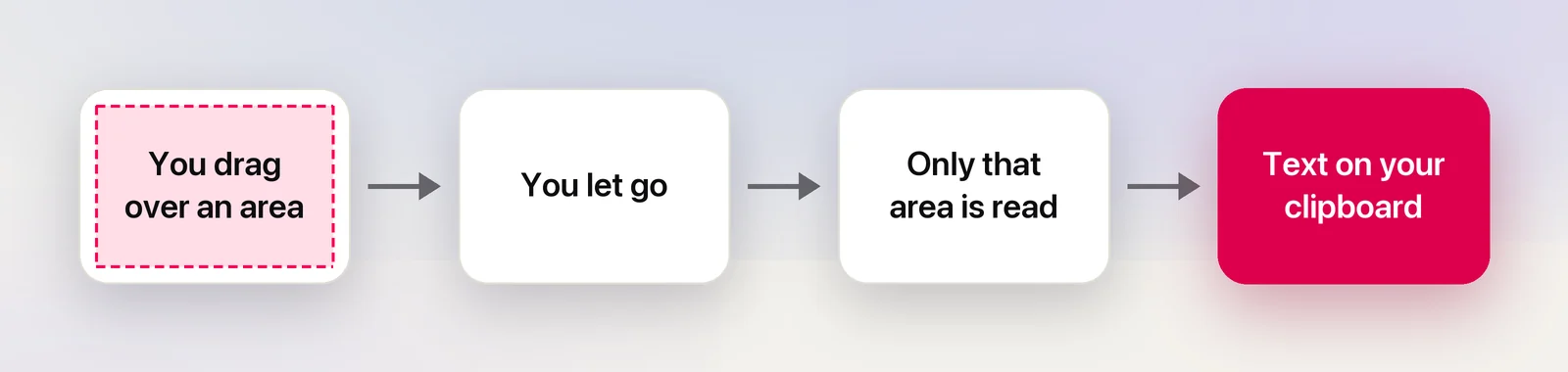
Open System Settings → Privacy & Security → Screen & System Audio Recording and turn on Unpixel. If captures still fail, quit and reopen Unpixel, because macOS often applies the change only after a relaunch. Settings → General in Unpixel shows Granted once it works. Unpixel reads only the area you select, when you let go or press Capture Again.
Why Unpixel needs it
Unpixel recognizes text from pixels, so it has to get the pixels from macOS. When you let go of a selection, or press Capture Again to read your last selection’s area once more, it asks macOS for a still image of that rectangle, reads the text on your Mac and throws the image away. Nothing is recorded, nothing is saved as a picture or video, and the text never leaves your Mac.
The permission’s name mentions audio because the same pane handles screen and system sound. Apple’s guide notes that an app can be allowed to record the screen and audio, or only the audio. Audio-only access isn’t enough for Unpixel, because it needs the screen. It never uses the audio part.
Grant it during setup
The welcome guide’s Screen Recording page (“One permission. Zero surprises.”) handles it:
- Click Open System Settings. Unpixel adds itself to the list and opens the right pane.
- Turn on the switch next to Unpixel. Enter your password or use Touch ID if macOS asks.
- Switch back to the welcome guide. Its status label changes from Required to Granted.
Grant it later
If you chose Skip for Now, or turned the switch off at some point:
- Right-click the Unpixel icon in the menu bar and choose Settings….
- In General, find Screen Recording under Permissions and click Open System Settings.
- Turn on Unpixel in the list.
You can also go there directly: Apple menu → System Settings → Privacy & Security → Screen & System Audio Recording. If Unpixel isn’t in the list, click the Add button (+) below it and choose Unpixel from Applications.
Pressing ⇧⌘2 without the permission doesn’t show the crosshair. You get a Screen Recording needed message instead, and Unpixel asks macOS to list it in that pane.
Relaunch if macOS asks
macOS often hands an app a new permission only after the app restarts, so the switch can be on while captures still fail.
- In the welcome guide: when the switch is on but the status still says Required, the guide shows “Already turned it on? macOS applies the change after Unpixel relaunches.” Click Relaunch Unpixel. Unpixel quits, opens again and brings you back to the same page.
- Any other time: right-click the menu bar icon, choose Quit Unpixel, and open it again from Applications. If macOS offers Quit & Reopen itself, that works too.
Check the status
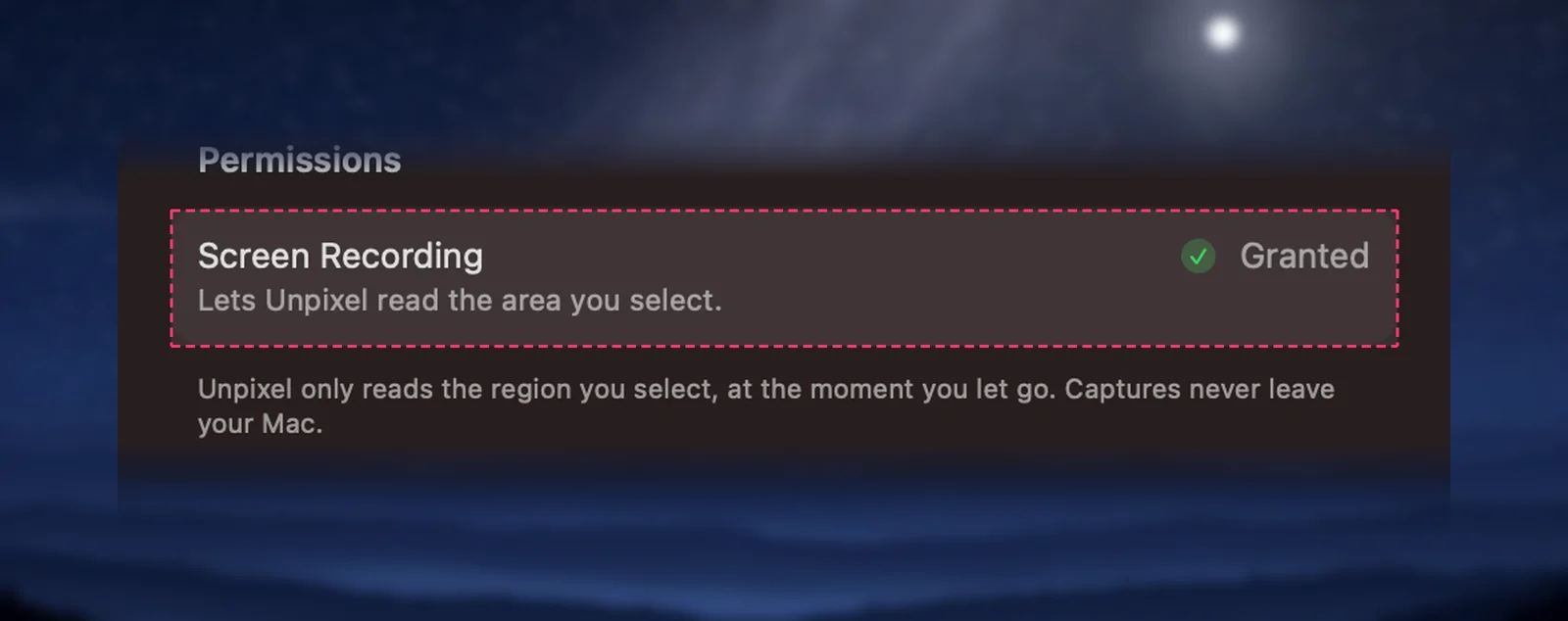
Open Settings → General and look under Permissions:
- Granted, with a green check and “Lets Unpixel read the area you select”: you’re set.
- Not granted, with an orange warning and an Open System Settings button: the permission is missing.
The status updates every second while the Settings window is open, so you can flip the switch in System Settings and watch it change.
If captures still don’t work
- “Screen Recording needed” on every capture: Unpixel checks the permission before it shows the crosshair, so this message means macOS isn’t giving it access yet. Either the switch is off or the change hasn’t taken effect. Check the switch, then quit and reopen Unpixel.
- Still failing after a relaunch: select Unpixel in the list, click the Remove button (−), add it again with + and reopen Unpixel. This can help when the copy in Applications was replaced by one from a different download, because macOS may still be holding the permission for the old copy.
- The switch is on, but the captures come back empty: the permission is working, so the problem is the selection itself. Troubleshooting Unpixel covers selections where no text is found.
- The switch won’t turn on: on a Mac managed by an employer or school, a configuration profile can lock this setting. Only the administrator can change it.
- A video shows up black: streaming services that block screen capture appear black to every screenshot tool, and turning permissions on and off won’t change that. Pause and use the subtitles or another source of the text.
For how the setting works with any app, see how to give an app Screen Recording permission.
Frequently asked questions
Does Unpixel record my screen or my audio?
No. Despite the permission’s name, Unpixel never records video or sound. It reads one still image of the rectangle you drew, recognizes the text on your Mac and discards the image.
Can Unpixel look at my screen in the background?
No. Every capture starts with a selection you draw, whether you use the shortcut, the menu bar icon or a unpixel://capture link. Capture Again re-reads your last selection only when you press its shortcut.
What still works if I turn the permission off?
Your history, From Clipboard and Open Image… keep working, because they read images you give Unpixel rather than the screen. Only screen captures stop.