Unpixel has no Dock icon and no main window. Everything starts from the small U icon in the menu bar, and a click and a right-click open different things: the panel with your captures, or a short menu of commands.
Click Unpixel’s menu bar icon to open the panel: Copy Text, From Clipboard, Open Image…, search, filters and your capture history. Right-click or Control-click the icon for a menu with the same capture commands plus Check for Updates…, Settings…, Show Welcome… and Quit Unpixel. The icon pulses while a long capture is still being read.
Click or right-click the icon
| You do this | You get |
|---|---|
| Click the icon | The panel, with capture buttons and your history |
| Right-click or Control-click it | A menu of commands |
| Drop image or PDF files on it | Their text is read and copied |
| Open Unpixel again from Applications or Spotlight | The panel |
Both the panel and the menu open as soon as you press the mouse button, like Wi-Fi or Control Center. Click the icon again, press Esc, or click anywhere else to close the panel. With VoiceOver, the icon offers a Show Menu action in place of a right-click.
The right-click menu
From top to bottom:
- Copy Text, which starts a selection. It shows your capture shortcut, ⇧⌘2 unless you changed it.
- Copy & Translate Text, a selection whose text is copied in your language. See Translate text while you capture.
- Copy & Add Text, a selection whose text is added after what’s already on the clipboard. See Collecting passages on the clipboard.
- Capture Again (⇧⌘1), which reads the area of your last selection again. It’s greyed out until there’s an area to read, and holding ⌥ turns it into Capture Again & Translate. See Read the same area again.
- From Clipboard and Open Image…, to read an image you copied or an image or PDF file.
- Enter License Key…, only while Unpixel isn’t activated. It reads Verify License instead when a license needs checking again.
- Check for Updates…
- Settings… (⌘,)
- Show Welcome…, which reopens the welcome guide.
- Quit Unpixel (⌘Q)
The panel, top to bottom
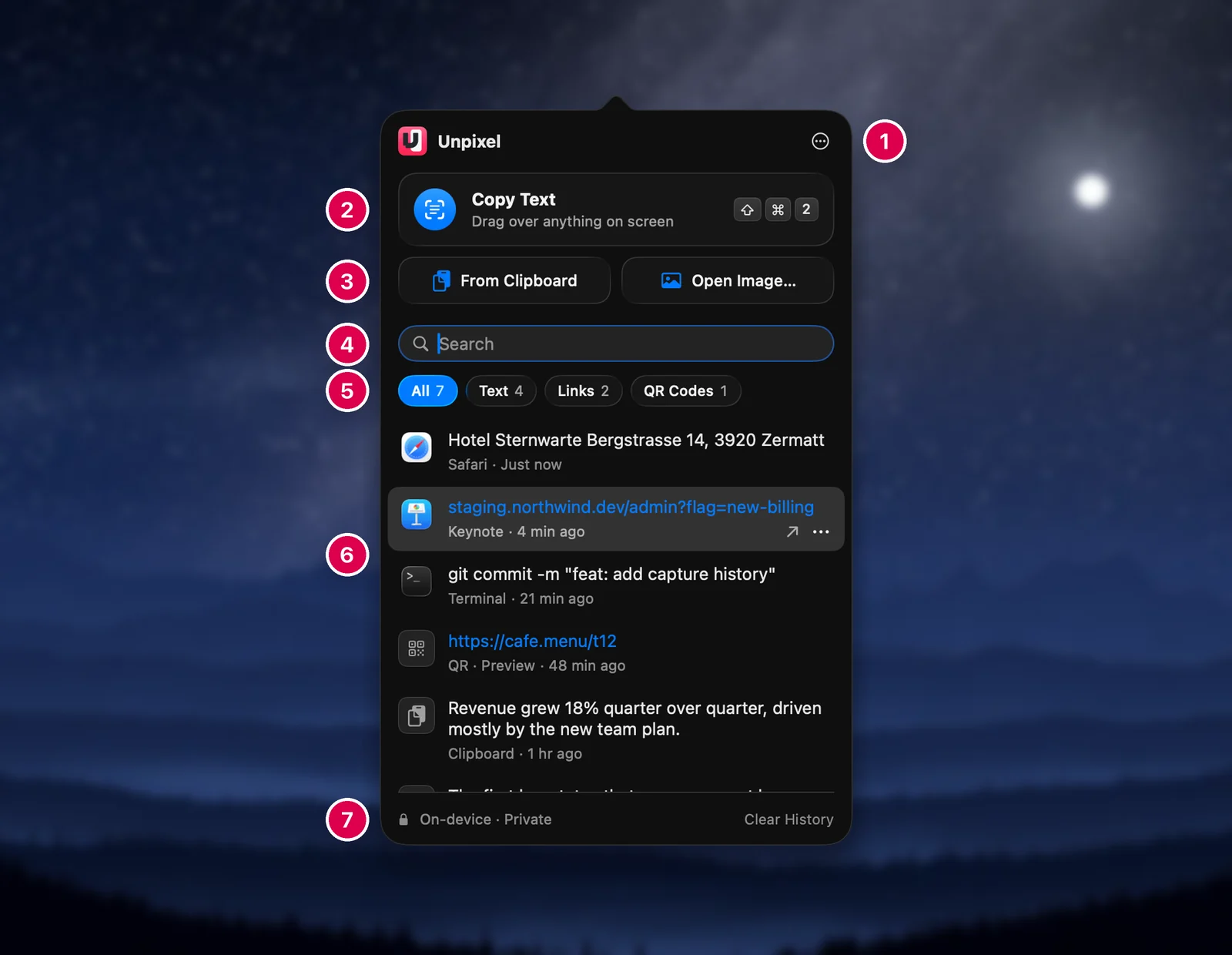
- Header. The Unpixel name and the … (More) button, covered below.
- Copy Text. The large button, “Drag over anything on screen”, with your shortcut’s key caps. Clicking it closes the panel and starts a selection.
- From Clipboard and Open Image…, the same as in the right-click menu.
- Search. Finds saved captures by their text or the app they came from.
- Filters. All, Text, Links and QR Codes, each with a count.
- History. Your captures, newest first. Click one to copy it again; right-click it for more. Capture history explains the rows.
- Footer. The privacy note and Clear History.
The panel also accepts files. Drag images or PDFs onto it, wait for “Drop to Copy Text”, and let go. Drag and drop and Open With has the details.
The orange banner
While captures are locked, an orange strip appears under the header. Your history stays readable while it’s there.
| Banner | Buttons | Why it’s there |
|---|---|---|
| Activate Unpixel | Buy, Enter Key… | No license on this Mac yet |
| Verify your license | Details…, Verify Now | No successful license check for over 30 days |
| License no longer valid | Email Support, Enter Key… | The key was refunded, disabled or deactivated |
| Couldn’t read your license | Details…, Retry | macOS didn’t let Unpixel read its keychain item |
Using Unpixel offline covers the verify banner.
The More menu
The … button in the header gathers the commands you’d otherwise right-click for: Copy & Translate Text, Copy & Add Text, Capture Again (with ⌥: Capture Again & Translate), Settings…, Show Welcome…, Enter License Key… or Verify License when needed, Check for Updates… and Quit Unpixel. It’s handy on a trackpad, where a right-click takes two fingers.
The footer
On the left, a lock and “On-device · Private”. Hover over it to read the promise in full: captures never leave your Mac, and Unpixel only goes online to verify your license and check for updates.
When a new version is out, an Update available pill takes that spot. Click it to open Settings → General, where you can download it. See Update Unpixel.
On the right, Clear History deletes every saved capture after asking. History settings explains the limits and the alternatives.
Keyboard in the panel
When the panel is open, you can work it without the mouse: ⌘F jumps to search, the arrow keys move through the list, Return copies the highlighted capture and ⌘⌫ deletes it. Esc first clears a search, then closes the panel. History row actions lists what each key does.
When the icon pulses
Reading a long PDF or a very large image can take a while. If a capture is still being read after a moment, the icon slowly fades in and out until it’s done, and its tooltip says “Unpixel — reading…”. With Reduce motion turned on in Accessibility settings, the icon stays dimmed instead of pulsing. You can start another capture while one is still being read.
If you can’t see the icon
A crowded menu bar can hide icons, especially behind the camera notch on a MacBook. In macOS Tahoe, also check that Unpixel is allowed in System Settings → Menu Bar. Your capture shortcut works even while the icon is hidden. Menu bar icons hidden behind the notch has more fixes.
Frequently asked questions
Why is there no Unpixel icon in the Dock?
Unpixel is a menu bar app, so it has no Dock icon and no main window. Opening it again from Applications or Spotlight while it’s running opens the panel instead.
Can I make the panel bigger?
No. It has a fixed size, and the history list scrolls. Search or a filter is the quickest way to reach an older capture.
Sources
- Change Menu Bar settings on Mac — Apple Support (macOS Tahoe 26) support.apple.com