Unpixel comes as a disk image from this website; it isn’t sold on the Mac App Store. Installing it is the usual drag-to-Applications routine. The only extra step may be approving the first launch, which macOS asks for apps it hasn’t seen before.
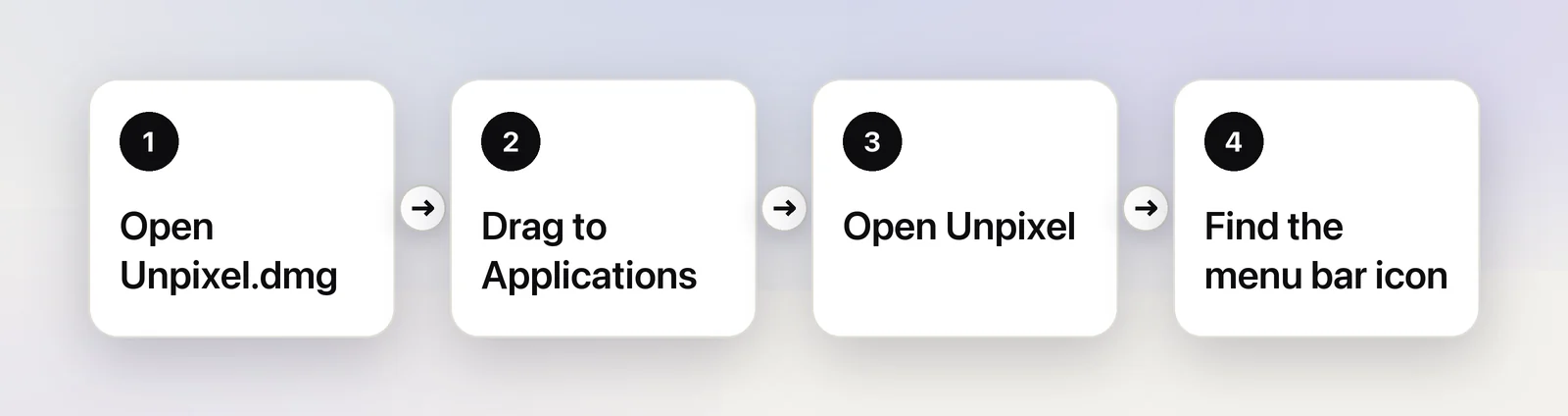
Download Unpixel from the Download page, open Unpixel.dmg and drag Unpixel onto the Applications folder. Open it from Applications or Spotlight; its icon appears in the menu bar, not in the Dock. If macOS says it couldn’t verify the app, click Done, then Open Anyway in System Settings → Privacy & Security.
Download
- Open the Download page on your Mac and click Download for Mac.
- Unpixel.dmg lands in your Downloads folder.
Your license key arrives separately, in the email from your purchase. Download Unpixel only from this website, never from a mirror or a download portal.
Move it to Applications
- Double-click Unpixel.dmg. A window opens with the Unpixel icon and a shortcut to the Applications folder.
- Drag the Unpixel icon onto Applications.
- Eject the disk image: click the Eject button next to Unpixel in the Finder sidebar. You can then delete the .dmg file.
Don’t run Unpixel straight from the disk image. Once it’s in Applications, the permission you grant and the Launch at login setting point at that copy, and only one copy runs at a time: opening a second copy hands over to the one already running.
Open it the first time
- Open the Applications folder and double-click Unpixel, or press ⌘Space, type “Unpixel” and press Return.
- If macOS asks whether you’re sure you want to open an app downloaded from the internet, confirm that you do.
If macOS instead shows “Unpixel” Not Opened, saying Apple could not verify it, approve it once:
- Click Done in the alert, not Move to Trash.
- Choose Apple menu → System Settings, then click Privacy & Security in the sidebar.
- Scroll down to Security. Next to the note that Unpixel was blocked, click Open Anyway.
- Confirm in the dialog that follows, using your login password or Touch ID when asked.
Apple’s guide notes that the button is only offered for about an hour after the blocked attempt; if it’s gone, open Unpixel once more and go straight back. Our article on opening apps from outside the App Store explains what macOS checks and why.
Once Unpixel opens, the welcome guide takes over: activation, Screen Recording, your shortcut and a practice capture. Getting started follows it step by step.
Find the menu bar icon
Unpixel lives in the menu bar, near the clock: a small U with a selection window behind its right half, the same shape as the app icon. It has no Dock icon and no main window.
- Click the icon to open the panel with Copy Text, From Clipboard, Open Image… and your capture history.
- Right-click it for a menu that also has Settings…, Show Welcome…, Check for Updates… and Quit Unpixel.
If you can’t see the icon:
- Check Menu Bar settings. In macOS Tahoe, open System Settings → Menu Bar and make sure Unpixel is switched on under Allow in the Menu Bar.
- Look for the notch. On a MacBook with a camera notch, a crowded menu bar can hide icons behind it. Switch off icons you don’t need under Allow in the Menu Bar, or quit a few menu bar apps. This guide to icons hidden behind the notch has more fixes.
- Use the shortcut anyway. ⇧⌘2 works whether or not the icon is visible.
Updating later
A new version installs the same way as the first one. Quit Unpixel, drag the new copy onto Applications and choose Replace when Finder asks. Your settings, capture history and license stay as they were. With automatic checks on, the default, Unpixel looks for a new version once a day, but it never downloads or installs anything by itself. Update Unpixel to a new version has the steps.
Frequently asked questions
Do I have to approve Unpixel again after every update?
macOS checks each newly downloaded copy when you first open it, so a new version may ask once more. After you approve that copy, it opens normally from then on.
Can I keep Unpixel somewhere other than Applications?
It runs from other folders, but Applications is the safe choice: the Screen Recording permission and Launch at login stay tied to one copy, and updates replace it in place.
How do I uninstall it?
To use your key on another Mac, choose Settings → License → Deactivate This Mac… first. Then quit Unpixel from its menu bar icon and drag it from Applications to the Trash. Uninstall Unpixel completely also removes your history and settings.
Sources
- Open a Mac app from an unknown developer — Apple Support (macOS Tahoe 26) support.apple.com
- Change Menu Bar settings on Mac — Apple Support (macOS Tahoe 26) support.apple.com