Dragging Unpixel to the Trash removes the app, but a few things stay behind: your capture history, your settings, the Screen Recording entry and, unless you deactivate first, your license. Here’s how to remove each one, in the order that keeps your license usable elsewhere.
In Settings → License, click Deactivate This Mac… so the slot is freed and the key leaves your keychain. Quit Unpixel, then drag it from Applications to the Trash. For a clean removal, also delete ~/Library/Application Support/Unpixel (your history), run defaults delete com.parth.unpixel (settings) and remove Unpixel from Screen & System Audio Recording.
Deactivate first
If you might use Unpixel on another Mac, deactivate this one before deleting anything. It frees one of your license’s Macs and removes the key from this Mac’s keychain.
- Right-click the Unpixel icon in the menu bar and choose Settings…, then click License.
- Click Deactivate This Mac….
- Choose Copy Key and Deactivate if you don’t have your purchase email handy, or Deactivate.
Deactivating needs an internet connection. If you skip it and erase the Mac later, the old activation keeps a slot until support frees it. Move your license to another Mac explains the details.
Planning to reinstall on this same Mac? You can skip this step. The license stays in the keychain and works again with a fresh copy of the app.
Quit and delete the app
- If Launch at login is on, turn it off in Settings → General first. That removes Unpixel from System Settings → General → Login Items & Extensions.
- Right-click the Unpixel icon and choose Quit Unpixel.
- In Finder, click Applications in the sidebar and drag Unpixel to the Trash.
- Empty the Trash when you’re sure. Until then, File → Put Back restores the app.
If Finder says the app is in use, it’s still running. Quit it from the menu bar icon, then try again.
Remove history and settings
Unpixel keeps your history and settings outside the app, so deleting the app leaves them in place.
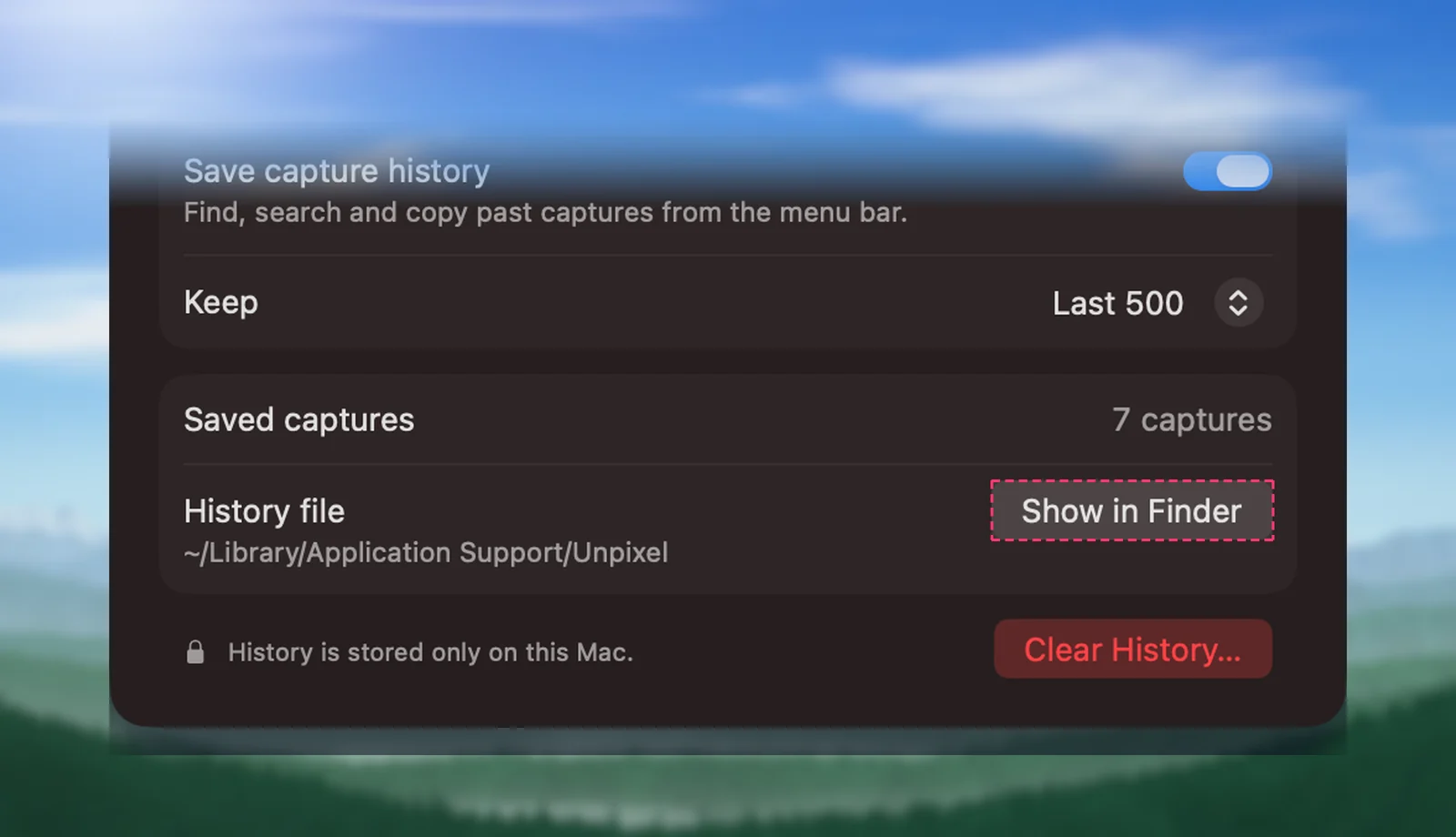
History. Before you quit, open Settings → History: the History file row shows the folder and Show in Finder opens it. Or click Clear History… there to delete every capture first. After uninstalling, delete the folder by hand:
- In Finder, choose Go → Go to Folder… (⇧⌘G).
- Enter
~/Library/Application Support/Unpixeland press Return. - Move the Unpixel folder to the Trash. It holds history.json and any backup of an earlier history file.
Settings. Your shortcut and preferences are stored in the standard macOS preferences system. With Unpixel quit, run this in Terminal:
defaults delete com.parth.unpixelYou can also delete the small ~/Library/Caches/com.parth.unpixel folder, which only holds a file that stops two copies of Unpixel from running at once.
Remove the Screen Recording entry
- Choose Apple menu → System Settings, then click Privacy & Security.
- Click Screen & System Audio Recording.
- Select Unpixel and click the Remove button (−). Enter your password if macOS asks.
From Terminal, tccutil reset ScreenCapture com.parth.unpixel does the same.
Remove the keychain item
Deactivating already deleted it. If you didn’t deactivate, the license is still stored in your login keychain as Unpixel License. Remove it with:
security delete-generic-password -s com.parth.unpixel.licenseRemoving it this way doesn’t tell the license server, so this Mac still counts as one of your Macs. Email support if you need that slot back.
What you can leave alone
Translation languages that macOS downloaded are shared with Apple’s apps, so they stay when Unpixel goes. To manage them, open System Settings → General → Language & Region and click Translation Languages….
To go back to Unpixel later, download it again from the Download page and activate your key. If you only wanted a fresh start, Reset Unpixel’s settings is quicker than reinstalling.
Frequently asked questions
If I reinstall later, do I need to activate again?
Only if you deactivated. Without deactivating, the license stays in your keychain and a fresh copy of Unpixel picks it up without using another slot.
Does deleting the app remove my capture history?
No. History lives in your Library folder, not inside the app. Delete it with Clear History before you uninstall, or remove the Unpixel folder in Application Support afterwards.