Unpixel reads QR codes and barcodes as well as text. When a code is inside your selection, Unpixel copies what the code contains (a web address, a Wi-Fi login, a product number) instead of the words printed around it. Decoding uses Apple’s Vision framework on your Mac.
Press ⇧⌘2 and drag over the code, including a little of the blank margin around it. The confirmation says QR code copied or Barcode copied, and the code’s contents are on your clipboard. To open web links from QR codes straight away, turn on Open QR links automatically in Settings → Recognition. It’s off by default, and it only opens a single https or http link.
Capture a code
- Show the code on screen: a web page, a PDF ticket, a slide, a screenshot or a shared screen in a call.
- Press ⇧⌘2 and drag a rectangle around the whole code, with a little of the blank margin around it.
- Let go. The confirmation says QR code copied for QR and Micro QR codes, or Barcode copied for other types, and shows the start of the contents.
- Paste with ⌘V.
The same works for a code in an image or PDF file (Open Image…), or in an image you’ve copied (From Clipboard). If the selection holds several codes, you get the contents of each on its own line; a code that appears twice is copied once.
Supported codes
| Type | Common uses |
|---|---|
| QR, Micro QR | Links, Wi-Fi logins, menus, payment and contact codes |
| Aztec | Train and plane tickets |
| PDF417 | Boarding passes, ID cards, shipping labels |
| Data Matrix | Parts, medicine packs, small labels |
| EAN-8, EAN-13, UPC-E | Products in shops and on shopping sites |
| Code 39, Code 93, Code 128 | Shipping, inventory and asset labels |
| ITF | Cartons and shipping cases |
| Codabar | Libraries, blood banks, older labels |
| GS1 DataBar | Fresh food sold by weight, small retail items |
You get the contents exactly as encoded. A Wi-Fi code, for example, copies as one line that starts with WIFI: and includes the network name and password. A contact code copies as a vCard that starts with BEGIN:VCARD.
Open QR links automatically
If you mostly scan codes that you trust, Unpixel can open their links for you:
- Open Settings → Recognition.
- Under Codes, turn on Open QR links automatically. You may already have set this during setup, where the same switch appears. It’s greyed out while Detect QR codes & barcodes is off.
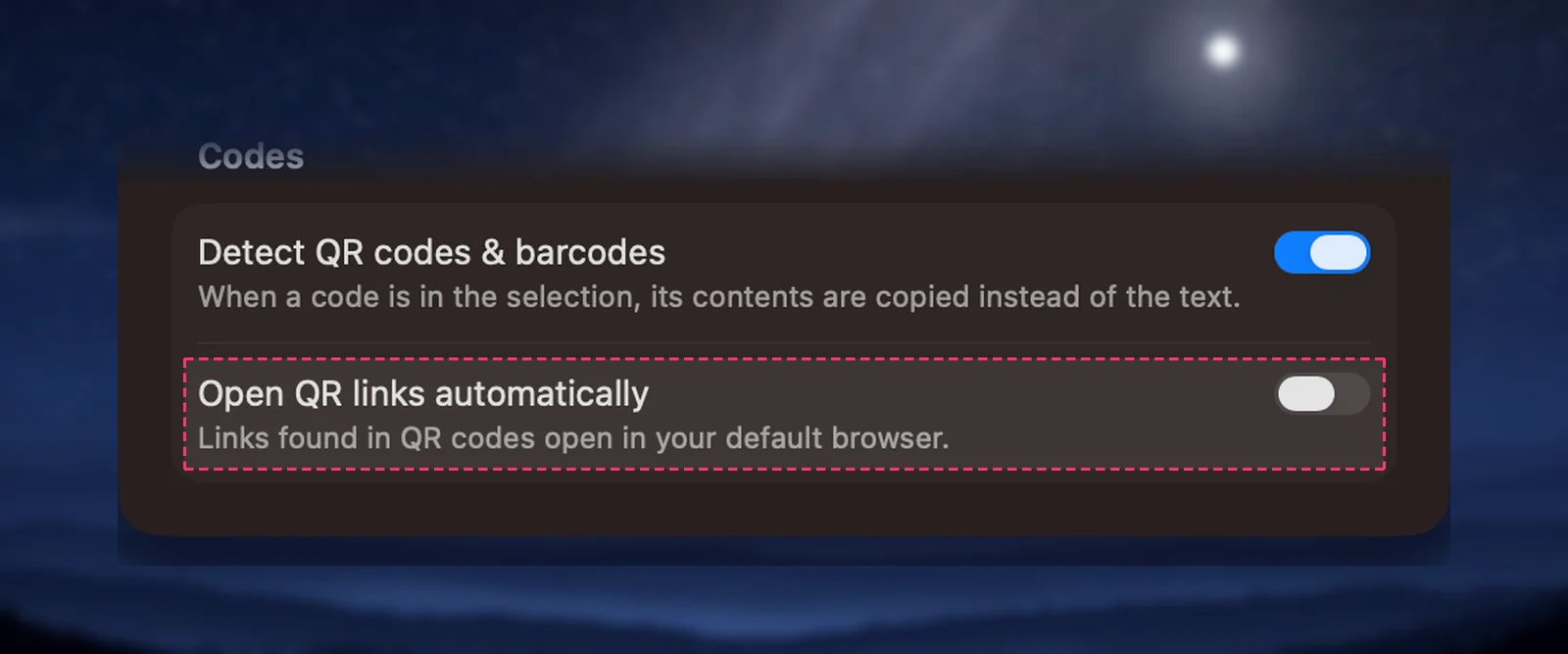
The link opens in your default browser and the confirmation says Opening QR link. It only happens when the capture holds exactly one web link starting with https:// or http://. Links to apps, such as otpauth:// or slack://, and captures with two or more web links are copied but never opened by themselves. A single app link can still be opened with Open Link in your history. When a capture holds several links, history offers no Open Link, so paste the one you want into your browser.
Check a code before you open it
A QR code doesn’t show where it leads until it’s decoded. The US Federal Trade Commission warned in December 2023 that scammers stick their own codes over real ones and send codes in unexpected emails and texts, and it advises inspecting the link before you open it. Unpixel makes that check easy, because with automatic opening off it copies the link and shows it to you first:
- Read the domain in the confirmation, or in the code’s history row, before you choose Open Link. Look for misspellings and swapped letters.
- If the address isn’t what you expected, don’t open it. Reach the site by typing an address you already know instead.
- Leave Open QR links automatically off if you scan codes from posters, stickers or messages you didn’t expect.
Codes in history
Every code you capture is filed under QR Codes in the history of the menu bar panel, barcodes included. Code rows show a code symbol and the code type in their caption, for example “QR · Preview” or “EAN-13 · Safari”. Search for the type, such as EAN-13, to find them. Click a row to copy the contents again, or click the arrow on a row that holds a link to open it. See Capture history: search and filters.
If a code isn’t found
- Include the whole code and the blank margin around it. A code cut off at the edge can’t be decoded.
- Make it bigger. Zoom in on the page or image first, so the code is larger on screen.
- Check the setting. With Detect QR codes & barcodes off, Unpixel only reads text, such as the numbers printed under a barcode.
- Blurry, damaged or very low-contrast codes may not decode at all. If there’s no text either, the confirmation says No text found.
Frequently asked questions
Can Unpixel join a Wi-Fi network from a QR code?
No. It copies the code’s contents, which for a Wi-Fi code include the network name and password as text. You can read the password there and type or paste it when you join the network.
Why did I get text instead of the code’s contents?
Either the code wasn’t found, or Detect QR codes & barcodes is off in Settings → Recognition. Select the whole code with a margin around it and try again, zooming in first if the code is small.