Unpixel reads text in the languages Apple’s Vision framework supports on your Mac. Out of the box it works out the language of each capture by itself. You can also fix it to one language when automatic detection keeps guessing wrong.
Unpixel detects the language of each capture automatically. To choose one instead, turn off Detect language automatically in Settings → Recognition and pick it from the Language menu. On macOS 26, Accurate mode reads about 30 languages and variants, including Chinese, Japanese, Korean, Arabic, Russian and Thai, while Fast mode reads six Western European languages.
Automatic or a fixed language
Detect language automatically is on by default. The setting’s description sums it up: “Vision works out the language of each capture.” That suits most people, including anyone who reads in more than one language during the day.
To use one language instead:
- Right-click the Unpixel icon in the menu bar and choose Settings…, then click Recognition.
- Turn off Detect language automatically.
- Choose the language from the Language menu that appears, such as Japanese (Japan).
A fixed language helps with very short captures, a word or two, where detection has little to go on. It also helps when one language keeps being read as another. Remember to turn automatic detection back on before capturing other languages, because a fixed language is the only one Vision tries.
If a language you chose earlier isn’t available on this Mac, the settings say so (“Text recognition on this Mac can’t read …”), mark it “Not available” in the menu, and captures detect the language automatically.
Which languages are available
On macOS 26, Accurate mode lists 30 entries (checked on macOS 26.6 in October 2026). Some languages appear in more than one form:
| Script | Languages |
|---|---|
| Latin | Czech, Danish, Dutch, English, French, German, Indonesian, Italian, Malay, Norwegian (including Bokmål and Nynorsk), Polish, Portuguese, Romanian, Spanish, Swedish, Turkish, Vietnamese |
| Cyrillic | Russian, Ukrainian |
| Chinese characters | Chinese (Simplified and Traditional), Cantonese (Simplified and Traditional) |
| Other | Japanese, Korean, Arabic (including Najdi Arabic), Thai |
Fast mode reads only English, French, German, Italian, Portuguese and Spanish. The list comes from macOS, so it can change with system updates; the Language menu always shows what your Mac supports in the current mode.
Mixed-language text
When one selection mixes languages, for example an English page that quotes a Japanese title, the main language usually comes out well and a short passage in the other may not.
- If part of a mixed capture comes out wrong, select that part on its own and capture it again.
- For a document that is mostly one language, fixing that language can steady the results.
- Switching languages between captures needs no setting at all while detection is on.
Fast mode and non-Latin scripts
Fast mode can’t read Chinese, Japanese, Korean, Cyrillic, Arabic or Thai. If one of those is your fixed language, Unpixel uses Accurate for those captures, and a note under the Language menu says so. With automatic detection on, it can’t know in advance, so keep Recognition mode on Accurate if you capture those scripts. Recognition mode and language correction explains the modes.
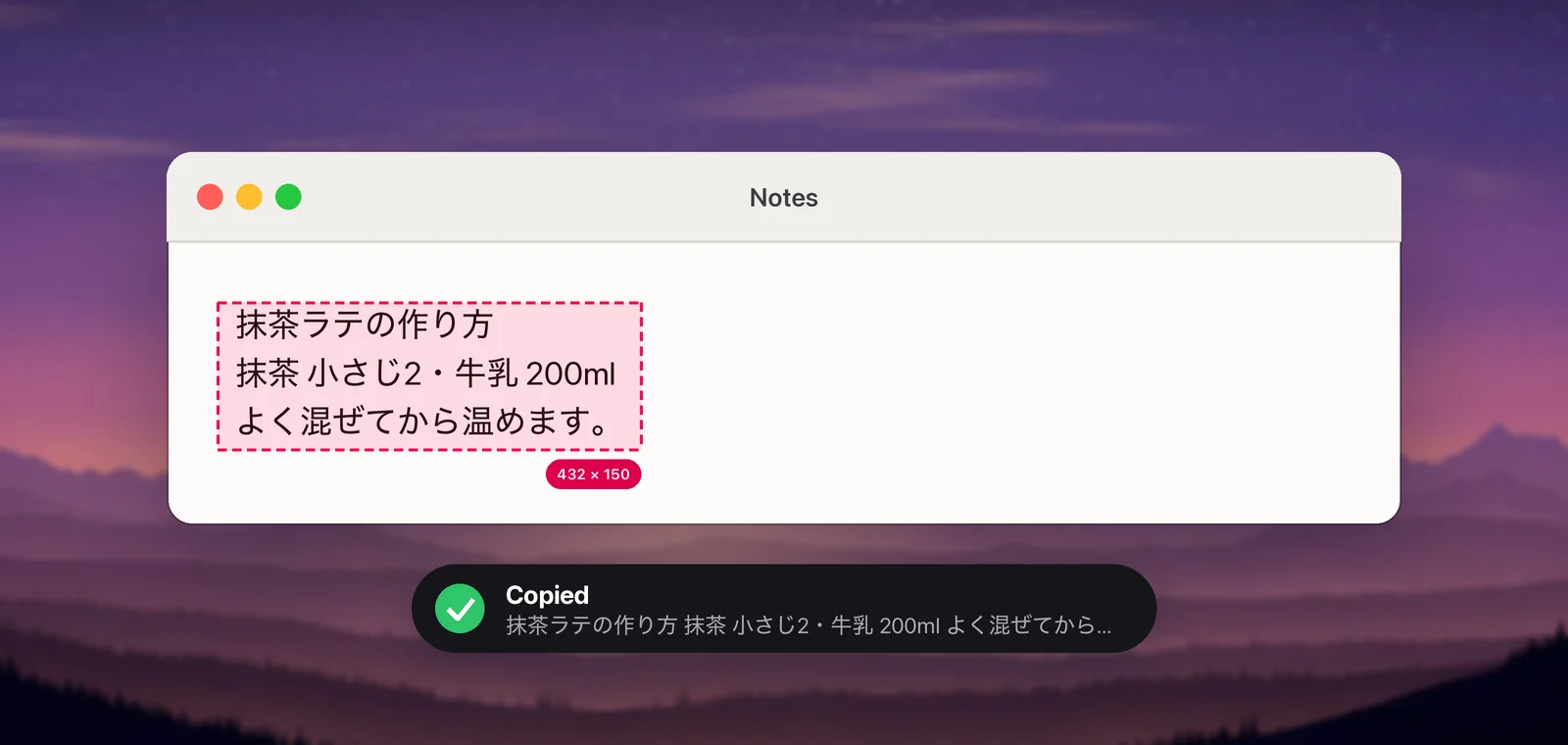
Chinese, Japanese, Korean and Thai
- Use Accurate mode, as above.
- Joining lines: with Keep line breaks off, Unpixel joins the lines of a paragraph. Chinese, Japanese and Thai lines are joined without a space, since those languages don’t put spaces between words. Korean lines are joined with a space, because Korean does. See Keep or join line breaks.
- Language correction: Apple’s documentation says Vision doesn’t apply it to Chinese, so the setting has no effect there.
- Translating: to copy Japanese, Chinese or Korean text as English, or any other pair Apple supports, hold ⌥ as you let go. See Translate text while you capture.
Frequently asked questions
Why isn’t my language in the list?
The list comes from Apple’s Vision framework on your Mac, and Unpixel can’t add to it. As of macOS 26.6 (October 2026), Vision’s list doesn’t include Greek, Hebrew or Hindi, for example.
Do I need to download anything for a recognition language?
No. Every language in the list is built into macOS. Downloads only come up for translation, and macOS asks before each one.
Sources
- Recognizing Text in Images — Apple Developer Documentation developer.apple.com
- VNRecognizeTextRequest — Apple Developer Documentation developer.apple.com