Unpixel reads text with Apple’s Vision framework, on your Mac. Two settings in Settings → Recognition change how it reads: the recognition mode and language correction. The defaults, Accurate with correction on, suit most captures; this page explains when to change them.
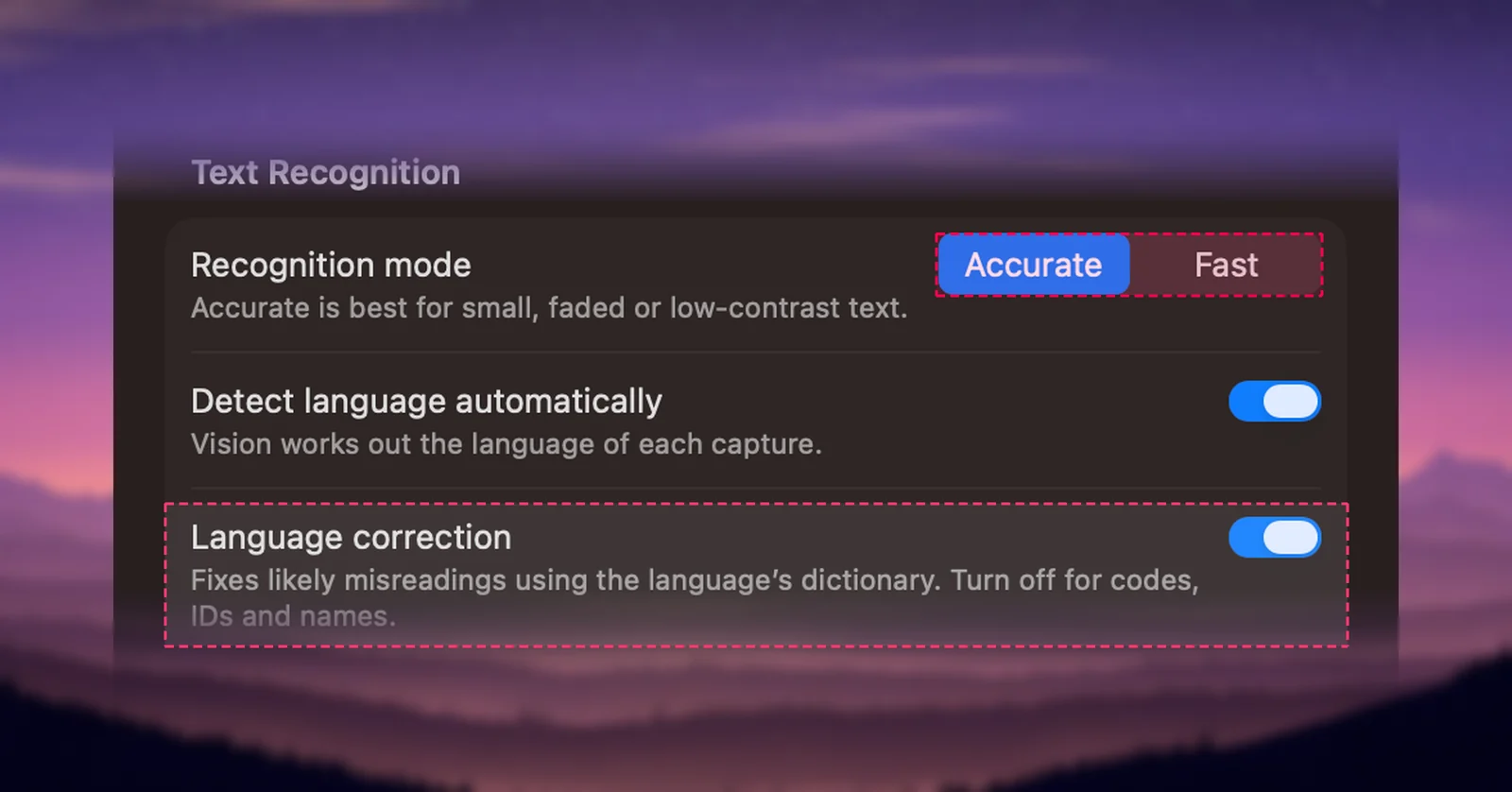
Open Settings → Recognition. Accurate, the default, handles small, faded and low-contrast text in every supported language. Fast is quicker but reads only English, French, German, Italian, Portuguese and Spanish. Language correction fixes likely misreadings with a dictionary: keep it on for ordinary prose, and turn it off for codes, IDs, serial numbers and names.
Accurate or Fast
Apple describes the two modes in its developer documentation. Accurate uses a neural network that finds whole lines and words, closer to how people read. Fast finds individual characters first and recognizes them with a smaller model, much like traditional OCR.
| Accurate (default) | Fast | |
|---|---|---|
| Best for | Small, faded or low-contrast text, photos, scans, video frames, neat handwriting | Clean interface text: menus, buttons, crisp web pages |
| Languages | About 30, including Chinese, Japanese, Korean, Arabic, Russian and Thai | English, French, German, Italian, Portuguese, Spanish |
| Speed | Takes a moment longer | Quicker, at some cost in accuracy |
To switch, open Settings → Recognition and choose Accurate or Fast next to Recognition mode. The next capture uses the new mode.
When Fast switches to Accurate
If you’ve picked a specific language that Fast can’t read, such as Japanese, Russian or Thai, Unpixel doesn’t send those captures to Fast at all. They use Accurate, and a note under the Language menu says so: “Fast mode can’t read Japanese (Japan), so captures use Accurate.” The Use Accurate button next to the note switches the mode for you.
In Fast mode, the Language menu lists only the six languages Fast reads, plus your choice marked “Accurate only”.
With Detect language automatically on, there’s no switch, because Unpixel doesn’t know the language before it reads. Fast mode then tends to return nothing, or stray Latin letters, for Chinese, Japanese, Korean, Cyrillic, Arabic or Thai text. If you capture those scripts, stay on Accurate. Recognition languages and automatic detection covers the language settings.
Language correction
With Language correction on, Vision runs a correction pass that uses the language’s dictionary to fix likely misreadings, nudging uncertain words toward real ones. The setting’s own description is a good rule: “Turn off for codes, IDs and names.”
- Leave it on for articles, emails, documents, subtitles and slides.
- Turn it off for license keys, serial numbers, order and tracking numbers, product codes, hex colours, variable names, and names the dictionary doesn’t know. Correction can “fix” them into similar dictionary words.
Apple’s documentation notes that Vision doesn’t apply language correction to Chinese, so the setting makes no difference there.
Settings for code and serial numbers
For anything that isn’t ordinary language:
- Recognition mode: Accurate.
- Language correction: off.
- Keep line breaks: on, so each line of code or each code in a list stays on its own line. See Keep or join line breaks.
Even then, check characters that look alike, such as O and 0, l, 1 and I, or S and 5, before you paste a key somewhere it matters. Selecting a larger area, or zooming in first, makes those characters easier to tell apart.
Recommended settings by task
| Task | Mode | Language correction |
|---|---|---|
| Articles, emails, PDFs, slides | Accurate | On |
| Paused video, screen shares | Accurate | On |
| Menus, buttons and dialogs in a supported Fast language | Fast | On |
| Code and terminal output | Accurate | Off |
| Serial numbers, license keys, order IDs | Accurate | Off |
| People’s names, product names, addresses | Accurate | Off if names get changed |
| Chinese, Japanese, Korean, Arabic, Cyrillic or Thai text | Accurate | On |
Changing a setting affects new captures only. Captures already in your history keep the text they were copied with.
Frequently asked questions
Do these settings also apply to From Clipboard and Open Image…?
Yes. Every capture uses the same recognition settings, whether it comes from the screen, a copied image or a file.
Which setting should I change first when results are poor?
Switch to Accurate if you’re on Fast. If the text is a code or a name that comes out as a different word, turn off language correction. If neither helps, select a larger, sharper area.
Sources
- Recognizing Text in Images — Apple Developer Documentation developer.apple.com
- VNRecognizeTextRequest — Apple Developer Documentation developer.apple.com