An app pops up a request for Screen & System Audio Recording, and the name alone makes you hesitate. Recording your screen sounds like spying. Sometimes it’s exactly what the app needs to do its job, and sometimes it isn’t. Here’s what the permission really hands over, how to judge the app asking for it, and how to check your list later.
It’s safe for an app you trust that clearly needs it, such as a video-call app, a screen recorder or a screenshot tool. The permission lets the app see everything on your screen while it runs, including other apps’ windows and notifications, but not your keystrokes or your files. Grant it sparingly and switch it off for apps you no longer use.
What the permission really allows
By default, a Mac app can only see its own windows. Screen & System Audio Recording lifts that limit. Once you turn the switch on, the app can capture:
- Everything visible on screen: other apps’ windows, the desktop, the menu bar and notification banners.
- The sound your Mac plays, if you allow audio as well. Apple’s settings let you allow the screen and audio, or audio alone.
That includes things you might not think of as “on screen”: a two-factor code in a notification, an email preview, a bank balance, a document in a window behind the one you’re using. As long as the switch stays on, the app doesn’t need to ask again each time it looks.
It’s also worth knowing what the permission doesn’t cover. Each of these is a separate list in System Settings → Privacy & Security:
| Permission | What it covers |
|---|---|
| Screen & System Audio Recording | What’s shown on screen, and the sound your Mac plays |
| Microphone | Your voice |
| Camera | The camera picture |
| Input Monitoring | Keystrokes, mouse and trackpad input |
| Accessibility | Controlling your Mac: clicking, typing and running commands |
| Full Disk Access | Files and other apps’ data on the disk |
So screen access can’t read a file you never open or type for you. What it can do is read anything you can read. An app that also sends data over the internet could send what it saw elsewhere, which is why trust matters more than the permission’s name.
Why capture and meeting apps need it
Plenty of honest apps can’t work without it:
- Video-call apps need it to share your screen. For calls in a browser, the browser asks instead.
- Screen recorders and screenshot tools that go beyond the built-in Screenshot app.
- Text-capture and OCR tools that read words from the part of the screen you select.
- Remote support apps, so a helper can see your screen.
- Utilities that react to what’s on screen, such as color pickers.
What should make you pause is a request with no screen feature behind it: a calculator, a game, a note app, a utility you installed for something else entirely. Also be wary of a request that appears on first launch, before you’ve touched anything that would need it.
How to judge an app before you allow it
Ask these questions, in this order:
- Does the request match what you just did? The best moment for the prompt is right after you click “Share screen” or “Capture”.
- Who made it, and where did it come from? An app from the Mac App Store or a developer’s own website is easier to trust than a copy from a download site. If macOS blocked it on first launch, read how to open apps from outside the App Store safely first.
- What does it say it does with captures? Look for a privacy page that says plainly whether captures stay on your Mac or are uploaded, and whether the app records continuously or only when you ask.
- Does it go online, and when? A cloud screenshot service uploads captures by design. A local tool shouldn’t need to. A firewall such as LuLu, free and open source, shows you each outgoing connection an app makes.
- Is it maintained? A recent update for the current macOS is a good sign that someone is still looking after it.
- Do you need it at all? For a single screenshot or recording, ⇧⌘5 is built into macOS and needs no extra permission.
If an app fails two of these, say no. Most apps still work for everything that doesn’t involve the screen.
Audit and revoke
The list of apps with access lives in System Settings → Privacy & Security → Screen & System Audio Recording. Read through it now and then:
- Turn off the switch for any app you don’t use anymore or don’t recognize.
- Select an app and click the Remove button (−) to take it off the list completely; it has to ask again next time.
- Quit and reopen an app after changing its switch, because apps check the permission when they start.
Our step-by-step guide to Screen Recording permission on Mac covers adding apps and fixing a switch that doesn’t seem to work. On a work Mac, your IT department may manage this list, and a locked switch is their decision to change, not yours.
How Unpixel uses it
Unpixel asks for Screen Recording and for no other permission. It needs it for one thing: reading the text inside the rectangle you drag after pressing ⇧⌘2. It reads only that region, when you let go, or once more when you press ⇧⌘1 to capture the same area again. Nothing is recorded, nothing is saved as a video, and the recognized text stays on your Mac.
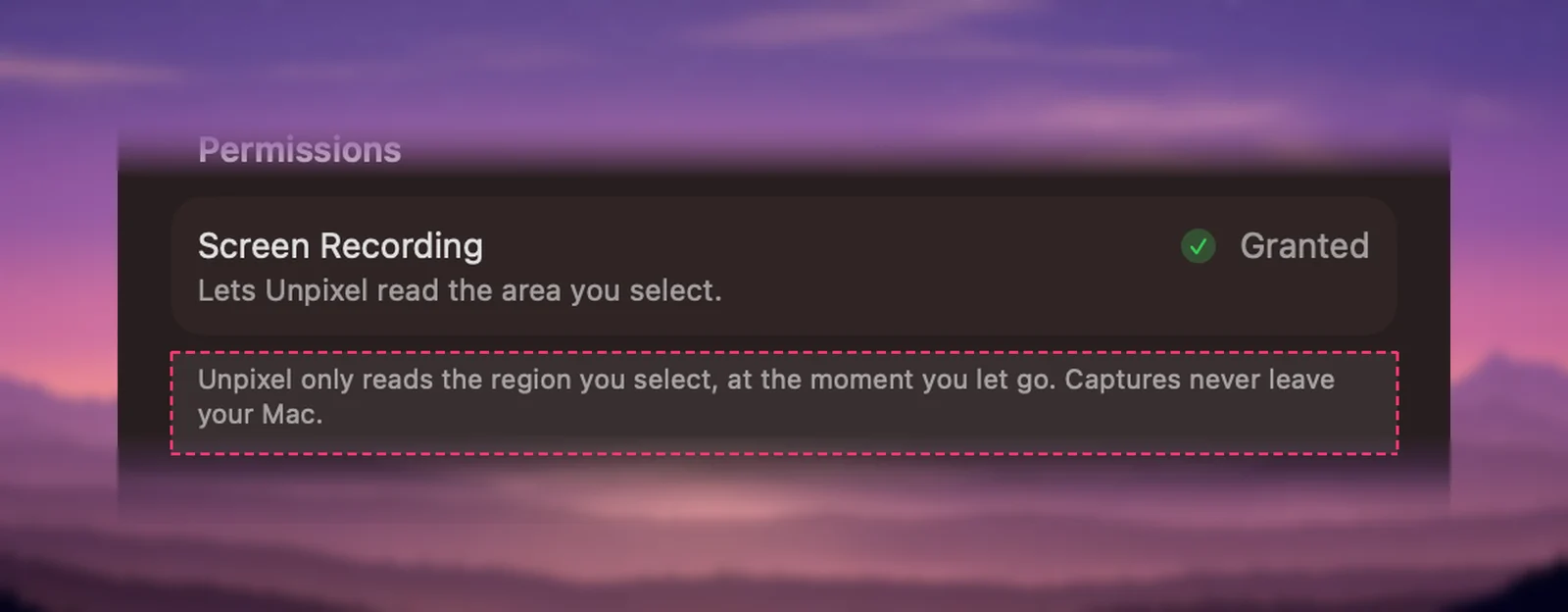
You can hold it to the same questions as any other app. Recognition runs on your Mac with Apple’s Vision framework, and there’s no account or analytics. The only network traffic is a license check and, if you leave it on, a daily update check. Settings → General shows whether the permission is granted, with an Open System Settings button when it isn’t. Turn it off whenever you like: Unpixel just tells you it needs the permission the next time you capture.
Before you click Allow
- The permission sees everything on screen, not just one window.
- It doesn’t include the microphone, the camera, your keystrokes or your files.
- Match the request to a feature you’re using right now.
- Check the developer, the source and what happens to captures.
- Review the list a few times a year and remove what you don’t use.
Frequently asked questions
Can an app with Screen Recording permission see my passwords?
It can see whatever is on screen. Password fields show dots, but a password you reveal, a code in a notification or an unlocked password manager window is visible to it.
Does Screen Recording permission let an app log my keystrokes?
No. Watching the keyboard needs Input Monitoring, a separate list in Privacy & Security. Screen access covers what’s shown on screen and, if allowed, the sound your Mac plays.
Do websites get Screen Recording permission?
No, the browser does. A site that wants to share your screen has to ask the browser, and you pick what to share each time.
What happens if I turn it off for an app I still use?
Nothing breaks permanently. The app can no longer capture other windows, and it will usually ask again the next time you use a feature that needs it.
Sources
- Control access to screen and system audio recording on Mac — Apple Support (macOS Tahoe 26) support.apple.com
- Change Privacy & Security settings on Mac — Apple Support (macOS Tahoe 26) support.apple.com
- Safely open apps on your Mac — Apple Support support.apple.com
- LuLu, a free open-source firewall for macOS — Objective-See objective-see.org