Setting up Unpixel takes a few minutes, and most of it happens in the welcome guide that opens on first launch. This page is the short version: what each step asks of you, and where to look if a step doesn’t go as planned.
Download Unpixel, drag it into Applications and open it. A welcome guide then takes you through activating your license key, allowing Screen Recording in System Settings, choosing a capture shortcut (⇧⌘2 unless you change it) and a practice capture. After that, press the shortcut in any app, drag over text and paste.
Before you start
- A supported Mac: Apple silicon and macOS 26 Tahoe or later. System requirements shows how to check.
- Your license key: it’s in the email you got after buying.
- An internet connection for activation. Recognition itself runs on your Mac, so captures work offline afterwards.
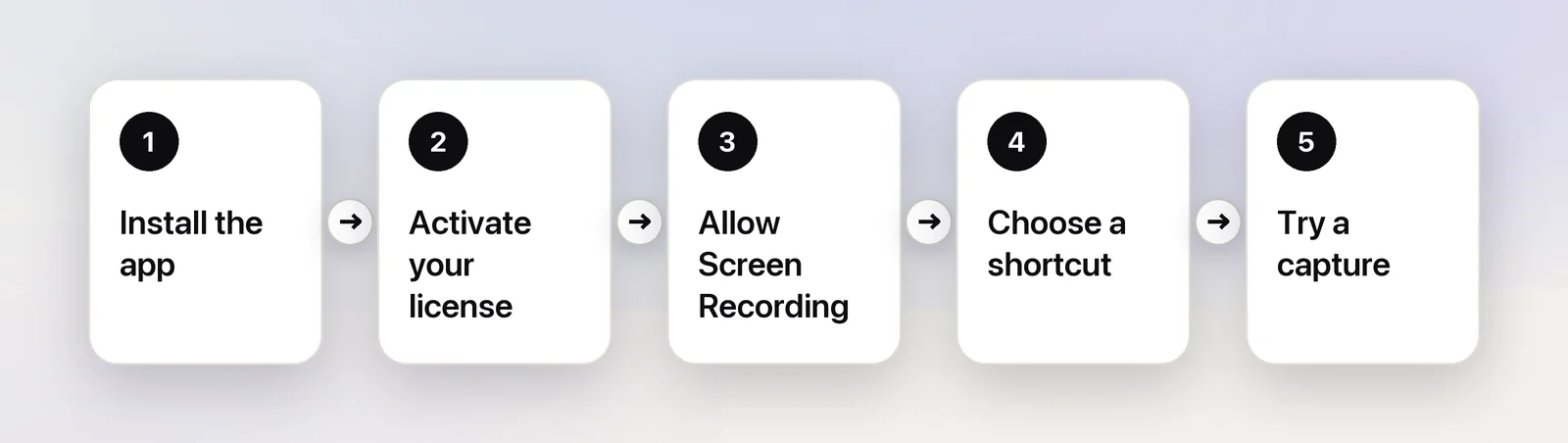
1. Install
- Download Unpixel from the Download page.
- Open Unpixel.dmg and drag Unpixel onto the Applications folder.
- Open Unpixel from Applications. Its icon appears in the menu bar; there’s no Dock icon.
If macOS says it couldn’t verify the app, Install Unpixel on your Mac walks you through the one-time approval.
2. Activate your license
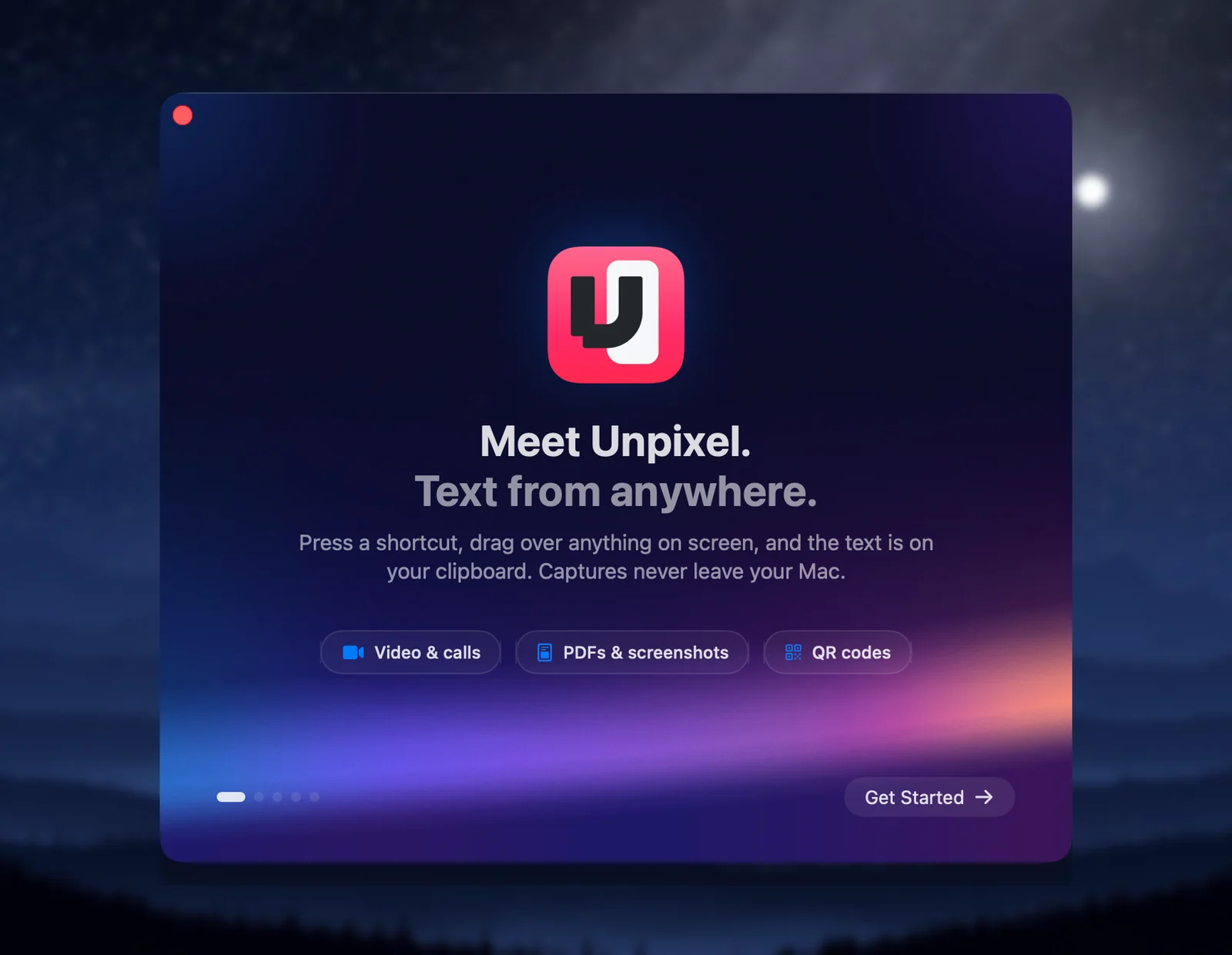
Click Get Started. The next page, “Activate your license”, has a field for your key.
- Paste the key from your purchase email.
- Click Activate. A check mark and “Activated on this Mac” confirm it worked.
- Click Continue.
Activation sends the key and this Mac’s name and model to Dodo Payments, which handles licensing. If you can’t find the key, Where’s my key? under the field points you to it. Activate your license covers error messages.
3. Allow Screen Recording
The page titled “One permission. Zero surprises.” asks for the only permission Unpixel needs.
- Click Open System Settings.
- Turn on Unpixel in Screen & System Audio Recording.
- Come back to the guide. The status changes from Required to Granted.
If the switch is on but the status still says Required, click Relaunch Unpixel. Unpixel quits, reopens and returns you to this page. You can also choose Skip for Now, but screen captures won’t work until you grant it. Details: Allow Screen Recording for Unpixel.
4. Choose your shortcut
The shortcut page shows ⇧⌘2 next to Copy text. Keep it, or click the field and press another combination. If the combination is already in use, a short warning under the field explains why. The same page has two switches:
- Launch at login keeps Unpixel in the menu bar after a restart.
- Open QR links automatically opens a web link from a QR code in your browser right after you capture it.
Both can be changed later in Settings. See Change or clear the capture shortcut.
5. Try your first capture
The last page shows a short practice paragraph that begins “Good tools get out of the way.”
- Press your shortcut, or click Try It on the page. The screen dims and the pointer becomes a crosshair.
- Drag a rectangle over the paragraph and let go.
- The page shows Copied to clipboard with the text it read. Click Try Again for another go, or Done to finish.
From now on, the same three moves work anywhere on screen. Your first capture explains what ends up on the clipboard.
Where to go next
- Selecting an area: move a selection with Space, cancel, multiple displays.
- Recognition mode and language correction: when to use Accurate or Fast.
- Translate text while you capture: hold ⌥ as you let go.
- The menu bar panel: your capture history, From Clipboard and Open Image….
Frequently asked questions
Can I skip the license step and look around first?
No. Continue stays unavailable until a key is activated, and captures need an activated license. Unpixel has no trial, but every purchase comes with a 14-day money-back guarantee.
I closed the welcome guide too early. How do I get it back?
Right-click the Unpixel icon in the menu bar and choose Show Welcome…. Your license and settings stay as they are.