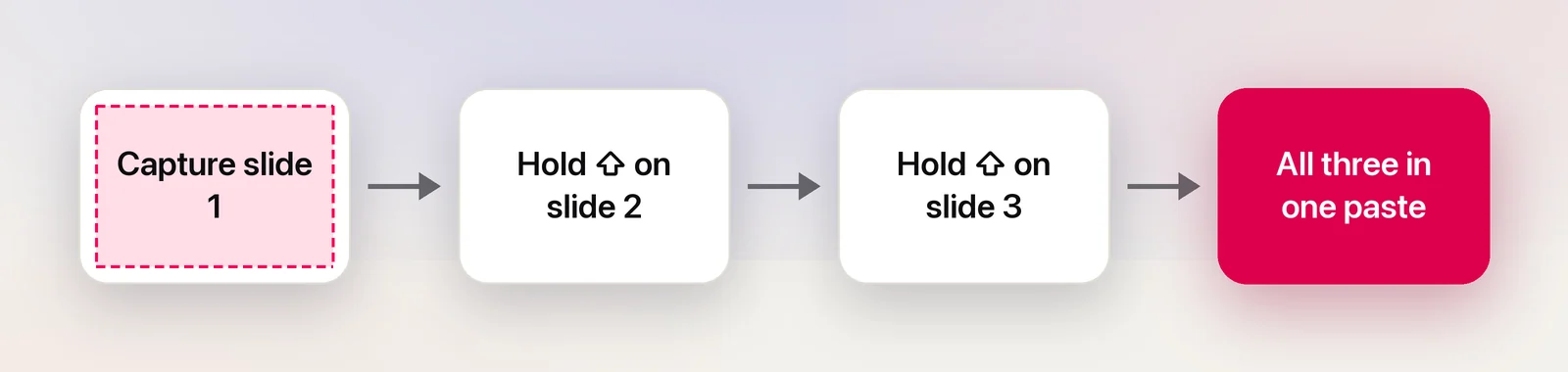
Copying three things from three places usually means three trips: copy, switch to your document, paste, and back again. The Mac clipboard holds one item, so the next copy throws the previous one away. Append mode keeps them: each capture you add lands after the last, and one paste delivers the lot.
The Mac clipboard holds one thing at a time, so every copy replaces the last. In Unpixel, hold ⇧ (Shift) as you let go of a selection and the recognized text is added after what’s already on the clipboard instead. Repeat for each passage, then paste once. A new line, a blank line or a space goes between passages.
Without an app: a scratch note
The built-in way is a staging area. Keep a TextEdit window or a note open next to your source, and paste each piece into it as you go. Shortcuts’ Append to Note action can automate the paste half of that. A clipboard manager, such as the history in Raycast or Alfred, remembers earlier copies too, so you can fetch them back from its list later.
Those work, and for text you can select they’re often enough. When the text is a picture of words, in a slide, a scanned page or a video frame, every piece first needs a screenshot and Live Text, so the round trips double.
Hold ⇧ as you let go
- Capture the first passage as usual: ⇧⌘2, drag, let go.
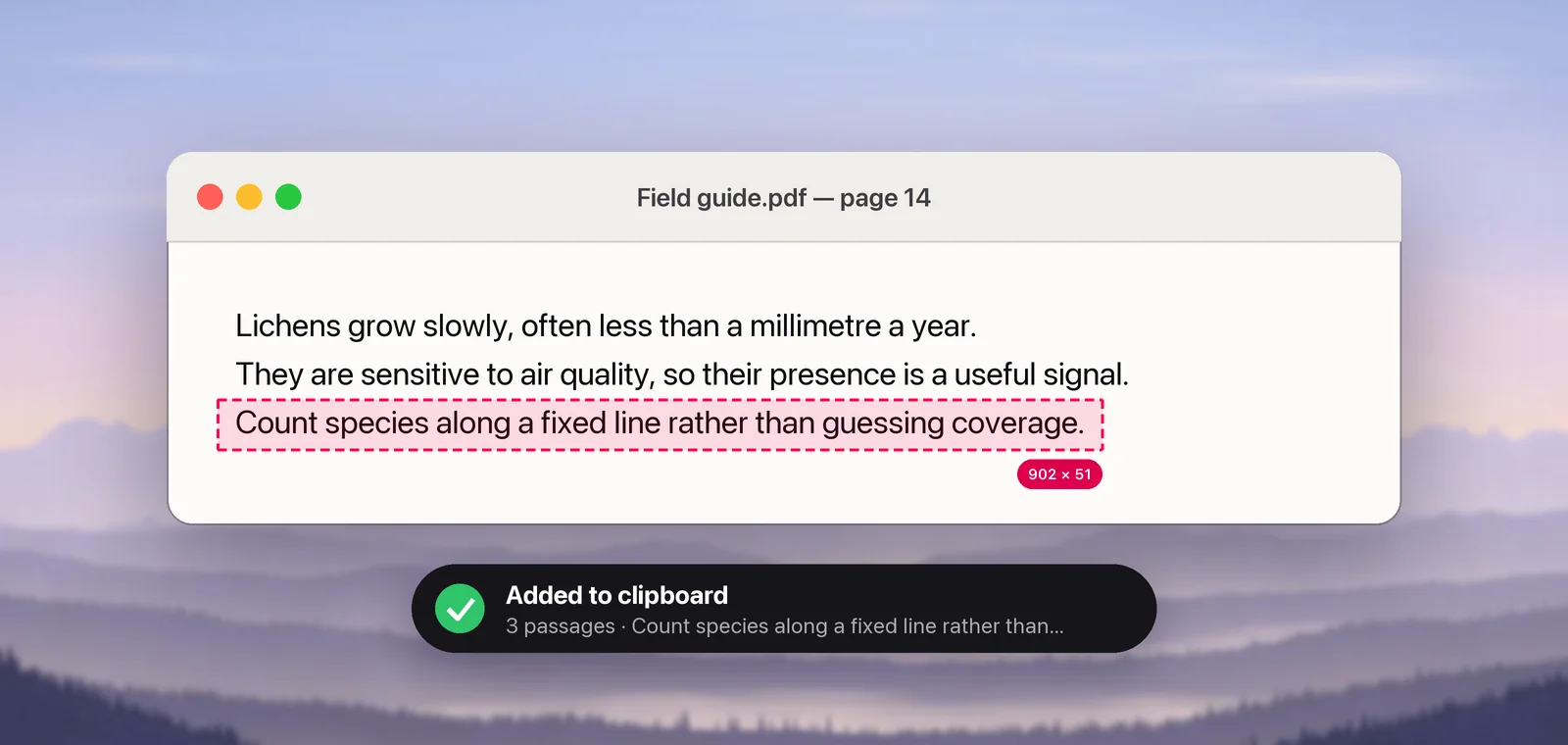
- For the next one, drag and hold ⇧ as you let go. The size label next to the selection adds “Add”.
- The confirmation reads Added to clipboard, with the passage count and a preview.
- Keep going, then paste everything with one ⌘V.
Only the instant you let go decides, so you can press ⇧ at the last moment. If you’d rather pick it from a menu, Copy & Add Text in the menu bar icon’s menu and the panel’s … menu does the same.
Built for real collecting
- Your choice of separator. Settings → General → Add to Clipboard → Separator when adding puts a new line, a blank line or a space between passages.
- Your own copies count. Copy a heading in a browser with ⌘C, then add three captures under it. Text you copied yourself becomes the first passage instead of being replaced; only passwords a password manager hides are left out.
- Order is kept. Passages appear in the order you selected them, even when a long one takes longer to read.
- Translation on the way. Hold ⌥⇧ to add a passage translated into your language, on your Mac.
- History stays itemised. Each capture is still its own row in history, so you can copy any single piece again later.
Where it fits
- Quotes and notes from several slides in a recorded lecture or a webinar.
- Research from scanned PDFs and screenshots, gathered into one paste for your notes app.
- Support and QA: an error dialog, the app version from the About window and a log line, pasted into one ticket.
- Forms: a name, an address and a reference number from an image, ready to split up in one place.
What to expect
A collection is plain text. Links, QR code contents and tables go in as their text; a table is added as tab-separated lines and the confirmation says so. If the clipboard holds an image or files when you add, Unpixel starts a fresh collection instead. And only screen selections add: From Clipboard, Open Image… and Capture Again always replace the clipboard.
The first time Unpixel adds to text another app copied, macOS may ask about Paste from Other Apps. If it isn’t allowed, Unpixel leaves the clipboard as it is and keeps the capture in history. Everything is recognized on your Mac, and nothing you collect leaves it.
Automation can add as well: unpixel://capture?append=1 starts an adding capture from Raycast, Alfred or Terminal. The help article covers separators, tables and every message.
Frequently asked questions
Can I add text I copied with ⌘C in another app?
Yes. If you copied text elsewhere, it becomes the first passage and your next added capture goes after it. macOS may ask once whether Unpixel can read what other apps copied.
Do tables keep their cells when added?
No. A collection is plain text, so an added table goes in as tab-separated lines, which most spreadsheets still split into columns when pasted. Copy a table on its own if you want real cells.
Can I see the collected text before pasting?
The confirmation previews each new passage and counts them. There’s no editing window; paste into a note or document to review and edit the whole thing.