Some text never sits still. A caption line in a call is replaced every few seconds, a webinar moves to the next slide, a price ticks over, a game character says the next line. The words keep appearing in the same place, and dragging a new selection over that place every time gets old. Capture Again reads that spot once more with one keystroke.
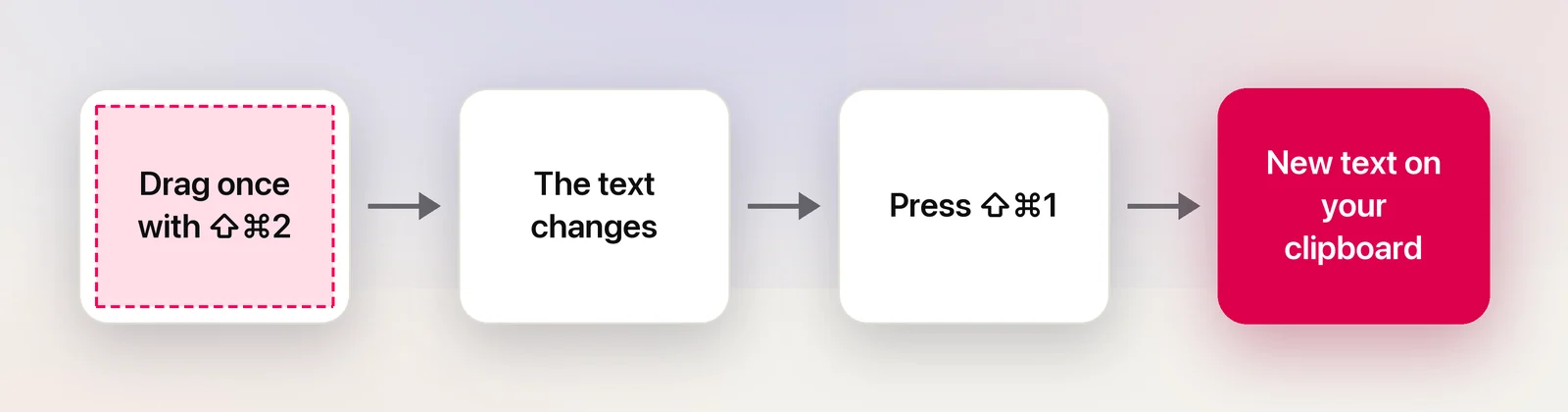
Capture Again re-reads the exact rectangle of your last Unpixel selection when you press ⇧⌘1. There’s no crosshair and nothing to drag: a brief outline shows the area, and the new text is on your clipboard with a “Copied again” confirmation. Add ⌥ to copy a translation. It reads once per press, only when you ask.
The free way: the Screenshot toolbar
macOS can capture the same area twice without an app. Press ⇧⌘5, click the button that captures a portion of the screen, and check that Remember Last Selection is ticked in the toolbar’s Options menu. The toolbar then brings back the rectangle you used last time, and Capture takes a new picture of it. Open the thumbnail and Live Text lets you select and copy the words.
That works for an occasional repeat. It still means a toolbar, a click, a screenshot file or thumbnail, and a second step to get at the text, and the image is all you get: no clipboard text until you select it yourself.
One key, the same rectangle
- Make an ordinary capture: ⇧⌘2, drag over the caption line or the slide, let go.
- When the text in that spot changes, press ⇧⌘1.
- A thin outline flashes around the area, so you can see what was read, and the confirmation says Copied again.
- Paste with ⌘V.
There’s no crosshair, so nothing covers the screen and nothing interrupts the call or the game. Everything else is the same as a normal capture: recognition with Apple’s Vision framework on your Mac, your Keep line breaks and language settings, tables that paste as cells, QR codes decoded, and a row in your history. Reading the same text twice doesn’t clutter history with duplicates.
Where it earns its key
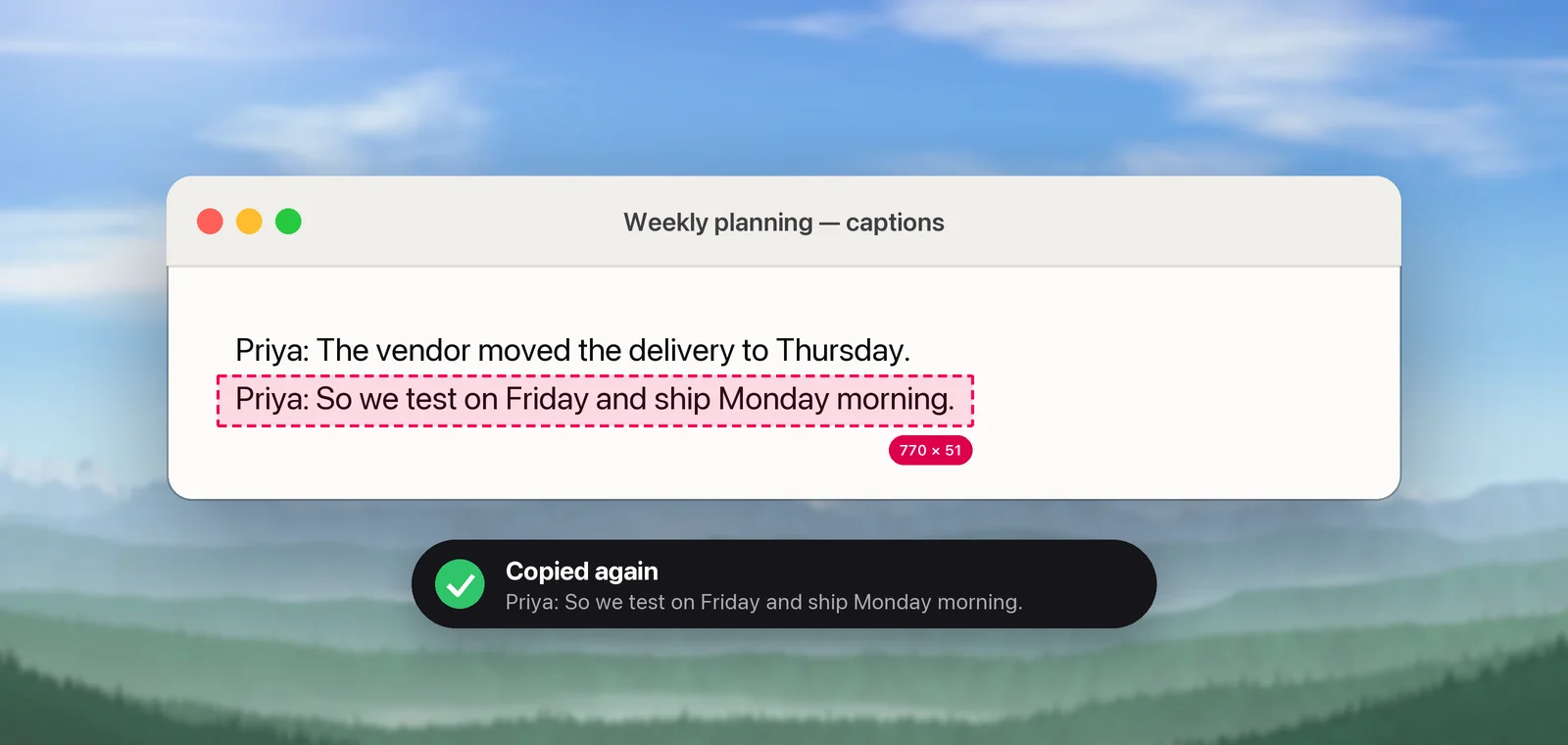
- Live captions and subtitles. Keep the selection on the caption line and press the key whenever a sentence is worth keeping.
- Slides in a call or a recorded talk. Select the slide body once, then copy each new slide as the presenter moves on.
- Dashboards and tickers. A build status, an order number, a price that refreshes.
- Games and emulators. Dialogue boxes appear in one place; with ⌥⇧⌘1 each line arrives translated, using Apple’s on-device Translation framework.
The menu bar icon’s menu and the panel’s … menu have Capture Again too, and holding ⌥ there shows Capture Again & Translate.
Remembered across restarts, and nothing more
Unpixel keeps only the rectangle: which display, and where on it. It survives quitting and restarting, and follows the display if you rearrange your screens. The text that was read is never part of that memory, and every new selection replaces it.
If the display is gone, or its resolution changed so the area no longer fits, Unpixel says Previous selection isn’t on screen and reads nothing. Make a new selection and carry on.
Deliberately limited
- Once per press. It doesn’t poll, watch or record. Screen Recording permission is used only at the moment you ask.
- No link or script command. Any app can open a URL and read the clipboard afterwards, so re-reading the screen without a fresh selection is kept to your own keys and clicks.
- Never adds to the clipboard. ⇧ is already part of ⇧⌘1. To gather several lines into one paste, use Append mode with an ordinary drag.
- A spot, not a window. If the window moves or scrolls, select again.
- Protected video still appears black to every screen-capture tool, so captions inside DRM-protected streams can’t be read.
The shortcut is yours to change or clear in Settings → General. If another app needs ⇧⌘1, record different keys there. Read the same area again covers every setting and message.
Frequently asked questions
Does Capture Again record the area continuously?
No. It reads the area once each time you press the shortcut or pick the menu item, then stops. Nothing watches or records the screen in between.
What if the window I captured from moves?
Capture Again remembers a spot on the display, not a window. If the window moved, it reads whatever is in that spot now, so make a fresh selection with ⇧⌘2.
Can a script or a Shortcuts action trigger it?
No. There’s no link for Capture Again, because any app can open a link and then read the clipboard. It only runs from your own shortcut or the menu.