Copied a reference number from a video call an hour ago, then copied something else over it? With Unpixel, that number is still a click away. The text of each capture is saved in a history inside the menu bar panel, on your Mac and nowhere else, and you decide how much of it to keep.
Yes. The text of every capture goes into a history in Unpixel’s menu bar panel, newest first, with the app it came from and when. Search it, filter it by Text, Links or QR Codes, and click a row to copy it again. The history is a file on your Mac only: keep the last 100 to 5,000 captures or everything, clear it, or turn it off.
Clipboard history in macOS, and how this differs
macOS Tahoe has a clipboard history of its own, inside Spotlight. Press ⌘Space, then ⌘4, and you see what you copied recently in any app. The first time, macOS may ask whether to allow results from the Clipboard. To wipe it, open the More menu beside the search field and choose Clear History. It costs nothing, and for most copy-and-paste mix-ups it’s all you need. Our guide to clipboard history on Mac covers it in detail.
Unpixel’s history is narrower on purpose. It only holds text that Unpixel read for you, from the screen, a copied image or a file. In return, each entry knows more about itself:
- the app the text came from, such as “Safari · Just now”
- whether it was plain text, a link, a QR code or barcode, or a table
- the original wording, if you copied a translation
The two work fine side by side. Spotlight remembers what you copied; Unpixel remembers what you read off the screen.
Every capture, findable
Click the Unpixel icon in the menu bar and the history sits under the Copy Text button, newest first. Each row shows the icon of the source app, up to two lines of text and a caption with the source and time.
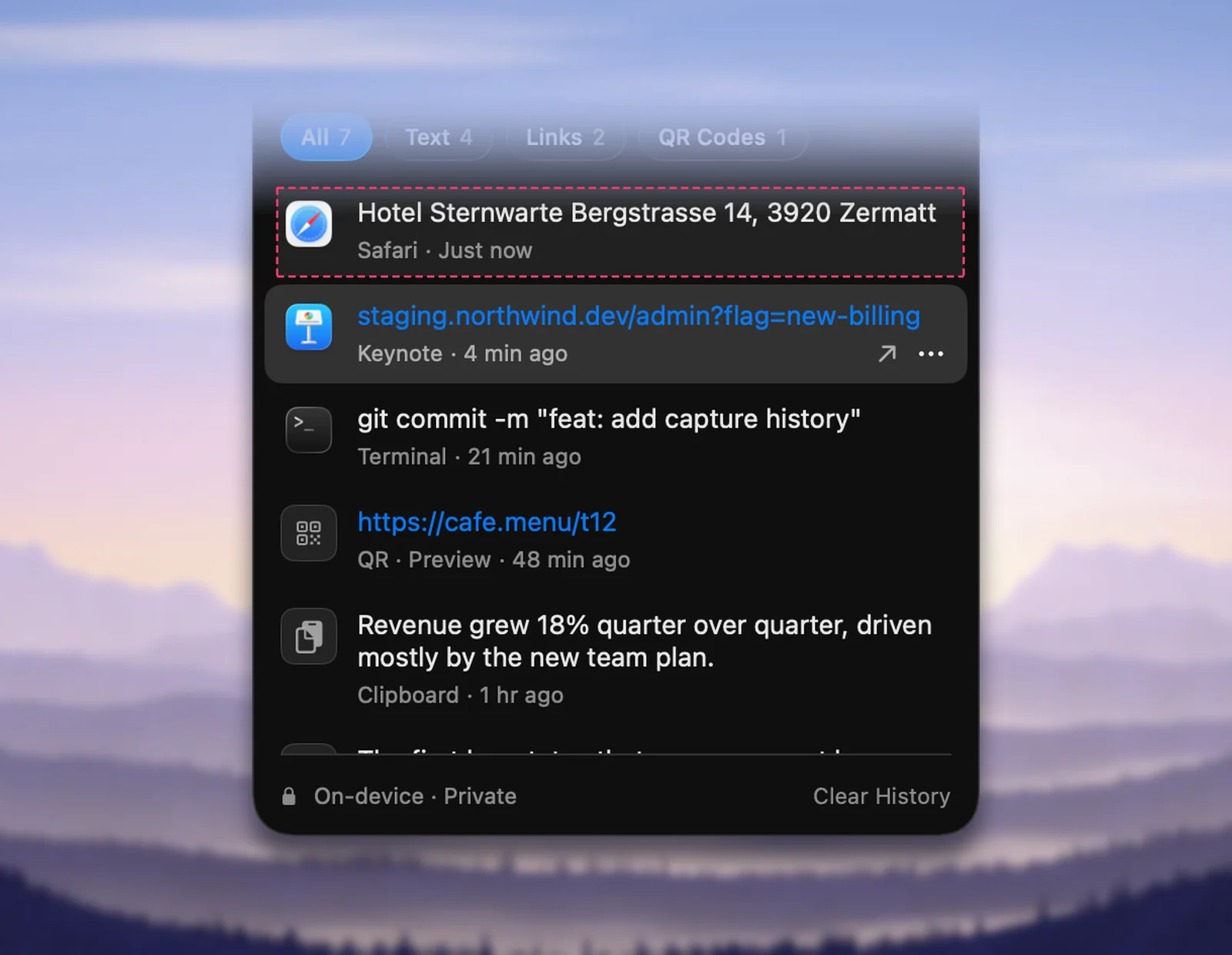
The source is whichever app owned the window you dragged over; drag across the empty desktop and Finder gets the credit. A copied image is labelled Clipboard, and an opened file shows its file name. Some kinds of capture stand out at a glance:
- Links appear in your accent color.
- QR codes and barcodes put the code type before the source, as in “QR · Preview” or “EAN-13 · Safari”.
- Tables show their first two rows and their size, such as “Table · 5 × 3”.
- Translations show the translated text and the language it came from.
Search and filters
The search field matches more than the captured words. It also looks at the source app or file name, the code type of a barcode (“EAN-13”), the word “table” for table captures, and the original text of anything you translated. Matching ignores capitals and accents, so “cafe” also finds “Café”.
Four filters sit below the search field, All, Text, Links and QR Codes, each showing how many captures it holds. Tables and translations count as Text. A filter and a search narrow the list together, so Links plus part of a domain finds one address quickly.
You don’t need the mouse once the panel is open: ⌘F puts you in the search field, ↑ and ↓ step through the rows, Return copies the highlighted one, ⌘⌫ removes it and Esc closes the panel.
What you can do with a row
A click on any row puts its text back on the clipboard. Right-click the row, or use its … button, for the rest:
- Copy as Text, Copy as Markdown or Copy as CSV for tables
- Copy Original for a translation, and Translate & Copy for text in another language
- Open Link when the capture is a web address or a QR code that holds one
- Share…, which opens the macOS share menu
- Delete, for one row you’d rather not keep
Share and Open Link hand a capture to another app, and only when you choose them. The history row actions article describes each command.
Stored on your Mac, and nowhere else
The history is a single file in ~/Library/Application Support/Unpixel. Settings → History shows the path, with a Show in Finder button. There’s no account and no sync, so each Mac keeps its own history, and Unpixel never uploads it.
One honest caveat: the file is protected like your other documents, by your login password and FileVault if you use it. It isn’t encrypted separately. If you capture passwords, card numbers or medical details, delete those rows afterwards, or turn history off while you work with them. Private by design explains what else stays on your Mac.
Limits and the off switch
All the controls are in one place:
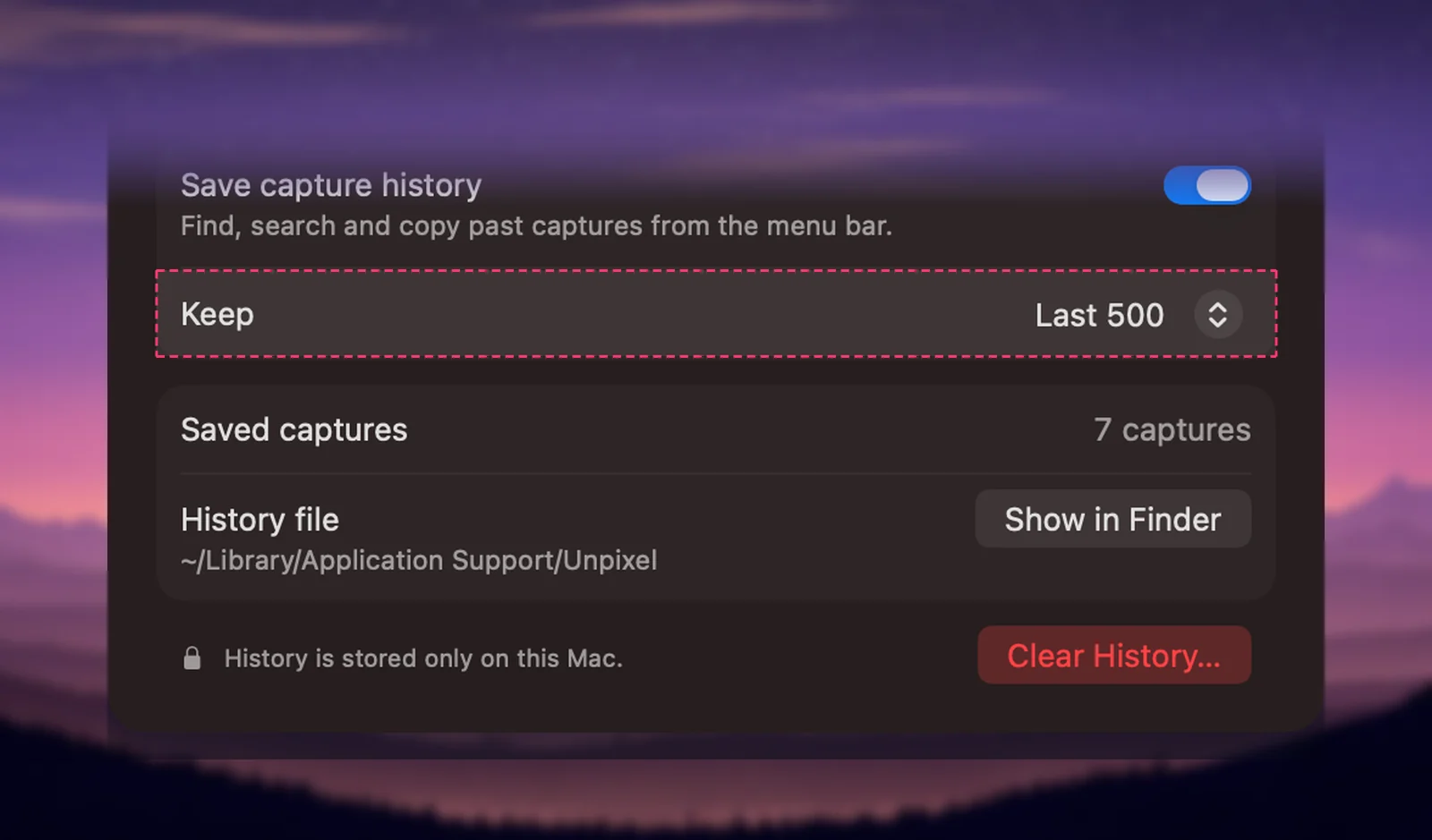
- Right-click the Unpixel icon in the menu bar and choose Settings…, then click History.
- Under Keep, choose Last 100, Last 500 (the default), Last 1,000, Last 5,000 or Forever. Picking a limit below the number you already have asks before it deletes the oldest captures.
- Turn off Save capture history to stop saving new captures. They still reach the clipboard, and the captures you already have stay where they are.
- Click Clear History… to delete everything. The same button sits in the panel’s footer. Both ask first, and clearing can’t be undone.
The history keeps text, not pictures. It can’t re-read an old capture in Accurate mode or another language, and it can’t show you what the screen looked like. When the text came out wrong, capture the area again.
Frequently asked questions
Does Unpixel’s history include everything I copy?
No. It only holds text that Unpixel read for you: screen captures, From Clipboard and opened files. Text you copy with ⌘C in other apps never appears there.
Can I see the screenshot a capture came from?
No. Unpixel reads the area you select and keeps only the text. The image is never saved, so to read something again with different settings, capture it again.
Does turning history off delete what’s already saved?
No. New captures stop being saved, and the panel says so above the list. Older captures stay until you choose Clear History.
Is my history synced to my other Macs?
No. Each Mac keeps its own history file, and nothing in it is uploaded anywhere.
Sources
- Search your Clipboard history in Spotlight on Mac — Apple Support support.apple.com