Normally each capture replaces what’s on your clipboard. Adding works the other way: the new text goes after what’s already there. Gather a quote from three slides, a few lines from a long thread or the fields of a form, and paste them in one go.
Hold ⇧ (Shift) as you let go of a selection — the size label adds “Add” — and Unpixel puts the text after what’s already on the clipboard instead of replacing it. The confirmation counts the passages, such as Added to clipboard · 3 passages. Paste once when you’re done. Choose a new line, a blank line or a space between passages in Settings → General.
Add a capture
- Press ⇧⌘2 and drag over the first passage. Let go as usual. That’s passage one.
- Press ⇧⌘2 again and drag over the next passage.
- Hold ⇧ as you let go. The size label next to the selection adds “Add”.
- The confirmation says Added to clipboard with the count and a preview, such as “2 passages · Shipping takes 3–5 days.”
- Repeat for more passages, then paste once with ⌘V.

Only the moment you let go counts. ⇧ is part of ⇧⌘2, so it may still be down when the crosshair appears; that doesn’t matter. Release ⇧ before you let go of the mouse and you get an ordinary capture.
Prefer not to hold a key? Right-click the menu bar icon, or click … in the panel, and choose Copy & Add Text, then drag.
Choose the separator
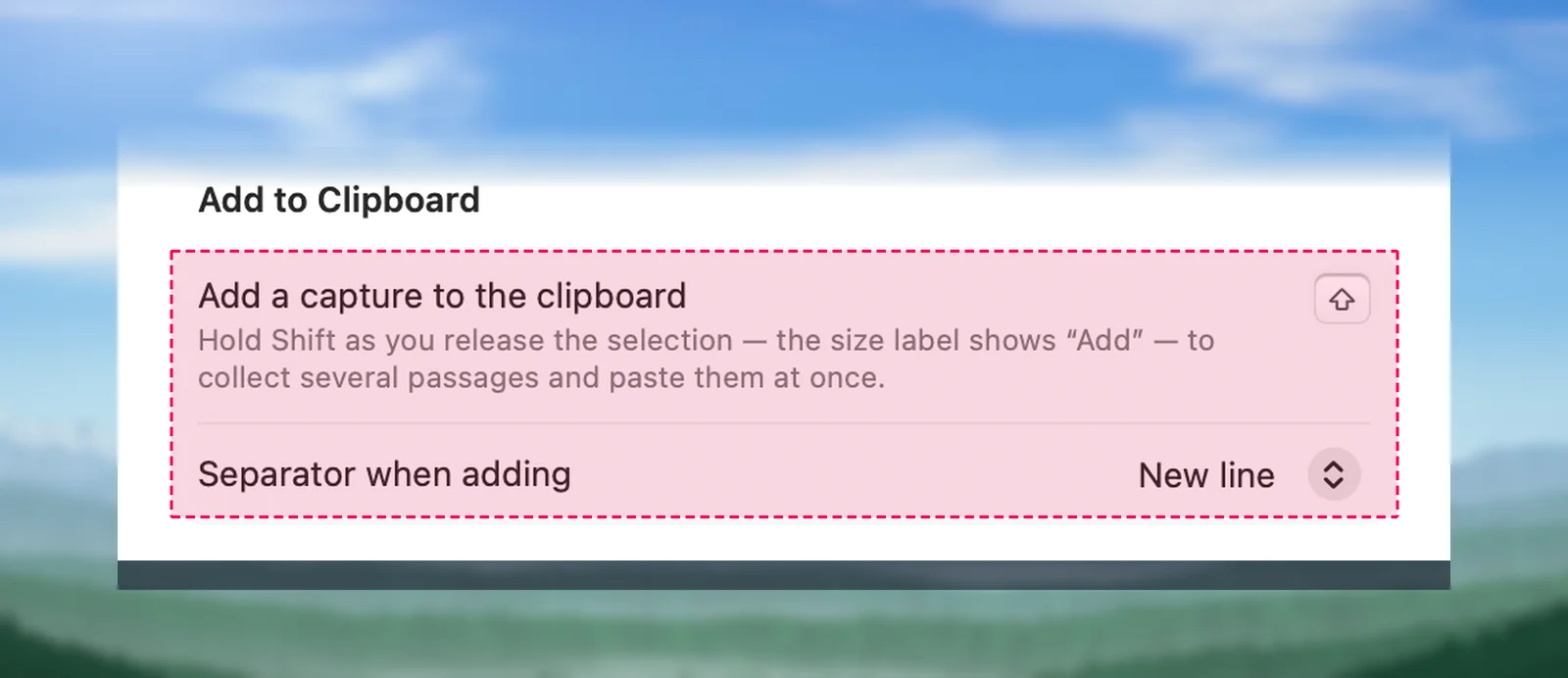
In Settings → General → Add to Clipboard, Separator when adding offers New line (the default), Blank line or Space. Line breaks where two passages meet are dropped first, so New line never turns into a blank line when a passage ends with one; with Space, extra spaces go too.
Where the text goes
- Your collection continues while the clipboard still holds exactly what Unpixel put there last, whether that was a capture, an added passage or a row copied again from history.
- Text you copied elsewhere is kept. If you copied something in another app, that text becomes the first passage and the capture goes after it. The same happens after Unpixel restarts.
- No text to add to. With an image, Finder files or nothing on the clipboard, the capture starts a new collection on its own and is copied like any capture. Passwords that a password manager marks as private aren’t added to.
The first time Unpixel reads text another app copied, macOS may ask whether to allow it; that’s Paste from Other Apps in System Settings → Privacy & Security. If Unpixel isn’t allowed, it leaves the clipboard alone, saves the capture to history and warns Couldn’t add to the clipboard.
Tables, links and translations
A collection is plain text. An added table goes in as text, tab-separated by default (the Tables as plain text setting), and the confirmation says “Table added as text”. A table that starts a collection is still copied with its cells. Links and QR code contents go in as their text.
Hold ⌥⇧ as you let go to add a translation instead of the original. With Copy original and translation on, both are added.
What doesn’t add
- From Clipboard, Open Image… and dropped files always replace the clipboard.
- Capture Again never adds, because ⇧ is part of its shortcut. See Read the same area again.
Passages stay in the order you selected them, even if a long one finishes reading after a short one. History keeps every capture as its own row.
Automation
unpixel://capture?append=1 starts a capture that adds, like Copy & Add Text; add &translate=1 to add a translation. The Shortcuts version, unpixel://x-callback-url/capture?append=1, returns only the new passage to your shortcut while the clipboard holds the whole collection. See the URL scheme reference.
Frequently asked questions
Do I have to keep holding ⇧ from the start of the drag?
No. Only the moment you let go counts. You can press ⇧ just before releasing, and letting go of it first gives you an ordinary capture.
What happens if I copy something else in between?
That text becomes the first passage of a new collection, and your next added capture goes after it. Nothing you copied yourself is dropped.
Does history save the combined text?
No. History keeps each capture as its own row, with its table or translation. Only the clipboard holds the collection.