Unpixel is a screen OCR app for Mac with one job: get the words you can see onto your clipboard, whatever app is showing them. You press a shortcut, draw a box and paste. Here’s what that looks like, which sources it handles, and where it stops.
Press ⇧⌘2 in any app, drag a box over the words you can see, and let go. Unpixel reads that box with Apple’s Vision framework on your Mac and puts the text on your clipboard, ready for ⌘V. It works on paused video, shared screens, scanned pages, games and error dialogs. Video that macOS protects from capture shows up black and can’t be read.
One shortcut, any app
- Press ⇧⌘2. The screen dims slightly and the pointer becomes a crosshair.
- Drag a rectangle around the text. A small label beside it shows the size in points, such as “188 × 40”.
- Let go. A confirmation appears near the top of the screen with a preview of what was copied.
- Switch to wherever the text should go and press ⌘V.
Started the box a little off? Hold Space while you drag to move the whole rectangle, then release Space and keep sizing it. Press Esc or right-click to cancel. The shortcut works from any app and on every connected display, and you can change it or clear it in Settings → General (Change or clear the capture shortcut).
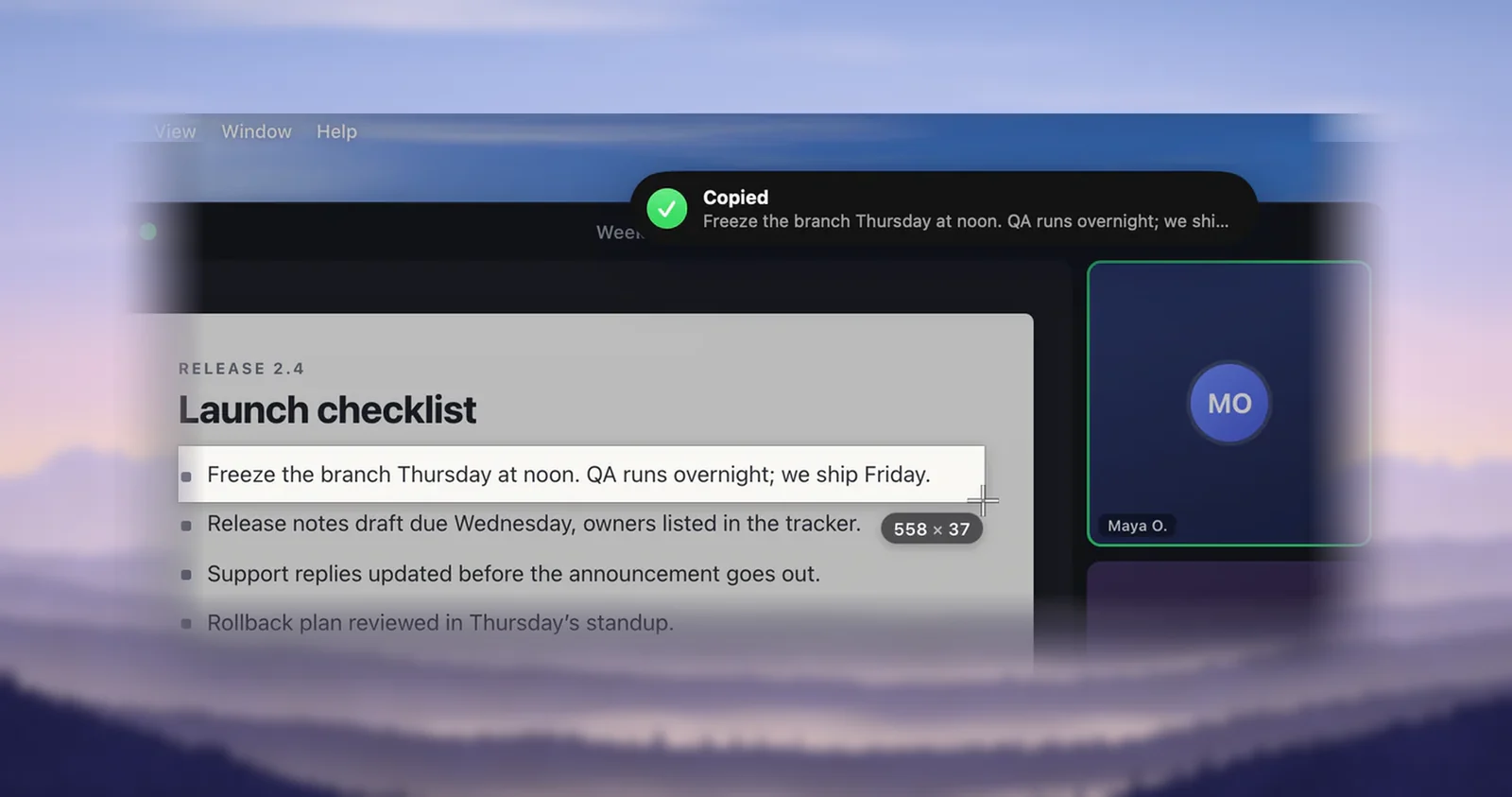
Nothing has to be selectable, and the app you’re copying from doesn’t have to cooperate. Unpixel looks only at the pixels inside your rectangle, at the moment you let go (or, with Capture Again, when you ask it to read that rectangle once more). Its own selection frame, confirmation and menu bar panel are left out of that image, so they never end up in your text.
What it reads
If it’s drawn on screen as letters, it can usually be read. These are the sources people reach for it most:
- Paused video. A line of code in a tutorial, a link in a conference talk, an ingredient list in a cooking clip. Pause on a sharp frame first; Copy text from a video on Mac has tips on choosing one.
- Screen shares in calls. A slide someone is presenting, a document they scroll past, a terminal they type into.
- Scanned PDFs and photos of pages. Pages that are pictures, where selection and search find nothing.
- App interfaces. Error dialogs, installer messages, settings panes and labels you can’t highlight.
- Games, maps and web images. Quest text, street names, words baked into a banner.
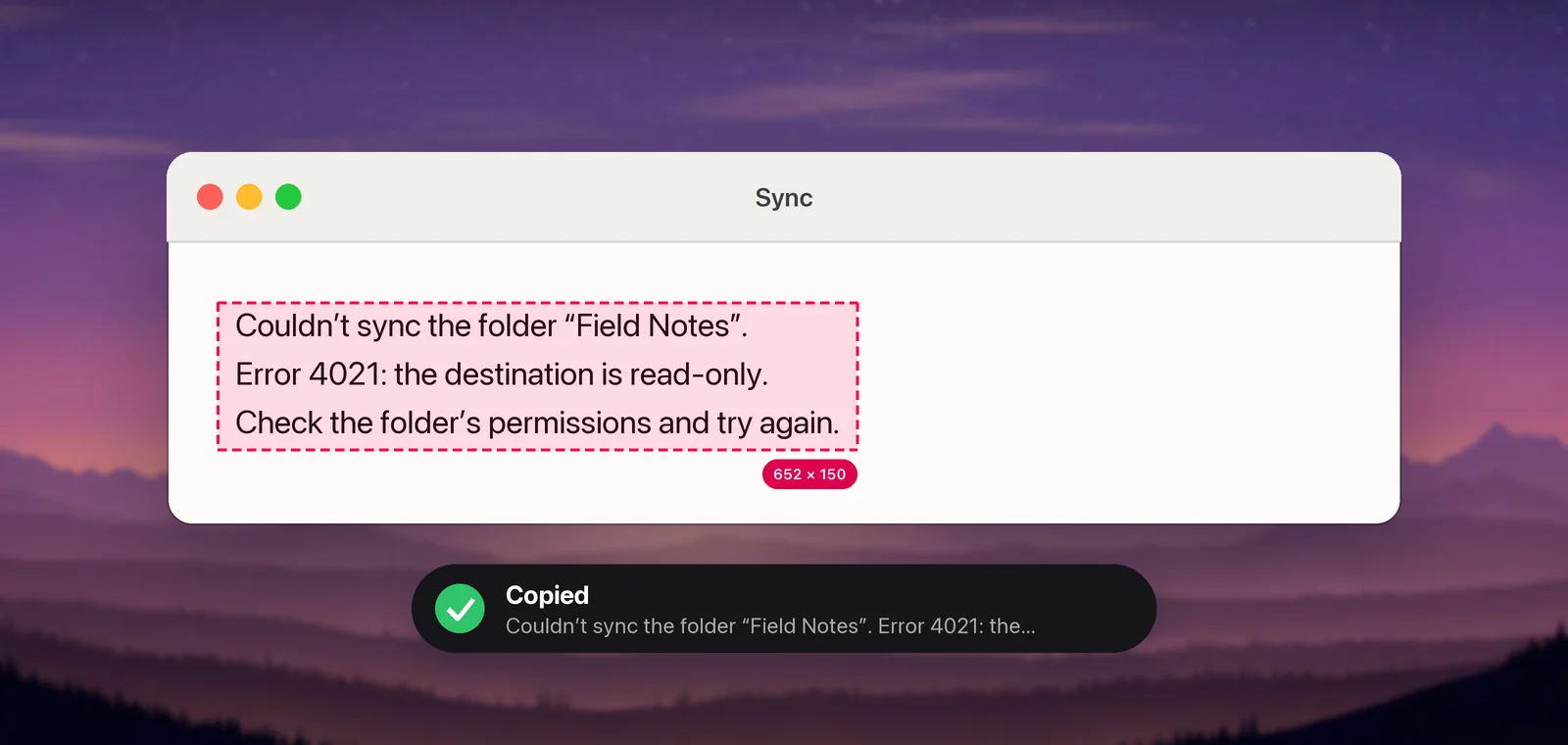
Bigger text reads better, so zoom in before you drag when the print is small. Neat handwriting often works; messy handwriting, faint pencil and tight cursive often don’t. Recognition mode and language correction explains the settings that help with codes, names and faded text.
What lands on the clipboard
Unpixel looks at what it read and copies it in the most useful form. The confirmation tells you which one you got:
| You captured | The confirmation says | What you paste |
|---|---|---|
| Ordinary text | Copied | The text, with line breaks kept as seen or joined into paragraphs |
| One web address | Link copied | The address, also as a link for apps that accept links |
| A QR code or barcode | QR code copied, or Barcode copied | What the code contains, not the digits printed under it |
| A table | Table copied | Real rows and columns in Numbers, Excel, Google Sheets and Notes |
| Nothing readable | No text found | Nothing: your clipboard keeps what it had |
Each of these has its own page: QR codes and barcodes, web addresses and tables. Whether lines stay as they appear or join into running text is up to you; see Keep or join line breaks.
Unless you turn history off, every capture is also saved to a local history in the menu bar panel, labelled with the app it came from, such as “Safari · Just now”. Click a row to copy it again.
Two variations on the same drag: hold ⇧ as you let go and the text is added to what’s already on the clipboard instead of replacing it, so several passages paste at once (Append mode). And when the text in that spot changes, press ⇧⌘1 to read the same area again without dragging.
Where it won’t work
- Protected video. Many streaming apps and sites block screen capture, and capture tools usually get a black rectangle instead. Unpixel can’t read what it isn’t shown, so look for subtitles or a transcript.
- Text that isn’t on screen. Only what’s visible inside the box is read. Unpixel doesn’t scroll, so capture a long page in parts.
- Hidden characters. A password field shows dots, and dots are all there is to read.
- Two displays at once. A selection stays on the display where you started dragging.
- Tiny, blurred or low-contrast text. Expect slips like l for 1 or rn for m. Check codes and numbers by eye.
Reading the screen needs macOS’s Screen Recording permission, which you grant in System Settings → Privacy & Security → Screen & System Audio Recording. Unpixel uses it only for the area you select, when you let go or ask to read that area again, and nothing is recorded or saved as video. Allow Screen Recording for Unpixel walks through the prompt.
What macOS does for free
If you only copy text off the screen once in a while, macOS can do it without any extra app. Live Text selects words inside images in Preview, Photos, Quick Look and Safari. For anything else, press ⌃⇧⌘4 to copy a screenshot of an area, open Preview, choose File → New from Clipboard, then select the words. How to copy any text on your Mac screen covers both routes step by step.
Unpixel turns that into one drag that works over any app, including video, calls and dialogs that Live Text doesn’t reach. On top of plain text, it pastes tables as cells, reads QR codes and barcodes, translates as you capture, and keeps a searchable history.
Try it
Unpixel runs on macOS 26 Tahoe or later on a Mac with Apple silicon. After you install it, the welcome guide walks you through activating your license and granting Screen Recording permission, then has you try a capture on a sample paragraph. Your first capture shows the same steps, with tips on choosing a good selection.
Frequently asked questions
Does the text have to be selectable?
No. Unpixel reads the pixels inside your box, so it works on pictures of text, video frames and app labels that you can’t highlight. If the text is selectable, ⌘C is still the quickest way.
Does Unpixel keep a screenshot of what I captured?
No. The image of your selection is read in memory and then discarded. Only the recognized text is kept, in a local history you can turn off in Settings → History.
Can I capture across two displays at once?
No. A selection stays on the display where you started dragging. Capture each display separately.
Sources
- Take a screenshot on Mac — Apple Support support.apple.com
- Interact with text in a photo using Live Text in Preview on Mac — Apple Support support.apple.com
- Control access to screen and system audio recording on Mac — Apple Support support.apple.com