
Notes is where a lot of copied text ends up: an address from a screenshot, a schedule from a PDF, steps from a video, a list someone showed in a meeting. Getting it there as text, not as another picture, means you can search it, edit it and tick it off. Here’s what Notes does by itself, and how to bring in text from the rest of your screen.
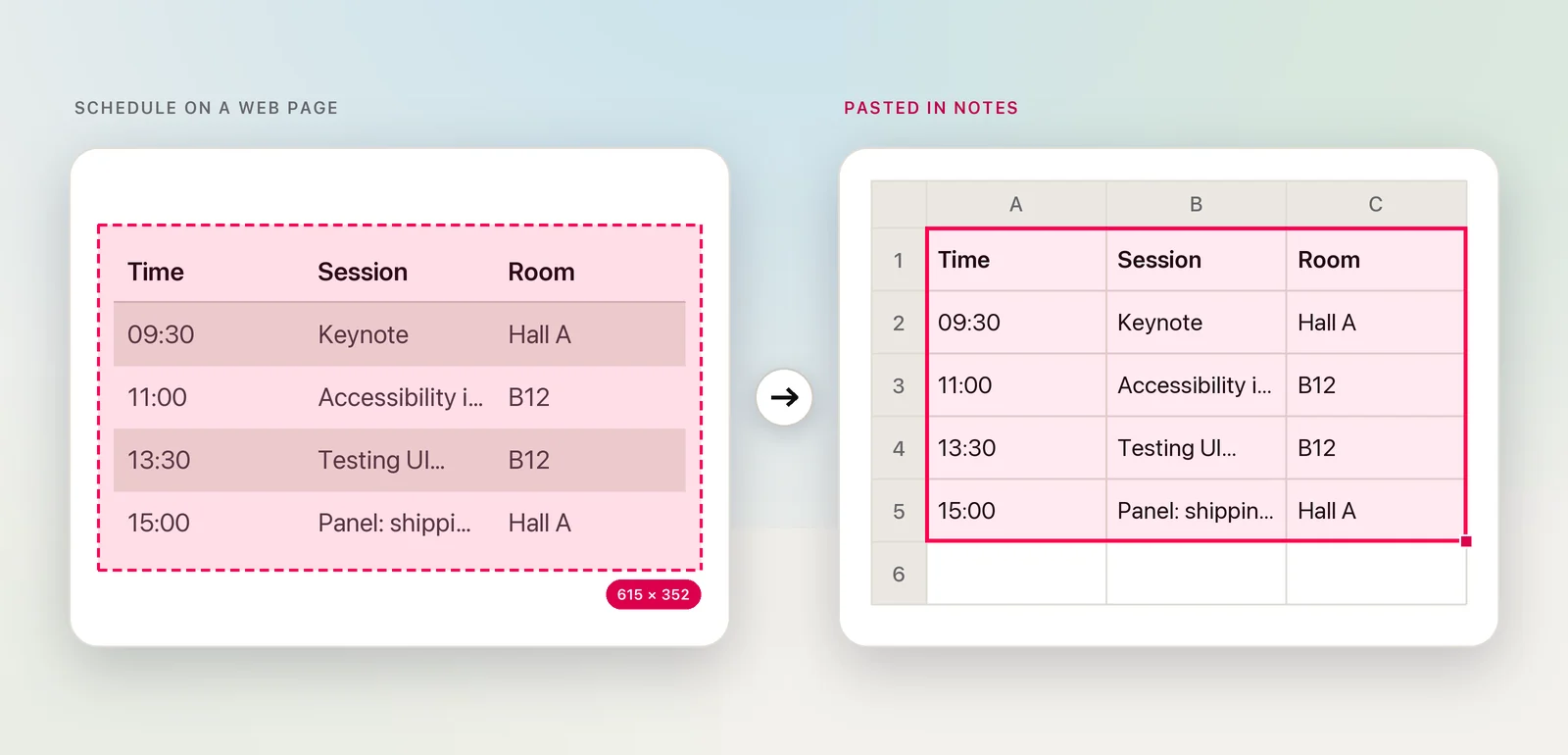
Notes can search text in scanned documents and handwriting, but it can’t read text that another app shows on your screen. Copy that text with Live Text or an on-screen OCR tool and paste it into a note; a captured table becomes a Notes table. For paper, choose File → Insert from iPhone or iPad → Scan Documents. To turn pasted lines into a to-do list, select them and click Checklist.
What Notes already reads
Notes does more recognition than most people realise. According to Apple, its search covers:
- text in a scanned document attached to a note,
- handwriting and drawings,
- PDFs attached to a note,
- what’s shown in images, such as a bike in a photo.
So for paper, the free built-in route is often enough. In a note, choose File → Insert from iPhone or iPad → Scan Documents, scan the pages with your iPhone, and they’re added to the note as a document you can find by its words later.
What Notes can’t do is read another app. A table on a web page, a slide in a video call or a dialog on your screen isn’t in Notes until you copy it as text. For an image file, Live Text in Preview handles that: drag across the words, copy, paste into the note.
Paste text into a note
A normal paste brings the source’s fonts and sizes along. To make the text look like the rest of your note, choose Edit → Paste and Match Style instead (⌥⇧⌘V).
Before you paste a paragraph, check the line breaks. Text copied from a narrow column or a PDF often keeps a break at the end of every line, which looks ragged in a wide note. Join the lines at the source if your tool can, rather than fixing them one by one.
Tables become Notes tables
A table on the clipboard as cells pastes into Notes as a real Notes table, with each value in its own cell. Notes tables are deliberately simple, and a few things help:
- Add a row by pressing Tab or Return in the last cell.
- Move a row or column by clicking its handle, holding until it lifts, then dragging.
- Add or delete rows and columns from the arrow on the handle.
- Go back to text with the Table Actions button and Convert to Text.
Notes can’t sum a column or sort by a value. If you need that, paste the same table into Numbers instead; see using Numbers with captured tables.
Quick Note as a capture log
Quick Note opens a small note over whatever app you’re in, so you can paste without switching windows:
- Press and hold Fn or the Globe key, then press Q. Or move the pointer to the bottom-right corner of the screen, the default hot corner, and click the note.
- Paste what you copied.
By default, Quick Note reopens the last Quick Note, which makes it a running log for a research session or a meeting. To start a fresh note each time, turn off Always resume to last Quick Note in Notes → Settings. Quick Notes are kept in the Quick Notes folder. Quick Note on Mac covers links and Safari highlights.
Checklists from captured lists
Steps from a tutorial, items from a packing list or action points from a slide are more useful as a checklist:
- Paste the list so that each item is on its own line.
- Select the lines and click the Checklist button in the toolbar. Each paragraph becomes an item.
- Reorder items by dragging, or with ⌃⌘↑ and ⌃⌘↓.
To keep finished items out of the way, turn on Automatically sort checked items in Notes → Settings. Format → More → Check All and Uncheck All reset a list you reuse, such as a packing list.
In Unpixel
Unpixel copies text from any app on your screen, so the step before “paste into a note” is one shortcut. Press ⇧⌘2, drag over the text or table, let go, then paste into the note or a Quick Note.
- Tables paste as Notes tables. Unpixel puts a captured table on the clipboard as cells, which Notes turns into a table. The confirmation says “Table copied” with its size.
- Paragraphs or lines. Turn off Keep line breaks in Settings → Recognition to have the lines of each paragraph joined for you. List items stay on their own lines either way, ready for the Checklist button.
- Pictures you’ve already copied. From Clipboard reads an image on the clipboard, such as a photo from Messages.
- Translate on the way in. Hold ⌥ as you let go to paste a translation instead, or copy the original and the translation together for bilingual notes.
Frequently asked questions
Can Notes find text inside a scanned document?
Yes. Apple says search covers text in scanned documents attached to a note, handwriting and drawings, and attached PDFs, as well as what’s shown in images.
Why did my pasted table lose its formatting in Notes?
Notes tables support less formatting than spreadsheets or web pages, and Apple notes that some formatting isn’t supported when you paste tables from other apps. The cells and their text come through.
How do I turn a Notes table back into text?
Click in the table, click the Table Actions button and choose Convert to Text.
Sources
- Search your notes on Mac — Apple Support support.apple.com
- Add photos, PDFs, and more in Notes on Mac — Apple Support support.apple.com
- Add a table in Notes on Mac — Apple Support support.apple.com
- Create a Quick Note on Mac — Apple Support support.apple.com
- Add lists in Notes on Mac — Apple Support support.apple.com